 English
  Deutsch
  Español
  Italiano
  Français
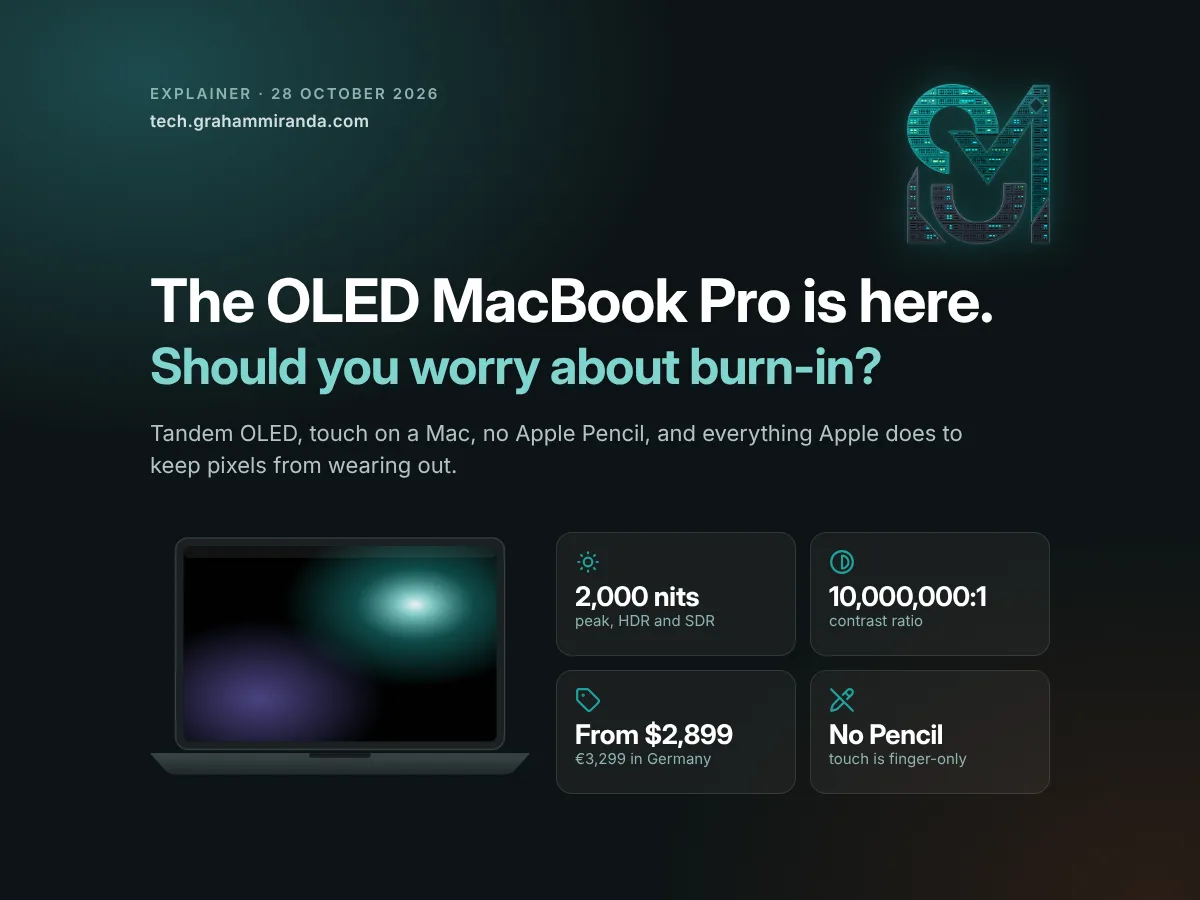
For years, the Mac people asked for most was also the one they feared most: an OLED MacBook Pro. Asked for, because OLED is why an iPhone or an iPad Pro looks the way it does: true blacks, highlights that glow, no backlight leaking into the dark parts of the picture. Feared, because of the two words every OLED owner ends up typing into a search box sooner or later: burn-in.
On 28 October 2026, Apple shipped it. The MacBook Pro with PROLED XDR Display comes in 14.2-inch and 16.3-inch sizes, uses a tandem OLED panel built on the same idea as the iPad Pro's, reaches 2,000 nits, claims a 10,000,000:1 contrast ratio and, for the first time on any Mac, responds to your finger. It starts at $2,899 in the US and €3,299 in Germany, $400 (€400–500) more than the mini-LED MacBook Pro with the same M5 Pro and M5 Max chips, which stays on sale. Pre-orders are open; it arrives on 6 November.
It's also the first time Apple has put an OLED screen behind a desktop operating system, where the screen's day job is showing things that don't move: a menu bar, a Dock, window buttons, sidebars, toolbars and the same code editor layout for eight hours a day. That is precisely the content OLED copes with worst. So this article treats OLED MacBook Pro burn-in as an engineering question rather than a meme or a shrug, and it covers everything else you'd want to know before spending $2,899 or more.
Here's what's in it: what Apple announced and what it costs; what tandem OLED actually is; why this display is remarkable; what two and a half years of the iPad Pro's tandem OLED tell us; how burn-in happens and why a Mac is OLED's hardest job; the four things Apple does to prevent it, taken from its own technical paper; what the toughest long-term tests show; your own risk by the way you work, and the settings that cut it; how touch works on macOS; the Apple Pencil that doesn't work; the other problems a first-generation OLED, touchscreen Mac could have; who it's for; and how to choose between it, the mini-LED model and an iPad Pro. Every figure was checked against its source on 28 October 2026, the day Apple announced it.
Independence note: No company mentioned in this article sponsored, reviewed or approved it, and it contains no affiliate links. I haven't tested the MacBook Pro with PROLED XDR Display yet. The hands-on impressions here come from reviewers who used it at Apple's launch event in Los Angeles, and they're credited where they appear.
TL;DR — The 60-Second Version
- What it is. Apple's first OLED Mac and first touchscreen Mac: the MacBook Pro with PROLED XDR Display, 14.2 or 16.3 inches, with M5 Pro or M5 Max chips. From $2,899 or €3,299. Pre-orders now, in stores 6 November. The mini-LED MacBook Pro remains on sale for $400 (€400–500) less.
- The display. Tandem OLED (two stacked emitter layers per pixel), 1,000 nits sustained across the full screen, 2,000 nits peak for HDR and for SDR outdoors, 10,000,000:1 contrast, 10–120 Hz, P3 plus Adobe RGB, 16 reference modes. Engadget's first look called it the best display it has seen on an Apple device.
- Burn-in is real, and Apple takes it seriously. OLED's organic emitters age as they're used, and static, bright content left on screen for long periods ages some pixels faster than others. Apple's defences: two layers sharing the load, per-pixel wear tracking and compensation, a brightness ceiling that factors in burn-in risk, and a cooling system that routes heat away from the panel.
- What Apple doesn't promise: a lifetime figure, details of how its compensation works, or warranty terms that mention burn-in.
- What the tests say. RTINGS ran 20 OLED TVs through 10,000 hours of simulated news at maximum brightness, and all of them burned in. Monitors Unboxed saw slight taskbar-icon burn-in on a QD-OLED monitor after 24 months and more than 6,000 hours of light-mode desk work. A heavy laptop user racks up about 2,080 hours a year. But both tests used TV and monitor panels built differently from Apple's, with their makers' own care features, and the TV test ran at full brightness.
- Your risk depends on how you work. Low for mixed use and creative work. Moderate for long days in an IDE or a bright spreadsheet. High for dashboards and anything that sits on screen unattended for hours. A handful of settings removes most of the remaining risk.
- Touch is useful, but secondary. Scroll, pinch, rotate, draw, drag, tap the Dynamic Island. Existing apps work because macOS turns taps into clicks. The screen doesn't fold flat.
- No Apple Pencil, of any kind. Apple confirmed to reviewers that it doesn't work, even as the foldable iPhone Duo gets Pencil support. If you draw, buy an iPad Pro and use Sidecar.
- Other open questions: the $400 premium, PWM flicker (not yet measured on this panel), thermals in the thinner chassis, brightness ratings that only hold below 25 °C, first-generation touch software, and Siri AI and Spotlight in the Dynamic Island, which don't work in German yet.
- Who should buy it: people whose work lives on the screen (photo, video, HDR, colour), people who carry their laptop every day, and anyone who wants Apple's best laptop display. Who should skip it: Pencil users, always-on dashboard workflows and anyone happy to save $400 for the same chips.
At a Glance: OLED vs Mini-LED MacBook Pro
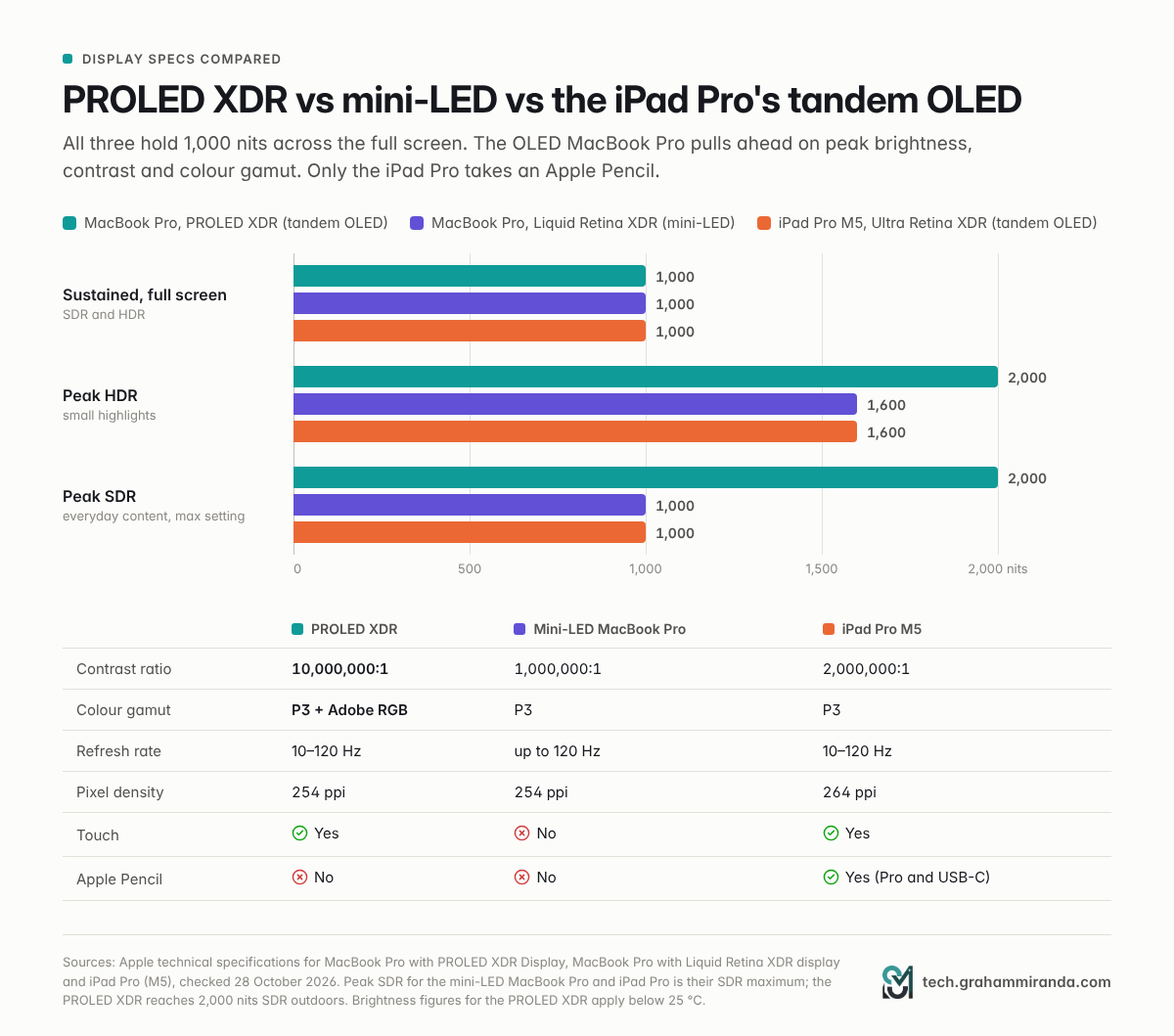
| MacBook Pro with PROLED XDR | MacBook Pro with Liquid Retina XDR | |
|---|---|---|
| Panel | Tandem OLED, self-emissive pixels | Mini-LED backlit LCD |
| Sustained full-screen brightness | 1,000 nits | 1,000 nits |
| Peak brightness | 2,000 nits (HDR, and SDR outdoors) | 1,600 nits (HDR); 1,000 nits SDR |
| Contrast ratio | 10,000,000:1 | 1,000,000:1 |
| Colour gamut | P3 and Adobe RGB | P3 |
| Refresh rate | 10–120 Hz | Up to 120 Hz |
| Touch | Yes | No |
| Camera cut-out | Dynamic Island | Notch |
| Weight (M5 Pro, 14" / 16") | 1.38 kg / 1.82 kg | 1.60 kg / 2.14 kg |
| Burn-in risk | Low with sensible use, not zero | Very low (LCDs don't wear pixel by pixel) |
| Blooming around bright objects | None | Some, from the backlight zones |
| Apple Pencil | No | No |
| Chips | M5 Pro, M5 Max | M6 (14" only), M5 Pro, M5 Max |
| Starting price (US / Germany) | $2,899 / €3,299 | $2,499 / €2,899 (M5 Pro) |
Apple's technical specifications and press release, and German launch prices reported by apfelpatient.de, Mac Life and WinFuture, all 28 October 2026. The mini-LED range also includes a 14-inch model with the base M6 chip from $1,999.
Table of Contents
- Part 1 — What Apple Announced on 28 October
- Part 2 — PROLED XDR, Explained: What Tandem OLED Actually Is
- Part 3 — Why It's So Good: The Case for OLED on a Mac
- Part 4 — The iPad Pro Was the Dress Rehearsal
- Part 5 — Burn-In 101: Why a Mac Is OLED's Hardest Job
- Part 6 — What Apple Is Doing to Prevent Burn-In
- Part 7 — What the Long-Term Tests Say
- Part 8 — Your Burn-In Risk, by How You Work
- Part 9 — How to Protect Your OLED MacBook Pro (Settings and Habits)
- Part 10 — Touch on the Mac: How It Works and Where It Helps
- Part 11 — No Apple Pencil: What That Means and What to Do Instead
- Part 12 — Other Problems It Could Have
- Part 13 — Use Cases: Who Gets the Most Out of It
- Part 14 — PROLED XDR vs Mini-LED vs iPad Pro: Which Should You Buy?
- Part 15 — What Comes Next
- Frequently Asked Questions
- The Bottom Line
Part 1 — What Apple Announced on 28 October
Apple announced the new laptops in a press release and showed them to reviewers at a hands-on event in Los Angeles. The official name is a mouthful, MacBook Pro with PROLED XDR Display, and it sits alongside the existing MacBook Pro rather than replacing it. So from today there are two MacBook Pros: the familiar mini-LED model (now called MacBook Pro with Liquid Retina XDR display) and this new one.
The headline specs
- Display: 14.2-inch (3024 × 1986) or 16.3-inch (3472 × 2266) tandem OLED at 254 pixels per inch, with touch built into the panel.
- Chips: M5 Pro or M5 Max, the same chips as the MacBook Pro Apple launched in March, with up to 128 GB of unified memory.
- Storage: up to 16 TB on M5 Max models (the mini-LED model tops out at 8 TB).
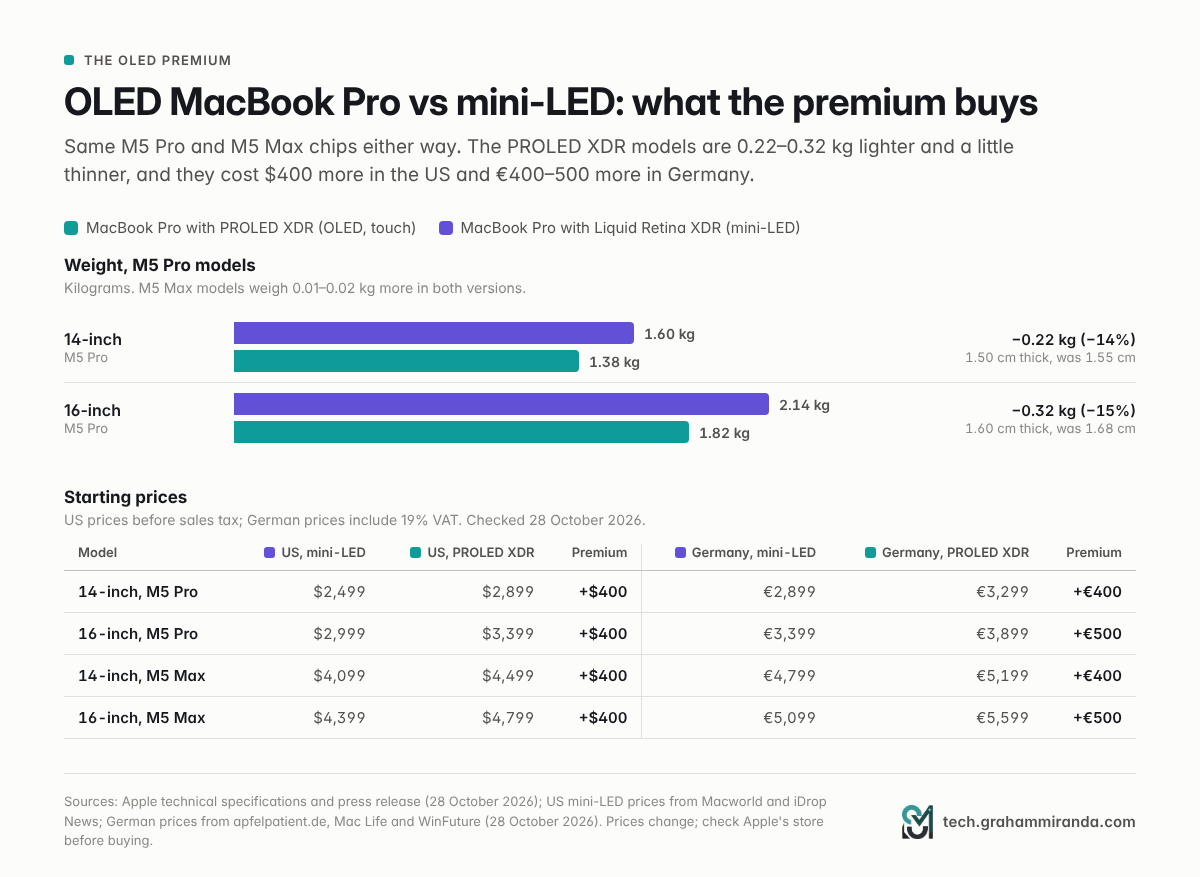
- Weight: 1.38 kg for the 14-inch with M5 Pro and 1.82 kg for the 16-inch, 0.22 kg and 0.32 kg less than the mini-LED equivalents. The new models are also about half a millimetre (14-inch) and nearly a millimetre (16-inch) thinner.
- Battery: the same ratings as the mini-LED models, up to 24 hours of video streaming on the 16-inch M5 Pro.
- Ports: three Thunderbolt 5, HDMI, an SDXC slot, MagSafe 3 and a headphone jack, plus Genlock support for film and virtual-production rigs with compatible third-party hardware.
- Everything else: a Dynamic Island instead of the notch, a 12-megapixel Center Stage camera that now stabilises the picture while you're touching the screen during a call, six speakers with what Apple says is 50% deeper bass, Wi-Fi 7 and Bluetooth 6 from Apple's N1 chip, Touch ID (not Face ID), and an Apple logo on the lid that lights up again for the first time in about a decade.
Apple's chief hardware officer, Johny Srouji, called PROLED XDR "the world's best laptop display" in the press release. That's marketing, but on paper it's hard to argue with, as Part 2 shows.
What it costs
| Model | Base configuration | US | US education | Germany | Mini-LED equivalent (US / DE) |
|---|---|---|---|---|---|
| 14-inch, M5 Pro | 15-core CPU, 16-core GPU, 24 GB, 1 TB | $2,899 | $2,749 | €3,299 | $2,499 / €2,899 |
| 16-inch, M5 Pro | 18-core CPU, 20-core GPU, 24 GB, 1 TB | $3,399 | $3,199 | €3,899 | $2,999 / €3,399 |
| 14-inch, M5 Max | 18-core CPU, 32-core GPU, 36 GB, 2 TB | $4,499 | $4,199 | €5,199 | $4,099 / €4,799 |
| 16-inch, M5 Max | 18-core CPU, 32-core GPU, 36 GB, 2 TB | $4,799 | $4,499 | €5,599 | $4,399 / €5,099 |
US prices from Apple's press release, before sales tax. German prices include 19% VAT and come from apfelpatient.de, Mac Life and WinFuture's launch coverage. Mini-LED US prices from Macworld and iDrop News. Prices change; check Apple's store before you buy.
So the OLED premium is a flat $400 in the US and €400 (14-inch) or €500 (16-inch) in Germany. Nano-texture glass adds €165 in Germany. Configure a 16-inch M5 Max with 128 GB and the new 16 TB SSD and you reach $14,549 in the US, according to iDrop News, or €16,383 in Germany, according to WinFuture. That makes it the most expensive MacBook Apple has ever sold, comfortably.
These prices also sit on top of the Mac price rises Apple pushed through in June, which added $300 to the MacBook Pro's starting price and made high-memory upgrades much dearer. I went through what that did to the 128 GB configurations in Don't Buy a MacBook Just to Run LLMs.
When you can get it
Pre-orders opened on 28 October in 30 countries and regions, including the US, Germany, Austria and Switzerland. Deliveries and in-store availability start on Friday, 6 November 2026. Some custom configurations already show longer delivery times.
What it isn't
It isn't an M6 machine. Apple announced a 14-inch MacBook Pro with the base M6 chip the day before, from $1,999, but that one keeps the mini-LED screen. The OLED models use the M5 Pro and M5 Max from March, so if you bought a high-end MacBook Pro this spring you aren't missing any performance, only the screen, the weight saving and touch.
It also isn't the end of mini-LED. Apple's own comparison page lists both families side by side, and the mini-LED MacBook Pro remains the cheaper way to get the same chips.
Part 2 — PROLED XDR, Explained: What Tandem OLED Actually Is
OLED in one paragraph
An LCD, including Apple's mini-LED screens, is a light valve in front of a backlight. Even with thousands of individually dimmable LEDs behind it, the backlight zones are far bigger than a pixel, so a bright object on a black background lights up a little halo around itself: blooming. An OLED has no backlight at all. Every pixel is a tiny light source made of organic (carbon-based) emitter material, and a pixel that's off is simply off. That's where OLED's near-infinite contrast and perfect blacks come from, and, as Part 5 explains, it's also where burn-in comes from.
What "tandem" adds
A conventional OLED has one emitting layer per pixel. A tandem OLED stacks two emitting layers on top of each other, so both contribute to each pixel's light. As Apple explains it, because the two layers share the work, each one runs at reduced current, and the result is higher peak brightness, better power efficiency and longer panel lifespan.
That last point is the one that matters for burn-in. Organic emitters wear faster the harder they're driven, so sharing the work between two layers slows the wear at any given brightness. Panel makers make the same claim about their own tandem panels for Windows laptops: LG Display said in 2024 that its tandem laptop OLEDs last twice as long as single-layer panels, and Samsung Display said in July 2026 that its newest tandem laptop panels last more than twice as long at typical laptop brightness. Samsung Display is also reportedly the sole supplier of Apple's MacBook Pro panels, according to Korean outlet The Elec via MacRumors, made on a new production line built for rigid tandem OLED panels with oxide transistors.
What Apple added on top
Apple's PROLED XDR Display Technical Paper is unusually detailed for Apple, and it describes several things beyond the tandem stack:
- An oxide transistor layer. Every pixel is driven by a transistor, and Apple calls its all-oxide transistor layer an industry first.
- Fewer internal reflections. The emitters are designed to limit the internal reflections OLED panels are prone to, and a stiffener behind the back glass keeps the panel flat.
- Touch built into the panel, not laminated on top, which Apple says reduces latency.
- A low-reflection cover glass. Apple quotes 1.00% typical reflectance for the standard glass with its antireflective coating. Nano-texture glass, now etched into the cover glass, is an option for bright rooms.
- A display engine in the M5 Pro and M5 Max that adjusts every pixel in real time based on four inputs: the content, how much that pixel has been used, temperature and the ambient environment. More on that in Part 6.
The numbers, decoded
| Spec | What it means in practice |
|---|---|
| 1,000 nits sustained, full screen | The whole screen can stay this bright, for SDR and HDR. Apple rates it for temperatures below 25 °C. |
| 2,000 nits peak (HDR) | Small HDR highlights such as sunlight on water, sparks or specular reflections can hit 2,000 nits. The mini-LED model and the iPad Pro peak at 1,600. |
| 2,000 nits peak SDR outdoors | In very bright ambient light, ordinary content can go to 2,000 nits. The mini-LED model stops at 1,000. |
| 1 nit minimum | Useful in a dark room or on a plane. |
| 10,000,000:1 contrast | Per-pixel black, so no blooming and no halos. |
| ProMotion, 10–120 Hz | Smooth scrolling at 120 Hz; static content drops to 10 Hz to save power. |
| P3 and Adobe RGB | Adobe RGB extends greens and cyans beyond P3, which matters for print and photography. Apple says it lifts coverage of the BT.2020 HDR colour space to 81%. |
| Microsecond pixel response | Apple says OLED pixels switch in microseconds, where LCDs take milliseconds. Less smearing in motion. |
| 89° viewing angle | The picture holds up from the side. Apple notes that OLEDs can show a slight colour shift at an angle. |
Apple also ships 16 reference modes: presets that lock the screen to a standard such as HDR video (P3-ST 2084), HDTV (BT.709), digital cinema (P3-DCI and P3-D65), print (P3-D50 and Adobe RGB-D50), photography, sRGB at a fixed 80 nits for web work, and two new DICOM presets for medical imaging at 350 and 600 nits, which Apple restricts to non-diagnostic use. Every panel is calibrated at the factory, and you can recalibrate it yourself with a spectroradiometer through Apple's Pro Display Calibrator.
Part 3 — Why It's So Good: The Case for OLED on a Mac
Before the burn-in sections, here's why so many people wanted this. The upside is real, and it's large.
Black is black. On the mini-LED MacBook Pro, white text on a black background, a subtitle over a dark film scene or a star field all pick up a faint glow from the backlight zones around them. On OLED that simply doesn't happen. Dark mode looks like ink, not dark grey, and a dark room stays dark.
HDR finally looks like HDR on a laptop. Apple's screens let HDR highlights rise far above the brightness of ordinary interface white; Apple's paper describes up to 16 times the SDR level. With 2,000-nit peaks and per-pixel control, a small bright highlight can sit right next to deep shadow with no halo between them. For anyone grading HDR video or editing HDR photos, that's the difference between estimating and seeing.
Motion is cleaner. OLED pixels change state in microseconds rather than the milliseconds an LCD needs. Notebookcheck's review of the 14-inch M5 Max listed slow response times as a weakness of the mini-LED panel; OLED removes that problem at the root.
Colour work gets a real upgrade. Adobe RGB support means photographers who print, and designers who prepare work for print, can see colours that P3 can't show, without plugging in an external monitor.
It's better outdoors. Up to 2,000 nits for ordinary content in bright light, twice the mini-LED model's SDR maximum, plus a low-reflection coating.
It's lighter and thinner. Apple credits OLED's more efficient display stack for the slimmer design. The 14-inch with M5 Pro weighs 1.38 kg, slightly less than the 13-inch M1 MacBook Pro from 2020, despite the bigger screen and far more power.
Battery life holds up. Apple rates the OLED and mini-LED models identically. OLED's power draw depends on what's on screen: dark content is cheap and a full white page is expensive, so your mileage will depend on your apps and whether you use dark mode.
And the small things. The Dynamic Island turns the camera cut-out into something useful, a home for calls, music, AirDrop requests and other Live Activities. And the glowing Apple logo is back.
The first hands-on reports agree. Engadget's reviewer called it the best display they'd seen on an Apple device, better than the 2024 iPad Pro's tandem OLED. Gizmodo found its contrast and blacks far ahead of the mini-LED MacBook Pro, and Tom's Guide said its colours really pop. Those were short sessions at Apple's event, so wait for full reviews before treating anyone's impressions as a verdict.
Part 4 — The iPad Pro Was the Dress Rehearsal
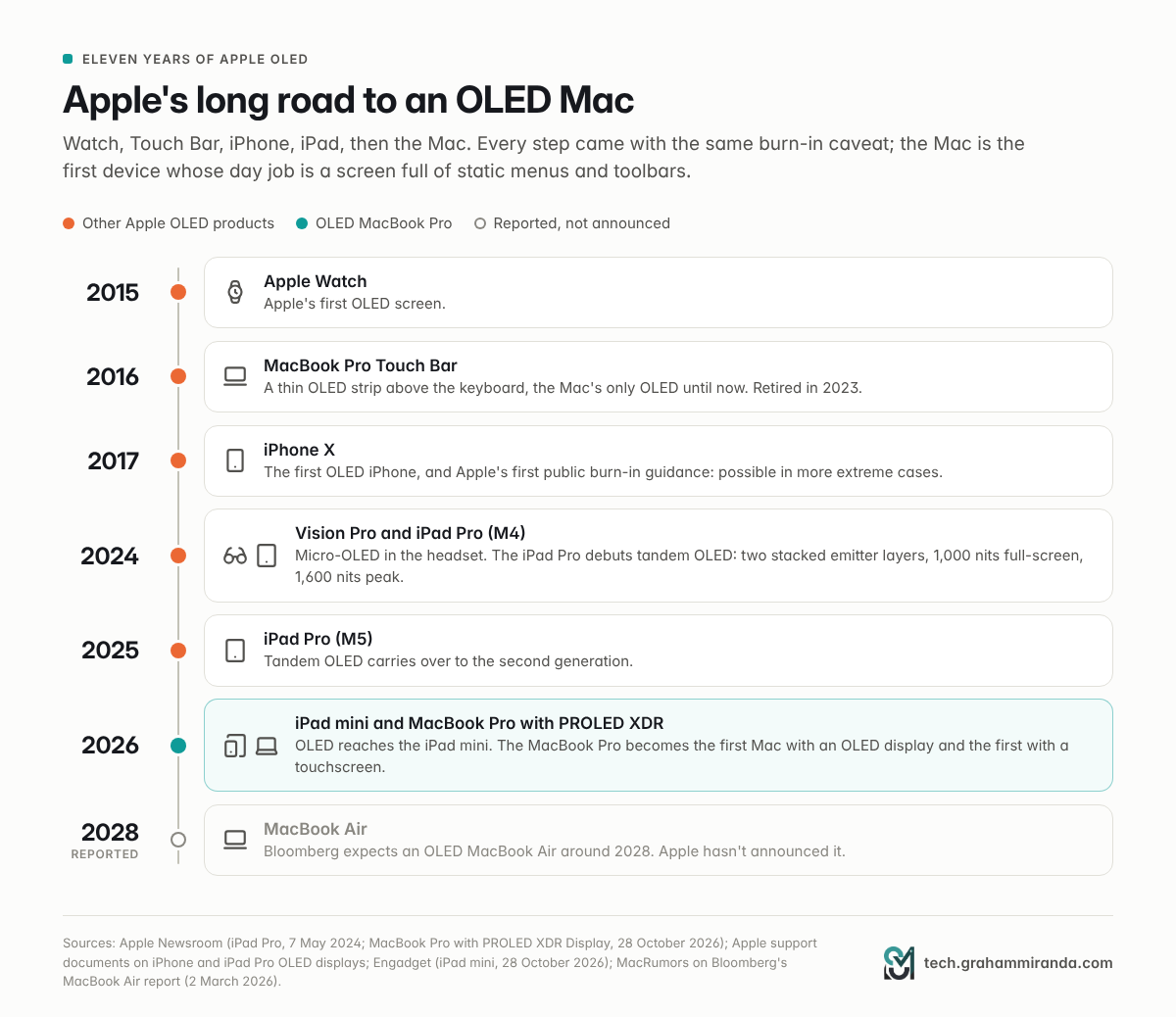
Apple has been shipping OLED for eleven years, and Macs aren't quite new to it either: the Touch Bar on the 2016–2023 MacBook Pros was a thin OLED strip. But the most useful precedent is the iPad Pro.
May 2024: the first tandem OLED
Apple introduced the M4 iPad Pro on 7 May 2024 with what it called the Ultra Retina XDR display: two OLED panels whose light is combined, 1,000 nits full-screen for SDR and HDR, 1,600 nits peak for HDR, and a new display engine giving what Apple described as sub-millisecond control over every pixel. It was Apple's first tandem OLED, and the M5 iPad Pro kept it in October 2025, with a 2,000,000:1 contrast ratio, 10–120 Hz ProMotion and support for the Apple Pencil Pro.
What Apple tells iPad Pro owners about burn-in
Apple's support document on the iPad Pro display separates two things:
- Image persistence: a faint remnant of a previous image that fades within a few minutes of normal use. Temporary, and not damage.
- Burn-in: the more permanent version, which Apple says mainly results from showing the same high-contrast image at high brightness for long periods.
Its defence is the same one it describes for the iPhone: algorithms track how much each pixel is used, generate calibration data, and the device adjusts each pixel's brightness to keep the screen even. Apple adds that automatic brightness reduces burn-in further, and that software updates are designed to limit long-term effects. The iPhone version of the document says the same and claims the industry's best burn-in reduction.
What actually went wrong with the iPad Pro
It wasn't burn-in. In the weeks after launch, owners reported a grainy texture on some units at low brightness on dark grey, mostly on the 11-inch model, plus complaints about how certain HDR content was rendered. It was never clear whether the grain was a defect or a characteristic of the panels.
The other complaint that has never gone away is PWM flicker. Like most OLEDs, the iPad Pro dims partly by switching pixels on and off very quickly. Notebookcheck measured a constant 240 Hz at minimum brightness on the 13-inch M4 model, doubling above 80% manual brightness, and warned that sensitive users would probably notice it. Forum threads from people who get headaches or eye strain from it are still active.
What two and a half years of tandem OLED iPads tell us about burn-in
In researching this article I found plenty of 2024 forum threads from buyers worried about burn-in before they bought, and I found no coverage from a major outlet of a burn-in problem with the tandem OLED iPad Pro. That isn't proof. Burn-in takes years, many owners never use an iPad the way you'd use a Mac, and the iPad's interface spends far more time in full-screen apps with nothing static on screen. But it's the best real-world evidence there is for Apple's tandem panels plus per-pixel compensation, and so far it's reassuring.
What the Mac panel adds
PROLED XDR isn't just a big iPad screen. It peaks at 2,000 nits where the iPad stops at 1,600, claims five times the contrast ratio, adds Adobe RGB, uses Apple's new oxide transistor layer, and sits in a laptop whose cooling has been redesigned around it. It also faces a much harder job, which is where the burn-in story really starts.
Part 5 — Burn-In 101: Why a Mac Is OLED's Hardest Job
What burn-in physically is
Every OLED pixel is made of organic emitter material, and Apple's technical paper puts the core fact plainly: organic emitters age as they're used, and their performance depends on usage, time and temperature. The harder and longer a pixel is driven, the faster it loses efficiency.
Burn-in is what you see when that ageing is uneven. If one part of the screen spends thousands of hours showing a bright, static element (a logo, a toolbar, a white panel) while the rest shows varied content, those pixels age faster than their neighbours. Eventually, when you show a uniform background, you can see the ghost of the element: a faint, permanent pattern of slightly dimmer or slightly differently coloured pixels.
The colours don't age at the same rate either. Ossila, which supplies materials for OLED research, notes that blue OLED emitters degrade faster than red and green, which is why burned-in areas often take on a slight colour tint. It depends on the panel, though: in Monitors Unboxed's long-term test of a QD-OLED monitor, the green subpixels showed the most wear.
Image persistence isn't burn-in
If you see a faint afterimage of a window you've just closed, don't panic. That's image persistence, and Apple's own documentation describes it as temporary, fading within minutes of normal use. It isn't even unique to OLED: in 2012, some owners of the first Retina MacBook Pro reported image retention on its LCD panel. Burn-in is the version that doesn't fade.
Compensation hides wear; it doesn't undo it
Modern OLEDs, Apple's included, track how much each pixel has been used and adjust the drive signal so the worn and unworn areas match. That's very effective at keeping the screen looking even. But the organic material has still aged, and the compensation uses up headroom: worn pixels must be driven a little harder, or fresh ones held back a little, to keep everything level. That's why every manufacturer, Apple included, still tells you to avoid the conditions that cause burn-in in the first place.
Why a Mac is different from an iPhone, an iPad or a TV
Think about what stays still on a Mac screen:
- The menu bar, at the top of every app, all day.
- The Dock, bright, colourful icons in a fixed row.
- Window chrome: title bars, the red-yellow-green buttons, toolbars.
- Sidebars and panels in Finder, Mail, Xcode, Logic, Final Cut, Photoshop or your code editor, often in exactly the same place for months.
- Documents in light mode: a white page with a fixed ribbon or toolbar, at high brightness, for a whole working day.
A phone spends its life in full-screen apps and short sessions. A TV shows moving pictures (news tickers and channel logos aside, and they're the classic TV burn-in story). A Mac, by contrast, is a productivity machine that's often left on the same layout for eight hours or more a day, five days a week, for years. That's the workload OLED likes least.
Apple's software has softened this a little already. Since macOS 26 Tahoe the menu bar can be fully transparent, so its background is whatever your wallpaper is (the text and icons are still static, of course). But no setting changes the basic fact that a desktop OS is full of things that don't move.
The case that it won't matter
The opposing view deserves a hearing. Writing in July, 9to5Mac's Ben Lovejoy argued that burn-in on an OLED MacBook Pro is exceedingly unlikely: full-screen apps hide the menu bar and Dock, few people run a laptop at maximum brightness for hours, modern panels are far tougher than the OLEDs that earned the bad reputation, and tandem stacks roughly halve the stress on each layer. He points out that iPhone home-screen icons stay put for years without widespread complaints.
He's probably right for most people. My view, set out in Parts 7 and 8, is that "most people" covers mixed, everyday use comfortably, but that some very common professional workflows are exactly the static, bright, all-day case. For those, the risk isn't zero, and it's worth spending five minutes on settings.
Part 6 — What Apple Is Doing to Prevent Burn-In
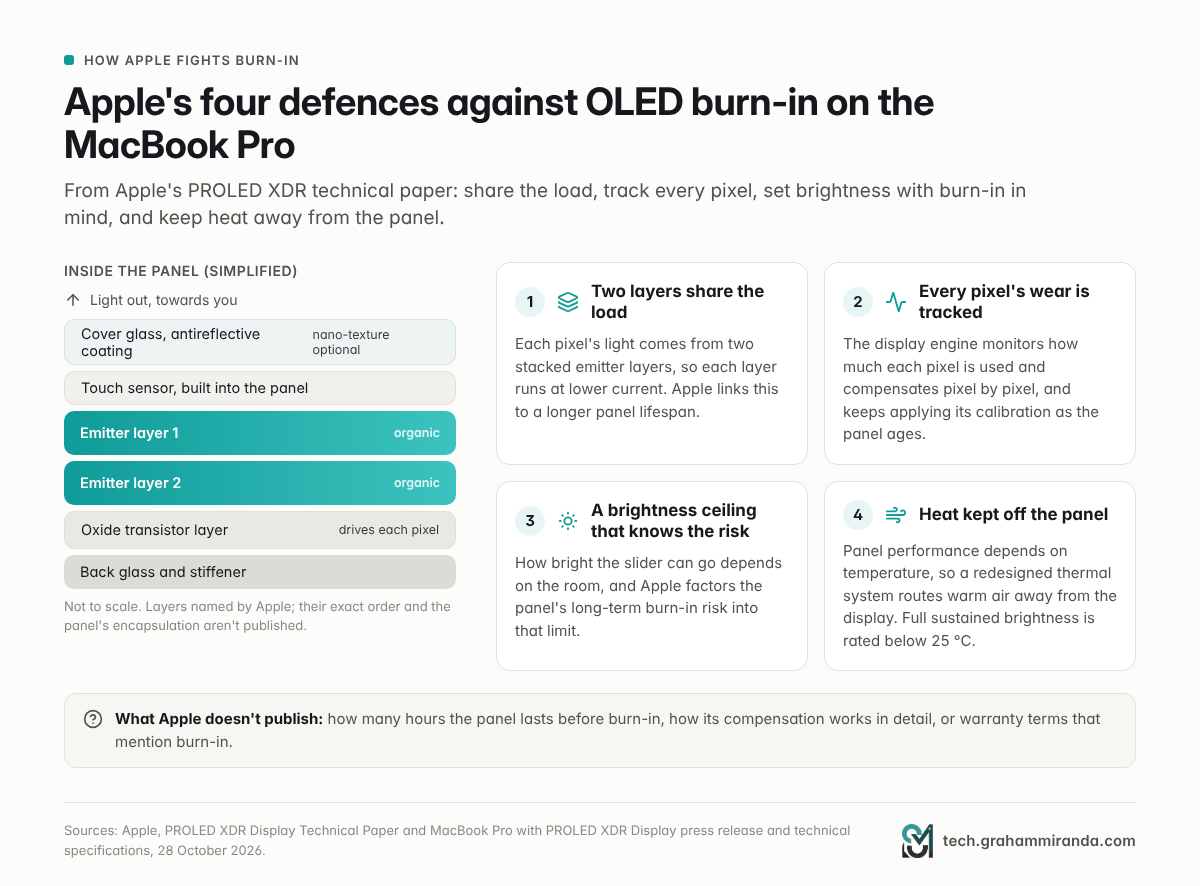
Apple's technical paper describes four separate defences. Together they're the most thorough burn-in strategy Apple has published for any product.
1. Two layers share the load
The tandem stack is the foundation. Because each pixel's light comes from two emitter layers, each layer runs at lower current for any given brightness. Lower current means slower ageing, and Apple says this gives the panel a longer lifespan as well as higher brightness and better efficiency. Everything else in this list builds on this.
2. Every pixel's wear is tracked and compensated
The display engine in the M5 Pro and M5 Max includes a dedicated burn-in function. Apple's paper describes it in one sentence: "Burn-in mitigation continuously monitors each pixel's usage and applies compensation pixel by pixel". It sits alongside uniformity compensation, which keeps brightness and colour even across the panel, and per-pixel calibration. Because the calibration data is stored and applied together with the display engine, Apple says the calibration keeps working as the panel ages.
It's the same principle Apple describes for the iPhone and has used on the iPad Pro since 2024, now running on far more capable silicon.
3. A brightness ceiling that knows the risk
This one is easy to miss. Apple explains that the maximum brightness available at the top of the brightness slider isn't fixed; it depends on the ambient environment. And when Apple sets that limit, it factors in the display's power draw, its effect on battery life and the risk of long-term burn-in. In other words, the Mac won't let you run at full brightness in a dim room just because you dragged the slider to the end.
4. Heat is kept away from the panel
Apple's paper says the panel's performance depends on temperature as well as use. The new MacBook Pro has a redesigned thermal architecture that, Apple says, redirects warm air away from the display. Apple also rates its brightness figures for temperatures below 25 °C, and when you're using a reference mode, a Reference Status Indicator in the menu bar warns you if the display can no longer sustain the required brightness for thermal reasons.
What Apple doesn't say
The paper is thorough, but it leaves out exactly the things a cautious buyer would most like to know:
- No lifetime figure. Apple doesn't say how many hours of static content the panel can take before burn-in becomes visible.
- No details of the compensation. We don't know how much headroom the panel has, how often it recalibrates, or whether anything runs while the lid is closed.
- No pixel shifting mentioned. Many Windows OLED laptops nudge the image by a pixel or two now and then. ASUS's OLED Care, for example, combines pixel shift with a "pixel refresh" screensaver that runs after 30 minutes of idle time and options to auto-hide the taskbar or adjust its transparency. Apple may do something similar invisibly, but it hasn't said so.
- No burn-in warranty terms. The paper mentions only Apple's one-year limited warranty and optional AppleCare+. On the iPhone and iPad, Apple describes slight visual changes after long-term use as expected behaviour. Some monitor makers have gone further: since 2024, MSI has offered a three-year burn-in warranty on its QD-OLED monitors and ASUS two years, according to Tom's Hardware.
If you buy in the EU, remember that you also have at least two years of statutory rights against the seller for defects present at delivery, on top of Apple's own warranty. Whether a burned-in screen counts as a defect or as wear is a question I can't answer for you; this isn't legal advice.
Part 7 — What the Long-Term Tests Say
No independent tests of the PROLED XDR panel's longevity exist yet, and none will for years. But two well-known long-term OLED tests show what static content does over time.
RTINGS: 20 TVs, 10,000 hours, maximum brightness
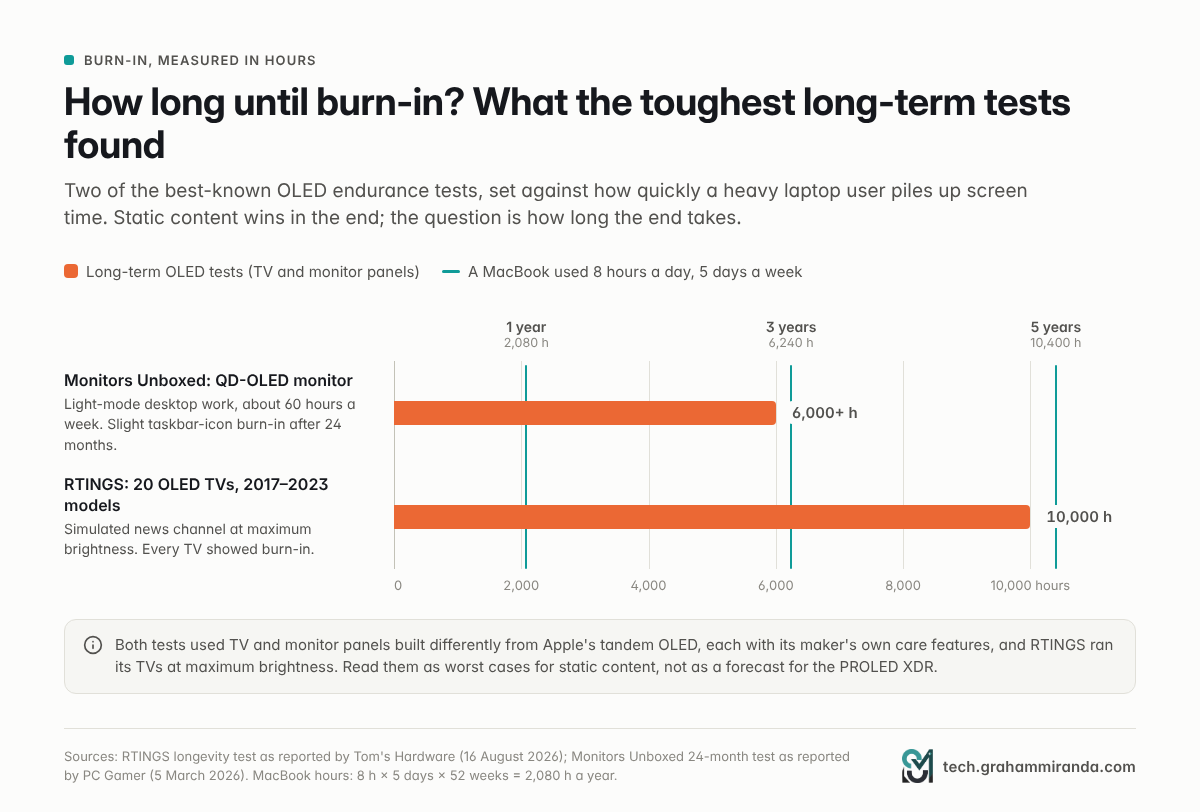
RTINGS ran 20 OLED TVs, from a 2017 LG C7 to 2023 models, through the equivalent of 10,000 hours of a news channel, roughly five hours a day for ten years, at each TV's maximum SDR brightness. As Tom's Hardware reported in August, every TV developed image retention, and the newer TVs showed about as much burn-in as the old ones.
What had improved was headroom. The average 2023 OLED was 28% brighter than the 2017 model in small highlights, more than twice as bright full-screen, and about 27% more efficient. RTINGS' advice follows from that: if your panel is brighter than you need, run it below its maximum and you age it more slowly, though it calls this a risk-reduction measure rather than a guarantee.
RTINGS also ran three OLED monitors on a live news feed around the clock at maximum brightness. After 24 months the burn-in was obvious on all three, from the channel logo on one and the presenters' outline on another to the ticker along the bottom of every screen.
Monitors Unboxed: two years of real desk work
The most relevant test for a Mac user is Monitors Unboxed's. They used an MSI MPG 321URX, a 32-inch QD-OLED monitor, as a main work screen for about 60 hours a week, mostly static productivity apps in Windows' light mode with two windows side by side, and took few precautions against burn-in. As PC Gamer reported in March, the wear built up gradually: a faint vertical line down the middle from the side-by-side windows, burn-in along the taskbar and, after 24 months and more than 6,000 hours, faint marks where individual taskbar icons sit. PC Gamer's verdict was that it gets more noticeable over time but isn't catastrophic. It was visible against some backgrounds and needed an enhancement filter to show clearly on camera.
What that means for a MacBook Pro
Here's the arithmetic. If you use your laptop 8 hours a day, 5 days a week, that's 2,080 hours a year. You'd reach Monitors Unboxed's 6,000 hours in about three years and RTINGS' 10,000 hours in just under five.
Now the important differences:
- Different panels. RTINGS tested TVs and Monitors Unboxed a QD-OLED monitor, large panels built differently from the tandem OLED Apple uses in its laptops and tablets.
- Different protection. Each relied on its maker's own care features. The PROLED XDR has Apple's: a tandem stack that eases the load on each emitter layer, plus a display engine tracking and compensating the wear of every pixel.
- RTINGS ran everything at maximum brightness. Most laptops spend their lives far below that, and Apple's own brightness ceiling factors in burn-in risk.
- Laptops don't run 24/7. They sleep, their lids close, and their content changes more than a news channel's.
So my reading, and it's a reading rather than a measurement, is this: for mixed use, I wouldn't expect visible burn-in within a normal ownership period. For someone who keeps the same bright, static layout on screen for 8–10 hours a day, years on end, faint marks are plausible eventually, most likely where the menu bar, Dock and fixed panels sit. Both outcomes can be pushed further away with the settings in Part 9.
Part 8 — Your Burn-In Risk, by How You Work
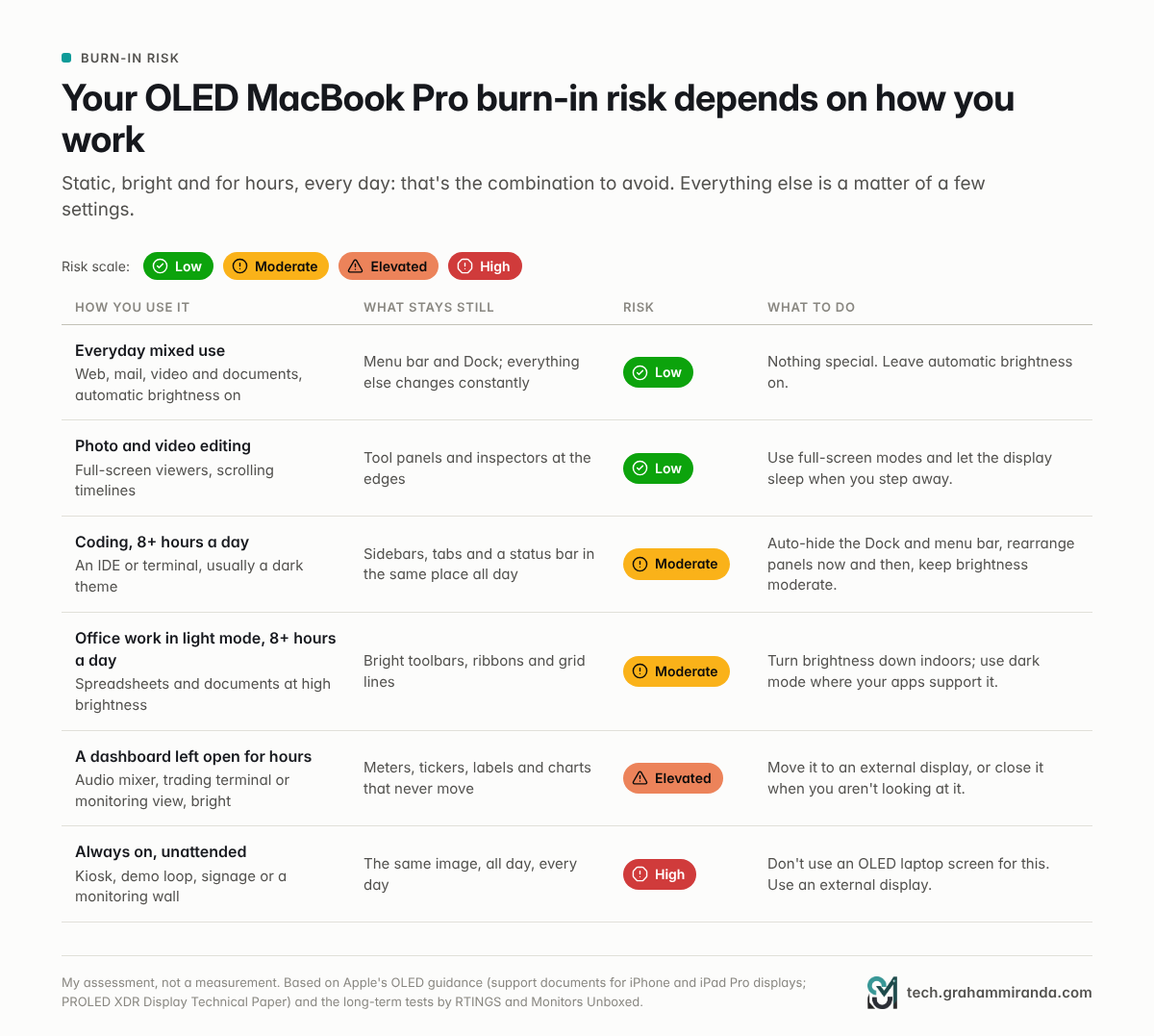
Burn-in risk isn't a property of the screen alone. It's the product of three things: how static the content is, how bright it is, and for how long. Here's how that plays out for common ways of working.
Low risk: mixed use and most creative work
Web, mail, video, documents, a bit of everything, with automatic brightness on: the menu bar and Dock are the only fixed elements, and the rest of the screen changes constantly. Photo and video editing is similar. Tool panels sit at the edges, but the image area is always changing, and editors spend a lot of time in full-screen viewers. Nothing special is needed beyond the basics.
Moderate risk: long days in the same layout
Coding is the classic example: an IDE or terminal with the same file tree, tab bar and status bar in the same place for eight or more hours a day. Dark themes help, because most of the screen emits little light, but the bright text and icons in the fixed panels don't move. If you spend your days in a terminal with an AI coding agent (I compared 28 of them in Every AI Coding Harness Compared), the same applies.
Office work in light mode is the other one: spreadsheets and documents with white toolbars, ribbons and gridlines, often at high brightness, all day. Turn the brightness down indoors, use dark mode where your apps support it, and let the display sleep in meetings.
Elevated risk: dashboards left open for hours
An audio mixer with meters and channel strips, a trading terminal, a monitoring view, a project dashboard pinned to one half of the screen: bright, static, for hours. There's an irony here. Apple is promoting touch faders in Logic Pro, and a mixer window is one of the most static things you can leave on a screen. If you mix for long sessions, close the mixer or move it to an external display when you aren't actively using it.
High risk: unattended, always-on use
Kiosks, demo loops in a shop or at a trade-show booth, digital signage, a monitoring wall: the same image all day, every day, often at full brightness. Don't use an OLED laptop's own screen for this. Plug in an external display.
Part 9 — How to Protect Your OLED MacBook Pro (Settings and Habits)
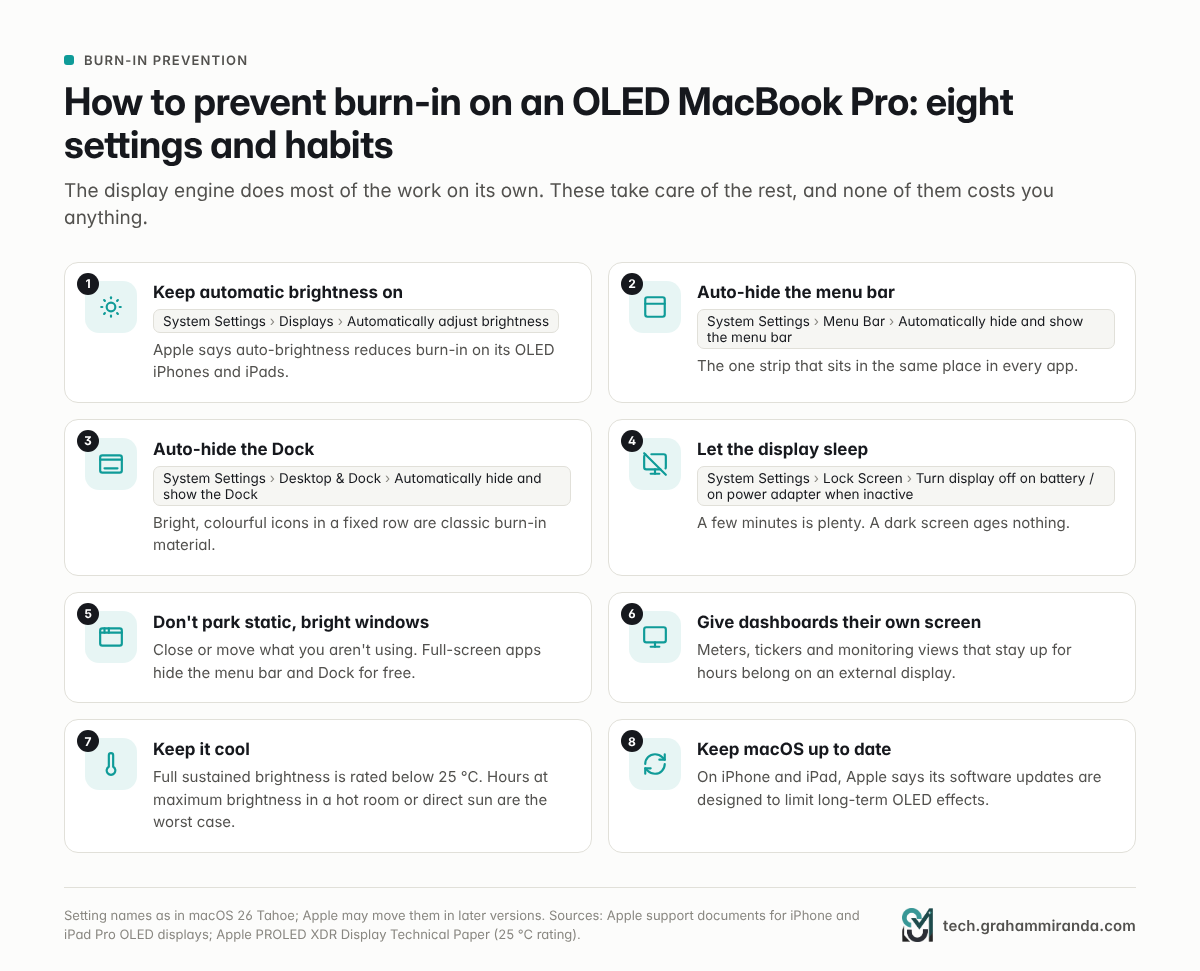
The display engine does most of the work on its own. These eight steps do the rest. Setting names are as they appear in macOS 26 Tahoe; Apple may move them in later versions.
- Keep automatic brightness on. System Settings › Displays › Automatically adjust brightness. Apple says auto-brightness reduces burn-in on its OLED iPhones and iPads, and on the Mac the brightness ceiling already factors in burn-in risk. Fighting it by pinning the slider at maximum is the easiest way to age the panel faster.
- Auto-hide the menu bar. System Settings › Menu Bar › Automatically hide and show the menu bar. It's the one strip that sits in the same place in every app. Set it to "Always" if you can live with it.
- Auto-hide the Dock. System Settings › Desktop & Dock › Automatically hide and show the Dock. Bright, colourful icons in a fixed row are classic burn-in material.
- Let the display sleep. System Settings › Lock Screen › Turn display off on battery when inactive (and the matching setting for the power adapter). A few minutes is plenty. A dark screen isn't ageing.
- Don't park static, bright windows. Close what you aren't using, move panels around now and then, and use full-screen modes, which hide the menu bar and Dock for free.
- Give dashboards their own screen. Anything that stays up for hours, such as meters, tickers or monitoring views, belongs on an external display. Clamshell mode with an external monitor is ideal for a desk setup.
- Keep it cool. Apple rates sustained full brightness below 25 °C. Hours at maximum brightness in a hot room or in direct sun are the worst case for an organic panel.
- Keep macOS up to date. On the iPhone and iPad, Apple says its software updates are designed to limit long-term OLED effects. Expect the Mac to get the same treatment.
What not to bother with
- "Burn-in fixer" videos that flash full-screen colours. They don't undo wear; they add more of it, across the whole panel.
- Screensavers instead of sleep. A moving screensaver is better than a static window, but a switched-off display is better still.
- Dark mode as a cure-all. It reduces how much light the panel emits overall, which helps, but static bright elements are still static. Treat it as one tool among several.
If you think you see burn-in
First, rule out image persistence: show varied content for a while and see whether the ghost fades, which Apple says persistence does within minutes. If it stays, photograph it against a plain grey background, note the date, and contact Apple or the retailer while you're within warranty. In the EU your statutory rights against the seller last at least two years.
Part 10 — Touch on the Mac: How It Works and Where It Helps
Sixteen years after Steve Jobs said no
In 2010, Steve Jobs explained why Apple wouldn't make a touchscreen Mac: touch surfaces "don't want to be vertical," he said, and holding your arm up to a laptop screen was tiring and ergonomically poor. For sixteen years Apple stuck to that, and the 2016 Touch Bar was the closest it came. John Ternus, Apple's CEO, put the new position more simply on X: "You've gotta touch it to believe it." What changed is the framing: on the touchscreen MacBook Pro, touch is an extra input, there when it's quicker than the trackpad, never instead of it.
The hardware
- The touch sensor is built into the OLED panel rather than laminated on top, which Apple says cuts latency.
- A new hinge keeps the screen steadier when you tap it. Current MacBook Pros wobble noticeably when you touch the display, and Gizmodo's reviewer called a stiffer hinge necessary.
- The camera stabilises video while you're touching the screen during a call, so the other person doesn't see the picture shake.
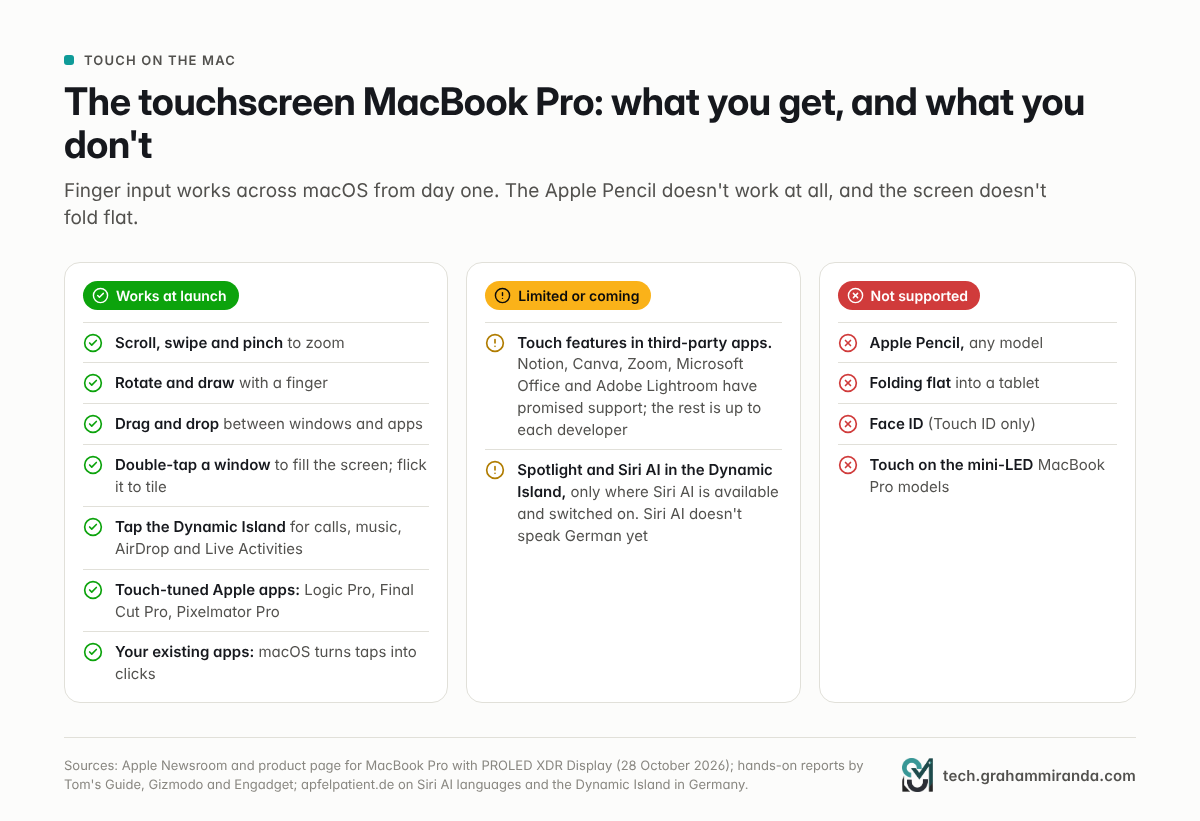
- It doesn't fold flat. This is a laptop with a touchscreen, not a 2-in-1. There's no tablet mode.
The software
macOS translates touches into clicks, so existing apps work from day one without changes. On top of that, Apple lists swipe to scroll, pinch to zoom, rotate, draw, drag and drop, double-tap a window to fill the screen, and flick a window to tile it. Developers get updated gesture APIs for anything more ambitious.
Before launch, Bloomberg's Mark Gurman reported a "dynamic interface" in the new macOS that adapts controls depending on whether you've been touching the screen or using the trackpad, with menus that can open around your finger and a Dock and menu bar tuned for touch. In the first hands-ons, the changes looked subtle. Engadget noted that you'd barely know the interface was designed for touch at first glance, apart from the window buttons growing slightly when you touch them. Gizmodo found that holding the window controls brings up tiling options and that flicking a window to an edge snaps it there.
The Dynamic Island is touch-friendly too: tap it for calls, music, AirDrop and Live Activities. Spotlight and Siri AI also live there, but only where Siri AI is available and switched on. Siri AI runs on Macs in the EU (Apple's Digital Markets Act delay affects iPhones, iPads and the Apple Watch, not the Mac), but it doesn't speak German yet, so on a German-language Mac that part of the Dynamic Island stays empty for now.
The apps
Apple's own Creator Studio apps get touch-specific features: drawing, painting and selecting in Pixelmator Pro, playing virtual instruments and moving faders in Logic Pro, and touch interactions in Final Cut Pro. Apple's product page also shows Blender users manipulating 3D objects with gestures and developers testing iOS apps with touch in Xcode. Tom's Guide reports that Apple has lined up touch support from Notion, Canva, Zoom, Microsoft Office and Adobe Lightroom. Everything else will depend on each developer, and it's fair to expect a slow first year.
Where touch helps
- Scrolling and zooming long documents, photos, maps and timelines.
- Quick taps on dialogs, notifications and the Dynamic Island when your hands are already near the screen.
- Presentations and client demos, where pointing at the screen is natural.
- Music and 3D work, where faders, pads and rotating objects map well to fingers.
- Testing iPhone and iPad apps directly on the Mac.
Where it doesn't
- Precision work. A fingertip is not a mouse pointer.
- Long sessions. Jobs wasn't wrong about arm fatigue; reaching up to a vertical screen for hours is tiring.
- Keeping the screen clean. A glossy screen you touch will show fingerprints. Apple uses an oleophobic coating, and nano-texture models come with a polishing cloth, but expect to wipe it more often.
Part 11 — No Apple Pencil: What That Means and What to Do Instead
The facts
The MacBook Pro with PROLED XDR Display does not support the Apple Pencil, any model. Apple's press release, product page and technical specifications don't mention it. Tom's Guide said there was no Apple Pencil support to speak of, Cult of Mac reported the same, and Gizmodo's reviewer says Apple told him directly that the Pencil can't be used with the MacBook. Because the screen is capacitive, a basic rubber-tipped stylus may register as a finger, but none of the Pencil's features will be there: no pressure sensitivity, no tilt, no hover, no palm rejection tuned for a pen.
Why it stings
The Apple Pencil Pro works on the iPad Pro with hover, squeeze, barrel roll and haptics. Apple is even bringing support for the Apple Pencil (USB-C) to the foldable iPhone Duo in a software update. Windows 2-in-1s, such as Lenovo's Yoga range, have combined OLED, touch and pen input for years. So Apple's most expensive touchscreen is one its own pen doesn't work with.
Why Apple probably left it out
Apple hasn't explained, so this is my reading rather than fact:
- The screen doesn't fold flat, and writing on a vertical laptop screen is awkward. A pen makes far more sense on a device you can lay down.
- Pen input needs its own hardware and tuning. The iPad Pro's Pencil support depends on dedicated sensing hardware and years of tuning for palm rejection and latency.
- The iPad Pro is the drawing device. Keeping the Pencil on the iPad keeps the product lines distinct.
- It's a first generation. Apple has a habit of shipping the core idea first and adding to it later.
What to do instead
If drawing, handwriting or marking up documents is why you want a touchscreen, buy an iPad Pro (from €1,299 for the 11-inch and €1,649 for the 13-inch in Germany) and use it with your Mac:
- Sidecar turns the iPad into a second display for the Mac, and the Apple Pencil works in your Mac apps: pointing, clicking, drawing, editing photos, sketching and marking up documents, with changes appearing live on the Mac. Double-tap on supported Pencils can trigger custom actions in supporting apps. It works wirelessly within about 10 metres or over USB, and needs both devices on the same Apple Account.
- Universal Control lets the Mac's keyboard and trackpad drive the iPad as an iPad, if you'd rather draw in iPad apps.
The combination is arguably better than Pencil support on the MacBook would be: you draw on a screen you can hold at the right angle, and your Mac's screen stays free for everything else.
Part 12 — Other Problems It Could Have
Burn-in gets the headlines, but it's not the only thing worth checking before you buy a first-generation OLED touchscreen Mac.
1. The price
A flat $400 premium in the US, €400–500 in Germany, for the same chips, the same ports and the same battery ratings. You're paying for the panel, touch and a lighter chassis. That's good value if the display matters to your work and hard to justify if it doesn't.
2. PWM flicker: not measured yet
OLED panels usually dim at least partly by switching pixels on and off rapidly, and a minority of people get eye strain or headaches from it. Notebookcheck measured the iPad Pro's tandem OLED at 240 Hz at minimum brightness. The mini-LED MacBook Pro flickers too: Notebookcheck listed constant PWM flicker among its weaknesses. Nobody has measured the PROLED XDR panel yet, and Apple's technical paper doesn't describe its dimming method. If you know you're sensitive to PWM, wait for independent measurements or buy somewhere with an easy return policy.
3. Heat in a thinner chassis
Notebookcheck's review of the 14-inch mini-LED MacBook Pro with M5 Max found its performance dropping 24% over a 30-minute stress test and concluded the chip was better suited to the 16-inch. The new chassis is thinner, with a cooling system redesigned around the display. Engadget's reviewer pointed to the thin 2016 Touch Bar MacBook Pros, which had heat problems, as the reason to test this carefully. Until reviews measure sustained performance, the old advice holds: if you'll push an M5 Max hard for long stretches, buy the 16-inch.
4. Brightness ratings that depend on the room
Apple's brightness figures apply below 25 °C, and the technical paper says warmer environments or higher brightness ranges may reduce sustained brightness. On a hot summer day in an office without air conditioning, or in direct sun outdoors, you shouldn't expect the full numbers for long.
5. Reflections, fingerprints and coatings
1.00% typical reflectance is very good for a glossy screen, but it's still a glossy screen, and now one you'll touch. Nano-texture glass (€165 in Germany) reduces glare but, as Notebookcheck noted when it reviewed the iPad Pro, a matte finish makes blacks look greyer and costs some contrast, which slightly undermines the point of OLED. There's also some history here: in 2015 Apple launched a quality programme for Retina MacBooks and MacBook Pros whose antireflective coating wore off, partly from contact with the keyboard and from cleaning with the wrong products. A screen you touch and wipe more often deserves Apple's recommended cleaning method, not kitchen spray.
6. OLED quirks Apple itself documents
On the iPhone and iPad, Apple lists a slight colour or hue shift when you look at an OLED off-angle, and slight blurring or colour change when scrolling dark content at low brightness, as normal OLED behaviour. Early iPad Pro owners also reported grain at low brightness on dark grey. None of these is serious, but someone coming from an LCD may notice them.
7. First-generation touch software
The Mac has been designed around a pointer for more than 40 years. Touch targets will be small in many third-party apps until developers update them, and some interface behaviour will feel unfinished. Expect the experience to improve noticeably over the next year or two of macOS updates.
8. Features that depend on your language and region
Spotlight and Siri AI in the Dynamic Island need Siri AI, which is in beta in English, French, Japanese, Korean, Portuguese and Spanish. On a German-language Mac, that part of the Dynamic Island isn't available yet.
9. Not the newest chips
The M5 Pro and M5 Max arrived in March. They're excellent, but you're paying a premium for a new display on top of seven-month-old silicon, and newer high-end chips will come.
10. Repairs
OLED panels with integrated touch aren't cheap parts, and I couldn't find Apple's out-of-warranty display repair price for these models at launch. If you're the kind of person who drops laptops, price AppleCare+ in from the start.
Part 13 — Use Cases: Who Gets the Most Out of It
| Who | Why PROLED XDR helps | Watch out for | Verdict |
|---|---|---|---|
| Photographers | Adobe RGB, photography and print reference modes (D50 and D65), per-panel calibration | Nano-texture costs some contrast | Strong yes |
| HDR video editors and colourists | 2,000-nit peaks, 81% of BT.2020, HDR video reference mode, Genlock, touch in Final Cut Pro | Sustained brightness falls in hot rooms; still use a reference monitor for final grades | Strong yes |
| Music producers | Touch faders and instruments in Logic Pro | Static mixer windows for hours are a burn-in risk | Yes, with habits |
| 3D and product designers | Rotate and inspect models with your fingers; deep blacks for renders | Precision still needs a mouse or trackpad | Yes |
| iPhone and iPad developers | Test touch interfaces directly in Xcode | A static IDE layout all day is moderate risk | Yes, with settings |
| Presenters, consultants and sales | Touch to navigate, 2,000 nits outdoors, lighter to carry | Fingerprints on a shared screen | Yes |
| Medical and science education | DICOM presets at 350 and 600 nits | Apple restricts them to non-diagnostic use | Niche yes |
| Frequent travellers | 0.22–0.32 kg lighter, bright enough outdoors | The $400 premium | Yes |
| Local AI users | Same M5 Max with up to 128 GB, plus a 16 TB SSD option for model files | No more AI performance than the mini-LED model | Only for the screen |
| Office workers in light mode all day | Sharper, brighter, lighter | Bright static UI all day is moderate risk | Mini-LED is the safer buy |
| Dashboards, trading and monitoring | — | Elevated to high burn-in risk | Mini-LED, or an external display |
Two notes on that table. If local AI is your reason for buying a MacBook Pro, the OLED model changes nothing: same chips, same 128 GB ceiling, same memory bandwidth. I made the full case in Don't Buy a MacBook Just to Run LLMs, and for which configuration makes sense if you do run models locally, see my MacBook Pro M5 Pro 64 GB guide.
And if you care about HDR at home, a 2,000-nit OLED laptop is a superb portable HDR screen, but it's no substitute for a properly set-up home cinema. My Dolby Vision FEL and TrueHD Atmos guide covers that side. Developers building iPhone apps, meanwhile, get the most from touch in Xcode; I described building an app with AI agents in How to Build an App From Scratch With AI in 2026.
Part 14 — PROLED XDR vs Mini-LED vs iPad Pro: Which Should You Buy?
The three options side by side
| MacBook Pro, PROLED XDR | MacBook Pro, mini-LED | iPad Pro M5 + Magic Keyboard | |
|---|---|---|---|
| Best for | Display-centric pros, travellers | Value, static-UI workflows | Drawing, handwriting, mobility |
| Screen | 14.2" or 16.3" tandem OLED | 14.2" or 16.2" mini-LED | 11" or 13" tandem OLED |
| Peak / sustained brightness | 2,000 / 1,000 nits | 1,600 / 1,000 nits | 1,600 / 1,000 nits |
| Contrast | 10,000,000:1 | 1,000,000:1 | 2,000,000:1 |
| Touch | Yes | No | Yes |
| Apple Pencil | No | No | Yes (Pro, USB-C, hover) |
| Burn-in risk | Low to moderate, by use | Very low | Low |
| Runs macOS apps | Yes | Yes | No (iPadOS) |
| Weight | 1.38 / 1.82 kg | 1.60 / 2.14 kg | 444 / 579 g without keyboard |
| From (Germany) | €3,299 | €2,899 (M5 Pro) | €1,299 + €349 keyboard (11") |
Apple technical specifications; German prices from apfelpatient.de, 28 October 2026. Laptop weights are for M5 Pro models.
Upgrading from an M1 MacBook Pro?
Plenty of people are still on Apple's first Apple-silicon laptops. The 13-inch M1 MacBook Pro from 2020 weighs 1.4 kg, is 1.56 cm thick and has a 500-nit LCD. The 14-inch PROLED XDR model weighs 1.38 kg, is 1.50 cm thick and holds 1,000 nits across the whole screen with 2,000-nit peaks. You get a bigger, far better screen in a slightly lighter, thinner laptop. On performance, Apple claims the M5 Pro is up to 10.9 times faster than the M1 Pro at getting the first token out of a large language model, in its own tests. Take vendor multipliers with salt, but the gap four generations on is real.
Buying advice
- Pick the 16-inch for sustained M5 Max work. The 14-inch is the better travel machine; the 16-inch is the better workstation.
- Glossy or nano-texture? Glossy keeps OLED's contrast; nano-texture is for bright offices and outdoor work. If you're unsure, go glossy.
- Memory: the OLED model doesn't change what you need. 24–48 GB covers most professional work; buy more for heavy video, 3D or local AI.
- Consider AppleCare+ if you'll keep it for more than two or three years or you're hard on laptops; OLED repairs won't be cheap.
- Use the return window. Check for PWM sensitivity, hinge wobble and how much you actually use touch in the first fortnight.
The decision guide
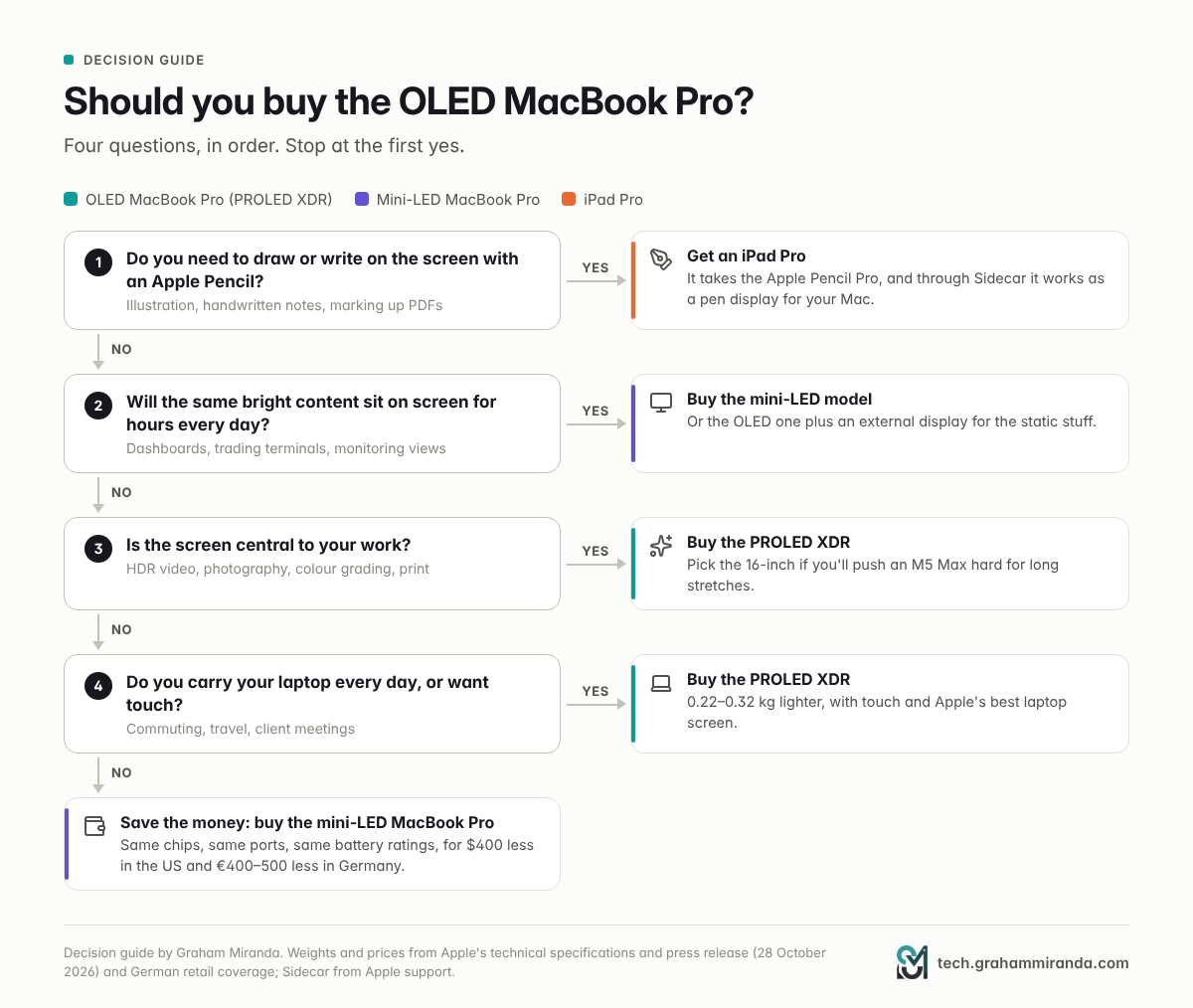
- Do you need to draw or write on the screen with an Apple Pencil? Then get an iPad Pro and use Sidecar with your Mac.
- Will the same bright content sit on screen for hours every day? Then buy the mini-LED model, or the OLED one plus an external display for the static stuff.
- Is the screen central to your work: HDR, photography, colour, print? Then buy the PROLED XDR, the 16-inch if you'll push an M5 Max hard.
- Do you carry your laptop every day, or want touch? Then buy the PROLED XDR: lighter, with touch and Apple's best laptop screen.
If you answered no to all four, save the money. The mini-LED MacBook Pro has the same chips, ports and battery ratings for $400 (€400–500) less.
Part 15 — What Comes Next
Mini-LED isn't going away yet. Apple kept both MacBook Pro families on sale, and the base M6 model launched with mini-LED the day before. OLED is the premium option for now.
OLED is spreading across Apple's range. The iPad mini went OLED this week too, and Bloomberg's Mark Gurman reported in March that the MacBook Air should follow with its 2028 update. Counterpoint Research's David Naranjo told The National that Apple's move could be a turning point for OLED in notebooks, raising production capacity and yields and eventually bringing panel costs down. With Samsung Display reportedly Apple's only supplier for now, don't expect those savings in the next model.
Touch will mature. Apple's own apps are already tuned, and the first third-party apps are coming. The real test is whether macOS 28 and later make touch feel native rather than added on.
The Pencil question stays open. Apple supports the Pencil on iPads and soon on the iPhone Duo. Whether it ever comes to a Mac probably depends on whether Apple builds a Mac whose screen can lie flat.
This article will be updated when full reviews measure PWM, sustained performance and battery life, and as long-term owners report how their panels hold up.
Frequently Asked Questions
Does the OLED MacBook Pro get burn-in?
It can, as every OLED can, but Apple describes more burn-in protection than most laptop makers do. The tandem panel runs each emitter layer at lower current, the display engine tracks every pixel's wear and compensates for it, the brightness ceiling factors in burn-in risk, and the cooling system routes heat away from the screen. For mixed, everyday use, visible burn-in within a normal ownership period is unlikely. The risk rises if the same bright, static content stays on screen for hours every day.
How does Apple prevent burn-in on the MacBook Pro with PROLED XDR?
With four measures described in its PROLED XDR technical paper: two stacked emitter layers that share the load, a display engine that monitors each pixel's usage and applies compensation pixel by pixel, an adaptive brightness limit that factors in the panel's long-term burn-in risk, and a redesigned thermal system that redirects warm air away from the display. Apple doesn't publish a lifetime figure or burn-in-specific warranty terms.
Is the MacBook Pro's tandem OLED the same as the iPad Pro's?
It's the same technology, two stacked OLED emitter layers per pixel, but a more advanced panel. The MacBook Pro's PROLED XDR peaks at 2,000 nits where the iPad Pro stops at 1,600, claims a 10,000,000:1 contrast ratio against the iPad's 2,000,000:1, adds Adobe RGB, and uses an oxide transistor layer Apple calls an industry first. Both sustain 1,000 nits full-screen.
Does the touchscreen MacBook Pro support Apple Pencil?
No. No Apple Pencil works with the MacBook Pro with PROLED XDR Display. Apple doesn't list Pencil support in its specifications, and it told Gizmodo's reviewer that the Pencil can't be used. A basic capacitive stylus may register like a finger, but without pressure, tilt or hover. If you need a pen, use an iPad Pro, either on its own or as a pen display for your Mac through Sidecar.
Can I use an Apple Pencil with a Mac at all?
Yes, indirectly. With Sidecar, a compatible iPad becomes a second display for your Mac, and the Apple Pencil works in Mac apps for pointing, drawing, photo editing and marking up documents. Sidecar needs macOS Catalina or later, iPadOS 13 or later and the same Apple Account on both devices, and works wirelessly within about 10 metres or over USB.
How much does the OLED MacBook Pro cost?
In the US: $2,899 for the 14-inch with M5 Pro, $3,399 for the 16-inch with M5 Pro, $4,499 for the 14-inch with M5 Max and $4,799 for the 16-inch with M5 Max. In Germany: €3,299, €3,899, €5,199 and €5,599. That's $400 more than the equivalent mini-LED models in the US, and €400 (14-inch) or €500 (16-inch) more in Germany. A fully loaded 16-inch costs $14,549 in the US.
When is the OLED MacBook Pro available?
Pre-orders opened on 28 October 2026 in 30 countries and regions, including the US and Germany. It's available in stores and starts arriving on Friday, 6 November 2026.
Is the OLED MacBook Pro worth $400 more than the mini-LED model?
If your work depends on the screen (HDR, photography, colour, print) or you carry your laptop every day, yes: you get a far better display, touch and up to 0.32 kg less weight. If you mainly write, code or run spreadsheets, the mini-LED model gives you the same M5 Pro or M5 Max performance, ports and battery ratings for $400 less, with no burn-in to think about.
Does the OLED MacBook Pro's screen fold flat like a 2-in-1?
No. It's a conventional laptop hinge, redesigned to keep the screen steadier when you touch it, but there's no tablet mode and the screen doesn't fold back.
Will dark mode prevent burn-in on an OLED MacBook Pro?
It helps but doesn't prevent it on its own. Dark mode reduces the light the panel emits overall, which slows wear, but bright text and icons in fixed places are still static. Combine it with automatic brightness, an auto-hiding menu bar and Dock, and a display that sleeps after a few minutes.
Does AppleCare+ cover OLED burn-in on the MacBook Pro?
Apple hasn't said. Its technical paper mentions only the one-year limited warranty and optional AppleCare+, and on the iPhone and iPad Apple describes slight visual changes after long-term use as expected OLED behaviour. In the EU you also have at least two years of statutory rights against the seller. If burn-in coverage matters to you, ask Apple or your retailer in writing before you buy.
Is the OLED MacBook Pro better for HDR video and photo editing?
Yes, clearly. It reaches 2,000 nits for HDR highlights with per-pixel contrast and no blooming, covers P3 and Adobe RGB (81% of BT.2020 according to Apple), and includes 16 reference modes, including HDR video, digital cinema, print and photography presets, plus Genlock support. For final HDR grades, a dedicated reference monitor is still the professional standard.
Does the OLED MacBook Pro use PWM dimming?
Not yet known. Apple's technical paper doesn't describe the dimming method, and no independent measurements have been published. For reference, Notebookcheck measured the iPad Pro's tandem OLED flickering at 240 Hz at minimum brightness, and it also flagged PWM flicker on the mini-LED MacBook Pro. PWM-sensitive buyers should wait for measurements.
Does the OLED MacBook Pro have the M6 chip?
No. It uses the M5 Pro and M5 Max, the same chips as the MacBook Pro launched in March 2026, with up to 128 GB of unified memory. Apple's only M6 MacBook Pro is the 14-inch model with the base M6 chip and a mini-LED screen, from $1,999.
Does the Dynamic Island on the Mac work in Germany?
Partly. Live Activities, calls, music controls and AirDrop requests work everywhere. Spotlight and Siri AI move into the Dynamic Island only if Siri AI is available and switched on. Siri AI does run on Macs in the EU, but it doesn't support German yet, so on a German-language Mac those features don't appear in the Dynamic Island for now.
The Bottom Line
The OLED MacBook Pro is the screen Mac users have wanted for a decade. Per-pixel black, 2,000-nit highlights, Adobe RGB, microsecond response and no blooming, in a laptop that's lighter and thinner than the one it sits beside. Touch is a useful extra rather than a gimmick, and Apple has clearly thought hard about doing it the Mac way.
Burn-in is real, and Apple doesn't pretend otherwise. Its answer is the most thorough set of defences it has ever described: a tandem panel that shares the work between two layers, per-pixel wear tracking, a brightness limit that knows the risk, and a chassis that keeps heat off the screen. For mixed, everyday use, that should be enough to make burn-in a non-issue for years. For people who spend all day with bright, static layouts, it lowers the risk without removing it, and a few minutes in System Settings lowers it further.
The missing Apple Pencil is the strangest omission: Apple's own pen works on its tablets and is coming to its foldable phone, but not to its most expensive touchscreen. If you draw, buy an iPad Pro and use Sidecar.
So buy the PROLED XDR model if the screen is central to your work, if you carry your laptop every day, or if you just want the best display Apple makes and you'll use it the way laptops are normally used. Buy the mini-LED model if your screen spends its days showing the same dashboard, or if you'd rather keep the $400. Either way, you get the same chips.
Have you ordered one, or are you holding out? I'd like to hear what you'll use it for and, in a year or two, how the screen has held up. Corrections and counter-evidence are welcome; this article will be updated as full reviews and long-term reports come in.
Disclosure: This article contains no affiliate links and no sponsored content. No company mentioned in it reviewed it before publication.
Facts checked: 28 October 2026.