 English
  Deutsch
  Español
  Italiano
  Français
Table of contents
- TL;DR — The Verdict
- First: Yes, This Chip Is Real
- The Price Problem (2026 Edition)
- Why 64GB Specifically? The Sweet Spot Argument
- Step 1: Unlock Your Memory (Do This First)
- Step 2: Build Your Stack
- Part 1: Running LLMs
- Part 2: Image Generation
- Part 3: Video Generation — The Honest Section
- Part 4: Real Workflows Worth Building
- Living With It: Thermals, Battery, and Noise
- The Honest Counter-Arguments
- The Cost Math: Local vs Cloud
- The Buying Guide
- Frequently Asked Questions
- What Comes Next
- The Bottom Line
There is a specific configuration of Mac that has quietly become the default answer to “what laptop should I buy if I want to run AI models myself?” It is the 2026 MacBook Pro with the M5 Pro chip and 64GB of unified memory.
Not the cheapest. Not the fastest. But the one where the tradeoffs land in the right place for most people who actually want to use local models rather than just benchmark them.
This guide covers what that machine can genuinely do across three workloads — large language models, image generation, and video generation — with real numbers where real numbers exist, honest estimates where they do not, and step-by-step setup instructions you can follow the day your machine arrives.
It also covers where the sweet-spot argument breaks down, because it does break down, and you should know exactly where before you spend three thousand dollars on memory you cannot upgrade later.
TL;DR — The Verdict
Buy the M5 Pro 64GB if: you want a portable machine that runs 8B–70B models and Mixture-of-Experts models fast enough for real work, generates images in seconds rather than minutes, and still has room for your browser, IDE, and Docker containers running simultaneously. This is the best-balanced laptop for local AI in 2026.
Step up to the M5 Max 128GB if: you specifically need frontier-class local models like
gpt-oss-120b(which does not fit on 64GB), or you want roughly double the token generation speed on large models. The M5 Max 40-core has 614 GB/s of memory bandwidth versus the M5 Pro’s 307 GB/s, and for LLM decode, bandwidth is everything.Look elsewhere if: local video generation is your main workload. Every Mac is still several times slower than an RTX 5090 here, and cloud rental is dramatically cheaper per clip.
The three numbers that define this machine:
| Metric | M5 Pro (20-core GPU) | Why it matters |
|---|---|---|
| 307 GB/s memory bandwidth | ~2× base M5, ~½ M5 Max 40-core | Sets your ceiling on tokens/sec for LLMs |
| 64GB max unified memory | ~48–52GB usable by default | Determines which models fit at all |
| 20 GPU cores with Neural Accelerators | 4×+ AI compute vs M4 Pro | Drives prompt processing and diffusion speed |
First: Yes, This Chip Is Real
A lot of writing about the M5 Pro published in late 2025 and early 2026 was speculation. It is not speculation anymore.
Apple announced the M5 Pro and M5 Max on March 3, 2026, and both shipped in the 14-inch and 16-inch MacBook Pro on March 11, 2026. The base M5 had arrived earlier, in the 14-inch MacBook Pro on October 22, 2025, but that chip is a different proposition entirely — it tops out at 32GB and 153 GB/s, which is not enough for the workloads in this guide.
Here is what Apple confirmed on the newsroom and tech-specs pages:
M5 Pro — confirmed specifications
| Component | Specification |
|---|---|
| CPU | 18-core (6 “super cores” up to ~4.6 GHz + 12 performance cores up to ~4.4 GHz). Base bin: 15-core. Up to 30% faster multithreaded than M4 Pro. |
| GPU | Up to 20 cores, each with a dedicated Neural Accelerator. Third-generation hardware ray tracing. Over 4× peak GPU compute for AI vs M4 Pro. |
| Neural Engine | 16-core |
| Unified memory | 24GB / 48GB / 64GB — 64GB is the ceiling |
| Memory bandwidth | Up to 307 GB/s (LPDDR5X) |
| Process | TSMC 3nm (N3P), “Fusion Architecture” — two dies joined via SoIC-mH packaging |
| I/O & media | Thunderbolt 5, H.264/HEVC/ProRes/ProRes RAW encode-decode, AV1 decode |
M5 Max — for contrast
The M5 Max is the same 18-core CPU but up to a 40-core GPU, and critically, a different memory story: the 32-core variant runs at 460 GB/s, and the 40-core variant at 614 GB/s, configurable up to 128GB.
That bandwidth gap is not a minor spec-sheet detail. It is the single most important factor in the M5 Pro versus M5 Max decision, and we will come back to it repeatedly.
Independent benchmarks
Notebookcheck’s review unit — a 16-inch M5 Pro with 64GB — posted Geekbench 6.7 scores of 4,295 single-core and 28,436 multi-core, Cinebench 2024 multi-core of 2,347, and Cinebench 2026 multi-core of 9,481.
Their GPU analysis put the M5 Max roughly on par with a desktop RTX 5070 and comfortably ahead of AMD’s Strix Halo. The M5 Pro’s 20-core GPU sits below that, which is worth internalising: this is a capable GPU for a laptop, not a replacement for a dedicated card.
They also flagged something less flattering, and it is worth taking seriously: the 2026 MacBook Pro throttles noticeably under sustained load, with inconsistent CPU performance even in High Power Mode. More on that in the thermals section.
The Price Problem (2026 Edition)
The M5 Pro line launched at $2,199 for the 14-inch and $2,699 for the 16-inch. Then the global memory shortage hit.
In June 2026, Apple raised MacBook Pro prices by roughly $300 across the board. Post-hike, the entry-level M5 Pro 14-inch sits around $2,499, and a 14-inch M5 Pro configured with 64GB and a 1TB SSD lands somewhere in the $2,799–$2,999 range depending on the day and the retailer. B&H and other resellers have been discounting 48GB and 64GB M5 Pro configurations by $300–$400, which is worth checking before you buy direct.
In Germany, the M5 Pro line starts at €2,199, with education pricing seen as low as €1,979 at resellers like Edustore. 64GB configurations run meaningfully higher once 19% VAT is included.
Two deltas matter for your decision:
- 48GB → 64GB on M5 Pro: historically a $200–$400 upgrade, but RAM upgrade pricing inflated 50–67% in many configurations after the June hike.
- M5 Pro 64GB → M5 Max 128GB: a substantial jump. The M5 Max started at $3,599 (14-inch) and $3,899 (16-inch) pre-hike, and 64GB/128GB M5 Max memory upgrades roughly doubled in price in June. A maxed-out 16-inch now clears $10,000.
Spot-check every price in this section before you buy. The 2026 memory market is moving monthly, and anything written here has a short shelf life.
Why 64GB Specifically? The Sweet Spot Argument
The “sweet spot” claim is not about 64GB being magic. It is about what each memory tier actually forecloses.
What you cannot do at each tier
16GB / 24GB — You can run 7B–8B models comfortably and 14B models at aggressive quantisation. You cannot run anything in the 30B+ class with meaningful context. You will spend your time managing memory instead of using models.
32GB — Workable for 14B dense models and some smaller MoE models. But once you add a KV cache for 32K+ context, plus Chrome, plus your IDE, plus a Docker daemon, you are in memory pressure territory. This is the tier where people convince themselves local AI does not work.
48GB — Genuinely good. Runs 32B-class dense models comfortably. The problem is headroom: a 70B model at Q4 is roughly 40GB, which technically fits but leaves nothing for the rest of your machine. You end up quitting applications to run a model, which is exactly the friction that kills local workflows.
64GB — This is the point where you can hold a 70B Q4 model or a 106B-parameter MoE model in memory and keep your entire working environment resident. No quitting Slack. No shutting down containers. You open a model and keep working.
128GB (M5 Max territory) — Unlocks gpt-oss-120b and the 120B+ class. Genuinely useful if that is what you need, and genuinely expensive if it is not.
The sweet-spot argument is really the “run a serious model AND everything else” argument. That is the difference between local AI being a thing you demo and a thing you use.
But 64GB comes with a hard ceiling, and you should know about it now.
The gpt-oss-120b problem
gpt-oss-120b at MXFP4 quantisation needs roughly 63GB for weights alone. Independent measurements on an M5 Max 128GB using MLX show peak memory of about 64.4GB at 4,096-token context and 64.9GB at 16K context.
On a 64GB machine, where your realistic usable budget is 52–60GB, that does not fit. Not “fits tightly” — does not fit.
If you see a claim that gpt-oss-120b runs on 64GB, treat it with suspicion. It is a 128GB model. This is the clearest single argument for stepping up to the M5 Max, and if that model matters to you, no amount of sweet-spot reasoning changes the arithmetic.
Step 1: Unlock Your Memory (Do This First)
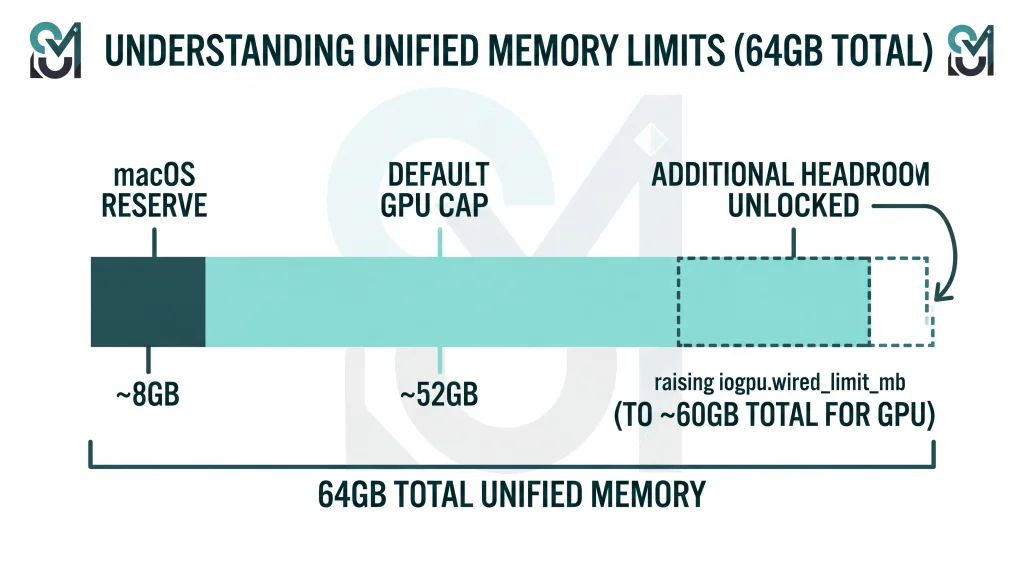
Here is something most buyers do not know: macOS does not let the GPU use all your RAM.
By default, macOS caps GPU-wired memory at roughly 75% of total. On a 64GB machine that works out to about 51.84GB usable for model weights, with the remainder reserved for the system.
You can raise this with a single command. No reboot, no System Integrity Protection changes.
Note: the modern key is
iogpu.wired_limit_mb. Older guides referencedebug.iogpu.wired_limit, which has been replaced. If you find a tutorial using the old key, it is out of date.
Raise the limit
bash
# Set the GPU wired-memory limit to 60GB (60 × 1024 = 61440 MB)
sudo sysctl iogpu.wired_limit_mb=61440

# Verify it took effect
sysctl iogpu.wired_limit_mb

# Reset to the macOS default at any time
sudo sysctl iogpu.wired_limit_mb=0
Make it persistent
The setting resets on reboot. To make it stick, add it to /etc/sysctl.conf:
bash
echo "iogpu.wired_limit_mb=61440" | sudo tee -a /etc/sysctl.confAlternatively, create a LaunchDaemon or add the sysctl call to a login script if you prefer not to touch /etc/sysctl.conf.
How far should you push it?
Leave 4–8GB for macOS. On a 64GB machine, 60GB (61440 MB) is aggressive but workable if you are not running much else. 56GB (57344 MB) is the safer everyday setting.
Do not allocate 100%. You will get beachballs, application lockups, or a hard reset — and on a machine mid-inference, that means losing whatever you were doing.
Practical budget on a 64GB M5 Pro:
- Default: ~48–52GB usable
- Raised to 56GB: comfortable for a 70B Q4 model plus context
- Raised to 60GB: maximum, with minimal room for other applications
That difference — 48GB versus 58GB — is frequently the difference between a model running on GPU and spilling to CPU, which absolutely destroys throughput. It is the highest-value five minutes of setup you will do.
One more prerequisite
MLX requires macOS 26.2 or later to actually use the M5’s Neural Accelerators. If you are on an earlier build, you are leaving the single biggest generational improvement on the table. Check Software Update before you benchmark anything.
Step 2: Build Your Stack
Here is the full setup, in order. Budget about 30 minutes plus download time.
2.1 — Foundations
bash
# Install Homebrew if you don't have it
/bin/bash -c "$(curl -fsSL https://raw.githubusercontent.com/Homebrew/install/HEAD/install.sh)"

# Install uv — a fast Python package manager, far better than pip for this
brew install uv

# Optional but recommended: a Python version manager
brew install [email protected]
2.2 — MLX (Apple’s native ML framework)
MLX is Apple’s own array framework, built specifically for Apple Silicon’s unified memory architecture. It is the fastest path for LLM inference on a Mac and should be your default.
bash
# Create a dedicated environment
uv venv ~/mlx-env
source ~/mlx-env/bin/activate

# Install mlx-lm
uv pip install mlx-lm

# Test it — this downloads and runs a model
mlx_lm.generate \
  --model mlx-community/Qwen3.6-27B-4bit \
  --prompt "Explain unified memory architecture in three sentences."
If that produces text, your stack works.
2.3 — LM Studio (the GUI)
Download from lmstudio.ai. This is the friendliest way to browse, download, and run models, and Apple demonstrated it during the M5 Pro launch, which tells you something about how mainstream local inference has become.
LM Studio’s most useful feature for developers is the built-in OpenAI-compatible server. Enable it under the Developer tab and it exposes an endpoint at http://localhost:1234/v1 that any OpenAI-compatible client can talk to.
2.4 — Ollama (the CLI and server)
bash
brew install ollama

# Start the server
ollama serve

# In another terminal, pull and run a model
ollama pull gpt-oss:20b
ollama run gpt-oss:20b
Important 2026 update: on March 30, 2026, Ollama 0.19 switched its Apple Silicon backend from llama.cpp to MLX. This roughly doubled decode speed. On Ollama’s own M5 Max measurements running Qwen3.5-35B-A3B, prefill went from 1,154 to 1,810 tokens/sec and decode from 58 to 112 tokens/sec — with their int4 build pushing prefill to 1,851 and decode to 134.
If you last tried Ollama on a Mac before that release, your mental model of its performance is outdated.
2.5 — Draw Things (images and video)
Install from the Mac App Store. It is free, native, Metal-optimised, and currently the best image generation tool on Apple Silicon. Its Metal FlashAttention v2.5 implementation runs up to 4.6× faster on M5 than M4, and it supports on-device LoRA training.
2.6 — ComfyUI (when you need pipelines)
bash
brew install comfyuiComfyUI gives you node-based workflow control that Draw Things cannot match. It runs on the MPS backend and is roughly 20% slower than Draw Things on Apple Silicon for equivalent work, plus it has real pitfalls with FP8 checkpoints on Metal. Use it when you need complex pipelines; use Draw Things when you need speed.
2.7 — Verify everything
bash
# Check your memory limit stuck
sysctl iogpu.wired_limit_mb

# Confirm MLX sees your GPU
python -c "import mlx.core as mx; print(mx.default_device())"

# Confirm Ollama is serving
curl http://localhost:11434/api/tags
Part 1: Running LLMs
This is what the M5 Pro 64GB is best at, and it is worth understanding why before looking at the model list.
The one concept that explains everything: bandwidth vs compute
LLM inference has two phases, and they stress completely different parts of your machine.
Prefill (prompt processing) is the pass over your input before the first token appears. It is compute-bound. This is why pasting a 40,000-token file into a local coding agent used to mean minutes of silence on a Mac while an NVIDIA card chewed through it in seconds.
Decode (token generation) is producing each subsequent token. It is memory-bandwidth-bound. Every generated token requires reading the model’s weights from memory. Faster memory, faster tokens. It is nearly that simple.
This split explains the entire M5 Pro proposition:
- Its 307 GB/s bandwidth sets a hard ceiling on decode speed. Roughly double the base M5’s 153 GB/s, roughly half the M5 Max 40-core’s 614 GB/s.
- Its Neural Accelerators — one in every GPU core, new to the M5 generation — dramatically improve prefill.
Apple’s own MLX research team published measurements in November 2025 comparing base M5 to base M4 on Qwen3-14B-4bit: time-to-first-token was 4.06× faster, while token generation improved only 1.19×. That modest decode gain tracks the bandwidth bump exactly (120 GB/s → 153 GB/s). The enormous prefill gain comes entirely from the Neural Accelerators.
Apple markets the Pro and Max variants as delivering up to 4× faster LLM prompt processing than M4 Pro and M4 Max. The mechanism is identical, though independent M5 Pro–specific prefill confirmation is still thin.
What this means practically: the M5 Pro is a transformative upgrade over pre-M5 Macs for long-context work and agentic coding, where prefill dominates. It is a modest upgrade for pure chat throughput, where decode dominates.
The MoE revolution (why Macs suddenly got good)
Mixture-of-Experts architectures changed the calculus for unified-memory machines, and if you understand nothing else from this guide, understand this.
An MoE model has enormous total parameters but activates only a small fraction per token. gpt-oss-120b has 117 billion total parameters but activates roughly 5.1 billion per token.
- Total parameters determine your memory requirement — which Macs have in abundance.
- Active parameters determine your decode speed — which is bandwidth-bound.
So an MoE model needs the resource Macs are rich in and consumes little of the resource Macs are poor in. A well-chosen MoE model on a 64GB Mac delivers near-frontier quality at the decode speed of a much smaller model.
This is the reason a laptop with 307 GB/s can feel competitive with cards running at 1,700 GB/s for certain workloads. Choose MoE models where you can.
Which models actually fit — the table
Measured figures below come from the oMLX community benchmark database for the M5 Pro 20-core with 64GB. Estimates are clearly flagged. Do not trust unflagged tokens/sec numbers you find elsewhere for this chip — very few people have published real M5 Pro measurements.
| Model | Type | Footprint | Decode (tok/s) | Prefill (tok/s) | Verdict |
|---|---|---|---|---|---|
| gpt-oss-20b (MXFP4) | MoE | ~12GB | 66–80 ✅ measured | 1,500–2,200 ✅ | The everyday driver. Fast, capable, tiny. |
| Qwen3.5-35B-A3B / Qwen3-30B-A3B (Q4) | MoE | ~20GB | ~55–70 (est.) | High | Best quality-per-GB. The efficiency pick. |
| Qwen3.6-27B (4-bit) | Dense | ~16GB | 17.8 ✅ measured | 470 ✅ | Representative of the dense 27–35B class. |
| GLM-4.5 / 4.6 Air (106B-A12B) | MoE | ~40GB+ | ~30 | High | Near-frontier reasoning that actually fits. |
| Llama 3.3 70B (Q4_K_M) | Dense | ~40GB | ~7–12 (est.) | Moderate | Usable for batch work; marginal interactively. |
| Llama 3.3 70B (Q5_K_M) | Dense | ~49GB | ~6–10 (est.) | Moderate | Fits, but tight. Raise your memory limit first. |
| Qwen3 14B / 32B, Gemma 3, Mistral Small, Devstral, Command-A | Dense | 8–24GB | 20–60+ | Good | All comfortable. Pick by task. |
| gpt-oss-120b (MXFP4) | MoE | ~63GB | — | — | ❌ Does not fit. 128GB machine required. |
| Qwen3-235B-A22B (1.58-bit ternary) | MoE | ~53GB | ~5.6 | Low | Technically runs. A party trick, not a workflow. |
The batching bonus: gpt-oss-20b on the M5 Pro scales to roughly 142 tok/s at batch size 8. If you are running agents, evaluation loops, or any workload with parallel requests, throughput improves substantially over the single-stream number.
A reality check on 70B models
There is no published, independently measured M5 Pro decode figure for Llama 3.3 70B. The 7–12 tok/s estimate is extrapolated from bandwidth.
For calibration: an M4 Max 128GB at 546 GB/s measures roughly 18–20 tok/s on the same model. The M5 Pro has 307 GB/s. The arithmetic is not encouraging.
At 7–12 tok/s you get roughly 5–9 words per second — slower than comfortable reading speed. That is fine for background jobs, document processing, and overnight batches. It is frustrating for interactive chat.
The honest recommendation: on a 64GB M5 Pro, treat 70B dense models as batch-workload tools and use MoE models for anything interactive.
Quantisation: what to actually pick
| Format | Quality loss | When to use |
|---|---|---|
| Q4_K_M (GGUF) | ~1–2% | Default. Best speed-to-quality ratio. |
| MLX 4-bit | ~1–2% | Default on Mac. ~10% less memory and 15–30% faster than equivalent GGUF. |
| Q5_K_M / MLX 6-bit | <1% | When you have headroom and want near-lossless output. |
| Q6_K | Negligible | Quality-critical work with memory to spare. |
| Q8 / FP16 | None | Rarely worth it on a laptop. Halves or quarters your model size budget. |
| MXFP4 | Native | Not a choice — it is how gpt-oss ships. |
| 1.58-bit ternary | Severe | Only to squeeze a model in that otherwise will not fit. |
Rule of thumb: 4-bit for speed and fit, 6-bit when quality matters and you have room, and skip 8-bit on a laptop.
MLX vs llama.cpp — which runtime?
The short answer is MLX, with one caveat.
- Under ~14B parameters: MLX leads llama.cpp by 20–87%. Not close.
- Above ~27B: the two converge, because memory bandwidth becomes the bottleneck and the runtime stops mattering.
- Memory: MLX uses roughly 10% less than GGUF at equivalent quantisation.
- The caveat: at 30,000+ token contexts, MLX can be as much as 50% slower than llama.cpp with Flash Attention enabled. This is model- and context-dependent.
If you work with very long contexts routinely, benchmark both on your actual workload. Otherwise, MLX.
Running a local API server
mlx-lm 0.18 and later ship an OpenAI-compatible server with continuous batching:
bash
mlx_lm.server \
  --model mlx-community/gpt-oss-20b-MXFP4 \
  --port 8080
Now anything that speaks the OpenAI API can use your local model:
bash
curl http://localhost:8080/v1/chat/completions \
  -H "Content-Type: application/json" \
  -d '{
    "model": "local",
    "messages": [{"role": "user", "content": "Write a bash one-liner to find large files."}]
  }'
That endpoint is the foundation for everything in the workflows section below.
Part 2: Image Generation
Image generation is where the M5 Pro looks better than its bandwidth suggests, for a straightforward reason: diffusion is compute-bound, not bandwidth-bound, and the models are small enough that memory is never the constraint on a 64GB machine.
Model-by-model performance
| Model | Size | Memory | Time per 1024×1024 image | Notes |
|---|---|---|---|---|
| SDXL | 3.5B | ~7GB | ~7s at 30 steps (M5 Max) | Fastest quality option. Enormous LoRA ecosystem. |
| FLUX.1 [schnell] | 12B | ~7GB (Q4) | ~20–25s at 4 steps | Distilled for speed. Apache-2.0. |
| FLUX.1 [dev] | 12B | ~10GB (Q6) | ~50s at 20 steps (M4-class) | The quality benchmark. |
| FLUX.2 [Klein] | 4B distilled | ~8GB | ~40s | Newer, smaller, quick. |
| FLUX.2 [dev] | Large | 24GB+ | Several minutes | Best quality, real patience required. |
| SD 3.5 | Varies | 10–20GB | Tens of seconds | Solid middle ground. |
| Qwen-Image / Qwen-Image-Edit | Varies | 15–25GB | Tens of seconds | Excellent for text rendering and editing. |
| HiDream, Chroma | Varies | 10–20GB | Varies | Worth exploring for style range. |
Apple’s ML Research team measured FLUX-dev-4bit generating a 1024×1024 image more than 3.8× faster on M5 than on M4 using MLX. That gain comes from the Neural Accelerators, and it applies to the whole M5 family.
No M5 Pro–specific seconds-per-image benchmark has been published yet, so treat the table above as M4-class figures with a meaningful M5 uplift expected. Real-world: you should expect FLUX.1 [schnell] in well under 20 seconds and SDXL in single-digit seconds.
At 64GB you can run these models at FP16 without quantisation, which is a genuine quality advantage over 16GB and 24GB machines that are forced into Q4.
Tooling: what to use
Draw Things — the default choice. Native Metal, no Python environment to break, Metal FlashAttention v2.5 running up to 4.6× faster on M5 than M4, and on-device LoRA training. Free on the App Store.
ComfyUI — for node-based pipelines, ControlNet chains, and multi-stage workflows. Roughly 20% slower than Draw Things on Apple Silicon. Watch out for FP8 checkpoints, which frequently fail on Metal.
DiffusionKit — Apple’s own diffusion toolkit, MLX-backed. Worth watching.
Mochi Diffusion, InvokeAI — both viable, both fine.
Avoid: DiffusionBee is effectively abandoned. Automatic1111 and Forge technically work via MPS but are slow and poorly maintained on Mac.
Step-by-step: your first local image
- Install Draw Things from the Mac App Store.
- Open it and go to the model manager (the icon at the top of the left panel).
- Download FLUX.1 [schnell] — around 7GB at Q4, or grab the FP16 version since you have the memory.
- Set Steps to 4 (schnell is distilled for exactly this) and Size to 1024×1024.
- Enter a prompt and hit Generate.
- Your first run includes model loading. Subsequent generations are much faster.
LoRA training on-device
A 64GB machine can fine-tune image models locally, which is a genuinely underrated capability. Draw Things supports LoRA training directly, and MLX supports LoRA and QLoRA for both image and language models.
A small style LoRA on 20–50 images is an overnight job on an M5 Pro, and it never leaves your machine. For anyone working with client material or proprietary assets, that matters more than the speed.
Part 3: Video Generation — The Honest Section
This is where I have to be direct with you, because a lot of content on this topic is not.
Local video generation on any Mac in 2026 is slow. Not “slower than a 4090” slow. Slow enough to change how you work.
Why Macs struggle here specifically
Video diffusion is heavily compute-bound. Unlike LLM decode, where the Mac’s abundant memory bandwidth is the relevant resource, video generation hammers raw GPU compute — exactly the axis where a 20-core laptop GPU loses to a dedicated card.
The M5’s Neural Accelerators help. They do not close a gap this large.
The numbers, unvarnished
Wan 2.2 (Alibaba, Apache-2.0, available as a 14B MoE and a dense 5B text/image-to-video variant): on an M1 Max 64GB running a GGUF build, a 2-second clip at 832×480 took 82 minutes. A 5-second clip would exceed three hours.
For comparison, the same TI2V-5B model on a 24GB RTX 4090 produces 5 seconds at 720p in about 9 minutes.
An M5 Pro is considerably faster than an M1 Max, but the order of magnitude is the point.
A critical Metal limitation: FP8 checkpoints do not work on Metal — the Float8_e4m3fn datatype is unsupported. You must use GGUF builds. This trips up a lot of people following NVIDIA-oriented tutorials, and it also means LTX-2’s FP8 templates fail outright on Mac.
The good news: newer distilled models are changing this. Ivan Fioravanti measured the distilled LTX 2.3 22B in Draw Things producing a 5-second video in roughly 121 seconds on an M5 Max 40-core — actually beating an M3 Ultra 80-core, which took 206 seconds.
That is a real result and a genuine shift. But note the chip: an M5 Pro 20-core will be materially slower than an M5 Max 40-core on compute-bound work like this. Expect several minutes rather than two.
Other models — HunyuanVideo, Mochi 1, CogVideoX, FramePack, Stable Video Diffusion — range from slow to impractical on Mac. Several are CUDA-first and require workarounds.
The verdict on video
Local video on an M5 Pro 64GB is viable for occasional, patient experimentation — short clips, lower resolutions, distilled models, via Draw Things. It works. You will make things.
For any real throughput, rent a GPU. RunPod, Vast.ai, and Lambda will run a 5090 or an H100 for a few dollars an hour and produce in minutes what your laptop produces in an hour. For video specifically, the economics are not close.
If video generation is your primary workload, buy an NVIDIA machine or budget for cloud. Do not buy a Mac and hope.
If you want to try anyway: step by step
- Open Draw Things and switch to the video model manager.
- Download a distilled model — LTX 2.3 or a Wan 2.2 GGUF build. Distilled models are the difference between minutes and hours.
- Start small: 480p, 2 seconds, low step count. Establish your baseline timing before scaling up.
- Plug in and use High Power Mode. This will run your fans.
- Scale resolution and duration only after you know what a short clip costs you in wall-clock time.
Never use FP8 checkpoints on a Mac. GGUF or nothing.
Part 4: Real Workflows Worth Building
Benchmarks are not the point. Here is what people actually do with this machine.
Workflow 1: A local coding agent
This is the highest-value setup on the list, and it takes about ten minutes.
Step 1 — Start a model server. Either LM Studio’s Developer tab (endpoint at http://localhost:1234/v1) or:
bash
mlx_lm.server --model mlx-community/gpt-oss-20b-MXFP4 --port 1234Step 2 — Point your editor at it.
VS Code with Cline or Continue: add an OpenAI-compatible provider with base URL http://localhost:1234/v1, any non-empty API key, and your model name.
Zed: configure a custom OpenAI-compatible provider in settings.
Aider (terminal):
bash
export OPENAI_API_BASE=http://localhost:1234/v1
export OPENAI_API_KEY=local
aider --model openai/gpt-oss-20b
Step 3 — Pick the right model. gpt-oss-20b and Qwen3-Coder-30B-A3B are both strong local coders. Both are MoE, which is exactly what you want: fast decode, and the M5’s prefill improvements mean large file contexts no longer stall for minutes.
What this gets you: unlimited iteration with no per-token cost, no rate limits, and code that never leaves your machine. For proprietary or client codebases, that last point is often the entire justification.
Workflow 2: Private RAG over your documents
Local embeddings plus a 27B–70B model means sensitive documents — contracts, medical records, internal research, financials — are searchable and summarisable without a single byte leaving your laptop.
The 64GB tier matters here specifically because RAG pipelines hold an embedding model, a vector store, and a generation model in memory simultaneously. At 32GB you are constantly swapping. At 64GB you are not.
Workflow 3: Overnight batch generation
Queue a few hundred image generations in Draw Things, or run a long document-processing job through mlx_lm.server, and let the machine work while you sleep. Plugged in, 70B models and image batches that feel too slow interactively are perfectly reasonable overnight.
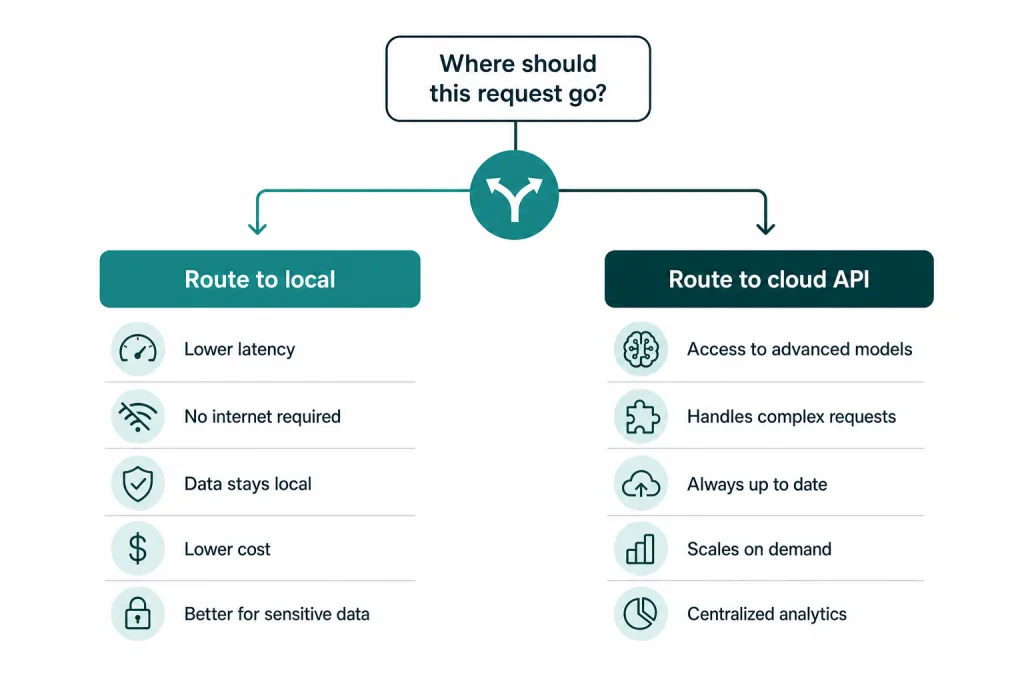
Workflow 4: Hybrid routing (the strategy most people should adopt)
Do not think of local versus cloud as a binary. Route by task:
| Send to local | Send to cloud API |
|---|---|
| Anything privacy-sensitive | Hardest reasoning tasks |
| Bulk and batch processing | Cases needing genuine frontier quality |
| Agent loops with many cheap calls | One-off high-stakes outputs |
| Iteration and experimentation | Work needing the very latest model |
| Offline work | Very long context windows |
This is where most of the value lives. Local handles volume, iteration, and privacy. Cloud handles the hard 5%.
Apple’s own AI stack (worth knowing about)
The Foundation Models framework gives developers direct Swift access to Apple’s on-device model — roughly 3B parameters, free, private, offline, with guided generation and tool calling built in.
The 2026 updates matter more than the original release: vision input, server-side execution, and a LanguageModel protocol that lets you back a session with Apple’s model, a cloud model, or a local MLX model via MLXLanguageModel. If you build Mac or iOS apps, that is a clean path to hybrid on-device AI features.
Xcode 26 also ships built-in LLM coding tools that can use ChatGPT, other providers via API key, or a local model running on your Mac.
Living With It: Thermals, Battery, and Noise
Specs do not tell you what a machine is like to use. A few honest observations.
The 14-inch throttles more than the 16-inch. Notebookcheck flagged strong thermal throttling on the 2026 MacBook Pro under sustained load, with inconsistent CPU behaviour even in High Power Mode. The 16-inch has more cooling headroom and a larger battery. If you plan sustained inference sessions, the 16-inch is the better machine — this is a real functional difference, not a preference.
Not all AI workloads are equal thermally. LLM decode is relatively gentle — it is memory-bound, so the GPU is not fully saturated and fans often stay quiet. Image and video diffusion are compute-bound and will pin your GPU, spin fans to audible, and drain battery fast.
Battery reality: short LLM sessions are fine unplugged. Sustained diffusion work will drain a battery in a couple of hours and thermally throttle before that. Stay plugged in for anything serious.
Power modes: the 16-inch offers High Power Mode, worth enabling for long jobs. Low Power Mode meaningfully reduces inference speed — avoid it while running models.
Practical habit: unplugged for chat and coding assistance. Plugged in, High Power Mode, for image batches and video.
The Honest Counter-Arguments
A guide that only argues one side is marketing. Here is the case against.
1. The M5 Max is genuinely faster, and it is not subtle
307 GB/s versus 614 GB/s. Since decode is bandwidth-bound, an M5 Max 40-core generates tokens roughly twice as fast on the same model. It also fits gpt-oss-120b, which the M5 Pro cannot.
If large-model decode speed is your primary use case, the M5 Max is the correct machine and the M5 Pro is a compromise. The counter is price: post-June-2026, that upgrade is brutal.
2. A discounted M4 Max might beat a new M5 Pro
This is the argument most buyers miss. The M4 Max has roughly 546 GB/s of memory bandwidth — considerably more than the M5 Pro’s 307 GB/s. For pure LLM decode, an M4 Max 64GB will typically outrun an M5 Pro 64GB.
What you give up: the M5’s Neural Accelerators, meaning much slower prefill and slower image generation.
The decision rule: if you mostly chat with large models, a discounted M4 Max 64GB is arguably the better buy. If you do agentic coding with long contexts, or generate images, the M5 Pro’s prefill and diffusion advantages win.
3. NVIDIA still wins on compute
An RTX 5090 has 32GB of VRAM at roughly 1,792 GB/s — nearly six times the M5 Pro’s bandwidth — plus vastly more compute. For any model that fits in 32GB, and for all compute-bound work (video, image, prefill), it is not a contest.
The Mac’s advantage begins precisely where 32GB of VRAM ends, and includes portability, silence, low power draw, and the ability to do this on a train.
4. The 128GB unified-memory competitors are capacity plays, not speed plays
NVIDIA DGX Spark / GB10: 128GB at roughly 273 GB/s, with CUDA. On gpt-oss-120b MXFP4, independent tests put it at 34–39 tok/s.
AMD Strix Halo / Ryzen AI Max+ 395: 128GB at roughly 256 GB/s. AMD’s own figures cite up to 30 tok/s on the same model via llama.cpp. Mini-PCs built around it are notably cheaper than any Mac.
Note that both have lower bandwidth than the M5 Pro. They buy you capacity, not speed. If your goal is running very large models at acceptable rather than fast speeds, they are cheaper. If you want speed, they are not the answer.
5. A desktop Mac is a better stationary machine
A Mac Studio M3 Ultra goes to 512GB at 800 GB/s. If your machine lives on a desk, that is a far better local-AI box than any MacBook Pro. The laptop’s value proposition is portability, battery, and silence — if you do not need those, do not pay for them.
6. You cannot upgrade the memory. Ever.
Apple Silicon memory is on-package. Whatever you buy is what you have for the machine’s life.
Given that 2026 model releases keep trending toward larger MoE footprints, under-buying RAM is the classic and permanent regret. If you are choosing between 48GB and 64GB, take the 64GB.
The Cost Math: Local vs Cloud
Let us do the arithmetic honestly, because “local is cheaper” is often asserted and rarely calculated.
Machine: roughly $2,800 for an M5 Pro 64GB, amortised over three to four years.
API pricing as of August 2026 (per million tokens, input/output):
| Service | Input | Output |
|---|---|---|
| Claude Sonnet–class | ~$3 | ~$15 |
| GPT-5–class | ~$1.75–$5 | ~$14–$30 |
| DeepSeek V4 Flash | ~$0.14 | ~$0.28 |
| Hosted open models (gpt-oss, Llama) | Lower still | Lower still |
Cloud GPU rental: H100 around $3/hour, H200 around $5/hour on-demand.
The break-even: published analyses put the crossover for a consumer machine at roughly 2–3 million tokens per day sustained over about twelve months against mid-tier proprietary APIs.
That is a lot of tokens. Below that threshold, cheap APIs — DeepSeek-class especially — genuinely undercut local on pure token cost.
So why buy the machine?
Because token cost is not the only cost:
- Privacy. Your data never leaves the device. For legal, medical, financial, or proprietary code work, this is frequently non-negotiable regardless of price.
- No rate limits. No throttling, no queues, no capacity errors at 2am.
- Offline. Aeroplanes, trains, bad hotel wifi, network outages.
- Zero marginal cost. This changes behaviour more than people expect. When each experiment is free, you run ten times as many. The absence of per-token anxiety while iterating is worth real money in output.
- You needed a laptop anyway. The honest framing is not “$2,800 for AI” — it is the delta between the machine you would have bought and this one.
The correct conclusion is hybrid. Local for volume, privacy, iteration, and agent loops. Cloud for the hard problems. Anyone claiming local fully replaces frontier APIs in 2026 is overselling; anyone claiming local is pointless has not run an agent loop at scale.
The Buying Guide
| If you… | Buy this | Why |
|---|---|---|
| Want the best-balanced local-AI laptop | M5 Pro 64GB, 16-inch | Runs 8B–70B and MoE models, fast image gen, room for everything else. Better thermals than 14-inch. |
Need gpt-oss-120b or 120B+ models | M5 Max 128GB | The only Mac laptop that fits them. Also ~2× decode speed. |
| Mostly chat with large models, want value | Discounted M4 Max 64GB | Higher bandwidth (546 GB/s) beats M5 Pro on decode. |
| Do video generation seriously | NVIDIA (RTX 5090) or cloud | Compute-bound work; Macs are several times slower. |
| Want maximum capacity on a budget | Strix Halo 128GB mini-PC | 128GB cheaply, but lower bandwidth than M5 Pro. |
| Work at a desk | Mac Studio M3 Ultra | Up to 512GB at 800 GB/s. |
| Are on a tight budget | M5 Pro 48GB | Runs 32B-class fine. Accept the 70B/MoE ceiling. |
What I would not do: buy a 24GB or 32GB machine for serious local AI. You will hit the wall within weeks and cannot upgrade out of it.
Frequently Asked Questions
Is 64GB enough for local AI in 2026? Yes, for most workloads. 64GB comfortably runs models up to about 70B parameters at 4-bit quantisation, plus Mixture-of-Experts models like GLM-4.6 Air, while leaving room for your operating system and applications. The main exception is gpt-oss-120b, which needs roughly 63GB for weights alone and requires a 128GB machine.
Can the M5 Pro run gpt-oss-120b? No. The MXFP4 build needs about 63GB for weights, and measured peak memory on an M5 Max is 64.4–64.9GB depending on context length. On a 64GB machine with a realistic 52–60GB usable budget, it does not fit. This is a 128GB model.
How many tokens per second does the M5 Pro produce? It depends heavily on the model. Measured figures for the M5 Pro 20-core with 64GB: gpt-oss-20b at 66–80 tok/s decode with 1,500–2,200 tok/s prefill, and Qwen3.6-27B at 17.8 tok/s decode with 470 tok/s prefill. Larger dense models like Llama 3.3 70B are estimated at 7–12 tok/s.
M5 Pro or M5 Max for local LLMs? M5 Max if token generation speed on large models is your priority — it has 614 GB/s of memory bandwidth versus the M5 Pro’s 307 GB/s, roughly doubling decode speed, and supports 128GB. M5 Pro if you want the best balance of price, portability, and capability for models up to 70B.
Is video generation practical on a Mac? Not really, in 2026. Video diffusion is compute-bound, and Macs are several times slower than an RTX 5090. Distilled models help — LTX 2.3 produces a 5-second clip in about 121 seconds on an M5 Max — but for real throughput, cloud GPU rental is dramatically faster and cheaper per clip.
How do I increase the GPU memory limit on macOS? Run sudo sysctl iogpu.wired_limit_mb=61440 to allocate 60GB. Verify with sysctl iogpu.wired_limit_mb and reset with a value of 0. Add it to /etc/sysctl.conf to persist across reboots. Always leave 4–8GB for macOS.
MLX or llama.cpp on Apple Silicon? MLX for most cases. It leads llama.cpp by 20–87% on models under 14B, uses about 10% less memory, and is what Ollama 0.19 switched to in March 2026. The exception is very long contexts — at 30,000+ tokens, llama.cpp with Flash Attention can be up to 50% faster.
Should I buy the 14-inch or 16-inch? The 16-inch for sustained AI work. It has better thermal headroom, a larger battery, and High Power Mode. The 14-inch throttles noticeably under sustained load.
Does a discounted M4 Max beat a new M5 Pro? For pure LLM decode, often yes — the M4 Max has roughly 546 GB/s versus the M5 Pro’s 307 GB/s. The M5 Pro wins on prompt processing (up to 4× faster) and image generation (over 3.8× faster) thanks to its Neural Accelerators. Choose based on which workload dominates your usage.
What Comes Next
A few things worth watching, because they could change the recommendation above.
Independent M5 Pro benchmarks on 70B models. Nobody has published a properly measured decode figure yet. If real-world results land above 15 tok/s, the “buy the Max for decode” argument weakens considerably.
Smaller gpt-oss-120b quantisations. If a build lands under 52GB, the 64GB ceiling argument softens overnight.
macOS memory defaults. If Apple raises the default GPU allocation above 75%, everyone with a 64GB machine gets free headroom.
MoE continuing to win. The trend toward high-total, low-active-parameter models is the single best thing that has happened to unified-memory machines. Every new MoE release makes Macs relatively more competitive.
Falling API prices. Re-run the local-versus-cloud break-even every six months. It moves.
The Bottom Line
The MacBook Pro M5 Pro with 64GB is not the fastest local-AI machine you can buy. It is not even the fastest Mac. What it is, is the configuration where the tradeoffs stop fighting each other.
It runs models good enough to be genuinely useful — gpt-oss-20b at 66–80 tok/s, GLM-4.6 Air at around 30, image generation in seconds — while remaining a laptop you can carry, run on battery, and use as your actual computer. The M5 generation’s Neural Accelerators fixed the specific weakness (slow prompt processing) that made earlier Macs frustrating for agentic and long-context work.
The ceilings are real and worth knowing: gpt-oss-120b does not fit, 70B dense models are batch tools rather than chat partners, and video generation belongs in the cloud.
If those limits fit around your work, this is the machine. If they do not, the sections above tell you exactly which one to buy instead — and that is more useful than another article telling you everything is fine.
Prices, model versions, and benchmark figures in this article reflect data available in August 2026 and move quickly — particularly Mac pricing during the ongoing memory shortage. Verify current specifications before purchasing.