 English
 Deutsch
 Español
 Italiano
 Français
 Português do Brasil
 Tiếng Việt
 ไทย
 Bahasa Indonesia
 Русский
 العربية
 हिन्दी

For six years my main Mac has been a 13-inch MacBook Pro with the M1 chip and 16 GB of memory, the model Apple launched in November 2020 as one of its first Apple silicon Macs. It still runs the current macOS and stays silent most of the day, and when it was new it ran for more than 20 hours in Notebookcheck’s Wi-Fi battery test. This month I ordered its replacement: a 16-inch MacBook Pro with the M5 Pro and 64 GB of unified memory, with the mini-LED screen. So before the new machine takes over my desk, I wanted to settle the MacBook Pro M1 vs M5 Pro question properly: not in benchmark points, but in the things I do all day.
That means coding (mostly through AI agents), a browser that’s never closed, local language models, video calls, WordPress, server admin, and music while I work. It also means the things spec sheets bury: the speakers, the screen, the fan, the weight in a bag, and what six years of battery wear does to a laptop that once ran for 20 hours.
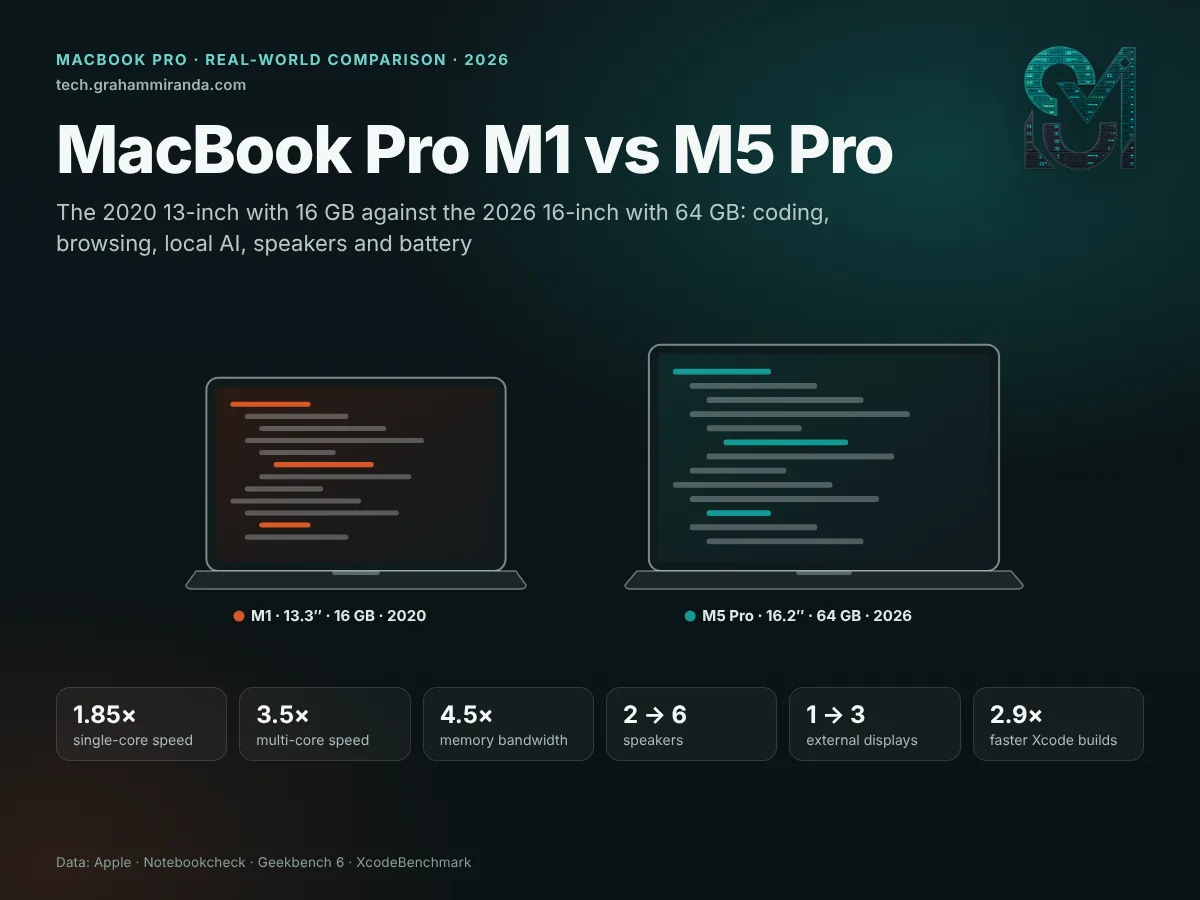
The short answer is that the M5 Pro is between 1.85 and 4.5 times faster depending on what you measure, has a far bigger and brighter screen, and has speakers that independent tests still rank ahead of the competition. The longer answer is more interesting: for a surprising share of everyday work, the M1 is still good enough, and in one measured test, new against new, it lasted longer on battery. Where it falls behind, it falls behind badly: memory, multi-core work, external displays, local AI and sound.
Independence note: No company sponsored, reviewed or approved this article, and it contains no affiliate links. I haven’t run my own benchmarks for it. The numbers come from Apple’s specifications and from independent tests, mainly Notebookcheck, which reviewed both machines with the same methods. Every figure is credited where it appears. Part 15 shows how to run the same tests on your own Macs.
TL;DR — The 60-Second Version
- The comparison. The 13-inch MacBook Pro with M1 and 16 GB (2020) against the 16-inch MacBook Pro with M5 Pro and 64 GB (2026, mini-LED). They launched five years and four months apart.
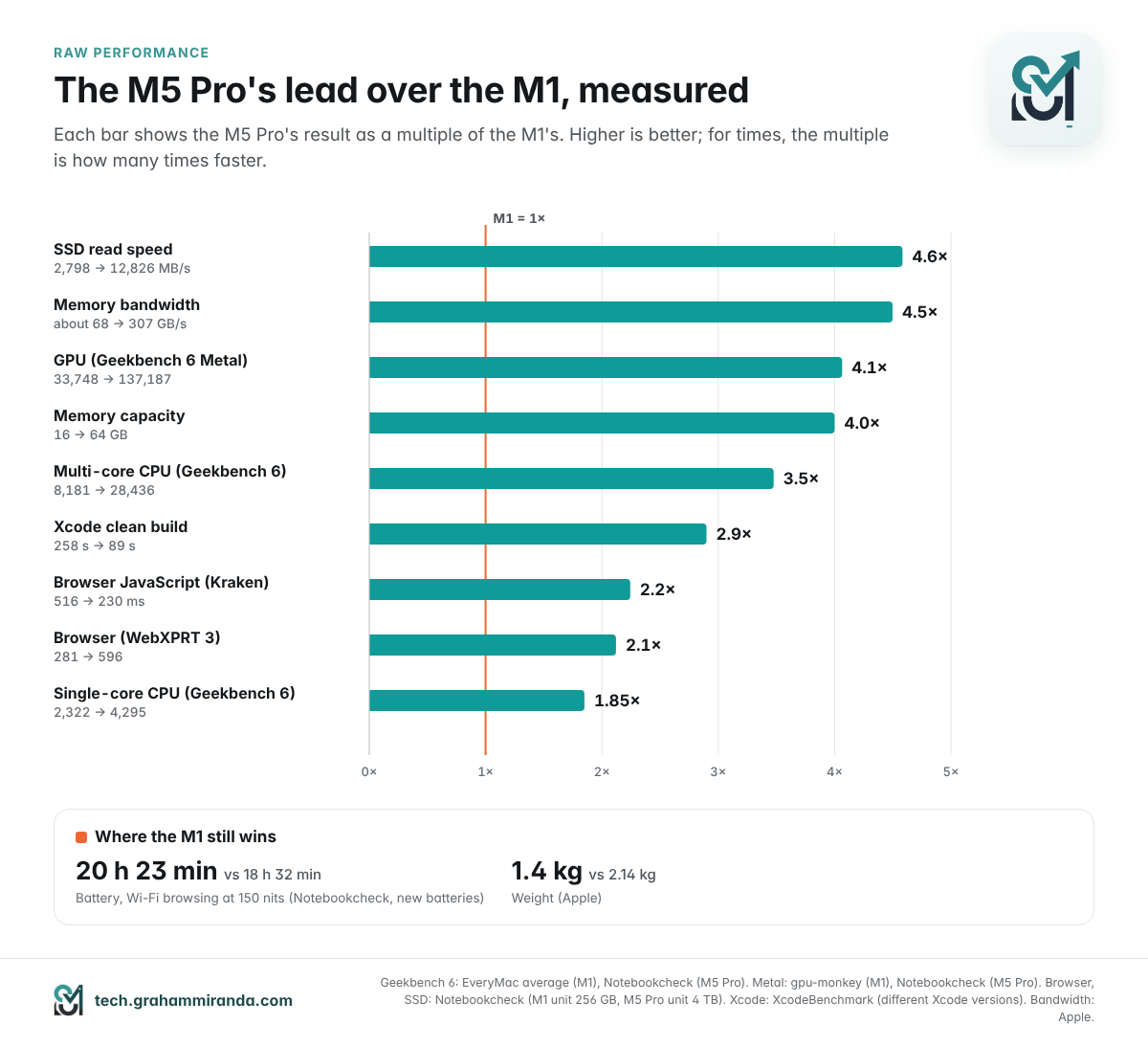
- CPU. About 1.85× faster single-core and 3.5× faster multi-core in Geekbench 6 (2,322 → 4,295 and 8,181 → 28,436).
- GPU and memory. Roughly 4× the graphics performance, 4× the memory and 4.5× the memory bandwidth (about 68 → 307 GB/s).
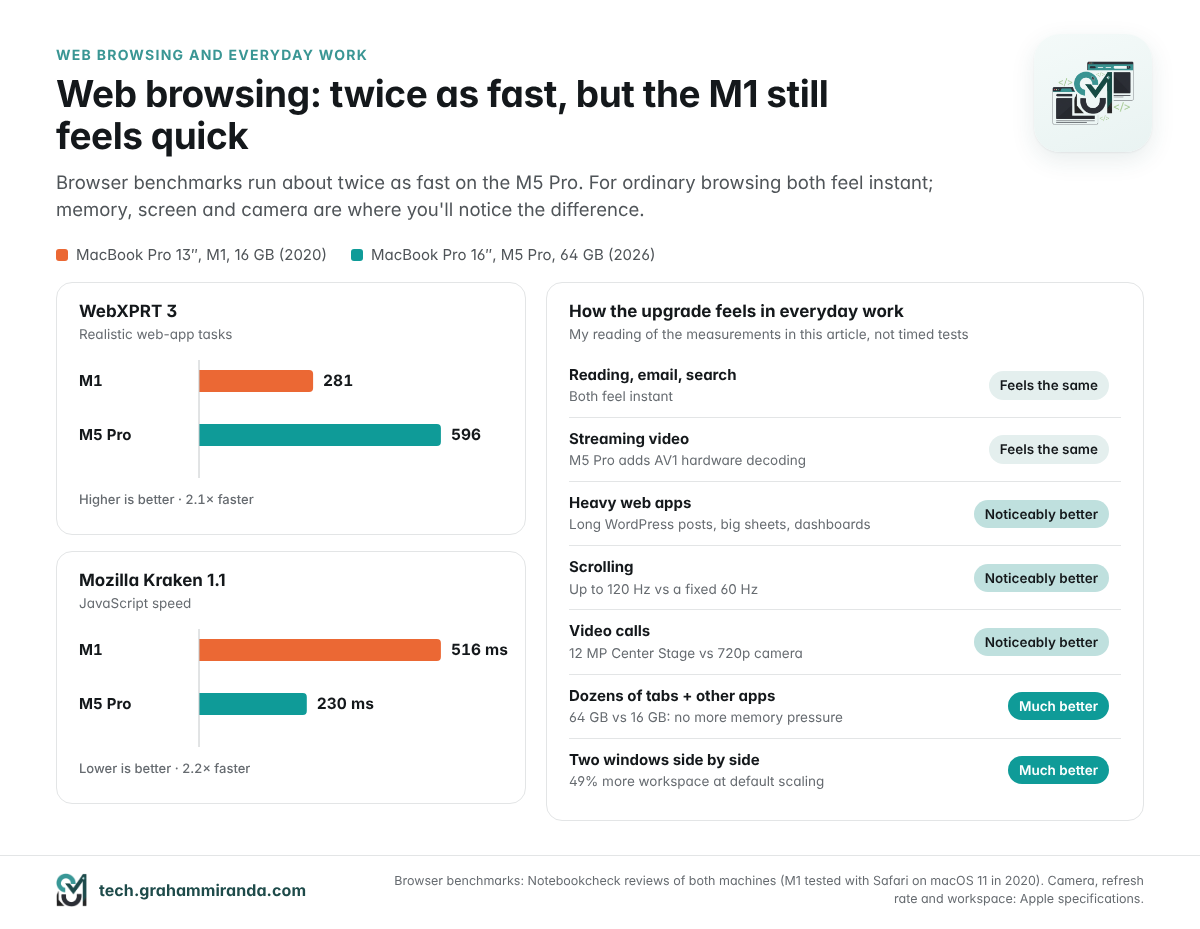
- Web browsing. Browser benchmarks run 2.1–2.2× faster, but for ordinary browsing both feel quick. The M1’s real limit is 16 GB once dozens of tabs share it with everything else.
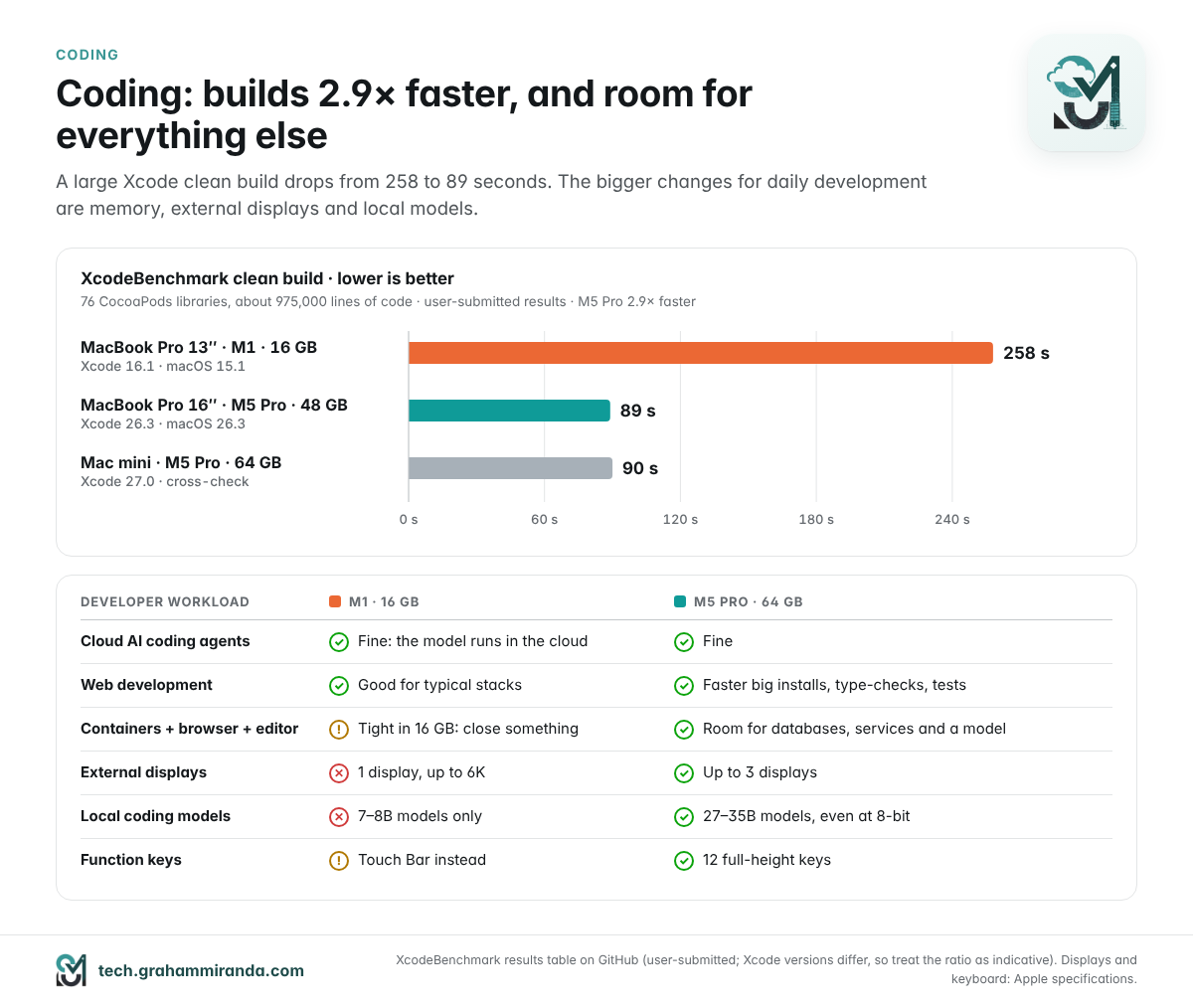
- Coding. A large Xcode clean build drops from 258 seconds to 89 (2.9×) in public XcodeBenchmark results. The M1 drives one external display; the M5 Pro drives three.
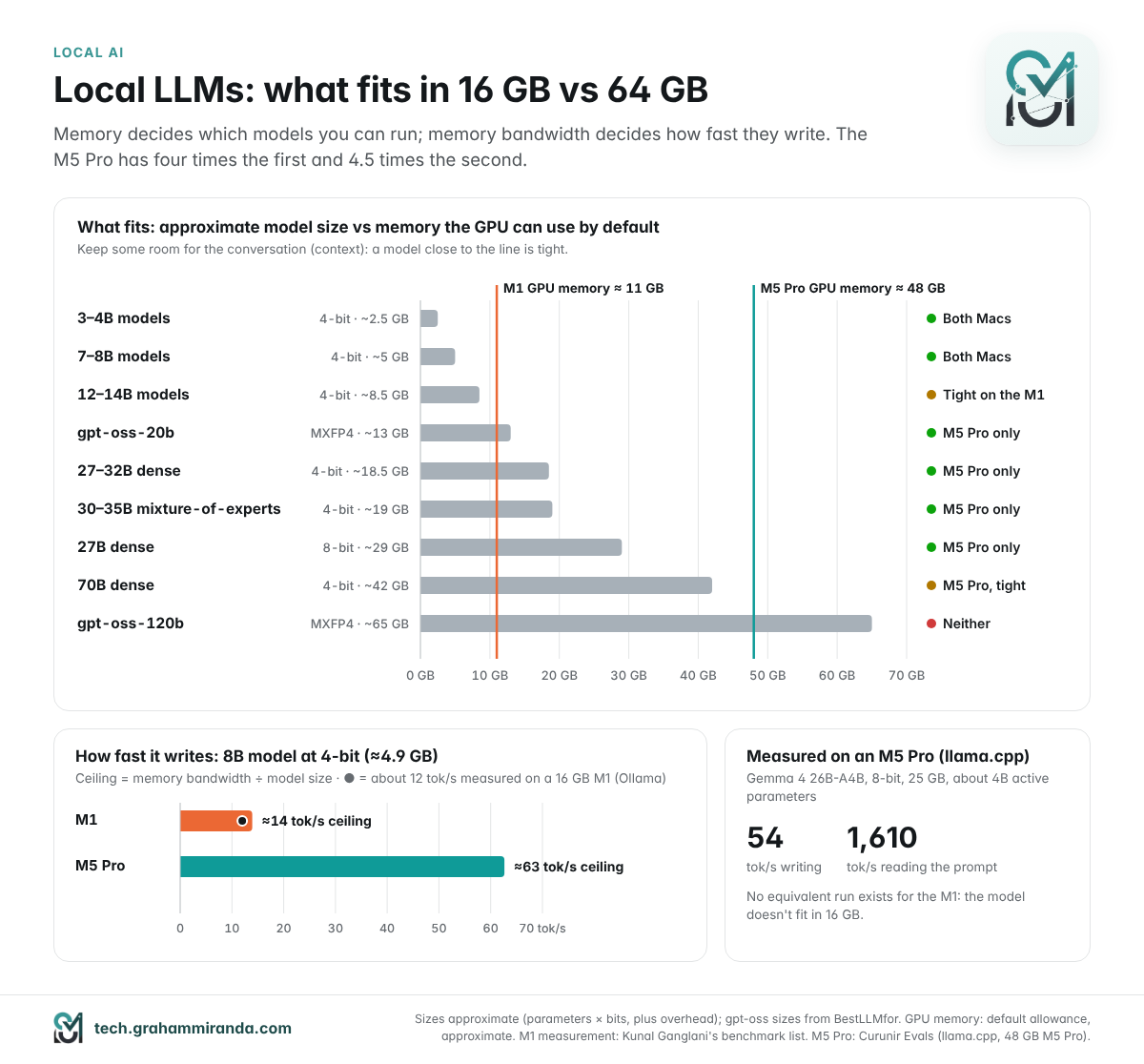
- Local AI is the biggest jump. The M1’s GPU can use about 11 GB, enough for 7–8B models. The M5 Pro can use about 48 GB, enough for 27–35B models, and its generation speed ceiling is 4.5× higher.
- Speakers. Two speakers against six. Notebookcheck measured the 16-inch 7.2 dB louder with much fuller bass. It’s the difference most people will hear first.
- Display. 16.2-inch mini-LED with up to 120 Hz, up to 1,000 nits for everyday content outdoors and 1,600 nits HDR peaks, and 49% more workspace at default settings.
- Battery. The M1 still wins on paper: 20 h 23 min vs 18 h 32 min in Notebookcheck’s Wi-Fi test. A six-year-old battery won’t get close to its review figure, though.
- Weight. 1.4 kg vs 2.14 kg (+53%). The 16-inch is a portable workstation, not a carry-everywhere laptop.
- Price. The M1 with 16 GB cost €1,636.65 in Germany in 2020. The 16-inch M5 Pro starts at €3,399 with 24 GB, and 64 GB costs extra.
- Keep the M1 for browsing, office work, writing and light web development. Upgrade for big builds, several displays, local AI, audio and video work, or if your battery is worn out.
MacBook Pro M1 vs M5 Pro at a Glance
| MacBook Pro 13″ (M1, 2020) | MacBook Pro 16″ (M5 Pro, 2026) | Difference | |
|---|---|---|---|
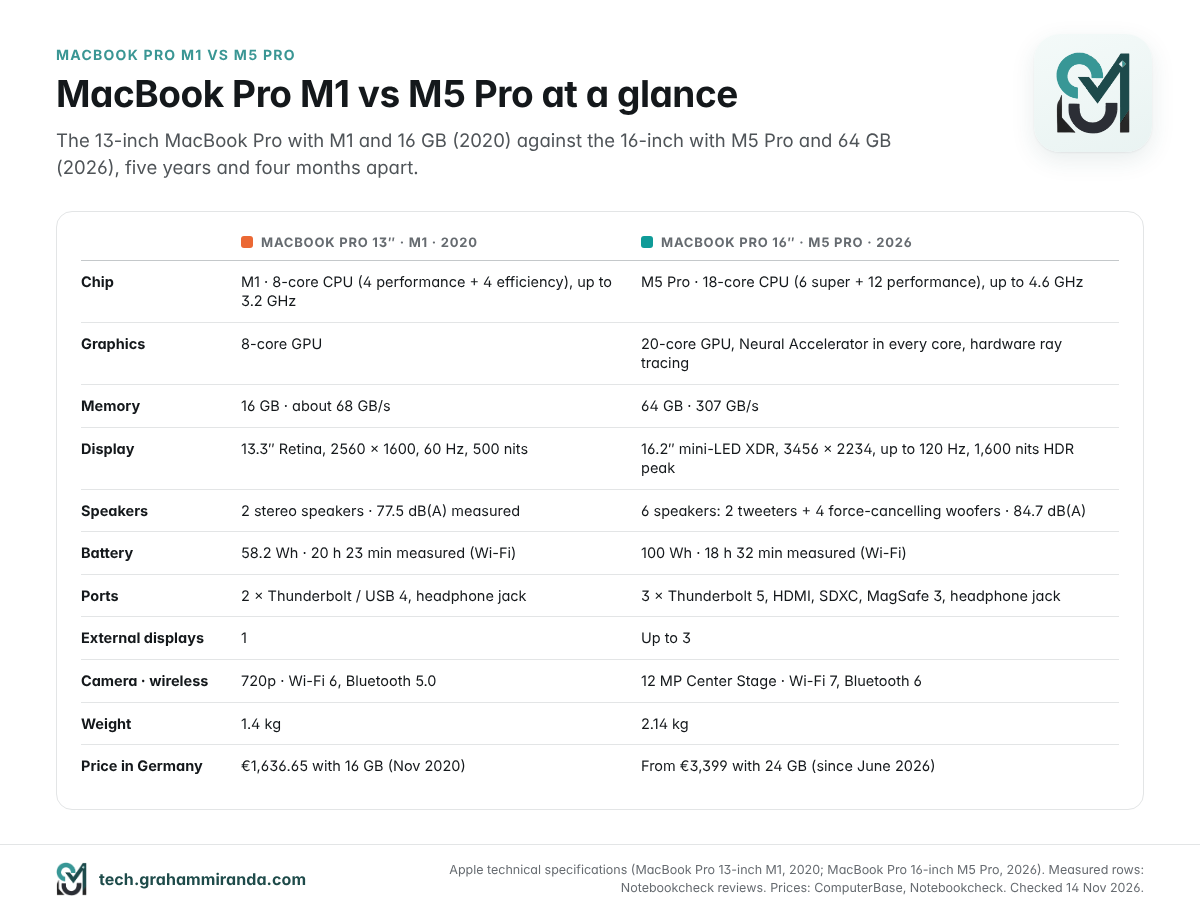
| CPU | 8 cores: 4 performance + 4 efficiency, up to 3.2 GHz | 18 cores: 6 super + 12 performance, up to 4.6 GHz | 10 more cores |
| GPU | 8 cores | 20 cores, Neural Accelerator in each, hardware ray tracing | — |
| Memory | 16 GB, about 68 GB/s | 64 GB, 307 GB/s | 4× capacity, 4.5× bandwidth |
| Geekbench 6 single / multi | 2,322 / 8,181 | 4,295 / 28,436 | 1.85× / 3.5× |
| Geekbench 6 GPU (Metal) | about 33,700 | 137,187 | about 4.1× |
| Xcode clean build (XcodeBenchmark) | 258 s | 89 s | 2.9× faster |
| Browser (WebXPRT 3) | 281 | 596 | 2.1× |
| Display | 13.3″, 2560 × 1600, 60 Hz, 500 nits | 16.2″ mini-LED, 3456 × 2234, up to 120 Hz, 1,000 nits sustained (XDR), 1,600 nits HDR peak | +50% screen area |
| Speakers | 2 stereo speakers | 6: 2 tweeters + 2 pairs of force-cancelling woofers | 3× the drivers |
| Measured max loudness | 77.5 dB(A) | 84.7 dB(A) | +7.2 dB |
| Battery (rated / measured Wi-Fi) | 58.2 Wh; 17 h web / 20 h 23 min | 100 Wh; 17 h web / 18 h 32 min | M1 lasts ~1 h 50 min longer |
| Ports | 2× Thunderbolt / USB 4, headphone jack | 3× Thunderbolt 5, HDMI, SDXC, MagSafe 3, headphone jack | — |
| External displays | 1 | Up to 3 | — |
| Camera | 720p | 12 MP Center Stage, 1080p video | — |
| Wireless | Wi-Fi 6, Bluetooth 5.0 | Wi-Fi 7, Bluetooth 6 (Apple N1) | — |
| Weight | 1.4 kg | 2.14 kg | +0.74 kg |
| Launch price, Germany | €1,636.65 (16 GB / 256 GB) | From €3,399 (24 GB / 1 TB); 64 GB extra | — |
Apple’s technical specifications for both models; Geekbench 6 averages from EveryMac (M1) and Notebookcheck’s measurement (M5 Pro); GPU score for the M1 from gpu-monkey; XcodeBenchmark results from its GitHub table; browser, speaker and battery measurements from Notebookcheck’s reviews of both machines. M1 Geekbench and battery figures are averages or review-unit results, not my own Mac’s. Checked 14 November 2026.
Table of Contents
- Part 1 — MacBook Pro M1 vs M5 Pro: Two Machines, Five Years Apart
- Part 2 — Raw Performance: What “Faster” Means in Numbers
- Part 3 — Web Browsing and Everyday Work: Where the M1 Still Holds Its Own
- Part 4 — MacBook Pro for Coding: Builds, Containers, Displays and AI Agents
- Part 5 — Local AI: 16 GB vs 64 GB Is the Real Upgrade
- Part 6 — Photo, Video and Gaming
- Part 7 — Speakers and Audio: Two Speakers vs Six
- Part 8 — The Display: 13.3-Inch Retina vs 16.2-Inch Liquid Retina XDR
- Part 9 — Battery Life, Charging, Heat and Noise
- Part 10 — Ports, Wireless, Camera and Keyboard
- Part 11 — Size and Weight: The 16-Inch Tax
- Part 12 — Software Support: How Much Life Is Left in an M1?
- Part 13 — Price and Value: 2020 Money vs 2026 Money
- Part 14 — Should You Upgrade From M1 to M5 Pro?
- Part 15 — Moving From the M1 to the M5 Pro: A Checklist
- Frequently Asked Questions
- The Bottom Line
Part 1 — MacBook Pro M1 vs M5 Pro: Two Machines, Five Years Apart
These two laptops sit at opposite ends of the Apple silicon story. The 13-inch MacBook Pro with M1 was announced on 10 November 2020, alongside the MacBook Air and Mac mini that started Apple’s move away from Intel. Apple replaced it with an M2 model in June 2022. The 16-inch MacBook Pro with M5 Pro was introduced on 3 March 2026 and went on sale on 11 March, according to The Apple Wiki. Five years and four months separate the two launches, and a lot changed in between.
What’s inside the M1
The M1 is an eight-core chip: four performance cores and four efficiency cores, running at up to 3.2 GHz. Next to them sit an 8-core GPU, a 16-core Neural Engine and, in my configuration, 16 GB of LPDDR4X memory, the most the M1 could take. Apple never published the M1’s memory bandwidth on its own spec sheet, but when it launched the M2 it said the new chip’s 100 GB/s was 50 percent more than the M1. That puts the M1 at roughly 67–68 GB/s.
The rest of the 13-inch Pro is a 2016-era design: a 13.3-inch 2560 × 1600 screen at 500 nits, two Thunderbolt / USB 4 ports, a Touch Bar above the keyboard, a 720p camera and a single fan. Notebookcheck’s review at the time made a fair point: the Pro was barely different from the cheaper MacBook Air, and its fan only mattered under long, heavy loads.
What’s inside the M5 Pro
The M5 Pro is built differently. Apple calls the design Fusion Architecture: two third-generation 3 nm dies joined into one chip. Its 18-core CPU has 6 super cores, which Apple describes as its highest-performance core design, and 12 new performance cores designed for power-efficient multithreaded work. There are no efficiency cores in the M1 sense: Notebookcheck lists the super cores at up to 4.6 GHz and the performance cores at up to 4.4 GHz.
The GPU has 20 cores, each with its own Neural Accelerator, plus hardware ray tracing. Memory goes up to 64 GB at 307 GB/s. The media engine adds hardware ProRes encoding and decoding and AV1 decoding, the ports move to Thunderbolt 5, and Apple’s own N1 chip brings Wi-Fi 7 and Bluetooth 6. Around all that sits the 16.2-inch Liquid Retina XDR mini-LED screen, six speakers and a 100 Wh battery.
The configurations in this comparison
| My current Mac | My next Mac | |
|---|---|---|
| Model | MacBook Pro (13-inch, M1, 2020) | MacBook Pro (16-inch, M5 Pro, 2026), Liquid Retina XDR (mini-LED) |
| Chip | M1, 8-core CPU, 8-core GPU | M5 Pro, 18-core CPU, 20-core GPU |
| Memory | 16 GB | 64 GB |
| Operating system | macOS 27 | macOS 27 |
The 64 GB option is only available on the M5 Pro with the full 20-core GPU, which is the only M5 Pro Apple puts in the 16-inch anyway. If you’re wondering why I chose mini-LED over the new OLED model with the same chip, I wrote that up in Why I Cancelled My OLED MacBook Pro. And if you’re still deciding on memory, my MacBook Pro M5 Pro 64 GB guide covers that decision in detail.
Part 2 — Raw Performance: What “Faster” Means in Numbers
Benchmarks don’t tell you how a laptop feels, but they tell you where to look. Here’s what the M5 Pro gains over the M1, and what each kind of speed means in practice.
Single-core: the speed you feel
Single-core performance is what makes a Mac feel responsive: an app opening, a web page running its JavaScript, a spreadsheet recalculating, a single file compiling. Most everyday software is still limited by one thread at a time.
EveryMac’s average Geekbench 6 single-core score for the 13-inch M1 MacBook Pro is 2,322. Notebookcheck measured 4,295 on the 16-inch M5 Pro, in line with public Geekbench results for the same model of around 4,290. That’s 1.85× faster. You’ll feel it, but less than the number suggests, because the M1 is already fast at most of these jobs: many of them finish in well under a second either way.
Multi-core: the speed you wait for
Multi-core performance matters for work that can be split across cores: compiling a whole project, exporting video, running a test suite in parallel, compressing archives, running several heavy apps at once.
Here the gap is much wider: 8,181 (M1 average) against 28,436 (M5 Pro), or 3.5×. Ten more cores, and faster ones, add up. A job that keeps the M1 busy for ten minutes is done in about three on the M5 Pro, if it scales across cores the way Geekbench’s tests do.
Graphics, memory bandwidth and storage
- GPU: about 33,700 in Geekbench 6’s Metal test for the M1’s 8-core GPU, according to gpu-monkey’s database, against 137,187 measured by Notebookcheck on the M5 Pro’s 20-core GPU. That’s about 4.1×, before you count the hardware ray tracing and Neural Accelerators the M1 doesn’t have at all.
- Memory bandwidth: about 68 GB/s against 307 GB/s, or 4.5×. This matters more than it sounds: it’s the main limit on how fast a local language model writes (Part 5), and it feeds the GPU in graphics work.
- Storage: Notebookcheck measured 2,798 MB/s read and 2,194 MB/s write on its M1 review unit and 12,826 / 12,812 MB/s on the M5 Pro, about 4.6× faster reads and 5.8× faster writes. The M1 unit had a 256 GB SSD, which Apple’s smaller drives tend to make slower; the M5 Pro unit had 4 TB. Notebookcheck saw peaks of about 17 GB/s on the M5 Pro.
Apple’s own claims, read carefully
Apple’s March press release compares the M5 Pro with the M1 Pro, not the plain M1: up to 2.5× the multithreaded performance, 2.2× the graphics performance and over 6× the peak GPU compute for AI. The M1 Pro was already a step above my M1, with twice the GPU cores and more performance cores, so against the plain M1 those gaps are larger still. Apple tested on a preproduction 16-inch with exactly my configuration (18-core CPU, 20-core GPU, 64 GB), which makes those claims unusually relevant to this comparison, but they’re still manufacturer numbers.
Sustained performance and power modes
The 13-inch M1 MacBook Pro has one fan, and that fan is the main thing that separated it from the fanless Air. Notebookcheck found the Air losing about 12% in a long Cinebench R23 run while the Pro held its performance better; the Pro’s power draw eased only from about 47.5 W to about 43 W after an hour of full load.
The 16-inch M5 Pro has much more cooling to work with and three power modes. In Notebookcheck’s tests, the CPU peaked at 72 W in both Automatic and High Power mode, then settled at 52 W in Automatic and 62 W in High Power. Low Power mode caps the CPU at about 12 W, and CNET also noted a big drop in performance in that mode. For heavy work on battery, leave Low Power off.
Part 3 — Web Browsing and Everyday Work: Where the M1 Still Holds Its Own
If your day is mostly a browser, email, documents and video calls, this is the section that should decide your upgrade. And the honest answer is that the gap here is the smallest in the whole comparison.
Browser benchmarks
Notebookcheck runs the same browser tests on every laptop it reviews, so the two reviews line up:
| Test | MacBook Pro 13″ M1 | MacBook Pro 16″ M5 Pro | Difference |
|---|---|---|---|
| WebXPRT 3 (higher is better) | 281 | 596 | 2.1× |
| Mozilla Kraken 1.1 (lower is better) | 516 ms | 230 ms | 2.2× faster |
Notebookcheck reviews, December 2020 (M1) and March 2026 (M5 Pro).
One caveat: the M1 was tested with 2020’s Safari and macOS Big Sur. Browsers have improved since, and Notebookcheck’s processor database now lists an average Kraken time of about 474 ms across its M1 results, so a fully updated M1 narrows the gap a little. The direction doesn’t change: the M5 Pro runs web code about twice as fast.
The benchmark most browser makers now quote is Speedometer 3.1, which simulates real web apps. I couldn’t find same-source results for both machines, so I haven’t included any.
What you’ll actually notice
For reading articles, checking mail, searching and watching video, both machines feel fast. Twice as fast at something that already takes a fraction of a second is hard to perceive. Where the M5 Pro’s speed does show is in heavy web apps: a long post in WordPress’s block editor, a big Google Sheet, a design tool in the browser, a cloud console with live dashboards, or a site that runs a lot of JavaScript on every scroll. On the M1, these are where you’ll see the occasional stutter or delay.
Two things you’ll notice that aren’t about the chip at all:
- Smoother scrolling. The M1’s screen runs at a fixed 60 Hz. The M5 Pro’s ProMotion screen goes up to 120 Hz, so scrolling long pages looks noticeably smoother.
- More room. At Apple’s default settings, the 16-inch shows 1728 × 1117 points against the 13-inch’s 1440 × 900: 49% more workspace. Two browser windows side by side become comfortable rather than cramped.
Tabs, memory and the 16 GB ceiling
Memory is where the M1 shows its age in everyday use, and it’s not about speed. Sixteen gigabytes was generous in 2020. In 2026, a browser with a few dozen tabs, a chat app, a mail client, an editor and a container or two can fill it. macOS copes well: it compresses memory first and swaps to the SSD second, and on Apple silicon that’s fast enough that you mostly won’t notice. When you do, it shows as a tab reloading when you switch back to it, or a short pause when you change apps.
The quickest way to see whether 16 GB is holding you back is Activity Monitor’s Memory pressure graph: if it stays green, you don’t need more memory for what you do; if it’s often yellow or red, you do. The M5 Pro with 64 GB simply removes this ceiling for browsing and office work.
Video calls and streaming
The M1’s 720p camera was one of the few things Notebookcheck criticised in 2020, and it hasn’t aged well. The M5 Pro’s 12 MP Center Stage camera records 1080p video, keeps you framed as you move and supports Desk View. Notebookcheck still rated its photos and video as low-resolution, so don’t expect miracles, but it’s a clear step up. Both have a three-microphone array that Apple calls studio-quality.
For streaming, the M5 Pro adds hardware AV1 decoding, which the M1 lacks. Streaming services increasingly use AV1 because it saves bandwidth; without a hardware decoder, a browser either decodes it on the CPU, which costs battery, or falls back to an older format. Netflix and YouTube still play perfectly well on the M1. It’s a matter of efficiency, not whether things work.
Part 4 — MacBook Pro for Coding: Builds, Containers, Displays and AI Agents
Coding is where I expect to feel the upgrade most, but not evenly. Some parts of a developer’s day are already fast on the M1. Others, like builds, containers, multiple screens and local models, are exactly where it’s run out of room.
Xcode: 258 seconds vs 89
XcodeBenchmark is an open-source project that measures how long a Mac takes to compile a large Xcode project: 76 popular CocoaPods libraries and their dependencies, about 7,500 files and roughly 975,000 lines of code. Users submit their results to a public table.
| Mac | Memory | Xcode / macOS | Clean build |
|---|---|---|---|
| MacBook Pro 13″ (2020), M1 | 16 GB | Xcode 16.1 / macOS 15.1 | 258 s |
| MacBook Pro 16″ (2026), M5 Pro 18-core | 48 GB | Xcode 26.3 / macOS 26.3 | 89 s |
| Mac mini (2026), M5 Pro 18-core | 64 GB | Xcode 27.0 / macOS 27.0 | 90 s |
XcodeBenchmark results table on GitHub, user-submitted.
That’s 2.9× faster, or 65% less time waiting. A four-minute clean build becomes a minute and a half. Two cautions: these are single user submissions, and they come from different Xcode versions. The project itself says results from Xcode 15 and earlier can’t be compared with Xcode 16 and later; all three rows here are from Xcode 16 or later, but toolchains still change between versions. The Mac mini result with 64 GB is a useful cross-check: it lands within a second of the 16-inch with 48 GB, so memory size doesn’t change this particular test.
Incremental builds, the ones you run dozens of times a day after changing a file, depend more on single-core speed and on how much of the project needs rebuilding. Expect something closer to the 1.85× single-core gain there.
Web development, scripting and the terminal
For most web development, the M1 is still a perfectly good machine. A typical JavaScript or TypeScript project spends its time in single-threaded tools and in the file system, and both are fast on the M1. You’ll feel the M5 Pro in the bigger jobs: installing dependencies for a large monorepo, type-checking a big codebase, running a full test suite in parallel, or building a production bundle. The 4.6× faster SSD helps with all of them, and the extra cores help with anything that runs in parallel.
The keyboard changes too. The M1’s Touch Bar replaced the function keys, and Notebookcheck called it “still just a gimmick most of the time” in 2020. The 16-inch has a row of 12 full-height function keys, which matters if your editor or debugger uses them.
Containers and virtual machines
This is where 16 GB really pinches. Docker Desktop, OrbStack, Podman and Apple’s own container tool all run Linux in virtual machines that need their own memory. On a 16 GB Mac, that memory comes out of the same pool as your browser and editor, so running a database, a couple of services and a full browser at once means choosing what to close. On 64 GB, you can run the database, the services, the browser and a local model together.
External displays
This one is easy to forget: the M1 MacBook Pro supports one external display, up to 6K at 60 Hz. That’s a hardware limit of the base M1, not a setting. The M5 Pro supports up to three, for example three displays at 6K and 60 Hz, or one at 8K plus a second at 5K and 120 Hz, alongside its own screen. If your setup is a laptop plus two monitors, the M1 simply can’t do it without workarounds such as DisplayLink adapters.
AI coding agents: the cloud levels the field
Most of my coding now happens through AI agents (I compared 28 of them in Every AI Coding Harness Compared and walked through my setup in How to Use OpenCode). When the model runs in the cloud, the laptop only runs the terminal, the editor, git and your tests, and the M1 handles that easily. The agent waits for the model, not for your CPU.
The picture changes when you run the model yourself. A coding model that’s actually useful for agent work needs far more than the M1’s 16 GB can give it, and it needs to read long prompts quickly. That’s Part 5.
Part 5 — Local AI: 16 GB vs 64 GB Is the Real Upgrade
If you run language models on your own Mac, nothing in this comparison matters more than memory. It decides which models you can run at all, and memory bandwidth decides how fast they write. On both counts, the M5 Pro with 64 GB is in a different class.
What fits
macOS lets the GPU use most, but not all, of a Mac’s unified memory. On a 16 GB Mac that works out to about 11 GB for models by default, according to local-AI compatibility guides; on Macs with more memory, the usual rule of thumb is about three-quarters, which is about 48 GB on a 64 GB M5 Pro. A model also needs room beyond its download size for the conversation it’s working on, so as I wrote in my OpenCode guide, keep the download under about 60% of your Mac’s memory.
| Model class (4-bit unless noted) | Approx. size | M1, 16 GB | M5 Pro, 64 GB |
|---|---|---|---|
| 3–4B models | 2–3 GB | ✅ Comfortable | ✅ Comfortable |
| 7–8B models | ~5 GB | ✅ Fits, with a modest context | ✅ Comfortable |
| 12–14B models | 8–9 GB | ⚠️ Tight | ✅ Comfortable |
| gpt-oss-20b (MXFP4) | ~13 GB | ❌ Doesn’t fit by default | ✅ Comfortable |
| 27–32B dense models | 17–20 GB | ❌ | ✅ Comfortable, even at 8-bit (~30 GB) |
| 30–35B mixture-of-experts models | 18–20 GB | ❌ | ✅ Comfortable, and fast |
| 70B dense models | ~40–43 GB | ❌ | ⚠️ Fits, with little room left |
| gpt-oss-120b | ~65 GB | ❌ | ❌ Needs 96–128 GB |
Sizes are approximate (parameters × bits per weight, plus overhead); exact downloads vary by model and quantisation. gpt-oss sizes as measured in BestLLMfor’s MacBook Pro test.
In plain terms: the M1 runs the small models that are good at summaries, rewording and commit messages. The M5 Pro with 64 GB runs the mid-size models that can actually help with code and longer reasoning, including at higher precision.
How fast it writes
When a model writes its answer, it reads all its active weights from memory for every token. So the speed limit is simple arithmetic: memory bandwidth divided by the size of the model. For an 8B model at 4-bit (about 4.9 GB):
- M1: 68 GB/s ÷ 4.9 GB ≈ 14 tokens a second, at most.
- M5 Pro: 307 GB/s ÷ 4.9 GB ≈ 63 tokens a second, at most.
Real runtimes reach part of that ceiling, not all of it. A community-curated benchmark list records about 12 tokens a second for Llama 3.1 8B at 4-bit in Ollama on a 16 GB M1, close to its limit. On the M5 Pro, a published llama.cpp test on a MacBook Pro with 48 GB measured 54 tokens a second for Gemma 4 26B-A4B at 8-bit, a mixture-of-experts model that only uses about 4 billion parameters per token. That’s a 25 GB model writing more than four times faster than the M1 manages with a 5 GB one.
Dense models are slower: a 27B model at 4-bit has a ceiling of about 18 tokens a second on the M5 Pro, and a 70B model about 7–8.
How fast it reads
Before a model writes anything, it reads your whole prompt: the files, the conversation, the tool definitions an agent sends with every step. That part, called prefill, is limited by compute rather than bandwidth, and it’s where the M5 generation changed the most. Every GPU core in the M5 Pro has a Neural Accelerator for exactly this kind of maths. Apple’s machine-learning team measured the base M5 reading prompts 3.3 to 4.1 times faster than the M4 using MLX, and Apple says the M5 Pro has over 6× the peak GPU compute for AI of the M1 Pro.
In the same llama.cpp test, the M5 Pro processed prompts at 1,610 tokens a second. llama.cpp only switches on Apple’s new tensor path on M5-class chips; on an M1, that path stays off.
What it means in practice
On the M1, local AI is a helper: quick summaries, rewording, private notes, offline use. On the M5 Pro with 64 GB, it’s a real tool: a capable coding or writing model, fast enough to use interactively, with room for long documents. It still doesn’t replace a frontier model in the cloud, for reasons I went through in Don’t Buy a MacBook Just to Run LLMs. But it’s the difference between local AI being a novelty and being part of the workflow.
Part 6 — Photo, Video and Gaming
This isn’t my main work, but it’s where the GPU and media engines show up most clearly.
Photo editing. Lightroom and Photoshop lean on both CPU and GPU, so the M5 Pro’s 3.5× multi-core and roughly 4× GPU gains translate into faster exports and smoother previews. The bigger screen and 1,600-nit HDR peaks matter just as much for editing HDR photos, which the M1’s 500-nit SDR screen can’t show properly.
Video. The M1 has hardware encoding and decoding for H.264 and HEVC, but no ProRes engine: Apple introduced ProRes acceleration in the base chip with the M2. The M5 Pro has a dedicated ProRes and ProRes RAW encode and decode engine, plus AV1 decoding. If you edit ProRes footage from an iPhone or a camera, that’s the difference between smooth scrubbing and a stuttering timeline.
Gaming. Mac gaming has improved a lot since 2020, and the hardware gap is wide. In Notebookcheck’s 2020 tests, the M1 MacBook Pro ran Shadow of the Tomb Raider at 66 fps on low settings but only 23 fps on high. In 2026, the M5 Pro ran Cyberpunk 2077 at about 58 fps at 1080p on Ultra and Baldur’s Gate 3 at 83.8 fps at 1080p on Ultra. They’re different games, so the numbers don’t compare directly, but the story is clear: the M1 runs older and lighter games at low settings; the M5 Pro runs current games at high settings at 1080p and playable settings at 1440p. It also has hardware ray tracing, which the M1 lacks.
One date to note for both: Apple says macOS 28, expected in autumn 2027, will no longer run most apps built only for Intel, with an exception for some older unmaintained games.
Part 7 — Speakers and Audio: Two Speakers vs Six
This is the part I was most curious about, because it’s the easiest to underestimate. Spec sheets reduce speakers to a single line. In daily use, they’re the difference between a laptop that plays sound and one you’d actually listen to music on.
The hardware
- 13-inch M1: two stereo speakers, which Apple calls “high dynamic range”, with wide stereo sound and Dolby Atmos playback.
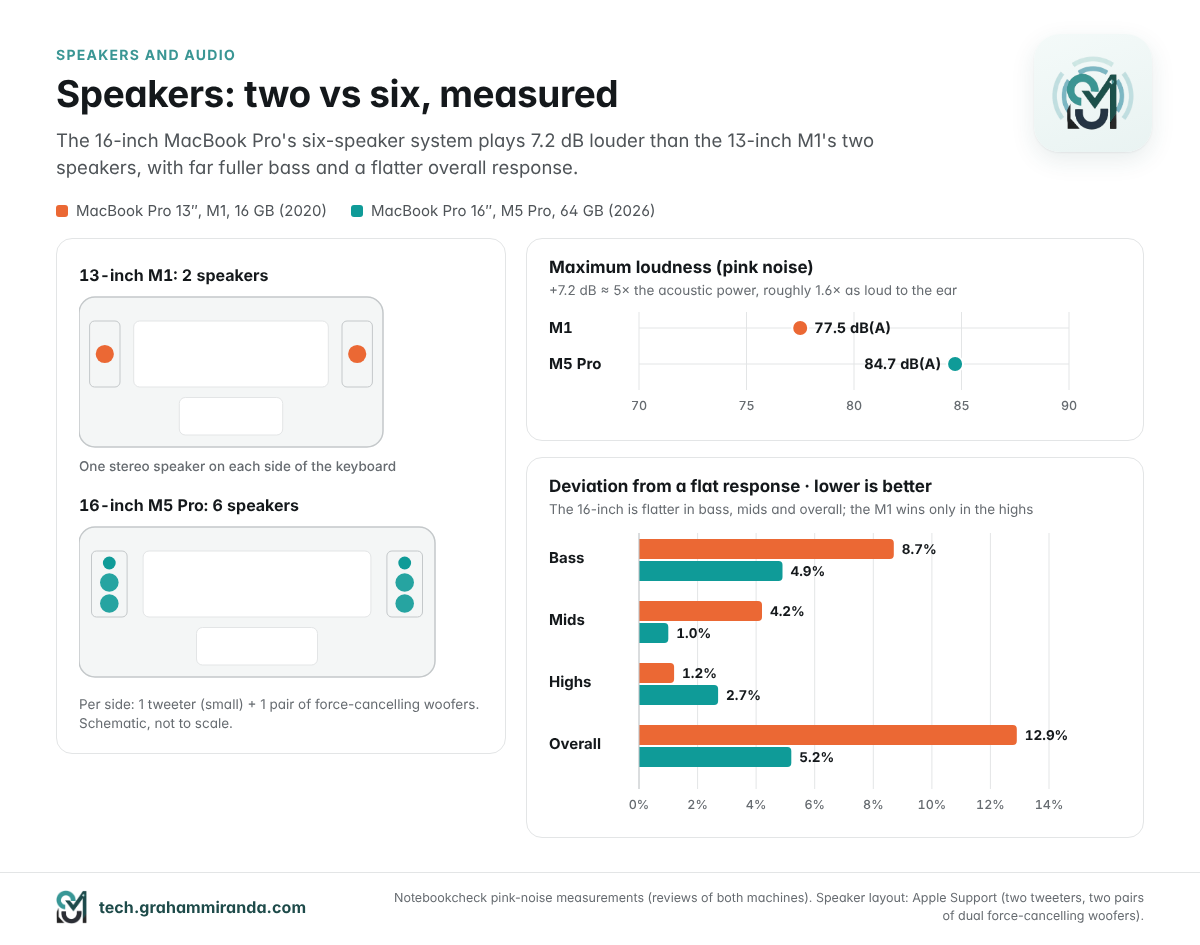
- 16-inch M5 Pro: Apple’s “high-fidelity six-speaker sound system with force-cancelling woofers”. Apple’s support guide spells it out as two tweeters and two pairs of dual force-cancelling woofers. In each pair, the two woofer drivers are mounted back to back so their vibrations cancel out, which lets them move more air without shaking the chassis and blurring the sound. The 16-inch also plays Spatial Audio with Dolby Atmos through its built-in speakers.
The measurements
Notebookcheck measures every laptop’s speakers the same way, playing pink noise and recording the response, so the two reviews line up. Deviation is how far the response strays from the median; lower is flatter and more natural.
| Measurement (pink noise) | MacBook Pro 13″ M1 | MacBook Pro 16″ M5 Pro |
|---|---|---|
| Maximum loudness | 77.5 dB(A) | 84.7 dB(A) |
| Bass, deviation from median | 8.7% | 4.9% |
| Mids, deviation from median | 4.2% | 1.0% |
| Highs, deviation from median | 1.2% | 2.7% |
| Overall deviation | 12.9% | 5.2% |
Notebookcheck reviews of both machines. Lower deviation is better. The M1’s highs are the one row it wins.
Two things stand out. First, loudness: 7.2 dB more. Decibels are logarithmic, so that’s about 5 times the acoustic power, and by the common rule of thumb that +10 dB sounds about twice as loud, roughly 1.6 times as loud to the ear. Second, balance: the 16-inch’s overall deviation is less than half the M1’s, mostly thanks to bass and mids. The M1’s speakers are clean in the treble but thin underneath; the 16-inch has real low end.
Notebookcheck listed the M1’s speakers as a strength in 2020, and they were good for a 13-inch laptop. In 2026 it called the 16-inch’s speakers “excellent” and judged Apple still a step ahead of the Windows laptops it compared. Two of them, Samsung’s Galaxy Book6 Ultra and Lenovo’s ThinkPad T1g, played slightly louder (85.6 dB(A)), but neither was as balanced.
What it sounds like in daily use
- Spoken word (podcasts, YouTube explainers, calls): both are clear. The M1 is perfectly usable here.
- Music: the biggest difference. Bass lines that the M1 implies, the 16-inch actually plays. At moderate volume it fills a room; the M1 fills a desk.
- Films and series: the 16-inch’s width, bass and Atmos support make laptop viewing far less of a compromise. On the M1, dialogue is clear but explosions are polite.
- Checking audio work: neither replaces studio monitors or good headphones, but the 16-inch’s flatter mids make it a much more honest quick reference.
Microphones, headphones and calls
Both machines have a three-microphone array with directional beamforming that Apple calls studio-quality, so calls sound good from either. The 16-inch’s 3.5 mm headphone jack adds support for high-impedance headphones, useful if you own studio headphones that need more voltage than a typical laptop output gives, and its HDMI port can send multichannel audio to a TV or receiver.
Part 8 — The Display: 13.3-Inch Retina vs 16.2-Inch Liquid Retina XDR
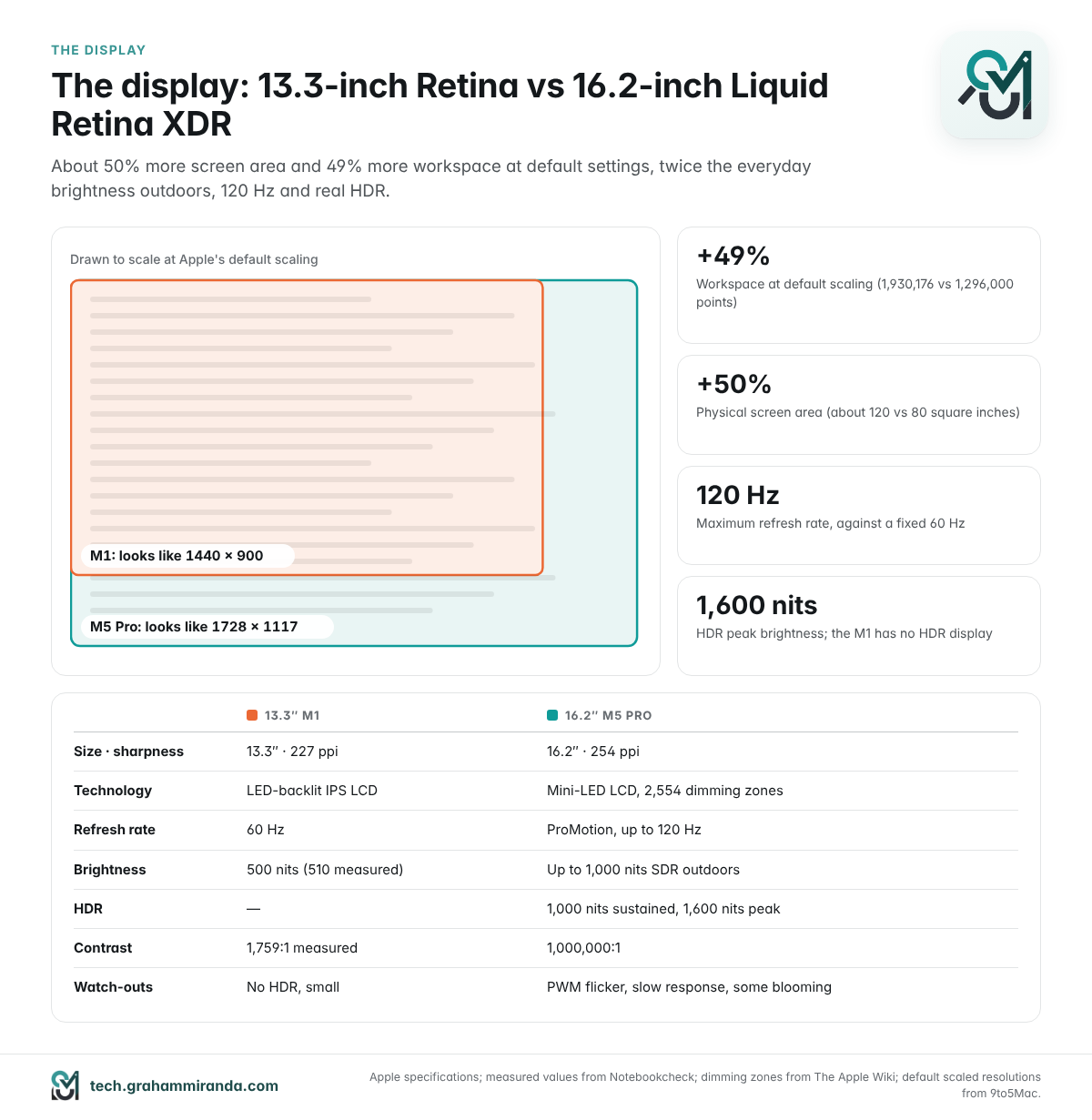
The M1’s screen is still a good screen. Notebookcheck measured up to 510 nits, a contrast ratio of 1,759:1 and 99.3% coverage of the P3 colour space, with accurate colours out of the box. It does use PWM at lower brightness, but at 122 kHz, a frequency high enough that it’s rarely a problem. What it doesn’t have is HDR, a high refresh rate, or much room.
| 13.3″ Retina (M1) | 16.2″ Liquid Retina XDR (M5 Pro) | |
|---|---|---|
| Technology | LED-backlit IPS LCD | Mini-LED-backlit LCD, 2,554 local dimming zones |
| Resolution / sharpness | 2560 × 1600, 227 ppi | 3456 × 2234, 254 ppi |
| Default workspace | 1440 × 900 points | 1728 × 1117 points (+49%) |
| Refresh rate | 60 Hz | ProMotion, up to 120 Hz |
| Brightness | 500 nits (510 measured) | 1,000 nits sustained full-screen (XDR); up to 1,000 nits SDR outdoors; 1,600 nits HDR peak |
| Contrast | 1,759:1 (measured) | 1,000,000:1 |
| Colour | P3, True Tone | P3, True Tone, 1 billion colours |
| Options | — | Nano-texture matte glass |
Apple’s specifications; measured values from Notebookcheck; dimming zones from The Apple Wiki.
For coding and writing, the size is the upgrade: about 50% more physical screen area and 49% more workspace at Apple’s default scaling, which means more lines of code, a sidebar that doesn’t crowd the editor, and two windows side by side without squinting. The 120 Hz refresh makes scrolling through long files and pages smoother.
For photos and video, the mini-LED panel can show real HDR, with highlights up to 1,600 nits, which the M1 can’t.
The 16-inch’s panel has known weaknesses. Notebookcheck lists constant PWM flicker and slow response times among its drawbacks; text and code don’t care about response time, but people sensitive to flicker should try one in a shop first. Mini-LED can also show faint halos around bright objects on black. I went into both, and into why I chose this panel over the OLED model, in the OLED vs mini-LED article.
Part 9 — Battery Life, Charging, Heat and Noise
Battery: the M1 still wins on paper
Apple rates both machines at up to 17 hours of wireless web browsing. For video, it rates the M1 at 20 hours (Apple TV app movie playback) and the 16-inch M5 Pro at 24 hours (video streaming).
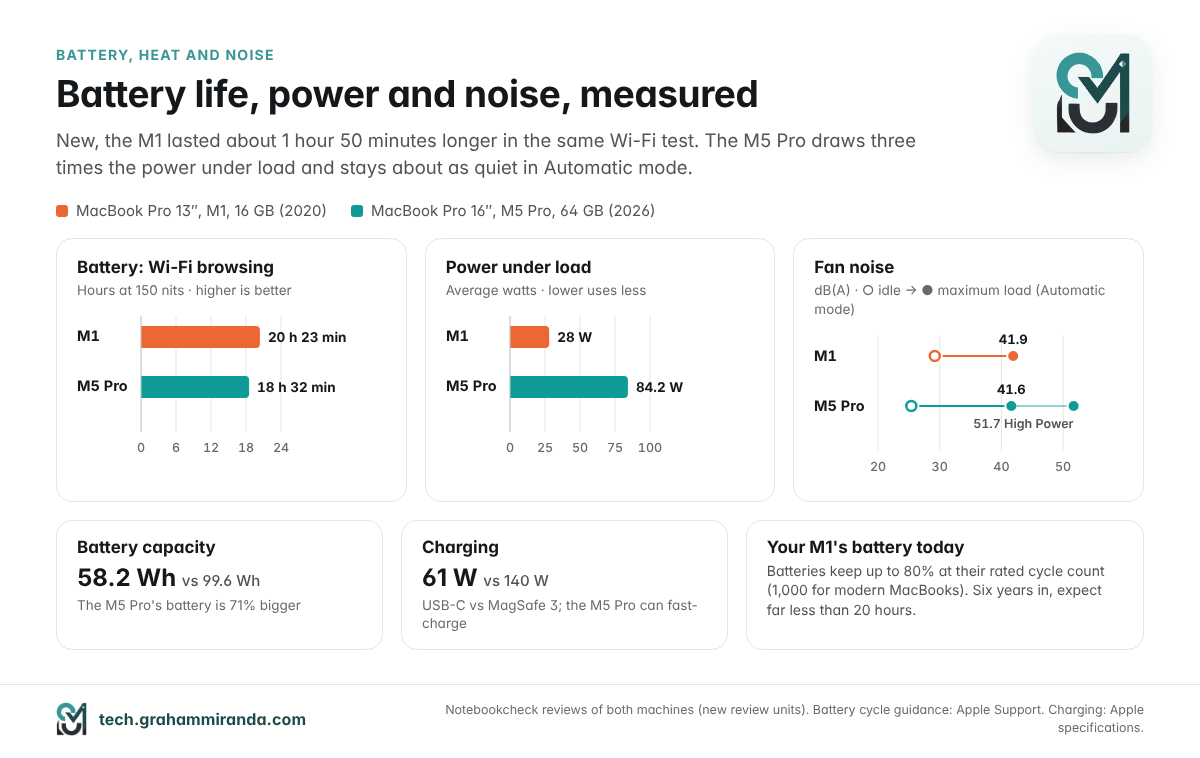
Notebookcheck’s measurements are the fairer comparison, because they use the same Wi-Fi browsing test at the same brightness, 150 nits:
| Notebookcheck battery test | MacBook Pro 13″ M1 | MacBook Pro 16″ M5 Pro |
|---|---|---|
| Wi-Fi web browsing, 150 nits | 20 h 23 min | 18 h 32 min |
| Wi-Fi web browsing, maximum brightness | 10 h 12 min | 6 h 36 min |
| Battery capacity | 58.2 Wh | 99.6 Wh |
| Power draw, idle | 1.7–7.4 W | 4.4–18.4 W |
| Power draw, load (average / max) | 28 W / 47.5 W | 84.2 W / 145 W |
Notebookcheck reviews. The maximum-brightness runs aren’t like for like: the M5 Pro’s screen is about twice as bright.
So the 2020 laptop lasted about 1 hour 50 minutes longer in the same test. That says a lot about how efficient the M1 was, and it’s a reminder that a bigger, brighter screen and a much bigger chip cost power even at idle. Notebookcheck also found the M5 Pro’s runtime slightly shorter than its M4 Pro predecessor’s, following a slightly higher idle draw. Under full load the M5 Pro draws about three times as much power as the M1, while doing roughly 3.5 times as much multi-core work.
A six-year-old battery is not a new battery
Those M1 numbers come from a new review unit in 2020. Apple designs MacBook batteries to keep up to 80% of their original capacity at their maximum cycle count, which is 1,000 cycles for modern MacBooks. A battery that has done several hundred cycles over six years, and aged chemically on top of that, won’t come close to 20 hours. If your M1 now needs a charger by mid-afternoon, that alone is a reason to upgrade, or to have the battery replaced.
To check yours: hold Option, click the Apple menu, choose System Information → Power, and look at Cycle Count, Condition and Maximum Capacity. Or in Terminal:
system_profiler SPPowerDataType | grep -E "Cycle Count|Condition|Maximum Capacity"
Charging
The M1 charges over USB-C with a 61 W adapter. The 16-inch M5 Pro uses MagSafe 3 with a 140 W adapter and a 2 m cable, can also charge over any of its Thunderbolt ports, and supports fast charging with a USB-PD charger of 140 W or more. In Germany, check what’s in the box before you order: retailers list build-to-order 16-inch models both with the 140 W adapter and without one.
Heat and noise
The M1 MacBook Pro is silent in everyday use. In Notebookcheck’s tests its fan stayed off at idle (the meter read the room’s own 29.2 dB(A)), usually took about a minute to start under load, and peaked at 41.9 dB(A). The 16-inch M5 Pro is just as quiet at idle (25.4 dB(A)) and peaked at 41.6 dB(A) at 3,600 rpm in Automatic mode, which is the M1’s level while doing more than three times the work. Gaming kept it at about 33 dB(A). Only High Power mode makes it loud: up to 51.7 dB(A) at 4,600 rpm, settling at 49.6 dB(A).
Surfaces stay comfortable on both. Under maximum load, Notebookcheck measured at most 41 °C on top of the M1 and 40.6–43 °C on the M5 Pro, with palm rests at 31 °C and 32.8 °C.
Part 10 — Ports, Wireless, Camera and Keyboard
| MacBook Pro 13″ M1 | MacBook Pro 16″ M5 Pro | |
|---|---|---|
| Thunderbolt | 2 ports, Thunderbolt 3 / USB 4, up to 40 Gb/s | 3 ports, Thunderbolt 5, up to 120 Gb/s |
| HDMI | — (adapter) | Yes |
| SD card | — | SDXC slot |
| Charging | USB-C | MagSafe 3 or USB-C |
| Headphone jack | 3.5 mm | 3.5 mm, high-impedance support |
| External displays | 1 | Up to 3 |
| Wi-Fi | Wi-Fi 6 | Wi-Fi 7 (Apple N1) |
| Measured Wi-Fi speed (send / receive) | 649 / 757 Mbit/s | 1,786 / 1,812 Mbit/s |
| Bluetooth | 5.0 | 6 |
| Camera | 720p FaceTime HD | 12 MP Center Stage, 1080p, Desk View |
| Keyboard | Magic Keyboard with Touch Bar and Touch ID | Magic Keyboard with 12 full-height function keys and Touch ID |
Apple’s specifications; Wi-Fi speeds measured by Notebookcheck with different routers (an AX12 for the M1, an AXE11000 for the M5 Pro), so treat them as indicative.
In real life, the port list means no dongle for a projector, an SD card or a second monitor, and a charging cable that pops off safely when someone trips over it. Thunderbolt 5 matters if you work from fast external SSDs or docks. Notebookcheck noted the M1’s Wi-Fi was limited to 80 MHz channels, which is why it measured comparatively slowly even for Wi-Fi 6; the M5 Pro’s Wi-Fi 7 more than doubled its throughput in the same review series.
Part 11 — Size and Weight: The 16-Inch Tax
| MacBook Pro 13″ M1 | MacBook Pro 16″ M5 Pro | |
|---|---|---|
| Weight (Apple) | 1.4 kg | 2.14 kg |
| Weight with charger (Notebookcheck) | 1.65 kg (1.374 kg + 275 g) | 2.47 kg (2.121 kg + 351 g) |
| Width × depth | 30.41 × 21.24 cm | 35.57 × 24.81 cm |
| Thickness | 1.56 cm | 1.68 cm |
Apple’s specifications; scale weights from Notebookcheck’s reviews.
The 16-inch is 0.74 kg heavier, 53% more, and has a 37% bigger footprint on a desk or in a bag. With chargers, the difference grows to about 0.8 kg. That’s the price of the screen, the speakers and the cooling, and it changes how you use the laptop: the 13-inch goes everywhere without a second thought; the 16-inch is a workstation you can carry.
If you carry your Mac every day, look at the 14-inch MacBook Pro with the same M5 Pro chip and memory options, which weighs 1.60 kg according to Apple. You give up some screen, battery and speaker size. My MacBook Pro mostly lives on a desk, which is why the 16-inch made sense for me.
Part 12 — Software Support: How Much Life Is Left in an M1?
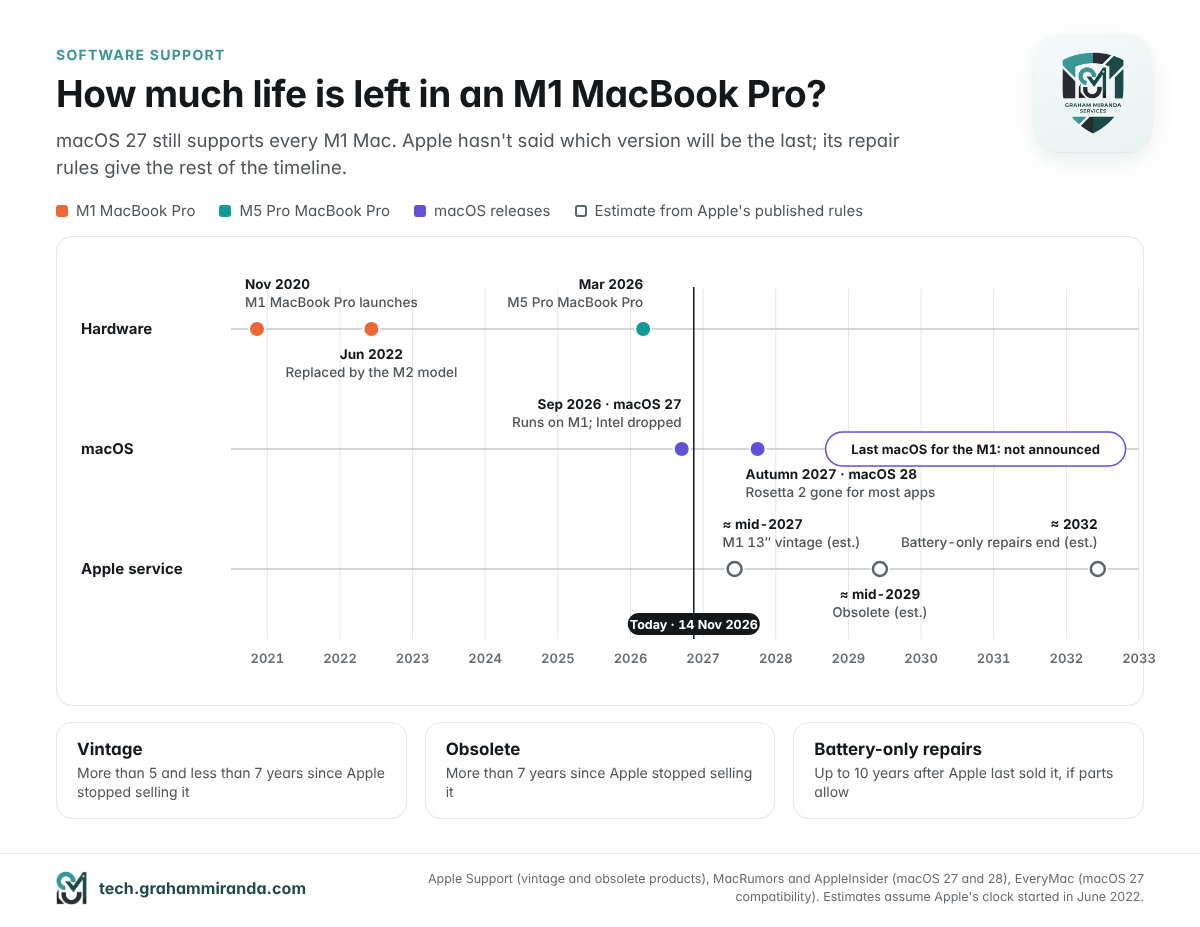
Here’s the good news for M1 owners: six years on, the M1 is still fully in Apple’s software plans. macOS 27 Golden Gate, released in September, dropped every Intel Mac but supports every Apple silicon Mac, all the way back to the 2020 M1 models. EveryMac lists the M1 MacBook Pro as “mostly compatible”: it runs macOS 27, but it can’t run the most powerful on-device Apple Intelligence model.
The other dates to know:
- Autumn 2027: macOS 28 is expected to stop running most apps built only for Intel, because Rosetta 2 goes away for all but some older games. This affects both Macs equally; if you still rely on an Intel-only app, now is the time to find its replacement.
- When will the M1 lose macOS updates? Apple hasn’t said. Forum guesses range from macOS 28 to well beyond it. Apple usually reveals which Macs a new macOS supports only when it announces that version each June, so plan around the support you have, not a rumour.
- Repairs. Apple calls a product vintage when it stopped selling it more than five years ago, and obsolete after seven, with battery-only repairs available for Mac laptops for up to ten years after Apple last sold them, depending on parts. If Apple’s clock for the 13-inch M1 started when the M2 model replaced it in June 2022, it would turn vintage around mid-2027 and obsolete around mid-2029. Apple’s own vintage list is the authority.
The M5 Pro starts that clock in 2026, so it should get new macOS versions well into the 2030s if Apple treats it like the M1. For a machine I want to keep at least as long as the M1, that was part of the decision.
Part 13 — Price and Value: 2020 Money vs 2026 Money
| MacBook Pro 13″ M1 (2020) | MacBook Pro 16″ M5 Pro (2026) | |
|---|---|---|
| Base price, Germany | €1,412.45 (8 GB / 256 GB) | €3,399 (24 GB / 1 TB) since 25 June 2026; €2,999 at launch |
| Base price, US | $1,299 | $2,999 since June 2026; $2,699 at launch |
| With 16 GB (M1) | €1,636.65 (16 GB / 256 GB) | — |
| With 64 GB (M5 Pro) | — | Base price plus Apple’s memory upgrade |
German launch prices for the M1 from ComputerBase, which reflect Germany’s temporary 16% VAT rate in late 2020 (about €1,679 at today’s 19%). M5 Pro prices from MacRumors, EveryMac and Notebookcheck’s report on Apple’s June price rises.
Apple raised Mac prices across the board in June, amid a global memory shortage, and the 16-inch MacBook Pro went up €400 in Germany. Memory upgrades became more expensive at the same time. So the M5 Pro costs roughly twice what the M1 did in its 16 GB form, and more once you add 64 GB.
Value is a different story. Divide Geekbench 6’s multi-core score by the price and the M1 with 16 GB delivered about 5.0 points per euro in 2020; the base 16-inch M5 Pro delivers about 8.4 points per euro today, even after the price rises. That’s roughly 67% more multi-core performance per euro, before you count the screen, speakers and ports.
What the M1 is worth now
Less than you might hope, but not nothing. On 14 November 2026, refurbed.de listed a refurbished 13-inch M1 MacBook Pro with 16 GB and 256 GB in “good” condition for €740.99. A private sale will bring less than a refurbisher’s price, and battery health and storage size move the number a lot. For many people, the M1 is worth more kept as a second Mac, a family laptop or a travel machine than sold.
Part 14 — Should You Upgrade From M1 to M5 Pro?
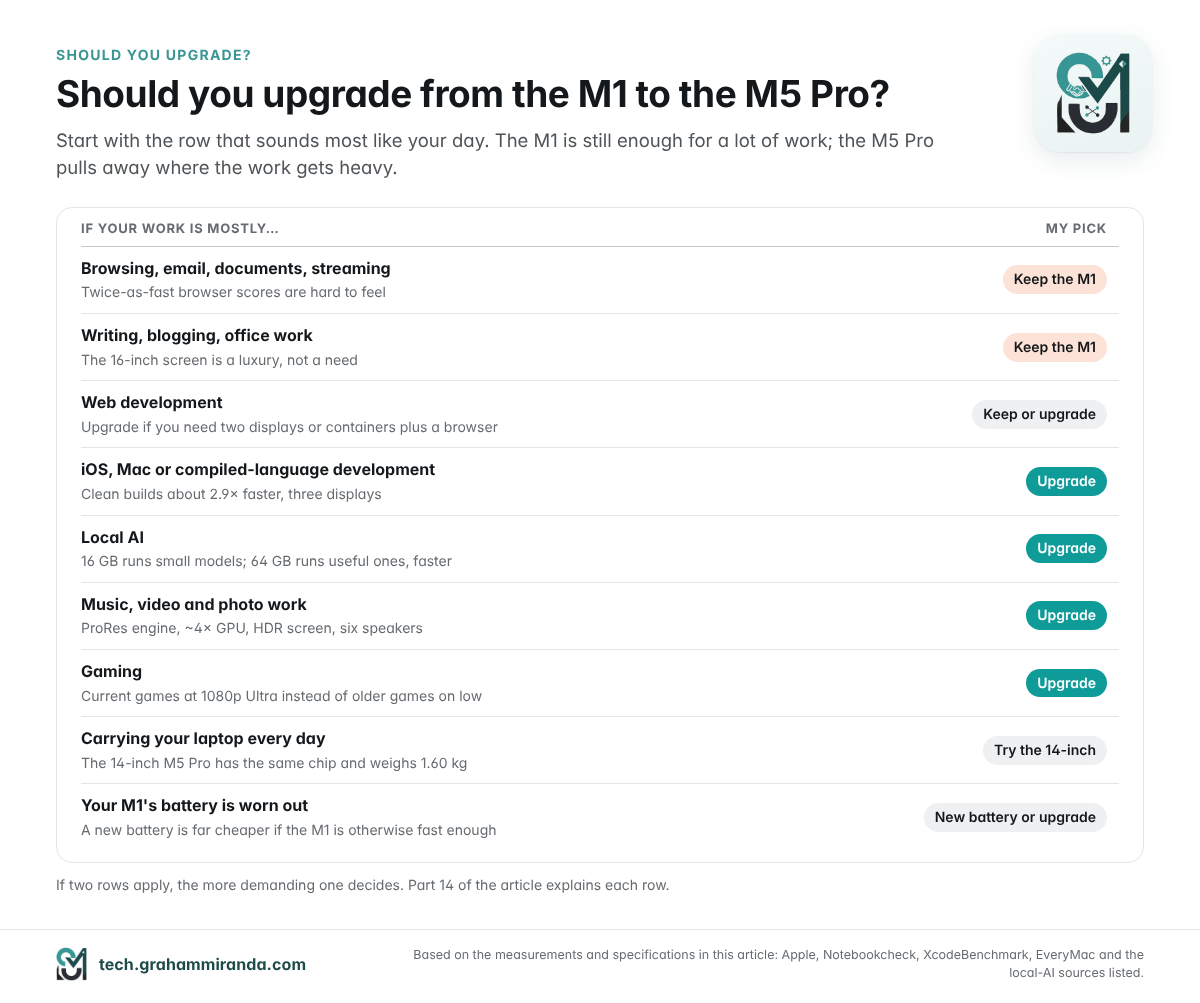
Here’s how I’d decide, by what you actually do with your Mac:
| If your work is mostly… | My pick | Why |
|---|---|---|
| Browsing, email, documents, streaming | Keep the M1 | Twice-as-fast browser scores are hard to feel; the M1 is silent and still lasts all day if its battery is healthy |
| Writing, blogging, office work | Keep the M1 | The 16-inch screen is a luxury, not a need |
| Web development | Keep, or upgrade if you hit limits | Fine for typical stacks; upgrade if you need two displays, containers plus a browser, or faster big builds |
| iOS / Mac / compiled-language development | Upgrade | Clean builds about 2.9× faster, three displays, far more memory for simulators |
| Local AI | Upgrade, with at least 48–64 GB | 16 GB limits you to small models; 64 GB runs useful ones, much faster |
| Music, video, photo work | Upgrade | ProRes engine, roughly 4× GPU, HDR screen, much better speakers |
| Gaming | Upgrade | Current games at 1080p Ultra instead of older games at low settings |
| Carrying your laptop daily | Look at the 14-inch | The same chip in a 1.60 kg body |
| Your M1’s battery is worn | Upgrade, or replace the battery | A new battery is far cheaper if the M1 is otherwise fast enough |
Got an M1 MacBook Air instead?
Most of this article applies to you too: the Air has the same M1 chip, so the CPU and memory comparisons are the same. The differences make the case for upgrading slightly stronger. The Air has no fan, so it slows down under long loads: Notebookcheck measured about 12% less performance over a sustained Cinebench run. Its screen tops out at 400 nits, its battery is smaller at 49.9 Wh (Apple rates it at 15 hours of web browsing; Notebookcheck measured 16 hours), and the cheapest version had a 7-core GPU. In its favour, it weighs 1.29 kg and has real function keys instead of a Touch Bar.
Other routes off the M1
- The 14-inch MacBook Pro with M5 Pro: the same chip and memory options in a smaller, lighter body.
- A cheaper MacBook Pro: Apple’s least expensive MacBook Pro is now a 14-inch with the base M6 chip, from €2,299 in Germany according to ifun.de. Check its memory options against what you need before choosing it over an M5 Pro.
- A new battery for the M1: if your M1 is fast enough and the only problem is battery life, Apple’s battery service is the cheapest upgrade of all.
Part 15 — Moving From the M1 to the M5 Pro: A Checklist
- Check your apps for Intel code. Open System Information → Software → Applications and look at the “Kind” column: anything marked Intel will stop working with macOS 28. Find replacements now.
- Back up the M1. Time Machine to an external drive, plus whatever cloud backup you use.
- Migrate with a cable. Migration Assistant works over Wi-Fi, but a Thunderbolt cable between the two Macs is much faster for a big transfer.
- Re-sign into what doesn’t migrate. Some apps tie licences to the hardware. Development tools need their command-line tools reinstalled, and local models are worth re-downloading in versions sized for 64 GB.
- Decide the M1’s future before you wipe it. If you’re selling it, sign out of iCloud and Find My, then use System Settings → General → Transfer or Reset → Erase All Content and Settings.
Run the tests yourself
If you want your own before-and-after numbers rather than mine from reviews, these take about half an hour on each Mac:
- CPU and GPU: Geekbench, free from Primate Labs. Use the same major version on both Macs; Geekbench 6 and 7 scores can’t be compared with each other.
- Browser: Speedometer 3.1 at browserbench.org, in the same browser version on both, three runs each.
- Builds: clone XcodeBenchmark from GitHub, close other apps, connect the charger and run
sh benchmark.sh. - Local AI: run the same model on both with Ollama’s verbose flag and compare the “eval rate”:
ollama run llama3.1:8b --verbose "Explain unified memory in three sentences."
- Battery health: the
system_profilercommand from Part 9.
Frequently Asked Questions
Yes. In Geekbench 6, the 16-inch M5 Pro is about 1.85 times faster than the 13-inch M1 MacBook Pro in single-core tests and about 3.5 times faster in multi-core tests. Its GPU is roughly four times faster, and its memory bandwidth is 4.5 times higher. In real tasks, the gap ranges from about 2 times for web browsing to about 2.9 times for a large Xcode build.
For browsing, email, office work, writing and typical web development, yes. It runs macOS 27, stays silent most of the time and, with a healthy battery, still lasts a full working day. Its limits are 16 GB of memory, a single external display, a 720p camera and two small speakers, and it can’t run the largest on-device Apple Intelligence model.
For everyday work it usually is: macOS compresses memory and swaps to the fast SSD when it runs short. It gets tight with many browser tabs plus containers, virtual machines or large creative projects, and it’s tight for local language models larger than about 8 billion parameters. Activity Monitor’s Memory pressure graph tells you whether you’re hitting the limit.
It’s worth it if you run local AI models, containers or virtual machines, or large creative projects, or if you plan to keep the Mac for many years, because memory can’t be upgraded later. For browsing and office work, the base 24 GB is plenty. The 64 GB option requires the M5 Pro with the 20-core GPU, which is the version the 16-inch comes with.
Yes. macOS 27 Golden Gate supports every Apple silicon Mac, including the 2020 M1 MacBook Pro, MacBook Air and Mac mini. EveryMac lists the M1 models as mostly compatible, because they can’t run the most powerful on-device Apple Intelligence model. Apple hasn’t said which macOS version will be the M1’s last.
Much better. The 16-inch has six speakers (two tweeters and two pairs of force-cancelling woofers) against the M1’s two. Notebookcheck measured it 7.2 dB louder (84.7 vs 77.5 dB(A)), roughly 1.6 times as loud to the ear, with much fuller bass and a flatter overall response (5.2% deviation vs 12.9%). The M1 only does slightly better in the highest frequencies.
On paper the M1 does. In Notebookcheck’s Wi-Fi browsing test at 150 nits, the 13-inch M1 lasted 20 hours 23 minutes and the 16-inch M5 Pro 18 hours 32 minutes. Apple rates both at up to 17 hours of web browsing. But the M1 figure comes from a new battery: after six years and hundreds of cycles, most M1 batteries won’t come close.
Yes, small ones. With 16 GB, the GPU can use about 11 GB by default, which fits 7–8 billion-parameter models at 4-bit. Its memory bandwidth of about 68 GB/s limits an 8B model to roughly 14 tokens a second in theory, and about 12 in practice with Ollama. Larger models like 27B coding models or gpt-oss-20b need a Mac with more memory.
One, at up to 6K and 60 Hz, plus its own screen. That’s a limit of the base M1 chip. The 16-inch M5 Pro supports up to three external displays, for example three at 6K and 60 Hz, or one at 8K and a second at 5K and 120 Hz.
At 2.14 kg (about 2.5 kg with its charger), it’s 0.74 kg heavier than the 13-inch M1 and has a 37% bigger footprint. It’s fine for commuting to a desk, but tiring as an all-day carry. If you carry your laptop everywhere, the 14-inch M5 Pro, at 1.60 kg, has the same chip and memory options.
On 14 November 2026, refurbed.de listed a refurbished 13-inch M1 MacBook Pro with 16 GB and 256 GB in good condition for €740.99. Private sales usually bring less than refurbisher prices, and battery health and storage size change the value a lot. Many owners get more out of keeping it as a second Mac.
The same logic applies as for the M1 MacBook Pro, slightly more strongly: the Air has the same chip but no fan, a 400-nit screen and a smaller battery. Upgrade for builds, local AI, creative work, multiple displays or better sound. If you mainly want something light, a newer MacBook Air or the 14-inch MacBook Pro may suit you better than the 16-inch.
The Bottom Line
The M1 MacBook Pro has aged better than almost any laptop I’ve owned. Six years on, it runs the current macOS, it browses and writes and handles light development without complaint, it’s silent, and in one measured test it outlasted its 2026 successor on battery. If your work lives in a browser and a text editor and your battery is healthy, you can keep it with a clear conscience.
But this comparison isn’t close where the work gets heavy. The 16-inch M5 Pro is 3.5 times faster in multi-core work, about four times faster in graphics, and has four times the memory with 4.5 times the bandwidth, which together change what you can do locally, not just how fast you do it. It drives three external displays instead of one, has a screen with 49% more room and real HDR, and has speakers that play bass the M1 can only hint at. It’s heavier, twice the price and more power-hungry, but it’s still the right upgrade for builds, containers, local AI and anything with audio or video in it.
For me, it’s local AI, the screen and the speakers. I’ll be curious to see which of those I notice first.
Still on an M1, or already moved on? I’d like to hear what made you upgrade, or what keeps you on yours. Corrections and counter-evidence are welcome; I’ll update this article with my own measurements once the new Mac has settled in.
Disclosure: This article contains no affiliate links and no sponsored content. No company mentioned in it reviewed it before publication.
Facts checked: 14 November 2026.