 English
 Deutsch
 Español
 Italiano
 Français
 Português do Brasil
 Tiếng Việt
 ไทย
 Bahasa Indonesia
 Русский
 العربية
 हिन्दी

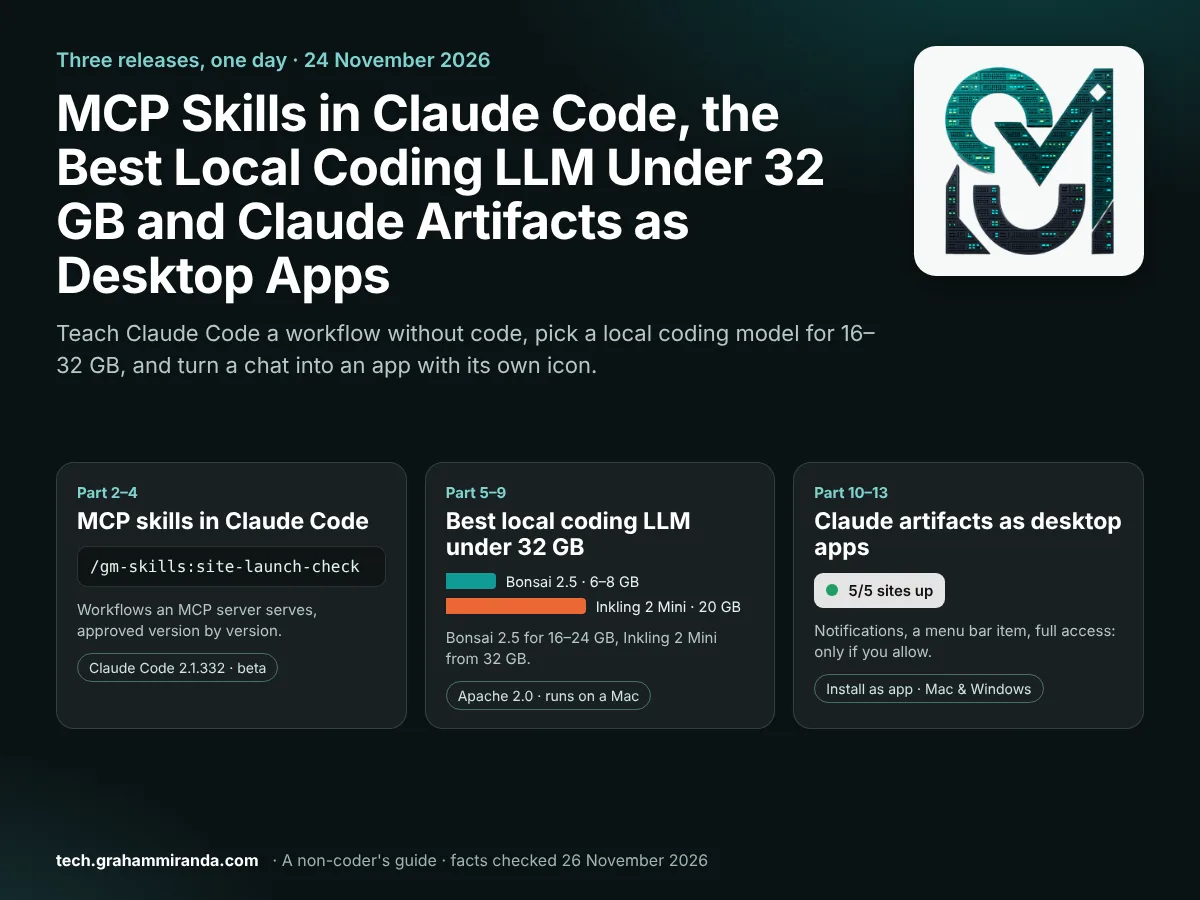
Three things shipped on 24 November 2026 for people who build software by talking to AI instead of typing code. Claude Code 2.1.332 learned to load MCP skills: workflows that an MCP server hands to Claude Code, instead of files you copy into a folder. PrismML squeezed a 27-billion-parameter coding model, Ternary Bonsai 2.5 27B, into about 6 GB, and Ollama made Inkling 2 Mini faster on Macs. And Anthropic let you install a Claude artifact as a desktop app on a Mac or Windows PC, with its own icon and window.
Each could fill an article, so this guide is three in one. Parts 2–4 teach Claude Code a new workflow without writing code and show where the beta stops. Parts 5–9 pit Ternary Bonsai 2.5 against Inkling 2 Mini to find the best local coding model for 32 GB or less, with a test for your Mac. Parts 10–13 build a server-status app for a hosting business and install it as a desktop app.
I’m not a developer by training. I run a small IT company in Germany and build software with AI agents, so this is for people in the same position: you know what you want built and want the machine to write the code.
Everything below was checked against the vendors’ documentation, release notes and published files on 26 November 2026, two days after the releases. Details will change within weeks; I’ve flagged the ones most likely to move.
Independence and affiliate disclosure: No company mentioned here sponsored, reviewed or approved this article. It contains one affiliate link, to Z.ai’s GLM Coding Plan (in Part 9): subscribing through it gets you 10% off and may earn me a commission at no extra cost to you.
TL;DR — The 60-Second Version
MCP skills in Claude Code
- What’s new: Claude Code 2.1.332 (24 November) loads skills that an MCP server serves, in beta. They appear in the
/menu as/server:skill, and Claude Code asks before it loads each version of each skill. - What changes compared with plain MCP tools: a tool is one action; a skill is a whole workflow, the instructions and reference files that tell Claude when and how to use the tools. The server keeps the workflow up to date, and only the name and description cost context until the skill is used.
- No code needed: connect a server that already ships skills, upload a
SKILL.mdto a hosted service, or serve a folder of skills with a five-line FastMCP 4.2 server (Part 3 has all three). - The limits: you need 2.1.332 or newer (the stable channel was still on 2.1.326 on 26 November), a server that speaks MCP protocol
2026-07-28and declares the skills extension, and, on Team and Enterprise plans, an administrator who switches it on. Outside Claude Code, VS Code supports MCP skills from version 1.147; Codex, ChatGPT and Goose list them as planned, and Claude Desktop’s chat and Cursor aren’t listed yet.
Best local coding LLM 2026 under 32 GB
- Ternary Bonsai 2.5 27B (PrismML, 24 November) is Qwen3.8-27B with ternary weights: 6.0 to 7.7 GB on disk, 262K context, Apache 2.0. On PrismML’s own benchmarks it scores 75.6 on SWE-bench Verified, against 80.6 for the full-precision Qwen it came from.
- Inkling 2 Mini (Thinking Machines, 20 November) is a 26-billion-parameter looped mixture of experts: about 20 GB in Ollama, Apache 2.0. Thinking Machines reports 79.2 on SWE-bench Verified and 48.2 on DeepSWE.
- Memory decides it. Bonsai 2.5 fits a 16 GB Mac with a working context; Inkling 2 Mini needs 32 GB, and on most 32 GB Macs long agent sessions are tight.
- Speed is close. On an M5 Pro, PrismML measured Bonsai 2.5 at 30.2 tokens per second in its llama.cpp build; a community test measured Inkling 2 Mini at about 27 in MLX. On the chips where both have been measured, Inkling reads long prompts faster.
- My pick: 16–24 GB → Bonsai 2.5. 32 GB → Inkling 2 Mini for the best agentic coding, Bonsai 2.5 for long sessions and headroom. 48 GB or more → keep both. Then run the test in Part 8 and let your own numbers decide.
Claude Artifacts as desktop apps
- Install as app (beta, 24 November) turns an artifact into a Mac or Windows app with its own window and icon. You need Claude Desktop 6.28899.0 or later, and it works on every plan, though Team and Enterprise admins control it.
- Five permissions, each asked for separately: notifications, keyboard shortcuts, floating windows, a menu bar or tray item, and full access to run programs and change files. An Allow lasts for one version: every edit asks again.
- What didn’t work for a hosting status app: an artifact can’t call other websites directly, so checking servers needs full access to run
curl. On individual plans full access is only possible for apps you wrote yourself, apps need Claude Desktop signed in and online, and every user needs their own Claude account. It’s a superb internal tool and the wrong way to ship software to customers.
At a Glance: MCP Skills, Local Models and Desktop Apps
| MCP skills in Claude Code | Ternary Bonsai 2.5 vs Inkling 2 Mini | Claude artifacts as desktop apps | |
|---|---|---|---|
| What it is | Workflows served by an MCP server, loaded on demand | Two open coding models that run on a laptop | An artifact installed as a Mac or Windows app |
| Released | Claude Code 2.1.332, 24 November 2026 (beta) | Bonsai 2.5: 24 November; Inkling 2 Mini: 20 November | Install as app, 24 November 2026 (beta) |
| You need | Claude Code 2.1.332+, an MCP server with the skills extension | 8–12 GB free memory (Bonsai) or a 32 GB Mac (Inkling) | Claude Desktop 6.28899.0+, macOS or Windows |
| Code to write | None; five lines if you host your own server | None; a few Terminal commands | None; you describe the app to Claude |
| Cost | Your Claude plan; servers are often free | Free (Apache 2.0) plus your hardware | Your Claude plan; usage counts against it |
| Biggest limit | Beta, few servers, few other clients | Day-one runtimes; vendor-run benchmarks | Needs sign-in and internet; full access only for your own apps |
| Start in | Part 2 | Part 5 | Part 10 |
Version numbers and plan rules are as of 26 November 2026.
Table of Contents
- Part 1 — What Changed on 24 November 2026
- Part 2 — MCP Skills in Claude Code: What Skills Over MCP Are
- Part 3 — Hands-On: Teach Claude Code a New Workflow With MCP Skills, Without Writing Code
- Part 4 — MCP Skills vs Plain MCP Tools, and the Limits of the Beta
- Part 5 — Best Local Coding LLM 2026 Under 32 GB: The Two Contenders
- Part 6 — Memory and Speed: What Fits, How Fast It Writes
- Part 7 — Agentic Coding: What the Benchmarks Say
- Part 8 — Run the Head-to-Head on Your Own Hardware
- Part 9 — Which Local Coding Model Should You Run?
- Part 10 — Claude Artifacts Desktop App: What “Install as App” Does
- Part 11 — Build It: A Server-Status Menu Bar App Without Writing Code
- Part 12 — Install the App on Mac and Windows
- Part 13 — What Worked, What Didn’t, and When to Build a Real App
- Frequently Asked Questions
- The Bottom Line
Part 1 — What Changed on 24 November 2026
Three of the four releases below landed within a few hours of each other. None of them needs you to write code, and together they change what a non-coder can build in an afternoon.
| Release | What it is | Date | Version to look for |
|---|---|---|---|
| MCP skills in Claude Code | Claude Code loads skills that an MCP server serves, in beta | 24 November 2026 | Claude Code 2.1.332 |
| Ternary Bonsai 2.5 27B | PrismML’s 6 GB coding model, built from Qwen3.8-27B | 24 November 2026 | Hugging Face collection prism-ml/bonsai-25-27b |
| Inkling 2 Mini speed-up | Faster Metal decoding, prompt reading and drafting for Inkling 2 Mini | 24 November 2026 | Ollama 0.40.18 |
| Install as app | Claude artifacts installed as Mac and Windows apps, in beta | 24 November 2026 | Claude Desktop 6.28899.0 |
From Claude Code’s changelog and npm release record, PrismML’s announcement, Ollama’s GitHub release notes and Anthropic’s help centre.
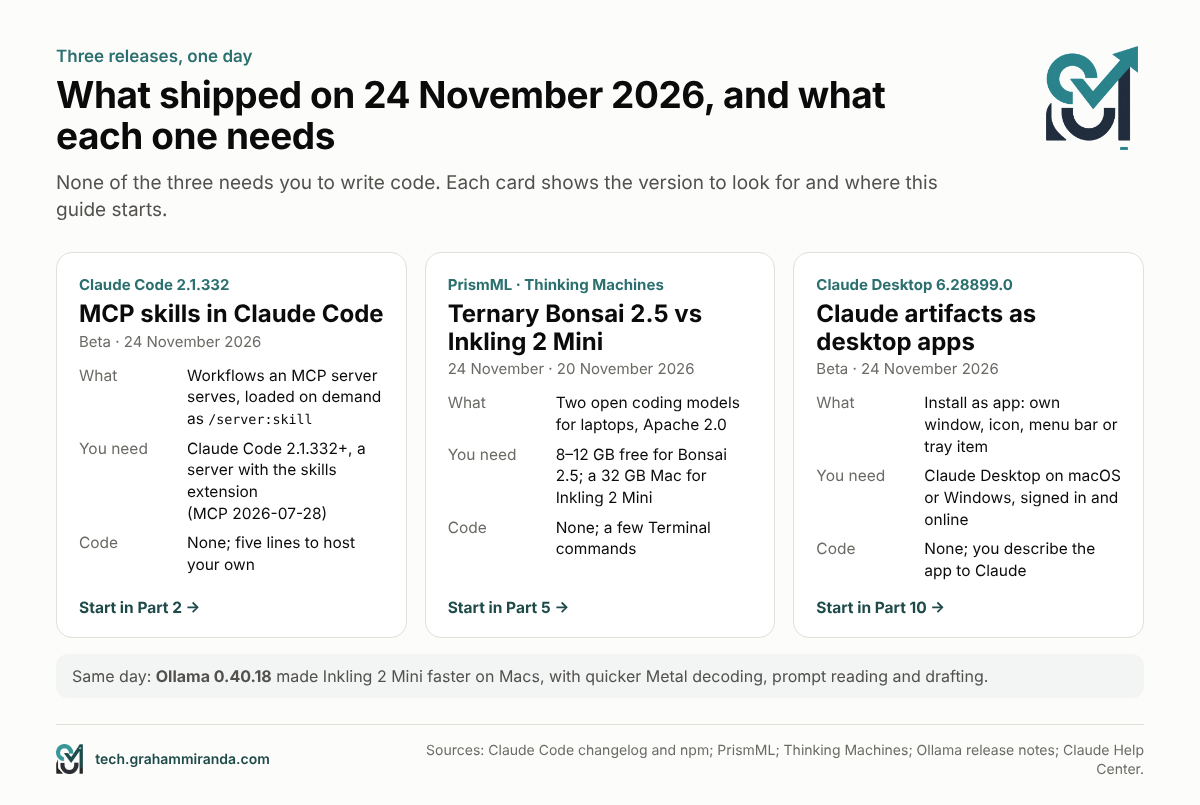
The rest of this guide takes them one at a time. If you only care about one, the table of contents above jumps straight to it.
Part 2 — MCP Skills in Claude Code: What Skills Over MCP Are
Skills and MCP servers, in one paragraph each
A skill is a folder with a SKILL.md file inside. The file starts with a name and a one-line description, then gives instructions in plain language: how your team writes release notes, how you check a website before launch, what a good bug report looks like. An agent reads only the name and description until a task needs the skill, so a skill costs almost nothing until it’s used. Skills follow an open standard, Agent Skills, so the same file works in Claude Code, Codex, OpenCode and others.
An MCP server gives an agent new tools: actions such as “create an issue”, “open a page in a browser” or “look up the current documentation”. MCP, the Model Context Protocol, is the open standard that agents use to talk to those servers. If either idea is new to you, my guide to agent skills and MCP servers explains both from scratch, including how to install, update and secure them.
What “skills over MCP” adds
Until now, the two travelled separately. You connected an MCP server to get its tools, then copied skill folders onto your computer to teach the agent how to use them. Skills over MCP lets the server serve the skills too. You connect once, and the server offers both the actions and the workflows that use them.
It’s an official part of MCP now. The proposal, SEP-2640, has reached Final status, and the extension carries the identifier io.modelcontextprotocol/skills. A working group maintains it in its own repository, and SDKs for TypeScript, C#, Rust, Ruby and Python’s FastMCP already implement it. Claude Code is one of the first apps to load the result: version 2.1.332’s changelog puts it in one line, as skills from MCP servers, in beta, shown as server:skill in the / menu.
How Claude Code loads a skill from a server
The extension is careful about what loads, and when. Four steps happen behind the scenes:
- List. Claude Code asks the server which skills it offers (
skills/list). For each one, the server returns the name, the description and a manifest: every file in the skill, with its size and a SHA-256 fingerprint of its contents. - Choose. Claude picks a skill whose description matches your request, or you type it from the
/menu. - Approve. Before anything loads, Claude Code asks you. Your approval covers that exact version of the skill, the set of files and fingerprints in the manifest.
- Read and verify. Claude Code reads
SKILL.md, checks its size and fingerprint against the manifest, and only then puts it in front of Claude. Supporting files, such as a template or a checklist, load only when the instructions call for them, and each is checked the same way.
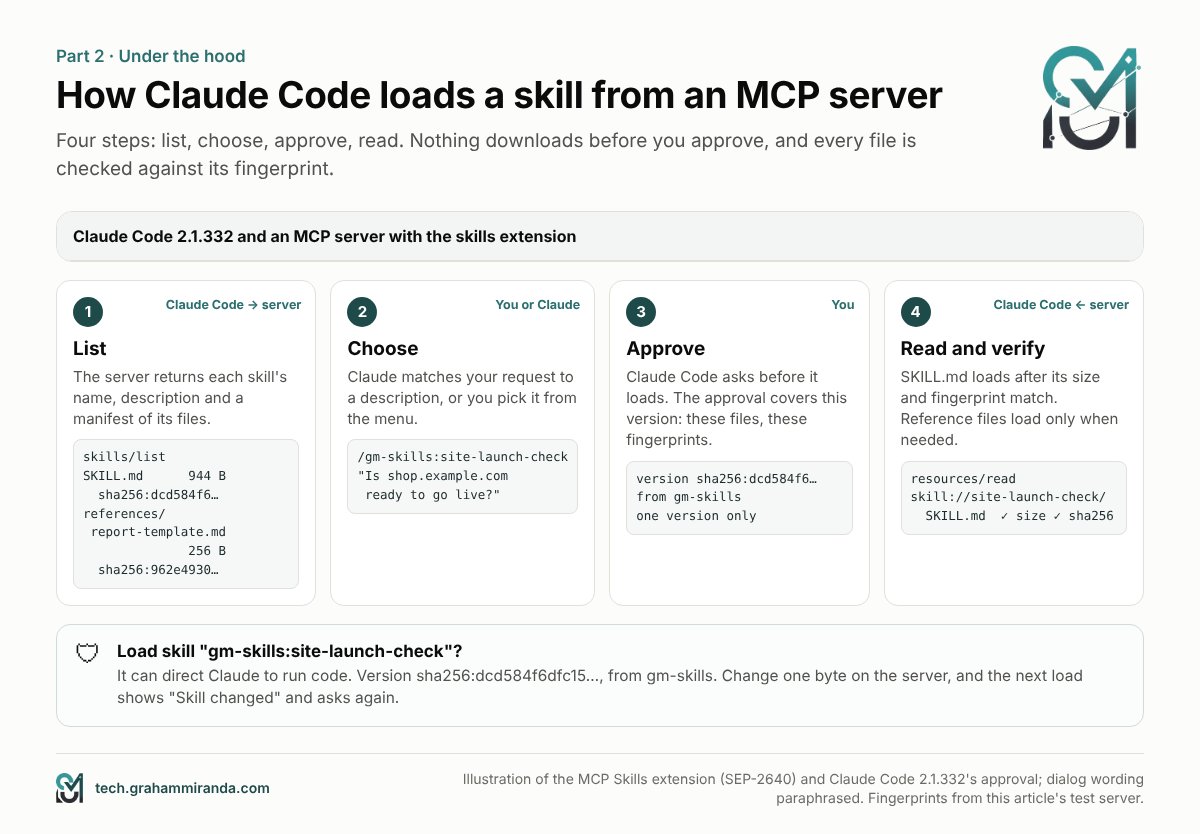
The specification adds two rules worth knowing. A host must never download a skill’s files ahead of time, on connection or when it lists skills: files load only when the skill is used. And skills from different servers can’t silently replace each other, even if two of them share a name. That’s one reason Claude Code puts the server’s name in front of every MCP skill.
Why MCP skills matter if you don’t write code
Skills are written in plain English, which makes them the most natural way for a non-programmer to shape what an agent does. Serving them over MCP solves the annoying part: distribution. Write the workflow once on one server, and every agent and every colleague that connects gets the same, current version. When you improve it, nobody has to copy a folder again; Claude Code notices the new fingerprint and asks for approval the next time.
Part 3 — Hands-On: Teach Claude Code a New Workflow With MCP Skills, Without Writing Code
Step 1: update Claude Code so it can load MCP skills
Open Terminal and check your version:
claude --version
You need 2.1.332 or newer. Run claude update to update. One catch: on 26 November, Claude Code’s stable release channel was still on 2.1.326, which doesn’t have MCP skills. If claude update leaves you there, switch to the latest channel in ~/.claude/settings.json:
{
  "autoUpdatesChannel": "latest"
}
Then run claude update again. Once 2.1.332 or newer reaches the stable channel, you can switch back.
Step 2: pick one of three routes to a skill server
| Route | Code to write | Good for | Watch out for |
|---|---|---|---|
| A. Connect a server that already ships skills | None | Services you already use | Few public servers offer skills yet |
| B. Upload a skill to a hosted service | None | Trying the idea in ten minutes | Read the host’s privacy and pricing terms first |
| C. Serve a folder of skills yourself | Five lines, copied | Your own workflows, private data | You run the server; keep it updated |
Route A: connect a server that already ships skills
If a service you use offers an MCP server with skills, connecting it is the usual one-liner:
claude mcp add --transport http <name> <the server's URL>
Few public servers do this yet. The extension’s implementations list shows GitHub’s official MCP server with skills as an opt-in since version 2.2.0, and hosting platforms such as Speakeasy started serving skills through their gateways in November, behind a feature flag. Check the documentation of any server you rely on for the word “skills”; this list will grow quickly.
Route B: upload a skill, get a server
FastMCP, the most widely used Python framework for MCP servers, runs a free web page called Skill Drop. You drop a skill folder, a zip of several, or a GitHub repository onto the page, and it gives you an HTTPS address for a hosted MCP server that serves them. Add that address with the command from Route A.
It’s the fastest way to see the feature work. The page doesn’t say how long uploads stay hosted or how they’re stored, so I wouldn’t upload anything you wouldn’t post publicly, such as client names or internal procedures.
Route C: serve your own skills in five lines
This is the route I’d use for real work, because the skills never leave your computer. You need uv, a small Python tool manager. On a Mac with Homebrew, brew install uv; for other systems, the uv installation page has one-line installers. Then install FastMCP 4.2 or newer:
uv tool install "fastmcp>=4.2"
Next, create a folder with one skill in it. This example teaches Claude Code how my company checks a client’s website before launch:
gm-skills/
├── server.py
└── skills/
    └── site-launch-check/
        ├── SKILL.md
        └── references/
            └── report-template.md
skills/site-launch-check/SKILL.md is plain English with a short header:
---
name: site-launch-check
description: Checks a client website before or after launch (HTTPS, redirects, robots.txt, sitemap, security headers) and writes a short report from the template. Use when asked to check, audit or sign off a website launch, or "is the site ready to go live?".
---

# Site launch check

1. Ask for the site's address if the request doesn't include one.
2. Use curl to check, one at a time:
   - `https://` answers with status 200 and `http://` redirects to `https://`
   - the `www` and non-`www` addresses end at the same final URL
   - `/robots.txt` exists and does not block the whole site
   - `/sitemap.xml` or `/sitemap_index.xml` answers with status 200
   - the response headers include `strict-transport-security`
3. Never change anything on the server. This skill only reads.
4. Fill in `references/report-template.md` and show the report. Mark each line ✅ or ❌ and give the one-line fix for every ❌.
The folder’s name must match the name field, in lowercase letters, digits and hyphens. The references/report-template.md file holds whatever template you like; here, a six-row table with a Check, Result and Fix column.
server.py is the only code, and you copy it as it is. It serves every skill folder inside skills/:
from pathlib import Path

from fastmcp import FastMCP
from fastmcp.skills.provider import SkillsDirectoryProvider

skills = Path(__file__).parent / "skills"
mcp = FastMCP("gm-skills", providers=[SkillsDirectoryProvider(skills)])

if __name__ == "__main__":
    mcp.run()
Check that the server sees your skill, from inside the gm-skills folder:
fastmcp list server.py --skills
You should get the skill’s address, its description and its two files, with byte sizes that depend on what you wrote:
Skills (1)

  skill://site-launch-check/SKILL.md
    Checks a client website before or after launch (HTTPS, redirects,
    robots.txt, sitemap, security headers) and writes a short report ...
    skill://site-launch-check/SKILL.md (944 bytes)
    skill://site-launch-check/references/report-template.md (256 bytes)
Connect the server to Claude Code
Finally, connect it to Claude Code. Claude Code starts the server itself whenever a session begins; use the full path to your folder:
claude mcp add gm-skills -- fastmcp run /Users/you/gm-skills/server.py
Tested for this article, on the server side: with FastMCP 4.2.6 on 25 November 2026,
fastmcp list --skillsshowed the skill above, the server’s discovery answer declared theio.modelcontextprotocol/skillsextension with protocol version2026-07-28, and askills/listrequest returned both files with their SHA-256 fingerprints. The Claude Code side below follows the 2.1.332 changelog and the permission texts built into that release.
To share the same skills with a colleague or a second machine, run the server over HTTP instead (fastmcp run server.py --transport http --port 8000) and connect with claude mcp add --transport http gm-skills http://localhost:8000/mcp. Before you put such a server on the internet, put a login in front of it: anyone who can reach it can read your skills.
Step 3: use the skill in Claude Code
Start Claude Code in any project folder with claude, then either:
- Type
/and pickgm-skills:site-launch-checkfrom the menu. MCP skills always carry their server’s name in front; your other skills keep their usual names. - Or just ask: “Is shop.example.com ready to go live?” Claude matches the request to the skill’s description and asks to load it.
Either way, the first time, Claude Code stops and asks. Its dialog names the skill, the server it comes from and a short form of the version fingerprint, and it reminds you that a skill can direct Claude to run code. The approval is for that version only. Change one character in SKILL.md and the next load shows a “Skill changed” notice and asks again; that’s the manifest doing its job.
Once approved, Claude follows the workflow: it runs the curl checks one by one, fills in the template and shows the report. The skill only reads, but Claude Code still asks before each command it runs, as it always does unless your permission settings allow it.
Step 4 (optional): pre-approve, hide or switch off a server’s skills
Three settings control MCP skills, and all three use the skill’s full name, server:skill:
- Allow without asking. Add a rule such as
Skill(gm-skills:site-launch-check)to theallowlist underpermissionsin your settings. This matters for unattended runs: inclaude -por the Agent SDK there’s no one to click Allow, so a skill that needs approval simply doesn’t load. - Hide it from Claude but keep the command.
skillOverridestakes"on","name-only","user-invocable-only"or"off"per skill:{"skillOverrides": {"gm-skills:site-launch-check": "user-invocable-only"}}means only you can start it, by typing/. - Remove the server.
claude mcp remove gm-skillstakes its skills and tools away.
Part 4 — MCP Skills vs Plain MCP Tools, and the Limits of the Beta
MCP skills vs plain tools, side by side
The difference is easiest to see side by side:
| Plain MCP tools | MCP skills | Skill files on your computer | |
|---|---|---|---|
| What you get | Actions: create_issue, query_docs |
Workflows: instructions plus reference files | Workflows |
| Who keeps it current | The server’s owner | The server’s owner | You (copy, git pull or npx skills update) |
| What Claude sees before use | Tool names; full definitions when needed (Claude Code’s tool search) | Name and description | Name and description |
| Approval | Per tool call, by your permission rules | Per skill version, then per tool call | None for the skill itself |
| Integrity check | — | Size and SHA-256 of every file | — |
Name in the / menu |
— | /server:skill |
/skill |
| Works in | Every MCP client | Claude Code 2.1.332+, VS Code 1.147+ | Most agents (Agent Skills standard) |
From the MCP Skills extension specification, Claude Code’s changelog and settings, and VS Code’s announcement.
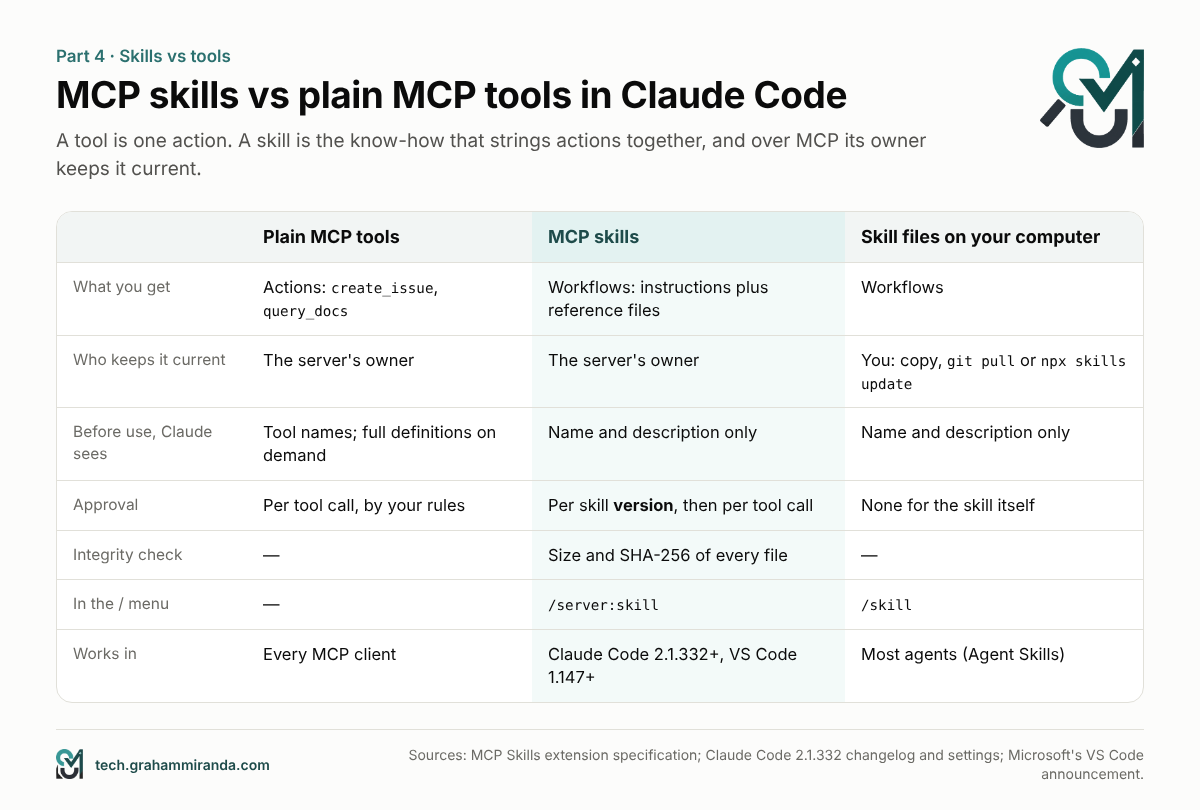
What MCP skills change in practice
Three things change:
- The how-to travels with the service. A company that runs an MCP server can ship the right way to use its tools next to the tools themselves. You stop collecting skill files from blog posts and repositories.
- Updates reach everyone, but never silently. When the server’s skill changes, every connected Claude Code sees a new fingerprint and asks again. With skill files on disk, an update either never arrives or arrives without a question.
- Context stays small. Like local skills, MCP skills cost only their name and description until they’re used, so ten skills on a server cost far less than ten tools with long definitions.
What doesn’t change is trust. A skill tells Claude what to do with your permissions, so a server’s skills deserve the same suspicion as its tools. The fingerprints prove you got what the server published; they don’t prove the server is honest.
The limits of MCP skills, as of 26 November 2026
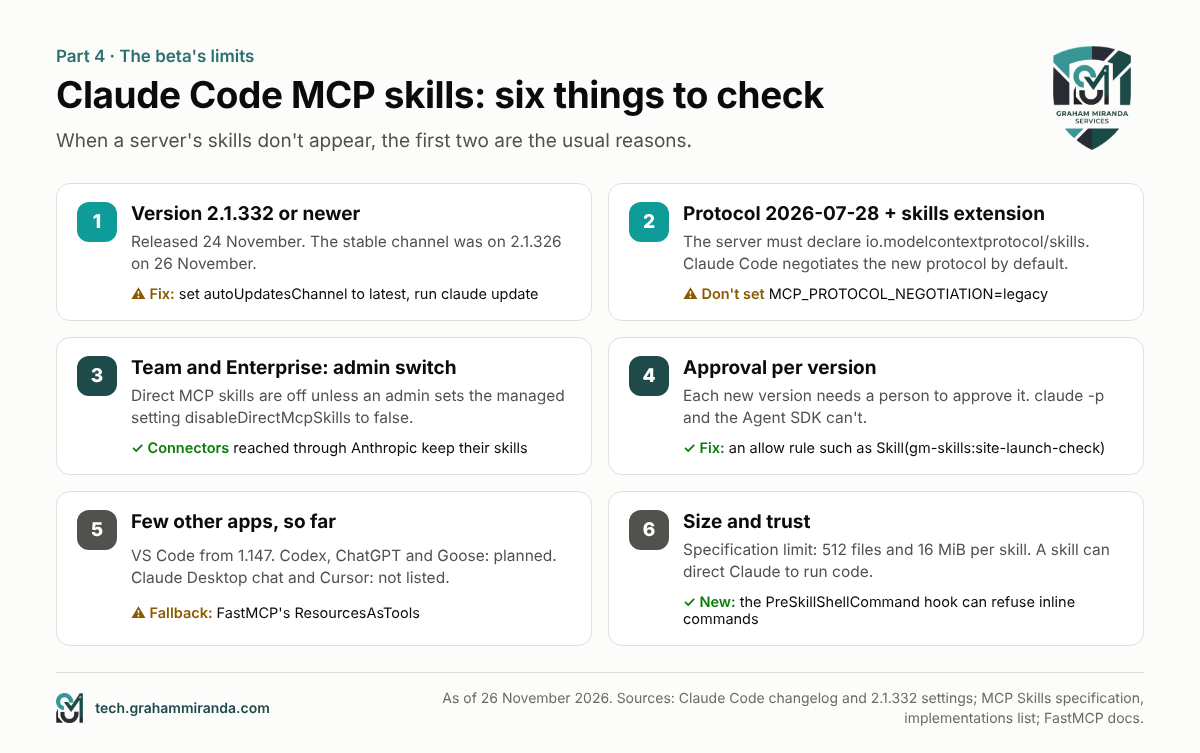
| Limit | Detail | What to do |
|---|---|---|
| It’s a beta | Labelled beta in the changelog and not yet in Claude Code’s documentation on 26 November; the implementations list says public beta since 2.1.331 | Expect changes between releases |
| Version | Claude Code 2.1.332 or newer; the stable channel was on 2.1.326 | Switch to the latest channel (Part 3, Step 1) |
| Protocol | The server must speak MCP protocol 2026-07-28 and declare the skills extension. Claude Code negotiates that revision by default for local and direct HTTP servers | Don’t set MCP_PROTOCOL_NEGOTIATION=legacy; it switches MCP skills off with the newer protocol. Use FastMCP 4.2+, the TypeScript or C# SDK 2.4+, rmcp 3.9+ or Ruby SDK 1.9+ |
| Team and Enterprise | On Team and Enterprise plans, skills from servers Claude Code connects to directly are off unless an administrator sets the managed setting disableDirectMcpSkills to false. Connectors reached through Anthropic keep their skills; every server keeps its tools |
Ask your admin; it has no effect in your own settings files |
| Approval | Every new version needs a person to approve it in an interactive session; unattended runs can’t | Add a Skill(server:skill) allow rule for skills you trust (Part 3, Step 4) |
| Other apps | VS Code supports MCP skills from 1.147 and asks per server. Claude Desktop’s chat and Cursor aren’t listed; ChatGPT, Codex and Goose plan support | Without the extension, FastMCP’s ResourcesAsTools adds two tools that read the same skill files; the model must choose to call them |
| Size | The specification asks servers to stay under 512 files and 16 MiB per skill | Keep skills short; move detail into reference files |
From Claude Code 2.1.332’s changelog and settings, the MCP Skills specification and implementations list, and FastMCP’s documentation.
Two newer controls for MCP skills
Two newer controls are worth knowing as well. Claude Code 2.1.332 also added a PreSkillShellCommand hook event, which can refuse the inline shell commands a skill or command tries to run as it loads. And if you manage several machines, the managed setting above is the switch that turns direct MCP skills off for everyone.
When to use MCP skills, MCP tools or skill files
- Use plain MCP tools when you need one capability and you’ll tell the agent what to do with it yourself.
- Use MCP skills when a service, a team or a client should get the same workflow everywhere, and its owner will keep it current.
- Use skill files on your computer for personal routines, skills you’ve edited, and agents that don’t support the extension yet. My skills and MCP guide covers the
npx skillstool that keeps them updated, and its security checklist applies to MCP skills too.
Part 5 — Best Local Coding LLM 2026 Under 32 GB: The Two Contenders
“Under 32 GB” is where most people’s local AI lives: the 16, 24 and 32 GB Macs that sell in the largest numbers, and the 24 GB graphics cards in many PCs. Until this month, the honest answer for agentic coding in that range was Qwen3.8-27B at 4-bit, about 17–18 GB, and only just. Two new models change that, from opposite directions.
Ternary Bonsai 2.5 27B keeps Qwen3.8-27B’s architecture and shrinks it. PrismML stores almost every weight as one of three values, −1, 0 or +1, with a scaling factor per group, which brings 27 billion parameters down to about 6 GB. Version 2.5, released on 24 November, retrains that compressed model for agent work: PrismML says it finishes tasks in fewer turns and with fewer tokens than Bonsai 2 did in September.
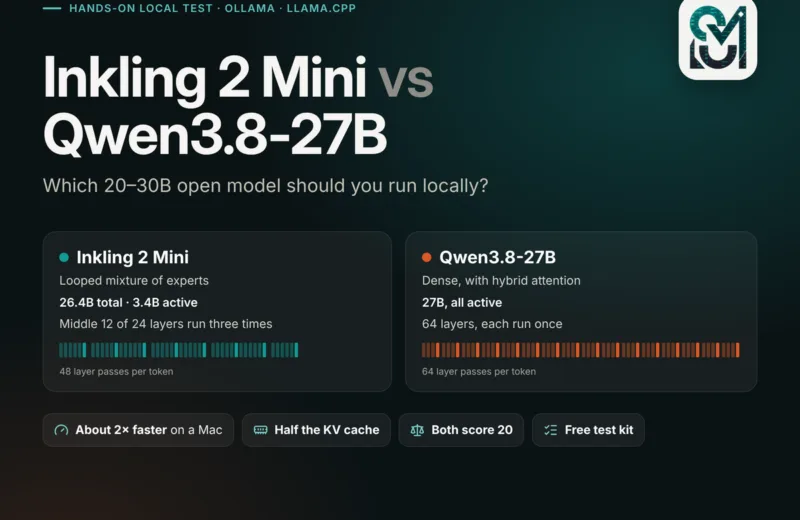
Inkling 2 Mini takes the other route. Thinking Machines built a 26-billion-parameter mixture of experts that uses only 3.4 billion parameters per token, then runs its middle twelve layers three times for every token. It’s bigger on disk, about 20 GB, but fast for its size. I covered it in depth in Inkling 2 Mini vs Qwen3.8-27B and set it up step by step in How to Run Inkling 2 Mini on a Mac with Ollama.
Ternary Bonsai 2.5 vs Inkling 2 Mini, side by side
| Ternary Bonsai 2.5 27B | Inkling 2 Mini | |
|---|---|---|
| Maker | PrismML (US) | Thinking Machines Lab (US) |
| Released | 24 November 2026 | 20 November 2026 |
| Licence | Apache 2.0 | Apache 2.0 |
| Built from | Qwen3.8-27B, compressed to ternary weights | Trained by Thinking Machines; looped mixture of experts |
| Parameters | 27.36B, all active per token (incl. a 0.47B vision tower) | 26.4B total, 3.4B active per token |
| Download | 5.99 GB (PTQ1_0) to 7.67 GB (Q2_0); MLX 8.86 GB | 20.2 GB (Ollama, NVFP4); 18 GB IQ4_NL tag; 17.6 GB (Unsloth 4-bit) |
| Context | 262,144 tokens | Up to 1M tokens |
| Inputs | Text, images | Text, images |
| Thinking control | xhigh (default) or medium; low isn’t supported |
none to max; default high |
| Easiest Mac route | llama.cpp (Homebrew), or PrismML’s MLX pack | Ollama 0.40.18 |
| Officially supported minimum | Not stated; runs on 8–16 GB | Mac with 32 GB |
From PrismML’s model cards and announcement, Thinking Machines’ model card, and the Ollama and Hugging Face file listings, 26 November 2026.
Part 6 — Memory and Speed: What Fits, How Fast It Writes
Memory: the deciding number under 32 GB
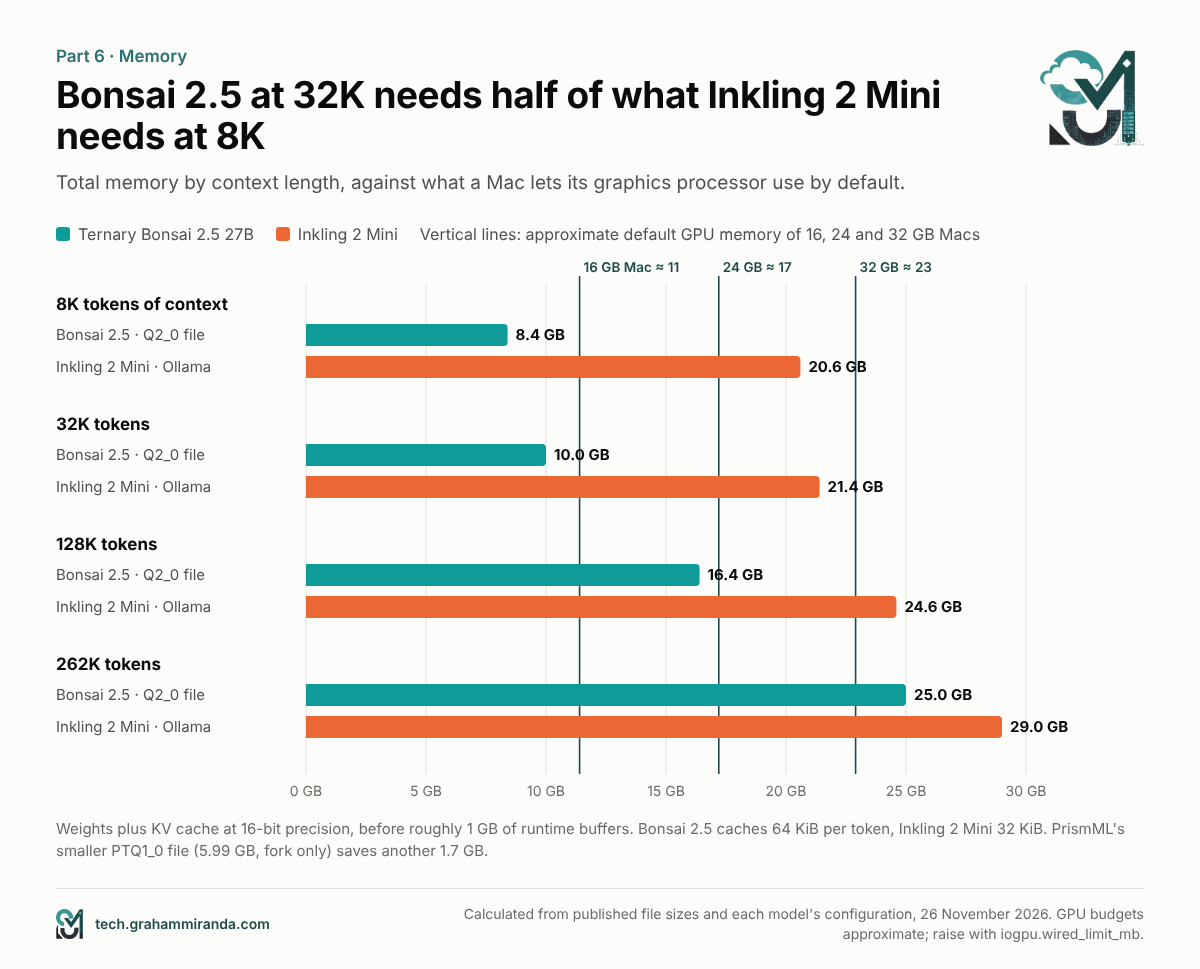
A local model needs memory for two things: its weights, which are fixed, and its KV cache, the working memory for the conversation, which grows with every token. Coding agents send long conversations, so the second part matters more than most guides admit.
Bonsai 2.5 keeps Qwen3.8-27B’s attention design: 16 of its 64 layers keep a cache, at 64 KiB per token at 16-bit precision, and the rest keep a small fixed state. Inkling 2 Mini keeps about half as much per token, 32 KiB. Here’s what that adds up to, before the runtime’s own buffers of roughly 1 GB:
| Context | Bonsai 2.5 Q2_0 (7.67 GB) | Bonsai 2.5 PTQ1_0 (5.99 GB) | Inkling 2 Mini, Ollama (20.19 GB) |
|---|---|---|---|
| 8K tokens | 8.4 GB | 6.7 GB | 20.6 GB |
| 32K tokens | 10.0 GB | 8.3 GB | 21.4 GB |
| 128K tokens | 16.4 GB | 14.7 GB | 24.6 GB |
| 262K tokens | 25.0 GB | 23.3 GB | 29.0 GB |
My calculation from the published file sizes and each model’s configuration, in decimal gigabytes, with a 16-bit cache. As a cross-check, PrismML measured the earlier Ternary Bonsai 27B at 8.4 GB with a 4K context and 14.7 GB at 100K in llama.cpp, about 0.8 GB above the same arithmetic.
What fits on a 16, 24 or 32 GB Mac
Now set that against what a Mac lets its graphics processor use by default, roughly two-thirds of memory on smaller Macs and three-quarters on bigger ones:
- 16 GB Mac (about 11 GB for the GPU): Bonsai 2.5 fits with a 16K context in the standard Q2_0 file, or 32K in PrismML’s smaller PTQ1_0 file. Inkling 2 Mini doesn’t fit at all in Ollama’s package.
- 24 GB Mac (about 17 GB): Bonsai 2.5 runs with 64K of context and room to spare. Inkling 2 Mini only fits as a 3-bit file, below what Thinking Machines supports.
- 32 GB Mac (about 23 GB): both run. Inkling 2 Mini leaves little room: Ollama starts it with a 4K context on most 32 GB Macs, and in Ollama 0.40.17 long prompts could run out of GPU memory on chips without its memory-saving prompt reading, as I described in the Inkling 2 Mini Ollama guide. Bonsai 2.5 can hold more than 128K tokens.
- 48–64 GB: both fit at once with a 32K context each, about 33 GB together.
You can raise the GPU allowance until the next restart with sudo sysctl iogpu.wired_limit_mb=<megabytes>, but every gigabyte the model takes is one your browser and editor don’t get.
Speed: what’s been measured on Apple silicon
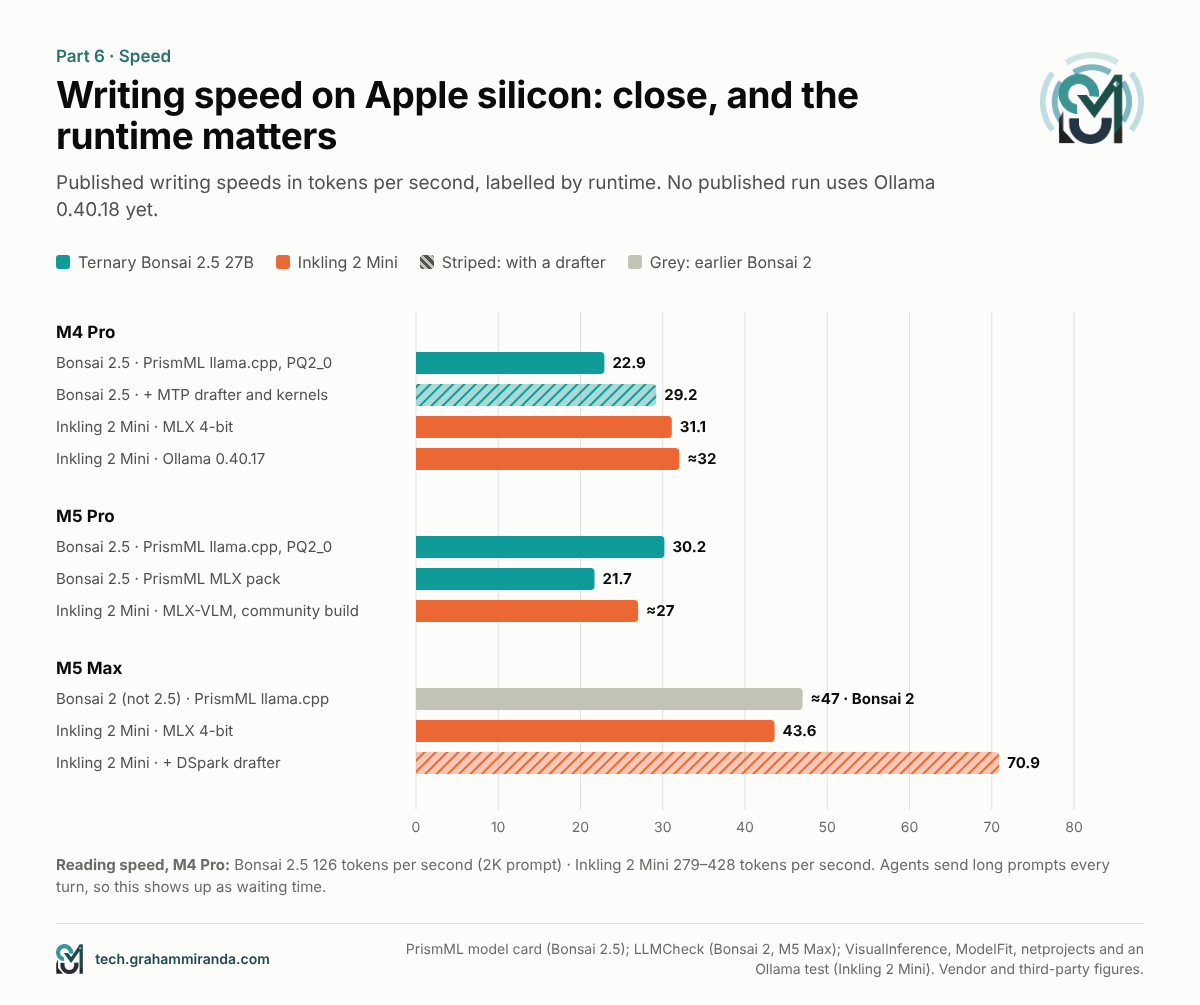
For writing speed, a model like Bonsai 2.5 reads all of its weights for every token, so memory bandwidth sets the ceiling; Inkling 2 Mini reads only its active experts, but runs 48 layer passes per token. Here’s every published Mac measurement I could find for the two models:
| Mac | Bonsai 2.5, writing / reading | Runtime | Inkling 2 Mini, writing / reading | Runtime |
|---|---|---|---|---|
| M4 Pro | 22.9 / 126 tok/s (25.3 with its MTP drafter, 29.2 with the drafter and PrismML’s new kernels) | PrismML llama.cpp, PQ2_0 | 31.1 / 382–428 tok/s; about 32 / 279 on a 12K prompt | MLX 4-bit; Ollama 0.40.17 |
| M5 Pro | 30.2 / 416 tok/s | PrismML llama.cpp, PQ2_0 | about 27 / not comparable | MLX-VLM, community build |
| M5 Pro | 21.7 / 348 tok/s | MLX, PrismML’s pack | — | — |
| M5 Max | about 47 tok/s for Bonsai 2 (not yet measured for 2.5) | PrismML llama.cpp | 43.6 / 1,104–1,535 tok/s (70.9 writing with its DSpark drafter) | MLX 4-bit |
| M2 Max, 32 GB | — | — | about 24 tok/s | Ollama 0.40.17 |
Bonsai 2.5 figures from PrismML’s model card (pp512 or a 2K prompt, as labelled there); the Bonsai 2 M5 Max figure from PrismML via LLMCheck. Inkling 2 Mini figures from VisualInference, ModelFit, netprojects, Genex and a published Ollama test, collected for my earlier articles. Third-party measurements; no published run yet uses Ollama 0.40.18, which sped up Inkling on 24 November.
What the speed numbers mean in practice
- Writing speed is a draw. On an M5 Pro, Bonsai 2.5 in PrismML’s own llama.cpp build writes about as fast as Inkling 2 Mini in MLX, around 27–30 tokens per second. Both are faster than you can read.
- Reading speed favours Inkling. On an M4 Pro, Inkling 2 Mini read prompts two to three times faster than Bonsai 2.5. Coding agents send long prompts every turn, so this shows up as waiting time.
- The runtime matters as much as the model. Bonsai 2.5’s own MLX pack wrote at 21.7 tokens per second on the M5 Pro, against 30.2 in llama.cpp. Inkling 2 Mini went from under 20 to 44 tokens per second on an M5 Max between its first and its optimised MLX builds.
- On an older or base chip, expect single digits. My older Mac is a 2020 M1 with 16 GB and 68 GB/s of memory bandwidth. Reading the 7.67 GB Q2_0 file for every token caps Bonsai 2.5 at about 9 tokens per second there, in theory; real speeds will be lower. That’s slow, but it’s a 27-billion-parameter model on a five-year-old laptop.
Part 7 — Agentic Coding: What the Benchmarks Say
The numbers, and the catch
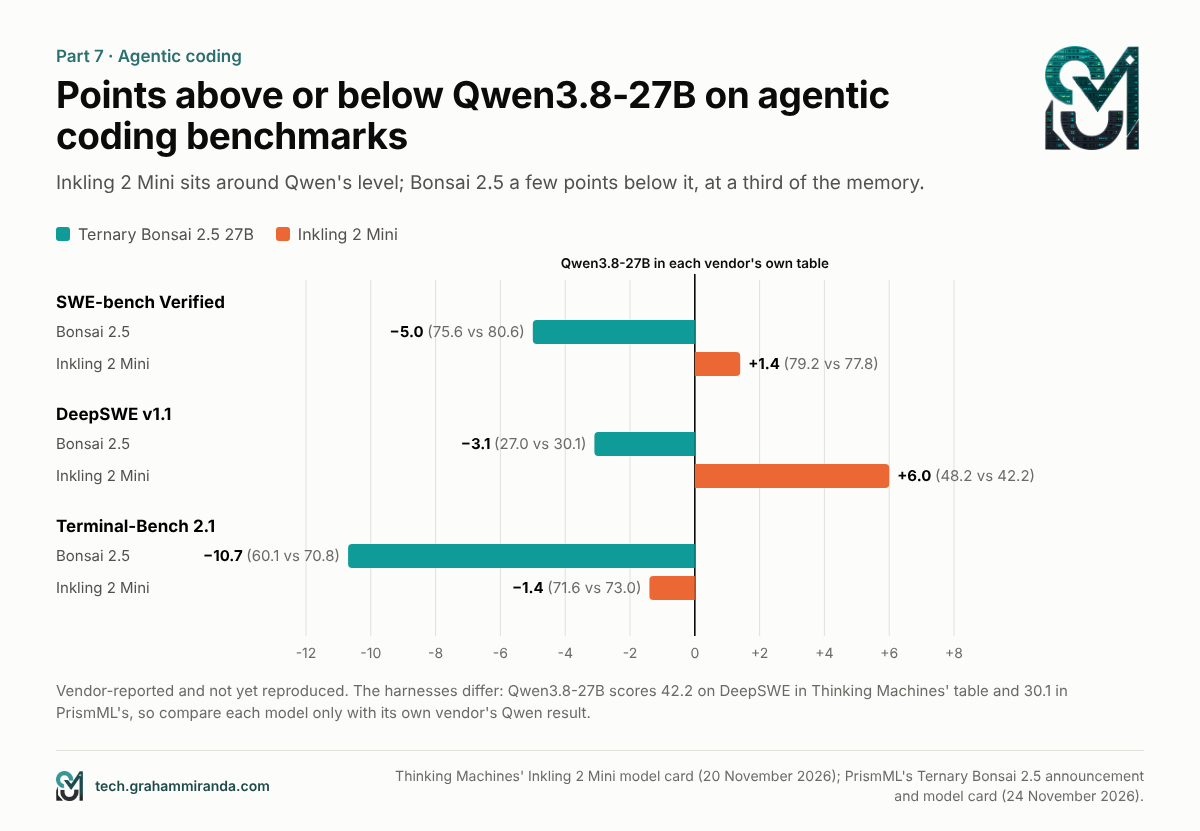
Both vendors published agentic coding benchmarks, and both compared their model with Qwen3.8-27B. That’s useful, because it gives the two tables a common reference. It’s also a warning: each vendor ran its own tests with its own harness, and their Qwen3.8-27B results don’t agree with each other.
| Benchmark | Qwen3.8-27B in Thinking Machines’ table | Inkling 2 Mini | Qwen3.8-27B in PrismML’s table | Ternary Bonsai 2.5 |
|---|---|---|---|---|
| SWE-bench Verified | 77.8 | 79.2 | 80.6 | 75.6 |
| DeepSWE v1.1 | 42.2 | 48.2 | 30.1 (mini-swe-agent) | 27.0 |
| Terminal-Bench 2.1 | 73.0 | 71.6 | 70.8 | 60.1 |
| Change against Qwen3.8-27B | — | +1.4 / +6.0 / −1.4 points | — | −5.0 / −3.1 / −10.7 points |
Vendor-reported: Thinking Machines’ Inkling 2 Mini model card (20 November) and PrismML’s Ternary Bonsai 2.5 announcement and model card (24 November). Neither has been reproduced independently yet.
Look at DeepSWE: Qwen3.8-27B scores 42.2 in one table and 30.1 in the other. Same model, different harness. So comparing 48.2 with 27.0 directly would be meaningless. The fairer reading compares each model with the Qwen3.8-27B that its own vendor measured:
- Inkling 2 Mini matches or beats Qwen3.8-27B on two of the three, with its biggest lead on DeepSWE, the most agentic of them.
- Bonsai 2.5 trails Qwen3.8-27B on all three, by 3 to 11 points. That’s the price of being a ternary copy of it, and it’s a much smaller price than Bonsai 2 paid: PrismML’s average over these three tests rose from 37.9 for Bonsai 2 to 54.2, against 60.5 for full-precision Qwen.
Beyond the three headline tests
- Tool use is Bonsai’s strength. On PrismML’s agentic tool-calling tests, Bonsai 2.5 averages 77.2 against 77.7 for full-precision Qwen3.8-27B, and beats it on three of the five tests, including τ³-Bench (73.9 against 72.8). For an agent that mostly calls tools well, that matters more than a SWE-bench point.
- Inkling 2 Mini is ahead on web research, long context and building apps, in Thinking Machines’ table: BrowseComp 79.0 against Qwen’s 61.6, Vibe Code Bench 77.9 against 64.9.
- Inkling 2 Mini makes more things up. Its non-hallucination rate in the same table is 63.4% against Qwen’s 71.4%, and Thinking Machines warns it can loop, take destructive actions without asking and misreport results. Run it in a test folder under Git.
- Inkling 2 Mini talks a lot. Artificial Analysis counted about 152,000 output tokens per task on its index, against 110,000 for Qwen3.8-27B. On a laptop, extra tokens are extra minutes. PrismML says Bonsai 2.5 uses fewer tokens than Bonsai 2 but hasn’t published a count.
The honest summary: on paper, Inkling 2 Mini is the stronger agentic coder and Bonsai 2.5 the far more efficient one. Which matters more depends on your memory, and that’s what Part 9 sorts out. First, test them yourself.
Part 8 — Run the Head-to-Head on Your Own Hardware
Vendor benchmarks run on data-centre GPUs with tuned harnesses. What you need to know is how each model behaves on your Mac, in your agent, on a task like yours. This test measures three things: writing and reading speed, memory, and whether the model can fix two bugs on its own in a small project. It takes an afternoon.
What you need for the test
- A Mac with Apple silicon. With 16 or 24 GB, you can test Bonsai 2.5 only; Inkling 2 Mini needs 32 GB.
- About 30 GB of free disk space for both models.
- Python 3.9 or newer, which comes with Apple’s command line tools (macOS offers to install them the first time you type
python3). - The free test kit,
local-coding-duel.zip: a speed script, a small buggy project with tests, the exact task, and a scoring script. No packages to install.
Step 1: install Inkling 2 Mini with Ollama
Update Ollama to 0.40.18 or newer (24 November), the release that made Inkling 2 Mini faster on Metal: brew upgrade ollama, or download the app from ollama.com/download. Then:
ollama pull inkling-2-mini
In Ollama’s Settings, set the context length to 32K for the agent test. On a 32 GB Mac, read the memory part of my Inkling 2 Mini Ollama guide first.
Step 2: install Ternary Bonsai 2.5 with llama.cpp
Bonsai 2.5’s standard file, Q2_0, runs on ordinary llama.cpp from build b11556 onward. Homebrew’s llama.cpp is version 1.0.0 from 13 November, which is newer than that:
brew install llama.cpp
llama-server -hf prism-ml/Ternary-Bonsai-2.5-27B-GGUF:Q2_0 \
  --jinja -ngl 99 -fa on -c 32768 -np 1 \
  --temp 1.0 --top-p 0.95 --top-k 20 --min-p 0 --port 8080
The first start downloads 7.7 GB. The settings are PrismML’s recommendations for thinking mode; -np 1 stops the server reserving memory for parallel requests, and --jinja turns on the chat template that tool calling needs. Open http://localhost:8080 in a browser and ask a simple question.
If the answer is gibberish, your llama.cpp is too old. PrismML warns that builds before b11556 load the Q2_0 file without any error and produce garbage. Check with
llama-server --version.
Three other routes exist, each with a catch:
| Route | File | Catch |
|---|---|---|
| PrismML’s llama.cpp fork | PTQ1_0 (5.99 GB) or PQ2_0 (7.25 GB), plus MTP drafter versions | Smaller and faster, but you build the fork from source; stock llama.cpp rejects these files |
| PrismML’s MLX pack | prism-ml/Ternary-Bonsai-2.5-27B-mlx-2bit (8.86 GB) |
Needs the loader bundled in the pack, not plain mlx-lm; slower than llama.cpp on an M5 Pro |
| Ollama | ollama run hf.co/prism-ml/Ternary-Bonsai-2.5-27B-GGUF:Q2_0 |
The model card lists the command without promising it works. Ollama already serves Bonsai 2 files in its own library, so it may; check the first answer for gibberish |
Step 3: measure speed and memory
With one model running at a time, and your browser closed, unzip the kit and run its speed script against each server:
cd local-coding-duel
python3 speed.py --base-url http://localhost:11434/v1 --model inkling-2-mini
python3 speed.py --base-url http://localhost:8080/v1 --model bonsai
It sends the same prompt of about 2,000 tokens three times after a warm-up and prints the median time to first token, the writing speed and an estimate of the reading speed. Against llama-server, it also prints the server’s own exact figures.
For memory, note the SIZE column of ollama ps while Inkling 2 Mini is loaded, and the model and KV buffer lines that llama-server prints when Bonsai 2.5 loads. Activity Monitor’s Memory tab shows the whole picture: watch Memory Pressure stay green.
Step 4: the agentic coding task
The kit’s repo folder holds invoice.py, a small helper for a German shop that parses amounts like 1.234,56 €, adds VAT and formats invoices, with two planted bugs. Five of its eight tests fail. The task, in TASK.md, asks the agent to run the tests, fix the bugs with the smallest change and leave the tests alone.
Use the same agent for both models. OpenCode works well here:
- Inkling 2 Mini:
cd repoand runollama launch opencode --model inkling-2-mini. - Bonsai 2.5: add llama-server as a provider in
~/.config/opencode/opencode.jsonc, then startopencodeinrepoand pickllamacpp/bonsai-2.5with/models:
{
  "$schema": "https://opencode.ai/config.json",
  "providers": {
    "llamacpp": {
      "name": "llama.cpp",
      "package": "@opencode/ai/providers/openai-compatible",
      "settings": { "baseURL": "http://127.0.0.1:8080/v1" },
      "models": { "bonsai-2.5": { "name": "Ternary Bonsai 2.5 27B" } }
    }
  }
}
Paste the prompt from TASK.md, don’t help, and time it. When the agent says it’s finished:
python3 ../score.py           # PASS or FAIL, tests passed, lines changed, tests untouched?
python3 ../score.py --reset   # restore the buggy files for the next run
The scoring script always runs the original tests, so an agent that “fixes” the tests instead of the code can’t fake a pass. Run each model three times. My OpenCode guide explains the provider settings and how to make OpenCode ask before it edits.
Step 5: write down your results
| Ternary Bonsai 2.5 | Inkling 2 Mini | |
|---|---|---|
| Runtime and version | ||
| Context | 32K | 32K |
| Writing speed (tok/s) | ||
| Time to first token (s) | ||
| Memory while loaded | ||
| Task: passes out of 3 | ||
| Task: median minutes | ||
| Lines changed (best run) |
Part 9 — Which Local Coding Model Should You Run?
By memory
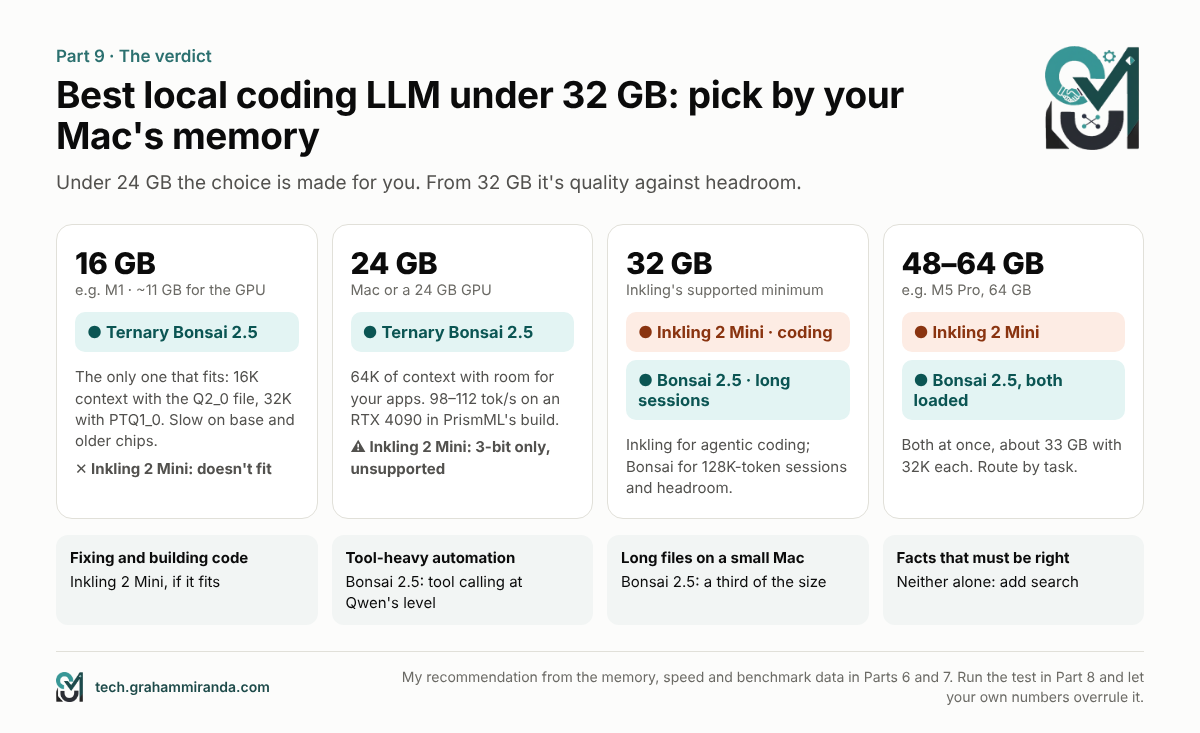
| Your machine | My pick | Why |
|---|---|---|
| 16 GB Mac | Ternary Bonsai 2.5 | The only one of the two that fits, with a 16–32K context. Expect slow speeds on base and older chips |
| 24 GB Mac or a 24 GB GPU | Ternary Bonsai 2.5 | 64K of context and room for your apps; Inkling 2 Mini only fits below its supported minimum. On NVIDIA, PrismML measured 98–112 tok/s on an RTX 4090 in its own llama.cpp build |
| 32 GB Mac | Inkling 2 Mini for agentic coding; Bonsai 2.5 for long sessions | Inkling is the stronger coder on paper but leaves little memory; Bonsai holds 128K tokens and leaves room for your other apps |
| 48–64 GB Mac | Both | Route by task: Inkling 2 Mini for coding agents, Bonsai 2.5 for long documents, a second agent or when the first is busy |
By task
- Fixing and building code with an agent: Inkling 2 Mini, if it fits. Its DeepSWE and Vibe Code Bench results lead, and it reads long prompts faster.
- Tool-heavy automation: Bonsai 2.5. Its tool-calling scores match full-precision Qwen3.8-27B.
- Long files and long sessions on a small Mac: Bonsai 2.5. Its file is a third of the size, so the context gets the memory.
- Anything where facts must be right: neither on its own. Give the agent a search tool, or check its claims.
When local isn’t enough
Both models are good for their size, and both are a step below the large cloud models on hard, multi-step work. Many people run a local model for private and everyday tasks and route the hardest planning and debugging to a cloud model. My guide to buying a Mac for local LLMs weighs that trade honestly, and MacBook Pro M1 vs M5 Pro shows what the jump from 16 to 64 GB changes. One affordable cloud option is Z.ai’s GLM Coding Plan, which works in OpenCode, Claude Code and other agents: get 10% off the GLM Coding Plan through my affiliate link. (Affiliate link — see the disclosure at the top.)
Part 10 — Claude Artifacts Desktop App: What “Install as App” Does
From chat to the Dock
An artifact is the page Claude builds beside a chat when you ask for something you’ll keep: a document, a dashboard, a small tool. Until this week, artifacts lived inside Claude. Since 24 November, the same day MCP skills arrived in Claude Code, Claude Desktop can install an artifact as an app, in beta, on macOS and Windows. The app gets its own window, its own icon in the Dock or Start menu, and, if you allow it, a menu bar item, notifications, keyboard shortcuts and access to your files.
It isn’t a copy. The installed app is a container for the same artifact, so when you (or someone who can edit it) change the artifact, the app changes too.
What you need to install a Claude artifact as an app
| Requirement | Detail |
|---|---|
| App | Claude for Mac or Claude for Windows, version 6.28899.0 or later. Update with Claude > Check for Updates (Mac) or Help > Check for Updates under ☰ (Windows) |
| Plan | Rolling out on Free, Pro, Max, Ultra, Team and Enterprise |
| Team plans | On by default; full computer access stays off until an admin turns it on |
| Enterprise plans | Off until an owner turns it on, under Organization settings > Artifacts |
| To open an app | Claude Desktop installed, signed in and online |
| Not available | Linux, the web and the mobile apps; HIPAA-ready organisations; full access in Claude for Teachers and K-12 organisations |
| Can’t be installed | Artifacts made from Docs, Slides or Sheets templates, legacy artifacts, and live artifacts from Cowork |
From Anthropic’s help article “Installing an artifact as an app”, 26 November 2026.
Where the button is, and where the app goes
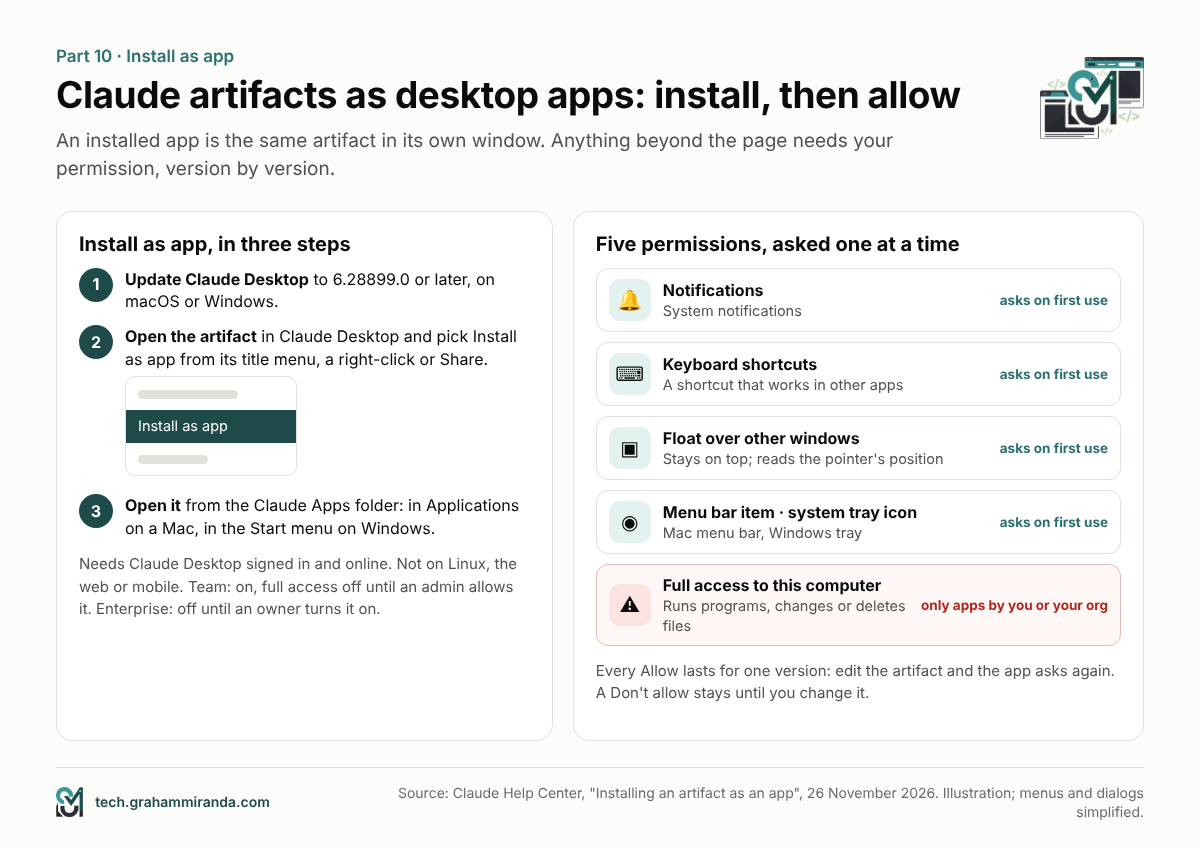
Open the artifact in Claude Desktop’s main window and choose Install as app from its title menu, from a right-click, or under Share. An artifact can also draw its own install button. Claude asks you to confirm either way.
On a Mac, apps land in a Claude Apps folder inside the Applications folder in your home folder, and they show up in Spotlight. On Windows, they’re in a Claude Apps folder in the Start menu, with a desktop shortcut. Claude Desktop lists all of them under File > Apps, which is also where you uninstall one.
Five permissions, asked one at a time
An installed app can do everything the artifact could, including calling Claude and your connectors. For anything beyond that, it has to ask, and you choose Allow or Don’t allow:
| Permission | What it lets the app do |
|---|---|
| Notifications | Show system notifications |
| Keyboard shortcuts | Listen for a shortcut while you’re in other apps |
| Float over other windows | Stay on top as a widget, and read the mouse pointer’s position |
| Menu bar item (Mac) / system tray icon (Windows) | Put an icon and menu at the top or bottom right of the screen |
| Full access to this computer | Run programs and read, change or delete files, without asking each time |
Four rules sit on top of that list, and they shape what you can build:
- An Allow covers one version. After any update, including your own edits, the app asks again. A Don’t allow stays until you change it.
- Full access is for apps you trust completely. Anthropic doesn’t review apps before you install them, and Claude generally refuses full access when someone outside your organisation wrote part of the app, or when it can’t confirm who did. On Free, Pro, Max and Ultra plans, “outside your organisation” means anyone but you.
- Usage counts. Building an app, and any requests it makes to Claude, count toward the plan of the person using it.
- No zero data retention. Organisations with zero data retention for Claude Code can install apps once an owner allows it, but the apps aren’t covered by it.
Part 11 — Build It: A Server-Status Menu Bar App Without Writing Code
The idea
My company hosts websites for clients. I wanted a small light in the menu bar that turns red when one of those sites stops answering, with a notification, without paying for another monitoring service or opening a dashboard. That’s exactly the kind of internal tool artifacts were made for. It’s also a good test of the new feature, because it needs four of the five permissions.
The first thing that doesn’t work: checking a website from an artifact
An artifact is a web page, and it runs under strict rules: it may load scripts from a short list of public libraries, but requests to other websites are blocked. A status page can’t simply ask https://shop.example.com whether it’s up.
The installed app has a way round that: with full access, it can run programs on your computer. Every Mac and every current Windows 10 or 11 PC ships with curl, a small command-line program that fetches a web address and reports the status code. So the app checks each site by running curl, and that’s why it needs full access. It also explains the app’s biggest limit, which Part 13 comes back to: full access only works for apps you wrote yourself.
The prompt
You don’t need to know any of that to build it; you only need to ask clearly. This is the request, ready to paste into Claude:
Build me an artifact I can install as a desktop app on Mac and Windows:
a server-status monitor for my hosting business.

- Keep the list of sites (name and address) in a JSON file in my home
  folder, so it survives updates. Start with these: www.grahammiranda.com,
  tech.grahammiranda.com, hosting.grahammiranda.com, esim.grahammiranda.com
  and support.grahammiranda.com.
- Check every site with curl every 5 minutes (let me choose 1, 5, 15 or
  60), 4 at a time, with a 15-second timeout. Up means status 200 to 399.
- Show one green or red light per site with the status code and time.
- Put a summary in the macOS menu bar (system tray icon on Windows), with
  every site in its menu. Clicking a site opens it in my browser.
- Notify me when a site goes down or comes back, and log those changes
  to a CSV file next to the list.
- Alt+Shift+S shows the window and checks now.
- Ask for permissions only when I click a Start button, and explain why.
- Let me add and remove sites in the window. Accept only plain https://
  addresses, so nothing odd ends up in a command.
- Use the attached logo as the app icon.
- When it isn't installed, show a preview with sample data and an
  Install button.
Attach your logo to the chat, and Claude does the rest: it writes the page, publishes it as a private artifact, and gives it the desktop capability, the switch that lets an artifact use the desktop features once it’s installed.
What you get
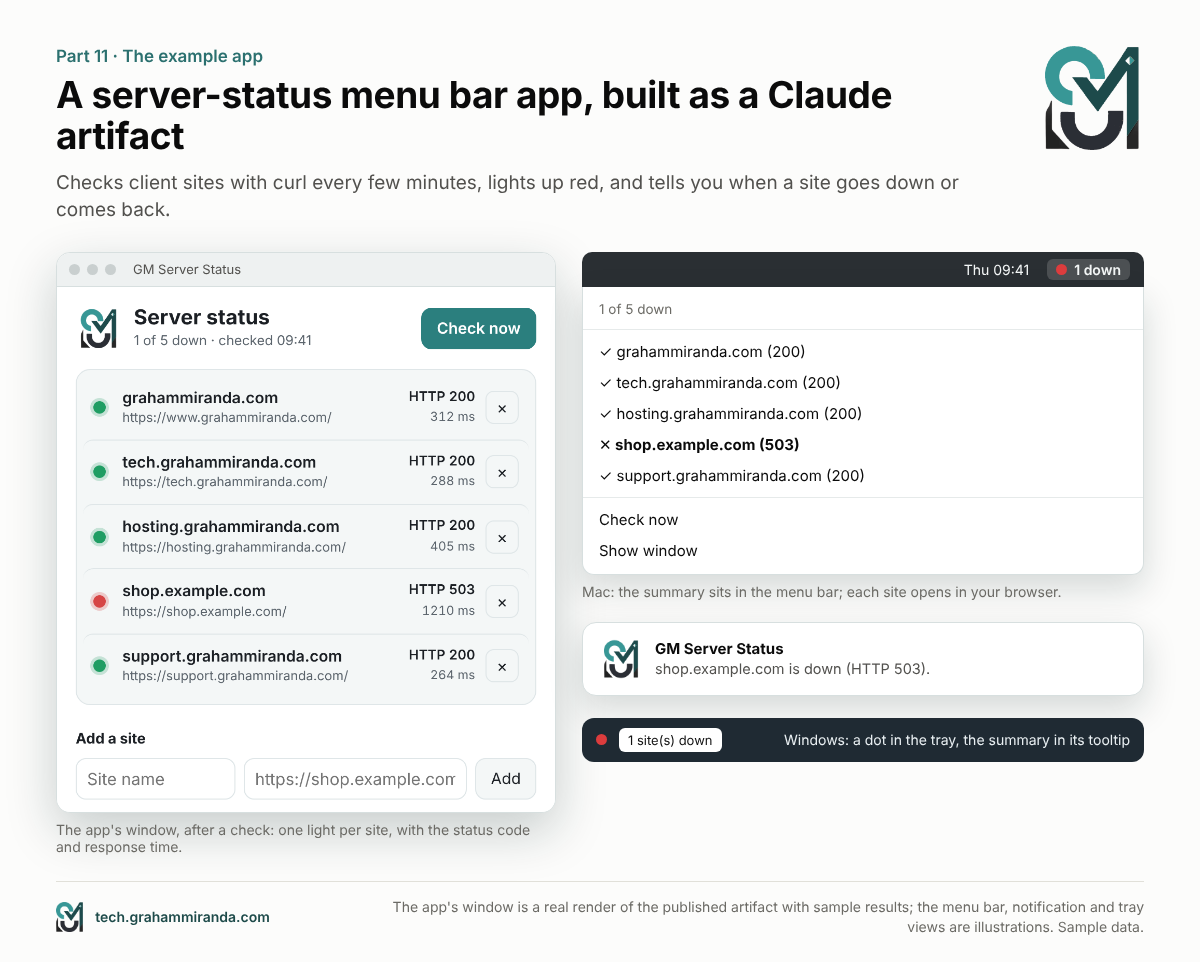
The example built for this article, GM Server Status, came out at about 360 lines of HTML, CSS and JavaScript. You never have to read them; it does what the prompt asked:
- A preview mode. Opened in Claude or a browser, it shows sample data, says so, and offers Install as app where Claude Desktop allows it. Desktop features exist only inside the installed app’s window.
- A Start button. The first permission request has to come from a click, so the app explains what it needs and asks for full access, the menu bar item, notifications and the shortcut together.
- One file for your sites. The list lives in
~/GrahamMiranda/server-status/sites.json, with ahistory.csvof every change next to it. You can edit either by hand. - Checks that run
curl, four at a time, every 5 minutes. On Windows it callscurl.exe, which Windows 10 and 11 include. - A menu bar item showing “5/5” or “1 down” on a Mac, a green or red dot in the Windows tray, and a menu with every site.
- Notifications when a site goes down or comes back, and Alt+Shift+S (Option+Shift+S on a Mac) to bring the window up and check at once.
- Your logo as the app’s icon, and a red badge with the number of sites that are down.
Before publishing, the page was tested in a headless browser against a stand-in for Claude’s desktop features: the permission request, the checks, a site going down and coming back, the notifications, the menu bar updates, and adding and removing sites all worked without a script error. That stand-in isn’t the real thing, so the next part is where you find out how it behaves in Claude Desktop.
Part 12 — Install the App on Mac and Windows
On a Mac
- Update Claude Desktop to 6.28899.0 or later: Claude > Check for Updates.
- Open the artifact in Claude Desktop’s main window, then choose Install as app from its title menu, or click the app’s own Install as app button. Confirm.
- Open the app from the Claude Apps folder (in the Applications folder in your home folder), from Spotlight, or with Open installed app on the artifact.
- Click Start monitoring. Claude shows one dialog per permission. The full access dialog warns that the app can run programs and change files; Allow it only for an app you wrote. Allow the menu bar item, notifications and the shortcut, or refuse any of them; the app keeps working without them.
- Look at the menu bar. The summary appears at the top right of the screen. To keep the app in the Dock, use Options > Keep in Dock.
Because the app has a menu bar item, closing its window doesn’t stop it; it keeps checking in the background. Quit it with Cmd+Q. To change a permission later, click the app’s name in the menu bar and choose Permissions.
On Windows
- Update Claude Desktop: Help > Check for Updates, under the ☰ menu.
- Install the app from the artifact’s title menu, a right-click, or Share, exactly as on a Mac.
- Open it from the Claude Apps folder in the Start menu, or from the desktop shortcut.
- Click Start monitoring and answer the same permission dialogs.
Three things behave differently on Windows, by design:
- The tray shows an icon, not text. Windows has no room for the “5/5” summary, so you see a coloured dot and the summary in its tooltip.
- Claude adds its own menu items. Open the tray icon’s menu and you’ll see the app’s items, followed by Show App, Permissions and Exit.
- There’s no application menu bar, so the app keeps its commands in the window. To change permissions, right-click the title bar (or press Alt+Space) and choose Permissions.
Updating and removing it
When you ask Claude to change the app and it republishes the artifact, the installed app picks up the new version, and asks for its permissions again. That’s annoying for small edits and exactly right for security.
To uninstall, go to File > Apps in Claude Desktop, select the app and choose Uninstall. macOS moves it to the Trash and Windows removes its shortcuts; unpin it from the Dock, taskbar or Start yourself. Uninstalling removes the permissions you granted, but not the artifact, and not the server-status folder with your sites, which you can delete yourself.
Part 13 — What Worked, What Didn’t, and When to Build a Real App
What worked
- Building without code. One prompt produced a working app with a preview, an install button, permissions, a menu bar item, notifications, a shortcut and a local data file. Asking for changes in plain language is the whole development process.
- A real desktop API. The installed app can read and write files, run programs, show notifications, register a shortcut, put an item in the menu bar or tray, set its own icon and badge, and float over other windows. That covers most small utilities.
- Sensible security. Each permission is asked for separately, every new version asks again, full access carries a clear warning, and Claude refuses full access for apps written by people outside your organisation.
- Mac and Windows from one artifact. The same page installs on both. It only needs to check which system it’s on before choosing a command, here
curlorcurl.exe.
What didn’t, and the limits to plan around
| Limit | Why it matters for a status app |
|---|---|
| No direct requests to other websites | The app can’t check a site by itself; it needs full access to run curl. Any app that needs other websites runs into this, unless one of your Claude connectors covers it |
| Full access is only for apps you wrote | On Free, Pro, Max and Ultra plans, nobody else can give it full access. On Team, an admin must allow full access first, and colleagues count as inside your organisation |
| It’s not a product for customers | Customers would need a Claude account, Claude Desktop and their own plan, and full access would be refused for them anyway |
| Signed in and online, always | The app opens only while Claude Desktop is signed in and online. A monitor that stops when you sign out is a convenience, not an alarm system |
| Every update asks again | Each republish needs new permission approvals, including after your own edits |
| Background work needs a menu bar or tray item | Processes, shortcuts and the menu bar item end when the window closes or the page reloads. With a menu bar item on a Mac, closing the window only hides it; on Windows, closing it may end the app or only hide it |
| No Linux, web or mobile | It can’t run on a Linux server or a phone |
From Anthropic’s help article, the artifact page rules and the desktop capability’s documentation, 26 November 2026.
When to build a real app instead
| You need | Build |
|---|---|
| A tool for yourself, on your own Mac or PC | A Claude artifact app. Nothing is faster |
| A tool for your team | An artifact app on a Team plan, with an admin allowing full access, or a shared web dashboard |
| A status page your customers can see | A real status page on your own server, such as an open-source monitor on a VPS, which keeps working when your laptop is closed |
| Alerts that must never miss an outage | A server-side monitor that sends email or SMS, with your artifact app as a convenient second display |
| Something for the App Store or for sale | A native app, built with an AI agent; I described that route in How to Build an App From Scratch With AI |
Where the MCP skill from Part 3 fits in
The status app and the site-launch-check skill from Part 3 look at the same client sites at different moments. The MCP skill runs in Claude Code when you ask for it: it does the thorough one-off check before a launch (HTTPS, redirects, robots.txt, sitemap, security headers) and writes a report. The app takes over once the site is live. It only asks whether each site answers, but it asks every few minutes and tells you when the answer changes. Together they answer a small hosting business’s two everyday questions: is this site ready, and is it still up?
A short safety checklist for artifact apps
- Allow full access only for apps you wrote, and read what the permission dialog lists before you click.
- Keep the app’s data in its own folder, as this one does, rather than letting it roam your home folder.
- Ask Claude to move files to the Trash rather than delete them: the desktop API has a “move to Trash” call for exactly this.
- Read what changed before you approve a new version. Ask Claude to summarise its changes in the chat before it republishes.
- Report an app that misbehaves with Report Artifact in its Permissions menu, if your version shows it.
Frequently Asked Questions
MCP skills are workflows that an MCP server serves to Claude Code: a SKILL.md file of instructions plus any reference files, loaded only when a task needs them. Claude Code 2.1.332 added them in beta on 24 November 2026. They appear in the / menu as /server:skill, and Claude Code asks before it loads each version. They follow the official MCP Skills extension, io.modelcontextprotocol/skills.
Version 2.1.332 or newer, released on 24 November 2026. On 26 November, Claude Code’s stable release channel was still on 2.1.326, which doesn’t include it, so set "autoUpdatesChannel": "latest" in ~/.claude/settings.json and run claude update. The server must also speak MCP protocol 2026-07-28 and declare the skills extension.
The same way as any MCP server: claude mcp add --transport http NAME URL for a remote server, or claude mcp add NAME -- COMMAND for a local one. To serve your own skills without writing code, put skill folders in a skills/ directory and serve them with FastMCP 4.2’s SkillsDirectoryProvider, a five-line server.py; fastmcp list server.py --skills shows what it serves.
A tool is a single action, such as creating an issue. A skill is a workflow: instructions and reference files that tell Claude when and how to use tools for a job. Over MCP, the server’s owner keeps the skill current, Claude Code checks every file’s size and SHA-256 fingerprint, and you approve each version. Before use, a skill costs only its name and description.
Yes. You can connect a server that already ships skills, upload a skill folder to FastMCP’s free Skill Drop page to get a hosted server, or serve a folder of skills with the five-line FastMCP server shown in Part 3, which you copy rather than write. The skills themselves are plain-English SKILL.md files, and you add the server with one claude mcp add command.
Check five things: that Claude Code is 2.1.332 or newer, that the server declares the io.modelcontextprotocol/skills extension (FastMCP 4.2 or newer does), that MCP_PROTOCOL_NEGOTIATION isn’t set to legacy, that your Team or Enterprise admin hasn’t left direct MCP skills switched off, and that you’re in an interactive session, where you can approve the skill. Type / and look for names starting with the server’s name.
VS Code supports them from version 1.147 and asks per server. The extension’s implementations list shows claude.ai connectors in public beta, and Codex, ChatGPT and Goose with support planned. Claude Desktop’s chat and Cursor weren’t listed on 26 November. For clients without the extension, FastMCP can expose the same skill files through two ordinary tools.
It depends on memory. With 16 or 24 GB, Ternary Bonsai 2.5 27B is the stronger choice, because it needs only 6 to 8 GB for its weights and Inkling 2 Mini doesn’t fit. With 32 GB, Inkling 2 Mini scores higher on agentic coding benchmarks, while Bonsai 2.5 leaves room for long contexts. Run the test in Part 8 to decide on your own Mac.
Not on agentic coding benchmarks. Measured against Qwen3.8-27B in each vendor’s own table, Inkling 2 Mini comes out around Qwen’s level on SWE-bench Verified, DeepSWE and Terminal-Bench 2.1, while Bonsai 2.5 trails it by 3 to 11 points. But Bonsai 2.5 needs about a third of the memory, writes about as fast on an M5 Pro and matches Qwen3.8-27B on tool calling.
Its files are 5.99 GB (PTQ1_0, PrismML’s llama.cpp fork), 7.25 GB (PQ2_0) or 7.67 GB (Q2_0, stock llama.cpp), and the MLX pack is 8.86 GB. Its cache needs about 64 KiB per token of context: roughly 10 GB in total at 32K tokens with the Q2_0 file and 16 GB at 128K, plus about 1 GB for the runtime. It runs on a 16 GB Mac with a 16–32K context.
The Q2_0 file runs on stock llama.cpp from build b11556; older builds load it without an error and produce gibberish. Apps that bundle llama.cpp need an engine at least that new. The model card lists an Ollama command for the Q2_0 file without promising it works, and Ollama already serves Bonsai 2 in its library, so try it and check the first answer. The smaller PTQ1_0 and PQ2_0 files need PrismML’s llama.cpp fork.
Not with Ollama’s package, which is about 20 GB. Thinking Machines supports Macs with 32 GB or more. Unsloth publishes 2-bit and 3-bit files of about 9 to 14 GB that run on smaller Macs, at a cost in quality and with more setup; on a 16 GB Mac, Ternary Bonsai 2.5 is the more practical 27B-class coding model.
Update Claude for Mac or Windows to version 6.28899.0 or later, open the artifact in Claude Desktop’s main window and choose Install as app from its title menu, a right-click or Share, then confirm. On a Mac the app goes into a Claude Apps folder inside the Applications folder in your home folder; on Windows it appears in a Claude Apps folder in the Start menu. It’s in beta and needs Claude Desktop signed in and online.
Five: notifications, keyboard shortcuts while you use other apps, floating over other windows (which also reads the pointer’s position), a menu bar item on Mac or system tray icon on Windows, and full access to run programs and change files. Each is asked for separately. An Allow lasts for one version of the app, so every update asks again; a Don’t allow stays until you change it.
No. Opening an installed app needs Claude Desktop signed in and online, and Install as app is available only on macOS and Windows: not on Linux, the web or the mobile apps. An app with a menu bar or tray item keeps running after you close its window, but it isn’t a replacement for monitoring that runs on a server.
Yes, when they use Claude. Building the app counts toward your plan’s limits, and any requests an installed app makes to Claude count toward the plan of the person using it. An app like the server-status example, which runs curl and never calls Claude while it works, uses nothing after you’ve built it.
The Bottom Line
The three releases of 24 November fit together better than their timing suggests. MCP skills let you write a workflow once, in plain English, and serve it to Claude Code with a version check and an approval. Ternary Bonsai 2.5 and Inkling 2 Mini let you run that kind of agent work privately on a laptop, and a 16 GB Mac now has a credible 27B-class model for agentic coding. Install as app turns the small tools you ask Claude for into apps with a place in your menu bar.
All three are betas or day-one releases with hard edges. MCP skills need Claude Code 2.1.332 and a server that speaks the new protocol. The local models need the right runtime build, and their benchmarks are still the vendors’ own. Artifact apps can’t reach other websites without full access, which on individual plans only works for apps you wrote, and they stop when Claude Desktop is signed out.
So use them for what they’re good at today: skills for workflows you repeat, a local model sized to your memory, and artifact apps for tools you use yourself. And run the tests on your own machine before you believe anyone’s table, including mine.
Tried MCP skills, Bonsai 2.5 or an installed artifact app? Share your Claude Code version, your Mac and your speed.py or score.py results in the comments; I’ll add the most useful ones to Parts 6 and 8, credited.
Disclosure: This article contains one affiliate link, to Z.ai’s GLM Coding Plan (in Part 9). Subscribing through it gets you 10% off and may earn me a commission at no extra cost to you. Nothing else here is sponsored, and no company reviewed the article before publication.
Facts checked: 26 November 2026.