 English
 Deutsch
 Español
 Italiano
 Français
 Português do Brasil
 Tiếng Việt
 ไทย
 Bahasa Indonesia
 Русский
 العربية
 हिन्दी

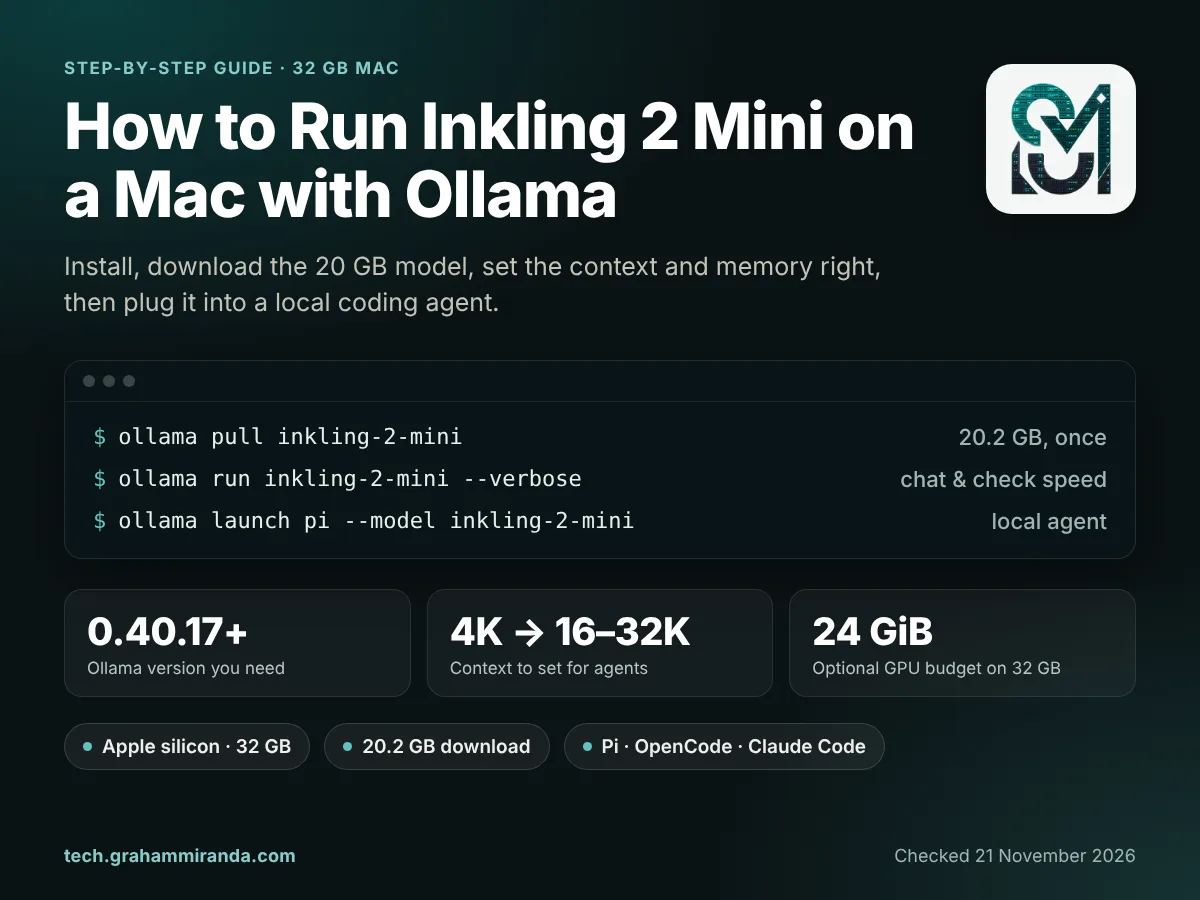
Thinking Machines Lab released Inkling 2 Mini on 20 November with an unusual promise for an open model this capable: it runs on a laptop. The company supports it on any Mac with 32 GB of memory or more, through Ollama. Its researchers even ran it offline on a MacBook Pro during a flight, where it built a playable flight simulator. This guide shows you, step by step, how to run Inkling 2 Mini with Ollama on a 32 GB Mac. It starts with a fresh install and ends with a working local coding agent.
The short version is three commands. The longer version is why this guide exists. On a 32 GB Mac the model takes about 20 GB. By default, macOS also keeps roughly a third of your memory away from the graphics processor. Ollama responds by giving the model a 4,000-token context: fine for a chat, far too small for a coding agent. And on most 32 GB Macs, very long prompts can still run out of memory today. None of that is a reason to skip it. It’s a reason to set it up properly.
You don’t need to know how to code. You’ll copy a few commands into Terminal, the Mac’s command-line app (press Cmd-Space, type Terminal and press Return). Each one is explained. Ollama’s support for Inkling 2 Mini is days old and moving fast, so every fact below was checked on 21 November 2026.
Independence and affiliate disclosure: No company mentioned here sponsored, reviewed or approved this guide. It contains one affiliate link, to Z.ai’s GLM Coding Plan (in Part 10). Subscribing through it gets you 10% off and may earn me a commission at no extra cost to you.
TL;DR — The 60-Second Version
- You need: an Apple silicon Mac with 32 GB of memory or more, macOS 14 or later, about 25 GB of free disk space and Ollama 0.40.17 or newer.
- Three commands:
ollama --version(0.40.17 or higher),ollama pull inkling-2-mini(a 20.2 GB download),ollama run inkling-2-mini. - The 32 GB catch: the weights take 18.8 GiB, and by default macOS lets the GPU use only about 21.3 GiB. So Ollama sets a 4K context, too small for agents.
- The settings that matter: set the context to 16K–32K in Ollama’s Settings for agents. Optionally, raise the GPU budget to 24 GiB with
sudo sysctl iogpu.wired_limit_mb=24576(it resets on restart). Keep reasoning effort at high for coding, low for quick questions. Close memory-hungry apps first. - Your chip matters today: Ollama 0.40.17 switches on its memory-saving prompt reading only for the M2 Pro, M2 Ultra, M3 Ultra, M4 Pro and M5 Pro, Max and Ultra. In the only published 32 GB test, an M2 Max crashed with "Insufficient Memory" after about 12,000 tokens.
- Agents: Pi suits 32 GB best, because its instructions and tools come to under 1,000 tokens (
ollama launch pi --model inkling-2-mini). It runs commands without asking, so keep it in a throwaway folder. OpenCode opens with about 6,900 tokens and asks first after one config change. Claude Code asks by default, but its first request measured about 32,800 tokens: better from 48 GB. - Speed: about 24 tokens per second on a 32 GB M2 Max, and about 32 on a 48 GB M4 Pro.
- Safety: Thinking Machines warns that the model can loop, delete or overwrite files without asking, and misreport its results. Work in Git or a copy, keep permission prompts on and cap the agent’s steps.
At a Glance
| Model | Inkling 2 Mini by Thinking Machines Lab, released 20 November 2026, Apache 2.0 licence |
| Size | 26.4B parameters, 3.4B active per token; 5.4B weight activations counting its looped layers |
| Ollama tag | inkling-2-mini (also 26b-a5b and 26b-a5b-nvfp4: the same 20 GB package) |
| Download | 20,188,097,271 bytes (20.2 GB, or 18.8 GiB) |
| Time needed | About half an hour, plus 3 to 60 minutes for the download |
| Ollama version | 0.40.17 or newer; Apple silicon only in that release |
| Engine | Ollama’s MLX runner, built on Apple’s machine-learning framework |
| Can do | Text and image input, tool calls, thinking |
| Context | Up to 1M tokens in the model; Ollama’s default on most 32 GB Macs: 4K |
| Supported minimum | Apple silicon Mac with 32 GB (Thinking Machines and Ollama) |
| macOS | 14 Sonoma or later (Ollama’s requirement) |
| Reasoning effort | none, minimal, low, medium, high (default), xhigh, max |
| One-command agents | Pi, OpenCode, Claude Code, Hermes Agent and OpenClaw, through ollama launch |
| Measured speed | M2 Max 32 GB: about 24 tok/s; M4 Pro 48 GB: about 32 tok/s writing, 279 tok/s reading |
Measured speeds are third-party results.
Table of Contents
- Part 1 — Before You Start: Is Your Mac Ready?
- Part 2 — Step 1: Install or Update Ollama
- Part 3 — Step 2: Download Inkling 2 Mini
- Part 4 — Step 3: Run Inkling 2 Mini in Ollama for the First Time
- Part 5 — Step 4: Recommended Settings for a 32 GB Mac
- Part 6 — The 32 GB Reality Check: Your Chip Matters
- Part 7 — Step 5: Use Inkling 2 Mini as a Local Backend for a Coding Agent
- Part 8 — How Fast Is Inkling 2 Mini on a 32 GB Mac?
- Part 9 — Troubleshooting Inkling 2 Mini in Ollama
- Part 10 — When 32 GB Isn’t Enough
- Frequently Asked Questions
- The Bottom Line
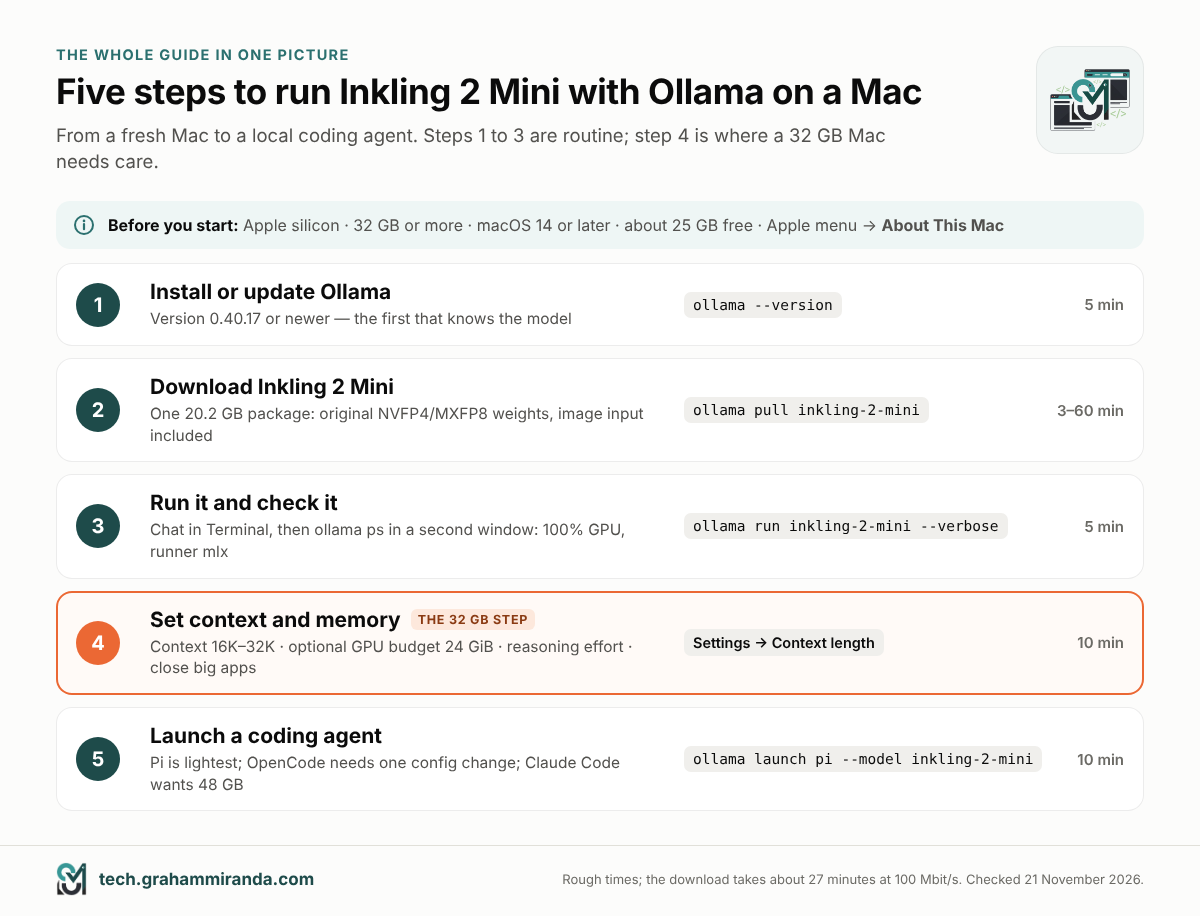
Part 1 — Before You Start: Is Your Mac Ready?
Four things decide whether you can run Inkling 2 Mini with Ollama: your chip, your memory, your macOS version and your free disk space. The first three are on one screen: open the Apple menu and choose About This Mac. For disk space, open System Settings → General → Storage.
| Requirement | Minimum | Why |
|---|---|---|
| Chip | Apple silicon (any M-series chip) | Ollama 0.40.17 runs Inkling 2 Mini on Apple silicon only. On Intel Macs, Ollama can only use the processor, not the GPU |
| Memory | 32 GB | Thinking Machines’ and Ollama’s supported minimum; the model alone takes about 20 GB |
| macOS | 14 Sonoma or later | Ollama’s own requirement |
| Free disk space | About 25 GB | 20.2 GB for the model, plus room for macOS to breathe |
| Ollama | 0.40.17 or newer | The first release that knows the model (Part 2) |
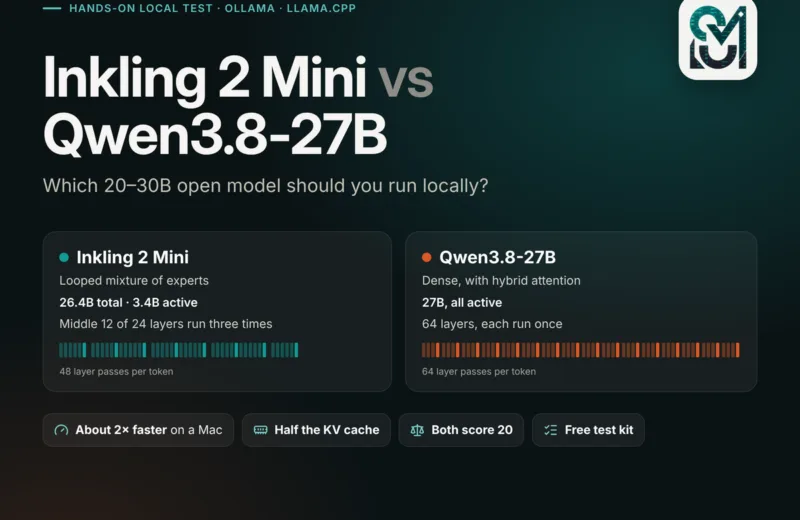
What about 16 GB and 24 GB Macs? Not with Ollama’s package, which is a single 20 GB file with no smaller version. Compressed copies do exist: Unsloth publishes 2-bit and 3-bit files of about 9 to 14 GB that run with its own build of llama.cpp. That’s a different, more technical route, which I covered in Inkling 2 Mini vs Qwen3.8-27B, along with what you give up in quality.
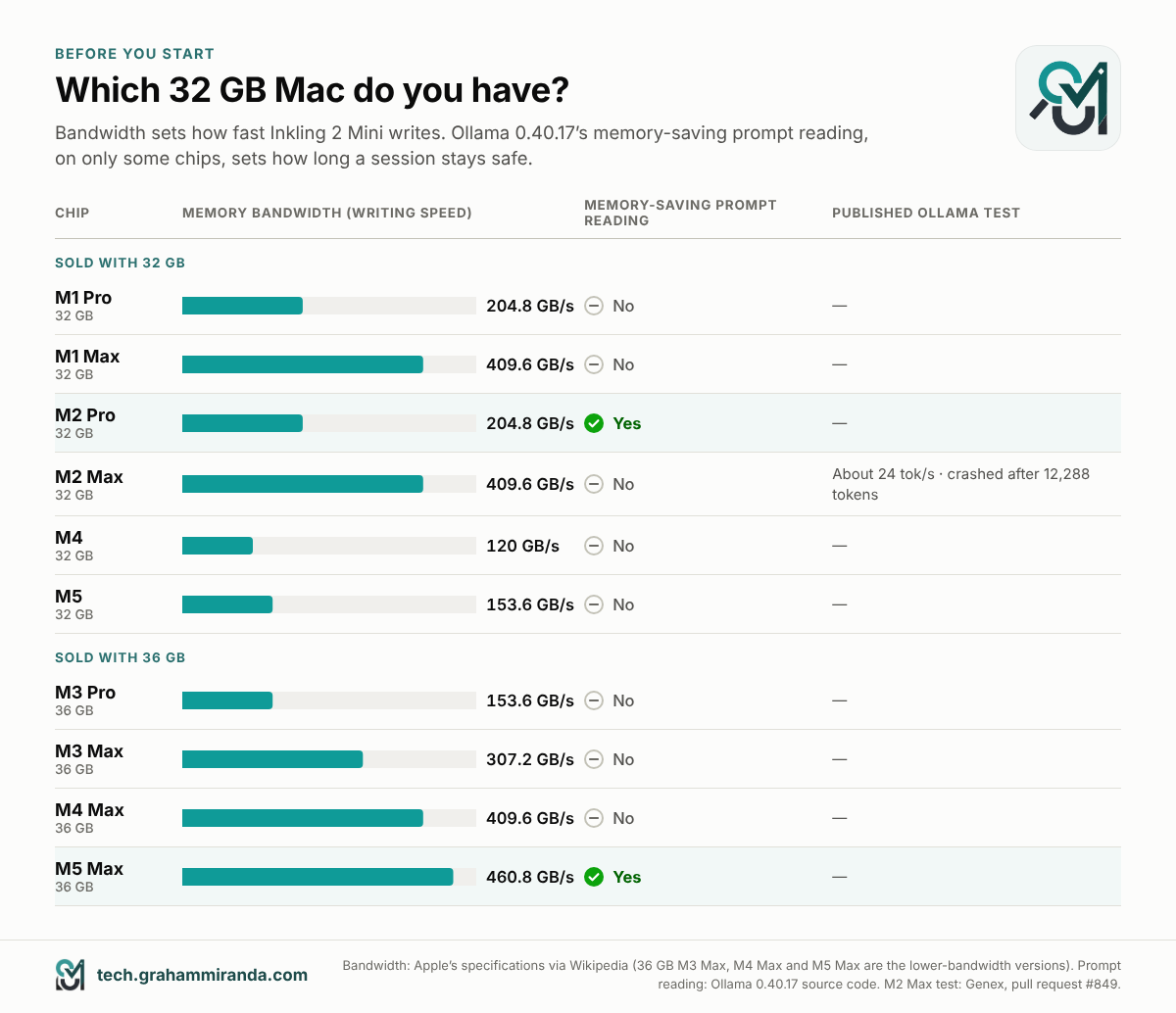
Which 32 GB Mac do you have?
Your chip matters for two reasons. The first is speed. A model like this writes each word by reading its active weights from memory. So writing speed depends heavily on memory bandwidth: how quickly the chip can read memory. The M1 Max and M2 Max have twice the bandwidth of the M1 Pro and M2 Pro, and roughly three times that of the base M4 and M5.
The second reason is new and specific to Ollama 0.40.17 (Part 6 explains it). Ollama has a memory-saving way to read long prompts for this model, but it’s only switched on for some chips. Among Macs that come with exactly 32 GB, only the M2 Pro has it today.
| Chip | Comes with 32 GB? | Memory bandwidth | Memory-saving prompt reading in Ollama 0.40.17 |
|---|---|---|---|
| M1 Pro | Yes | 204.8 GB/s | No |
| M1 Max | Yes | 409.6 GB/s | No |
| M2 Pro | Yes | 204.8 GB/s | Yes |
| M2 Max | Yes | 409.6 GB/s | No |
| M4 | Yes | 120 GB/s | No |
| M5 | Yes | 153.6 GB/s | No |
| M3 Pro, M3 Max, M4 Max | 36 GB versions | 153.6 / 307.2 / 409.6 GB/s | No |
| M5 Max | 36 GB version | 460.8 GB/s | Yes |
Bandwidth and memory options from Apple’s specifications as collected by Wikipedia. Prompt-reading support from Ollama 0.40.17’s source code, which enables it for the M2 Pro, M2 Ultra, M3 Ultra, M4 Pro and the M5 Pro, Max and Ultra. The M4 Pro and M5 Pro aren’t sold with 32 GB.
Machines with 36 GB get about 4 GB more room than everything in this guide assumes, so the same steps work with a little more slack.
Part 2 — Step 1: Install or Update Ollama
Ollama is a free app that downloads open models and runs them on your own Mac. It also runs a small server in the background, which is what coding agents talk to later.
If you don’t have Ollama yet
- Go to ollama.com/download and download the Mac version,
Ollama.dmg. - Open the file and drag Ollama into your Applications folder.
- Open Ollama from Applications. The first time it starts, it checks whether its
ollamacommand is available in Terminal. If not, it asks for permission to add it to/usr/local/bin. Say yes and enter your Mac password if asked. A small llama icon appears in your menu bar while Ollama is running. - Open Terminal and type:
ollama --version
You want 0.40.17 or higher.
If you already have Ollama
Run ollama --version. If it’s older than 0.40.17, update it:
- The app: Ollama downloads updates by itself. Click the llama icon in the menu bar and choose Restart to update if it’s offered. If it isn’t, download Ollama again from ollama.com/download and replace the app. Your downloaded models stay where they are.
- Homebrew: run
brew upgrade ollama. Homebrew’s Ollama package was already at 0.40.17 on 21 November.
Version check, 21 November 2026: Ollama announced Inkling 2 Mini support in 0.40.17 on 20 November, as a pre-release. The final 0.40.17 was tagged on GitHub within a day, and Homebrew already ships it. If the download page still gives you 0.40.16, get 0.40.17 or newer from the GitHub releases page. An older Ollama refuses the download with
pull model manifest: 412: The model you are attempting to pull requires a newer version of Ollama.
Two settings worth a look (optional)
Open Ollama’s Settings from the llama icon or the app window.
- Cloud. This switch enables Ollama’s cloud models and web search. Inkling 2 Mini runs entirely on your Mac either way; Ollama’s own FAQ says that when you run locally, it doesn’t see your prompts or data. Switch Cloud off if you want to be certain that nothing can fall back to a cloud model. Note, though, that web-search tools in some agents use Ollama’s cloud.
- Model location. If your internal drive is short of space, point this to an external SSD before you download 20 GB.
Part 3 — Step 2: Download Inkling 2 Mini
One command:
ollama pull inkling-2-mini
The download is 20,188,097,271 bytes, a little over 20 GB. Here’s roughly how long that takes at full speed; real downloads are usually slower:
| Your connection | Download time |
|---|---|
| 50 Mbit/s | about 54 minutes |
| 100 Mbit/s | about 27 minutes |
| 250 Mbit/s | about 11 minutes |
| 500 Mbit/s | about 5½ minutes |
| 1 Gbit/s | about 3 minutes |
If the download stops, run the same command again and it carries on where it left off.
A few things worth knowing about what you’ve just downloaded:
- There’s only one version. The three tags on Ollama’s library page,
latest,26b-a5band26b-a5b-nvfp4, are the same 20 GB package. There’s no smaller Ollama version to pick. - It’s the original, not a compressed copy. Thinking Machines trained most of the model’s weights in a 4-bit format called NVFP4, and its last four layers in an 8-bit format, MXFP8. It ships them that way. Ollama’s package contains those weights, so nothing was lost in a conversion.
- It can see. The package handles images as well as text, and it can call tools, which is what lets coding agents use it.
Check that it arrived:
ollama ls
You should see inkling-2-mini:latest with a size of 20 GB.
Part 4 — Step 3: Run Inkling 2 Mini in Ollama for the First Time
Start a chat in Terminal:
ollama run inkling-2-mini --verbose
The first start takes a little while, because Ollama loads 20 GB from your drive into memory. Then you get a >>> prompt. Try something like:
Explain in three sentences what a looped transformer is.
Inkling 2 Mini thinks before it answers, so you’ll see its reasoning appear first, followed by the answer. If you’d rather not watch it think, start it with --hidethinking instead.
Read the numbers
Because you added --verbose, Ollama prints statistics after each answer. Two lines matter:
| Line | What it means |
|---|---|
| prompt eval rate | How fast the model read your message, in tokens per second |
| eval rate | How fast it wrote the reply, in tokens per second. A token is roughly three-quarters of an English word |
For reference, the only published Ollama test on a 32 GB Mac, an M2 Max, measured about 24 tokens per second. Part 8 has the other measurements.
A few things you can do next
- Leave the chat: type
/byeor press Ctrl-D. The model stays in memory for five minutes in case you come back. - Free the memory now:
ollama stop inkling-2-mini. - Ask about an image: type your question, then drag an image file from Finder into the Terminal window, which pastes its full path. Press Return.
- Use the app instead: open the Ollama app, pick
inkling-2-minifrom the model menu and chat there. You can drop images into the window too.
Check that Inkling 2 Mini is running properly
While the model is loaded, open a second Terminal window and run:
ollama ps
| Column | What you want to see |
|---|---|
| NAME | inkling-2-mini:latest |
| SIZE | How much memory the model takes |
| PROCESSOR | 100% GPU. On Apple silicon, that means it’s running on the graphics processor in unified memory |
| CONTEXT | How many tokens of conversation it can hold. On most 32 GB Macs this says 4096 until you change it in Part 5 |
| RUNNER | mlx, Ollama’s engine for Apple silicon |
| UNTIL | When Ollama will unload it if you don’t use it |
You can also ask Ollama what it detected when it started:
grep "vram-based default context" ~/.ollama/logs/server.log | tail -1
On a 32 GB Mac you should see a total_vram of about 21 GiB and default_num_ctx=4096. That one line explains most of Part 5.
Part 5 — Step 4: Recommended Settings for a 32 GB Mac
Chatting works with no changes at all. Coding agents and long documents don’t, because of how a 32 GB Mac divides its memory. All memory figures in this part are in GiB, the binary gigabytes that macOS and Ollama report; a "32 GB" Mac has 32 GiB.
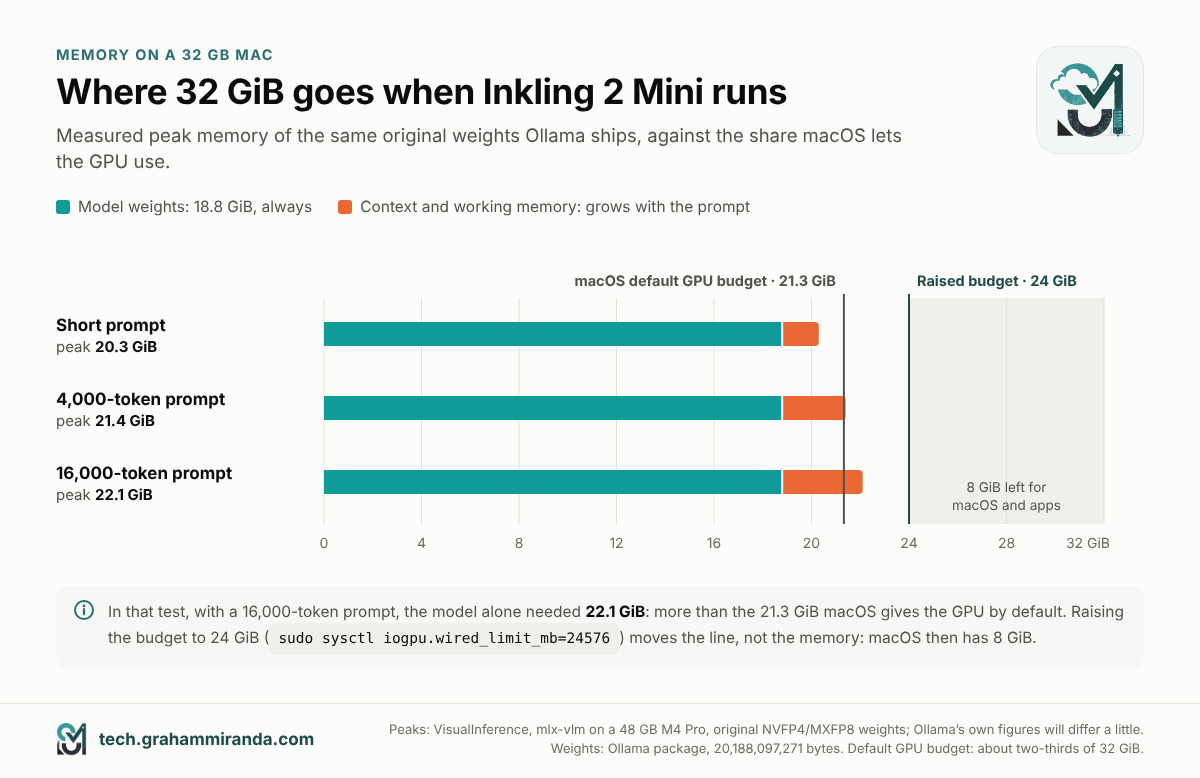
Here’s the budget. Inkling 2 Mini’s weights take 18.8 GiB. On a 32 GB Mac, macOS lets the graphics processor use about two-thirds of memory, about 21.3 GiB, unless you change it. VisualInference measured these same original weights in another MLX app, mlx-vlm, on a 48 GB M4 Pro. Memory peaked at 20.3 GiB with a short prompt, 21.4 GiB at 4,000 tokens and 22.1 GiB at 16,000 tokens. In other words, once the prompt gets long, the model alone reaches the edge of the default GPU budget. And that’s before macOS and your other apps take their share.
Four settings make the difference.
Setting 1: Context length (the one that matters most)
The context length is how much text the model can hold at once. That includes your messages and its replies and, for an agent, the system prompt, tool definitions and every file it has read. Too small, and an agent silently loses its instructions and starts making odd mistakes. Too large, and you reserve memory you’ll never use.
Ollama picks a default from the GPU memory it detects:
| GPU memory Ollama detects | Default context |
|---|---|
| Under 23 GiB (most 32 GB Macs: about 21.3 GiB) | 4K tokens |
| 23 to 47 GiB | 32K tokens |
| 47 GiB or more | 256K tokens |
Ollama’s documentation gives the tiers as under 24, 24–48 and 48 GiB or more. The code in 0.40.17 uses 23 and 47 GiB, to allow for small differences in what each Mac reports.
What a bigger context costs Inkling 2 Mini in memory, calculated from its configuration:
| Context | Extra memory for the context |
|---|---|
| 4K | 0.28 GiB |
| 8K | 0.41 GiB |
| 16K | 0.66 GiB |
| 32K | 1.16 GiB |
| 64K | 2.16 GiB |
| 128K | 4.16 GiB |
Inkling 2 Mini needs less memory per token of context than most models of its size. Only four of its 24 layers look back over the whole conversation. The working memory used while reading a prompt comes on top; the measured peaks above include it.
What to set
| What you’re doing | Context | Why |
|---|---|---|
| Chatting and short questions | 4K–8K (the default is fine) | Uses the least memory |
| Pasting long documents or code files | 16K | Roughly 12,000 words of English |
| Pi agent | 16K (8K on chips without the memory-saving prompt reading in Part 6) | Pi’s own instructions are tiny (Part 7) |
| OpenCode | 32K, on an M2 Pro | The most you can comfortably give it on 32 GB. Ollama recommends 64K or more for agents, which this Mac can’t really afford next to a 20 GB model. On other chips, read Part 6 first |
| Claude Code | 64K or more, per Ollama | Not realistic on 32 GB; see Part 7 |
How to set it
The easiest way to change the Ollama context length is the app: open Settings → Context length and move the slider, which has stops at 4k, 8k, 16k, 32k, 64k, 128k and 256k. Ollama restarts its server to apply it, and the setting survives a restart of your Mac.
There are three other ways, useful later:
# For one chat session only, inside `ollama run`:
/set parameter num_ctx 16384

# For the Ollama app, until you restart your Mac (then quit and reopen Ollama):
launchctl setenv OLLAMA_CONTEXT_LENGTH 32768
If you’ve already moved the app’s slider, the slider wins over the launchctl setting.
Or make a copy of the model with its own context built in, which is handy when you want 8K for chat but 32K for an agent. Paste this into Terminal; it creates a small text file called Modelfile and then the new model:
cat > Modelfile <<'EOF'
FROM inkling-2-mini
PARAMETER num_ctx 32768
EOF
ollama create inkling-2-mini-32k -f Modelfile
The copy doesn’t download or duplicate the 20 GB of weights. You then use inkling-2-mini-32k wherever you’d use inkling-2-mini. Whichever method you choose, confirm it in the CONTEXT column of ollama ps.
Setting 2: Give the GPU more room (optional)
macOS limits how much memory the GPU may keep for itself, and Ollama treats that limit as your "VRAM". On a 32 GB Mac it’s about 21.3 GiB. Three things follow from it. Ollama sets its default context from it (Setting 1). Ollama’s MLX engine keeps the loaded model resident in memory up to that limit. If the model is bigger, it logs a warning that performance may be degraded. And when a single step of work needs more GPU memory than is available, macOS stops it. That’s the Insufficient Memory crash from Part 6. Apple’s documentation says it means the GPU didn’t have enough memory to execute a command buffer.
You can raise the limit until your next restart; Apple’s MLX documentation gives the command for exactly this. Check the current value first; 0 means macOS’s default:
sysctl iogpu.wired_limit_mb
Raise it to 24 GiB, which leaves 8 GiB for macOS and your apps:
sudo sysctl iogpu.wired_limit_mb=24576
Then quit Ollama from the menu bar and open it again, because Ollama only reads the limit when it starts. Run the grep command from Part 4 again and total_vram should now say about 24 GiB.
Four things to know
- It changes your default context too. With 24 GiB detected, Ollama’s default jumps from 4K to 32K (the table above), so you may not need Setting 1 at all.
- It gives the GPU more room, not more memory. It moves the line between GPU and macOS; it doesn’t add any. If your other apps then run short, macOS swaps instead.
- It resets when you restart your Mac. That’s a safety net, not a bug. To undo it sooner:
sudo sysctl iogpu.wired_limit_mb=0. - It’s not an official macOS setting. It’s widely used for local AI, but if your Mac swaps heavily, freezes or restarts unexpectedly during a session, put it back to 0. Don’t go much higher than 24 GiB on a 32 GB Mac.
Setting 3: Reasoning effort
Inkling 2 Mini decides how hard to think based on a reasoning effort setting. Ollama’s default is high. Here’s how Ollama 0.40.17 translates the names into the value the model actually receives:
| Ollama setting | Effort the model gets | Good for |
|---|---|---|
none or false |
0 (thinking hidden) | Simple lookups |
minimal |
0.1 | Quick facts |
low |
0.2 | Short answers, summaries, rewording |
medium |
0.7 | Everyday questions |
high or true (default) |
0.9 | Coding and agent work |
xhigh or max |
0.99 | Hard problems, when you can wait |
From Ollama 0.40.17’s Inkling 2 Mini renderer. Thinking Machines notes that even the minimum doesn’t switch reasoning off completely.
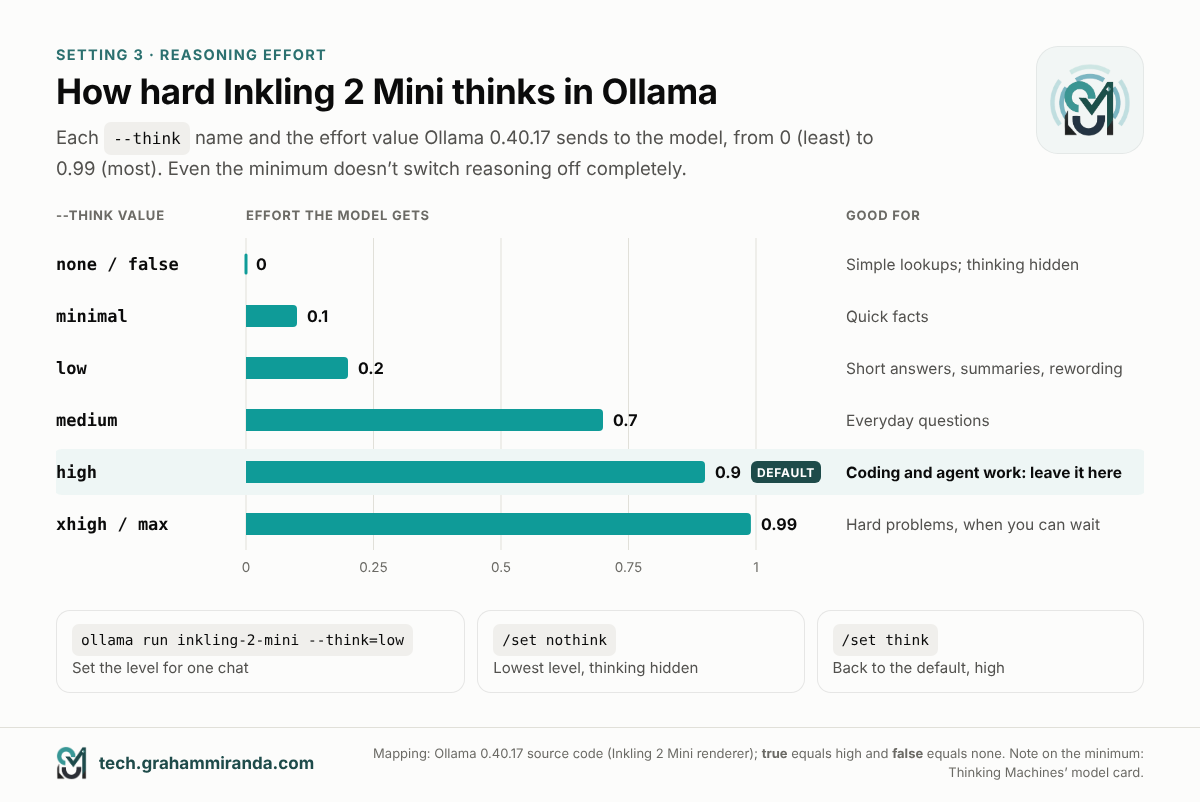
xhigh and max send the same value. The default, high, is the right setting for coding.To set it for a chat:
ollama run inkling-2-mini --think=low
Inside a chat, /set nothink drops it to the lowest level and hides the thinking, and /set think turns it back on. In Ollama’s API the same names go in the think field.
My recommendation: leave it at high for coding and agents, where thinking pays for itself. Use low or medium for quick questions, so you’re not waiting on long reasoning for a one-line answer.
Setting 4: Keep it loaded, and unload it when you’re done
Ollama unloads a model after five minutes without use, and loading 20 GB again takes time. During an agent session with pauses, that gets annoying. To keep it loaded for 30 minutes after each use:
launchctl setenv OLLAMA_KEEP_ALIVE 30m
Then quit and reopen Ollama. For a single chat, ollama run inkling-2-mini --keepalive 30m does the same. The flip side: when you’re done, give the memory back with ollama stop inkling-2-mini.
Two more knobs, for the curious
- The built-in drafter. Thinking Machines ships Inkling 2 Mini with a small helper network, DSpark, that guesses a few words ahead. The main model then checks them in one go. Ollama supports it and switches drafting on by default for any model that includes a drafter. In published MLX tests outside Ollama, DSpark raised Inkling’s writing speed from 43.6 to 70.9 tokens per second on an M5 Max. On an M4 Pro, it cut the speed from 31.1 to 18.7. So test it on your Mac: in a chat,
/set parameter draft_num_predict 0turns it off; compare the eval rate with and without. - Parallel requests. Since 0.40.17, Ollama on Apple silicon can answer several requests at once, and each one needs its own context memory. Ollama picks a cautious default from your free memory. If an agent that runs helpers in parallel still pushes your Mac into swap, limit it to one with
launchctl setenv OLLAMA_NUM_PARALLEL 1. Then quit and reopen Ollama.
Settings that won’t help here
Guides for other models often suggest OLLAMA_KV_CACHE_TYPE=q8_0 to halve the memory a context uses, together with flash attention. In Ollama 0.40.17 those settings belong to its llama.cpp engine; Inkling 2 Mini runs on the MLX engine, and nothing in that engine’s code reads them. The same goes for GPU-layer settings such as num_gpu. And leave temperature alone: Ollama’s package uses Thinking Machines’ default of 1.0, which is also what Unsloth recommends.
Before a long session: free up memory
Open Activity Monitor (in Applications → Utilities) and click the Memory tab. At the bottom you’ll see the Memory Pressure graph and Swap Used. Green is good, yellow means macOS is compressing memory, and red means it’s swapping to your drive, which makes everything slow. Before an agent session, close the big consumers: browsers with many tabs, Docker Desktop, iPhone simulators, video and photo editors. On a laptop, plug in the charger for long runs.
Part 6 — The 32 GB Reality Check: Your Chip Matters
This part matters if your Mac has a chip other than the M2 Pro (or a 36 GB M5 Max), which is most 32 GB Macs. It’s also the part that Ollama’s release notes don’t mention.
What happens when Inkling 2 Mini reads a long prompt
Before a model writes anything, it reads your whole prompt. Ollama’s MLX engine does that 2,048 tokens at a time. For each chunk, Inkling 2 Mini works out how every new token relates to every token before it, using a learned measure of distance between them. That step needs a temporary table that grows with everything the model has read so far in the conversation.
Ollama 0.40.17 contains a memory-saving way to do this, which handles the prompt in small tiles so the table never gets big. Its source code switches it on only for these chips: M2 Pro, M2 Ultra, M3 Ultra, M4 Pro, and the M5 Pro, Max and Ultra. Every other chip falls back to a general method whose memory use grows with the prompt. That includes the M1 Pro and Max, the M2 Max, the base M4 and the base M5.
What that looked like on a 32 GB M2 Max
The only published test of Ollama 0.40.17 on a 32 GB Mac comes from the developers of Genex. They tried Inkling 2 Mini on an M2 Max with 32 GB:
- The download worked, and a short tool-calling request returned a correct answer at about 24 tokens per second.
- An 18,003-token request crashed after 12,288 tokens with the error
mlx: [METAL] Command buffer execution failed: Insufficient Memory. Setting the context to 32,768 and the batch size to 512 didn’t help. - Their real 15,089-token prompt crashed the same way.
- A computer-use loop driven by real screenshots worked.
They concluded that the model fits a 32 GB Mac for short prompts but not for their app’s long ones. So they changed their app to recommend Inkling 2 Mini only from 48 GB.
What to do about it
| Your chip | What to expect today | What to do |
|---|---|---|
| M2 Pro (32 GB) or M5 Max (36 GB) | Long prompts use bounded memory | Agents at 16K–32K context, with the GPU budget raised (Part 5) |
| M1 Pro, M1 Max, M2 Max, M4, M5 (32 GB) | A session that grows much past about 10,000 tokens risks an "Insufficient Memory" crash | Use it for chat and shorter documents; for agents, use Pi with an 8K context and start a new session for each task; raise the GPU budget; update Ollama whenever a new version arrives |
| M3 Pro, M3 Max, M4 Max (36 GB) | Same fallback, with about 4 GB more room | As above, with a little more slack |
Two things to keep in perspective. First, this is a software limit, not a hardware one. The memory-saving code exists; it just isn’t enabled for every chip yet, and Ollama ships new versions most weeks. Check the release notes when you update. Second, what counts is how much text the model has to work through in one session, not the number on the context slider. Every new chunk is compared with everything before it, so a long conversation hurts as much as one long prompt, and coding agents build long conversations quickly. A small context keeps sessions short; starting fresh sessions keeps them shorter still.
Part 7 — Step 5: Use Inkling 2 Mini as a Local Backend for a Coding Agent
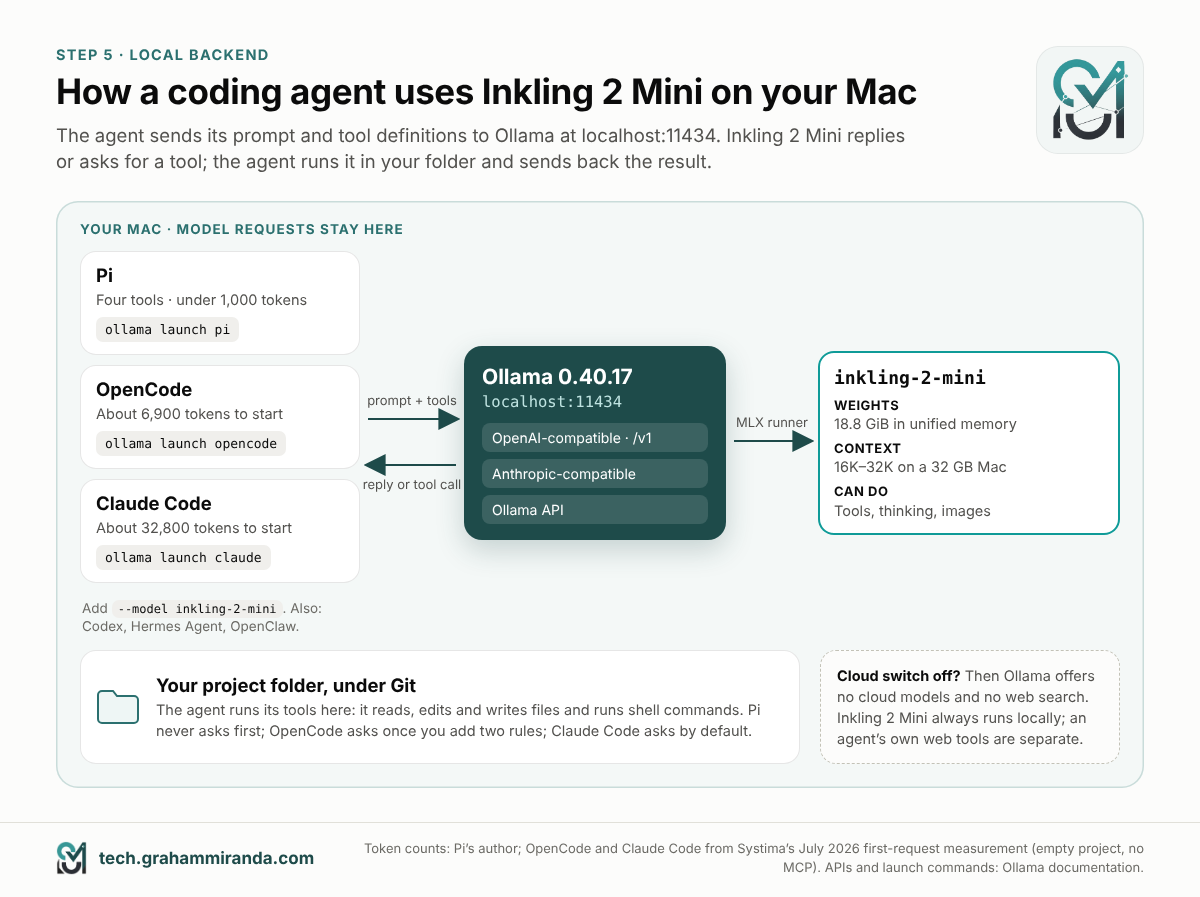
A coding agent is a program that gives a model tools, such as reading files, editing them and running commands. It lets the model work through a task step by step. Normally the model sits in a data centre. Here, Inkling 2 Mini on your Mac becomes the local backend: the agent sends its requests to Ollama instead.
How it works
When Ollama is running, it listens at http://localhost:11434, an address that only programs on your Mac can reach. It speaks the API formats that agents already know: an OpenAI-compatible one at http://localhost:11434/v1, an Anthropic-compatible one for Claude Code, and its own. The agent sends its prompt and tool definitions, and Inkling 2 Mini decides which tool to call. The agent runs that tool on your Mac and sends back the result. The loop repeats until the task is done.
You don’t have to configure any of that by hand. The ollama launch command installs supported agents if they’re missing, points them at Ollama and starts them.
Before you launch any agent
- Set the context first (Part 5). This matters more than it sounds: when you start OpenCode through
ollama launch, Ollama reads the context the model actually loaded with and tells OpenCode that number. If Ollama is still at 4K, OpenCode believes it. - Work in a test folder under Git, so you can see and undo every change:
mkdir -p ~/Projects/inkling-test
cd ~/Projects/inkling-test
git init
The first time you use git, macOS may offer to install Apple’s command line developer tools. Accept; it takes a few minutes.
- Close the memory-hungry apps (Part 5).
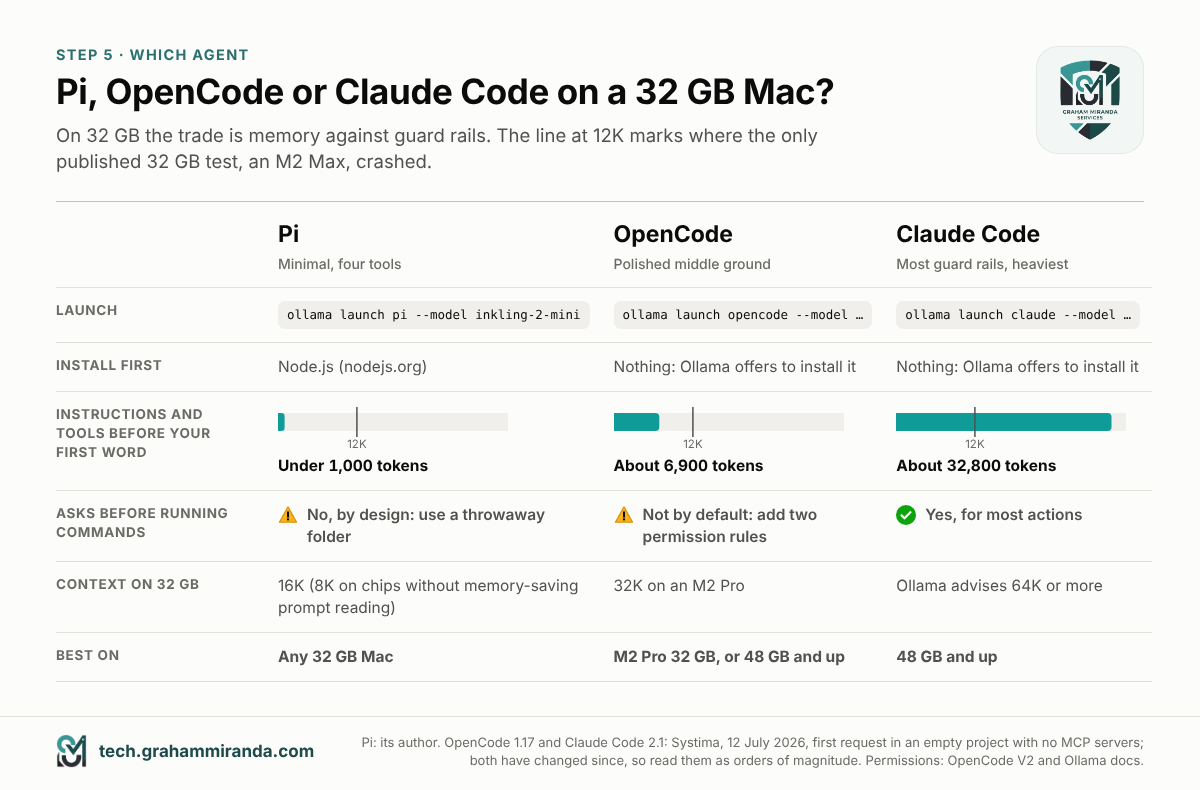
Which agent should you use on 32 GB?
| Pi | OpenCode | Claude Code | |
|---|---|---|---|
| One-command setup | ollama launch pi --model inkling-2-mini |
ollama launch opencode --model inkling-2-mini |
ollama launch claude --model inkling-2-mini |
| You install first | Node.js | Nothing; Ollama offers to install it | Nothing; Ollama offers to install it |
| Instructions and tools sent before your first word | Under 1,000 tokens | About 6,900 tokens | About 32,800 tokens |
| Asks before running commands | No, by design | Not by default; one config change turns it on | Yes, for most actions |
| Context to set on 32 GB | 16K (8K on chips without the memory-saving prompt reading) | 32K on an M2 Pro | Ollama recommends 64K or more |
| Best on | Any 32 GB Mac, in a throwaway folder | M2 Pro at 32 GB, or 48 GB and up | 48 GB and up |
Pi’s figure is from its author. The OpenCode and Claude Code figures come from Systima’s July 2026 measurement of each agent’s first request. Systima used an empty project with no MCP servers, OpenCode 1.17 and Claude Code 2.1 with a Claude model. Both agents have been updated since, so read the figures as orders of magnitude. Ollama’s general advice for agents is a context of at least 64K.
Option A: Pi, the lightest
Pi is a deliberately minimal coding agent with four tools: read, write, edit and bash. Its author says its system prompt and tool definitions together come to under 1,000 tokens. That makes it the best fit for a 32 GB Mac, and it’s the agent Ollama suggested in its own Inkling 2 Mini announcement.
- Install Node.js: download the LTS installer from nodejs.org and run it.
ollama launch pineeds Node’snpmto install Pi. - Go to your test folder and launch:
cd ~/Projects/inkling-test
ollama launch pi --model inkling-2-mini
Ollama installs Pi, configures it to use your local model and opens a session.
⚠️ Pi asks for nothing. Its author describes it as running in "full YOLO mode": no permission prompts for file operations or commands, and unrestricted access to your files. Thinking Machines also warns that Inkling 2 Mini may delete or overwrite files without confirmation. Together, that means: only run Pi in a throwaway folder, never in your home folder or a project without a backup. Its author suggests running it inside a container if you want a real boundary; my Apple container guide shows how to set one up on a Mac.
One more detail: when Pi is launched through Ollama, its web-search tool uses Ollama’s cloud web search. That needs an Ollama account and the Cloud setting switched on. Everything else stays on your Mac.
Option B: OpenCode, the polished middle ground
OpenCode is a popular open-source coding agent with a full-screen terminal interface, per-step snapshots and a permission system you can tighten.
cd ~/Projects/inkling-test
ollama launch opencode --model inkling-2-mini
If OpenCode isn’t installed, Ollama asks whether to install it; say yes. Ollama then passes OpenCode its settings for this session, without overwriting your own ~/.config/opencode/opencode.json. It sizes OpenCode’s limits to the context the model loaded with, and keeps a quarter of that, up to 8K tokens, for the reply. Since 0.40.17 it also passes on Inkling 2 Mini’s thinking options.
OpenCode’s opening request is moderate, about 6,900 tokens in Systima’s July measurement. But every file it reads and every command output it gets back adds to the conversation. On a 32 GB Mac without the memory-saving prompt reading from Part 6, that’s the number to watch. It doesn’t take many files to pass the 12,000 tokens where the M2 Max crashed.
OpenCode v2 also finds Ollama’s models by itself when it starts, so you can simply run opencode and pick the model with /models. Launching through Ollama is still the better route on 32 GB, because it tells OpenCode the context you actually have.
Make it ask first, and cap its steps
Out of the box, OpenCode v2 lets the model run shell commands and edit files without asking; its default rules only ask before reading .env files. With a model whose maker warns about destructive actions, change that. Thinking Machines also recommends limiting agent turns, because the model sometimes gets stuck in long reasoning loops, especially while debugging, and OpenCode’s steps option does that. Put both in ~/.config/opencode/opencode.json (create the file if it doesn’t exist):
{
  "$schema": "https://opencode.ai/config.json",
  "permissions": [
    { "action": "shell", "resource": "*", "effect": "ask" },
    { "action": "edit", "resource": "*", "effect": "ask" }
  ],
  "agents": {
    "build": { "steps": 40 }
  }
}
The permissions rules make OpenCode ask before every shell command and every edit. The build agent is OpenCode’s default; on its last allowed step, OpenCode removes the tools and asks the model to summarise. Check it took effect by asking OpenCode to create a file: it should now ask you first. If it doesn’t, OpenCode’s permissions documentation explains how agents can add rules of their own. For everything else about OpenCode, from plans to MCP servers, see my OpenCode guide.
Option C: Claude Code, the heaviest
Claude Code works with Ollama through Ollama’s Anthropic-compatible API, so its requests go to your Mac instead of Anthropic’s servers. It asks for permission before most actions by default, which makes it the most cautious of the three.
cd ~/Projects/inkling-test
ollama launch claude --model inkling-2-mini
Ollama offers to install Claude Code if it’s missing. If you’d rather start it yourself later, these are the settings ollama launch takes care of:
export ANTHROPIC_AUTH_TOKEN=ollama
export ANTHROPIC_API_KEY=""
export ANTHROPIC_BASE_URL=http://localhost:11434
claude --model inkling-2-mini
Ollama 0.40.17 also lets Claude Code load MCP tools only when they’re needed, rather than all at once, which keeps prompts shorter. It doesn’t touch Claude Code’s built-in tools, though, and those are what make it heavy. In Systima’s July measurement with no MCP servers, Claude Code’s very first request was about 32,800 tokens, mostly tool definitions. That’s more than a 32K context holds, and well past the 12,000 tokens where the M2 Max crashed. Ollama recommends a context of 64K or more for it. On a 32 GB Mac, try it if you’re curious; plan on it from 48 GB.
Other agents and apps
Ollama’s library page lists one-command launches for two more agents, and the same pattern works for Codex:
ollama launch hermes --model inkling-2-mini     # Hermes Agent
ollama launch openclaw --model inkling-2-mini   # OpenClaw
ollama launch codex --model inkling-2-mini      # OpenAI's Codex CLI
Any other tool that speaks the OpenAI API can use Inkling 2 Mini too. Give it the base URL http://localhost:11434/v1, the model name inkling-2-mini and any text as the API key. Ollama doesn’t check the key, but many tools refuse an empty one.
Your first agent task
Start with something small and visible, in your test folder:
Create a single-file to-do list web page called index.html that saves tasks
in the browser. Keep it simple and explain how to open it when you're done.
Watch what it does: which files it reads, what it writes, which commands it runs. When it finishes, open the page with open index.html, and check the change with Git:
git status      # which files changed or appeared
git diff        # what changed in files Git already knew about
If you don’t like the result, delete the folder and start again. That’s the point of a test folder.
Five rules for running a local agent safely
Thinking Machines’ model card is unusually frank about Inkling 2 Mini’s failure modes. It can get stuck in long reasoning loops. It may delete or overwrite files without confirmation, and it may not report the outcome of its work accurately. It’s also more likely than larger models to state wrong facts with confidence. None of that is unusual for a model this size. It just means:
- Git or a copy, always. Never let an agent loose on files you can’t restore.
- Turn permission prompts on where the agent has them (OpenCode needs the config change above), and read what you approve.
- Cap steps and output. Use OpenCode’s
steps; in an Ollama chat,/set parameter num_predict 4096limits a single reply. - Check its claims. Run the tests yourself before you believe "all tests pass".
- Never point an agent at your home folder. And for Pi, use a throwaway folder or a container.
If you want to go further, my guide to agent skills and MCP servers covers how to limit what an agent’s tools can reach. Every AI Coding Harness Compared goes through the agents themselves in depth.
Part 8 — How Fast Is Inkling 2 Mini on a 32 GB Mac?
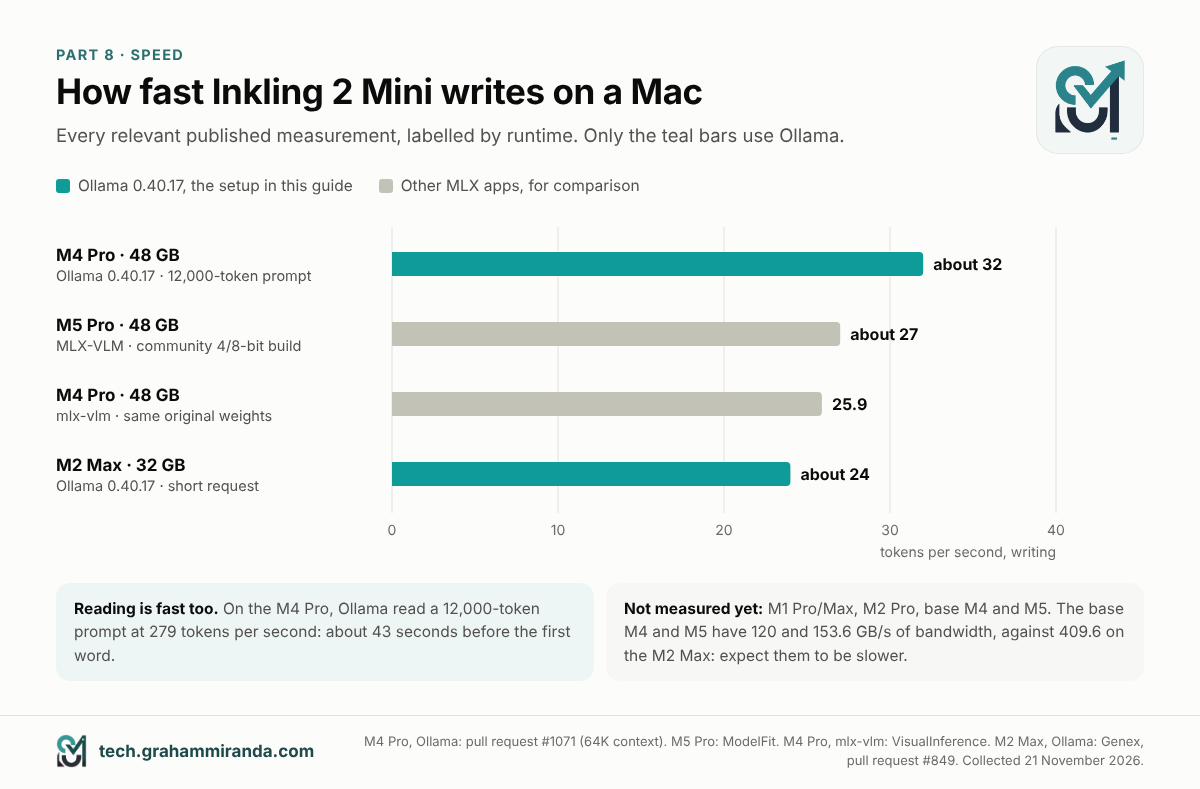
Speed has two parts: how fast the model reads your prompt and how fast it writes its reply. Here are the relevant measurements published by 21 November, with the runtime each one used:
| Mac | Runtime | Writing speed | Reading speed | Notes |
|---|---|---|---|---|
| M2 Max, 32 GB | Ollama 0.40.17 | About 24 tok/s | Not published | Short tool-calling request |
| M4 Pro, 48 GB | Ollama 0.40.17 | About 32 tok/s | 279 tok/s | A 12,000-token prompt, 64K context; 65 seconds in total |
| M4 Pro, 48 GB | mlx-vlm, same original weights | 25.9 tok/s | Not published | VisualInference |
| M5 Pro, 48 GB | MLX-VLM, community 4/8-bit build | About 27 tok/s | About 123–144 tok/s on very short prompts | ModelFit; very short prompts read slowly, so this isn’t comparable with the 279 above |
Third-party measurements, collected on 21 November 2026. No published Ollama runs yet for the M1 Pro, M1 Max, M2 Pro, base M4 or base M5.
What those numbers mean in practice
- For chat, about 24 tokens per second is faster than you read. A 300-word answer after a thousand tokens of thinking, around 1,400 tokens in all, takes about a minute at that speed. Lower the reasoning effort for quick questions and it gets much shorter.
- For agents, reading speed matters as much as writing speed, because an agent sends a long prompt on every turn. On the 48 GB M4 Pro, a 12,000-token prompt took about 43 seconds to read. Ollama reuses its cache of the shared start of a conversation between turns, so later turns mostly only read what’s new.
- For comparison, on that same M4 Pro, Qwen3.8-27B took 122 seconds for the 12,000-token task that Inkling 2 Mini finished in 65. Qwen read at 107 and wrote at 27 tokens per second. My comparison of the two models goes into why, and into the one catch: Inkling 2 Mini tends to write more tokens per task.
What to expect on other 32 GB Macs
Nobody has published Ollama numbers for the base M4 and M5 yet. Their memory bandwidth is 120 and 153.6 GB/s, against 409.6 GB/s for the M2 Max that managed about 24 tokens per second. Expect them to be noticeably slower. How much slower is hard to say in advance, because on current software Inkling 2 Mini doesn’t speed up in proportion to bandwidth. If you have one, run the --verbose test from Part 4 and you’ll know in a minute.
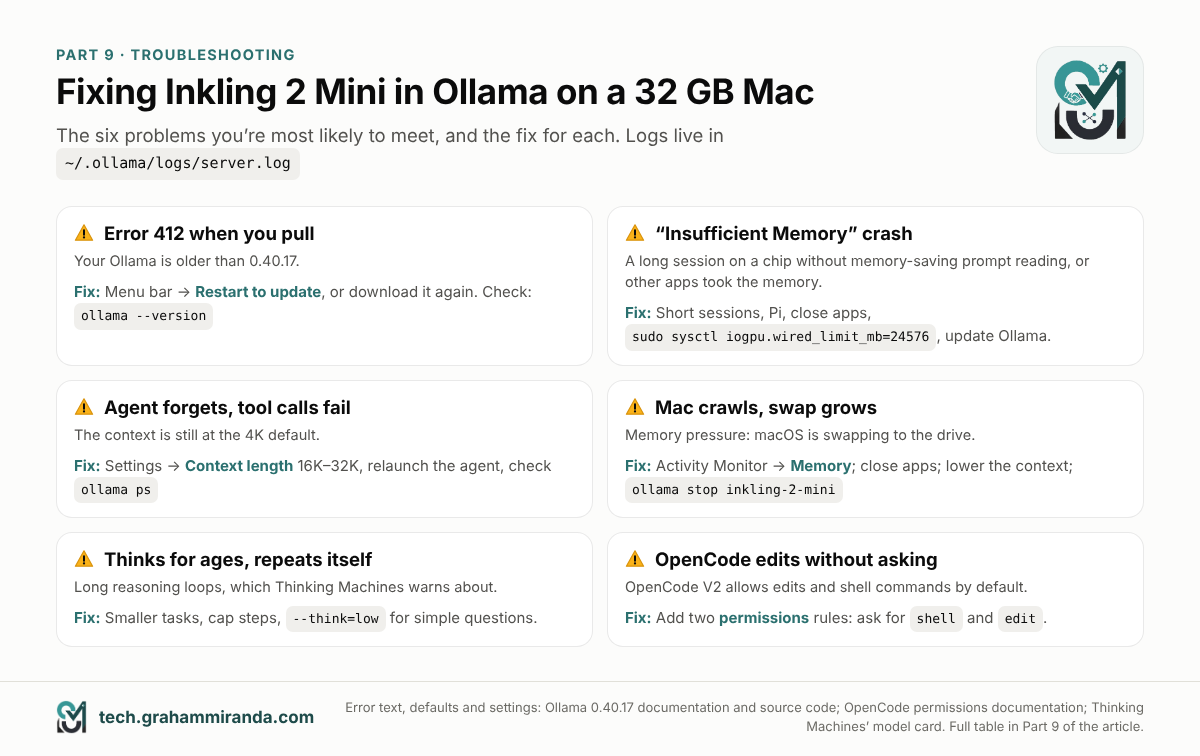
Part 9 — Troubleshooting Inkling 2 Mini in Ollama
Find your symptom below. If it isn’t listed, Ollama’s log usually says what went wrong; the last section of this part shows how to read it.
If Inkling 2 Mini won’t download or start
| Symptom | Likely cause | Fix |
|---|---|---|
ollama pull inkling-2-mini fails with 412 and "requires a newer version" |
Ollama older than 0.40.17 | Update (Part 2), then pull again |
ollama: command not found |
The command-line link wasn’t created | Open the Ollama app and accept its offer to install the command, or reinstall the app |
PROCESSOR in ollama ps doesn’t say 100% GPU |
Something is wrong with the GPU set-up | Quit and reopen Ollama; check you’re on Apple silicon and macOS 14 or later |
| You’re on Windows or Linux | Ollama 0.40.17 supports Inkling 2 Mini on Apple silicon only; Ollama’s Mac-only models have refused to download elsewhere with 412: this model requires macOS |
Wait for a later release, or use llama.cpp or vLLM |
If Inkling 2 Mini crashes, forgets or slows your Mac
| Symptom | Likely cause | Fix |
|---|---|---|
The model stops mid-answer, with Insufficient Memory or Command buffer execution failed in the log |
The prompt was too long for your chip’s memory today (Part 6), or other apps took the memory | Close apps, shorten the prompt or the documents you paste, use Pi rather than a heavier agent, raise the GPU budget (Part 5), and update Ollama |
| The agent forgets instructions, tool calls fail, edits stop halfway | The context is too small: probably the 4K default | Set 16K–32K (Part 5) and check the CONTEXT column in ollama ps. Then relaunch the agent |
| Your Mac slows to a crawl, fans spin, swap grows | Memory pressure | Check Activity Monitor; close apps; lower the context; ollama stop any other loaded model |
| The first answer after a break is slow | Ollama unloaded the model after five idle minutes | Set OLLAMA_KEEP_ALIVE (Part 5) |
If a coding agent misbehaves
| Symptom | Likely cause | Fix |
|---|---|---|
| The model thinks for ages or repeats itself | Long reasoning loops, which Thinking Machines warns about | Give smaller tasks, cap steps and output tokens, use lower effort for simple questions |
| The agent says the model doesn’t exist | A typo in the model name | Use exactly inkling-2-mini; ollama ls lists what you have |
| Pi’s web search doesn’t work | It uses Ollama’s cloud web search | Sign in to Ollama and switch Cloud on, or work without web search |
| OpenCode edits files without asking | OpenCode v2 allows edits and shell commands by default | Add the permissions rules from Part 7 |
Check Ollama’s log
Ollama’s logs are in ~/.ollama/logs/server.log. To see the last lines after something goes wrong:
tail -n 40 ~/.ollama/logs/server.log
Part 10 — When 32 GB Isn’t Enough
You’ll know you’ve hit the ceiling when long prompts crash, when agents keep compacting their conversation, or when your Mac swaps every time the model is loaded. The first three options cost nothing; the last three cost money, privacy or both.
On the Mac you have
- Keep it, and use it for what fits. Chat, short documents, image questions and Pi on small tasks work well on every 32 GB Mac. Watch Ollama’s release notes: the memory-saving prompt reading from Part 6 reaching more chips would change the picture overnight.
- A smaller file in a different runtime. Unsloth’s 4-bit version is 17.6 GB, about 2.6 GB smaller than Ollama’s package, and runs with Unsloth’s own build of llama.cpp. It’s more technical, and day-one support there was rougher; my comparison article covers it.
- A different local model. Qwen3.8-27B scores the same as Inkling 2 Mini on Artificial Analysis’s index, runs everywhere and is better at knowledge questions, but it’s slower on the same Mac. Same article.
Beyond your Mac
- More memory. From 48 GB, Inkling 2 Mini runs agents comfortably, and from 64 GB you can keep it loaded next to another model. If you’re deciding what to buy, my guides on whether a MacBook for local LLMs is worth it and the MacBook Pro M5 Pro with 64 GB go through the trade-offs.
- The big sibling, in the cloud. Inkling 2 Small, Thinking Machines’ 594-billion-parameter model, is on Ollama’s cloud as
inkling-2-small:cloud. It works with the same launch commands, for exampleollama launch opencode --model inkling-2-small:cloud. It needs an Ollama account, and your prompts then leave your Mac. - A coding plan for the hard 10%. Many people run a local model for private and everyday work and route the hardest planning and debugging to a large cloud model. One affordable option is Z.ai’s GLM Coding Plan, which works in OpenCode, Claude Code and other agents. You can get 10% off the GLM Coding Plan through my affiliate link. (Affiliate link — see the disclosure at the top.)
Frequently Asked Questions
Yes. Thinking Machines and Ollama both support Inkling 2 Mini on Apple silicon Macs with 32 GB or more, through Ollama 0.40.17 or newer. The model takes about 20 GB, so chat and short documents work well. Long prompts are the limit. On most 32 GB chips, Ollama 0.40.17 doesn’t yet use its memory-saving prompt reading. One test on an M2 Max crashed after about 12,000 tokens.
Ollama 0.40.17 or newer. Ollama announced Inkling 2 Mini support in 0.40.17 on 20 November 2026 as a pre-release, and the final 0.40.17 followed within a day. Check with ollama --version. Older versions refuse the download with a 412 error. In 0.40.17, Inkling 2 Mini is supported on Apple silicon only.
20,188,097,271 bytes, about 20.2 GB or 18.8 GiB. All three tags, latest, 26b-a5b and 26b-a5b-nvfp4, are the same package: Thinking Machines’ original NVFP4 and MXFP8 weights, with image support. There’s no smaller Ollama version. At 100 Mbit/s the download takes about 27 minutes.
Ollama sets its default context from the GPU memory it detects: 4K below about 23 GiB, 32K up to about 47 GiB and 256K above. On a Mac, that figure is the GPU budget macOS allows, which on a 32 GB Mac is about 21.3 GiB, so you get 4K. Change it with the Context length slider in Ollama’s Settings, or by raising the GPU budget to 24 GiB.
16K for Pi, and 32K for OpenCode on an M2 Pro, which is the most a 32 GB Mac can comfortably give alongside a 20 GB model. On chips without Ollama’s memory-saving prompt reading, use 8K and short sessions. Ollama recommends 64K or more for coding agents, which works from 48 GB. Set it before launching the agent, because ollama launch opencode passes the loaded context on to OpenCode.
On a 32 GB Mac it helps. Running sudo sysctl iogpu.wired_limit_mb=24576 raises the GPU budget from about 21.3 GiB to 24 GiB and leaves 8 GiB for macOS. Ollama then defaults to a 32K context. Quit and reopen Ollama afterwards. The setting resets when you restart your Mac; sudo sysctl iogpu.wired_limit_mb=0 restores the default sooner. It isn’t an official macOS setting, so undo it if your Mac swaps heavily or becomes unstable.
Use the --think flag: ollama run inkling-2-mini --think=low. Ollama accepts none, minimal, low, medium, high (the default), xhigh and max, which it sends to the model as effort values from 0 to 0.99. Inside a chat, /set nothink sets the lowest level and hides the thinking. Even the minimum doesn’t switch reasoning off completely.
Pi, because its system prompt and tools come to under 1,000 tokens, which keeps prompts short: ollama launch pi --model inkling-2-mini. But Pi runs commands without asking, so only use it in a throwaway folder. OpenCode opens with about 6,900 tokens and works at a 32K context, best on an M2 Pro. It asks before acting once you add two permission rules to its config. Claude Code asks by default, but its first request measured about 32,800 tokens, more than a 32K context holds, so it’s better from 48 GB.
Most likely, the prompt or conversation was too long for your Mac’s GPU memory. Ollama 0.40.17 reads long prompts with a memory-saving method only on the M2 Pro, M2 Ultra, M3 Ultra, M4 Pro and M5 Pro, Max and Ultra. On other chips, memory use grows with everything the model has read, and one 32 GB M2 Max crashed after 12,288 tokens. Close other apps, keep sessions short, use Pi, raise the GPU budget and keep Ollama updated.
In the only published Ollama test on a 32 GB Mac, an M2 Max, a short request ran at about 24 tokens per second. On a 48 GB M4 Pro with Ollama 0.40.17, it wrote at about 32 tokens per second and read a 12,000-token prompt at 279 tokens per second. Base M4 and M5 Macs have far less memory bandwidth and should be slower; no runs have been published yet.
Not with Ollama’s package, which is a single 20 GB version, and Thinking Machines supports 32 GB as the minimum. Unsloth publishes 2-bit and 3-bit files of about 9 to 14 GB that run with its own llama.cpp build on smaller Macs. They cost some quality and take more set-up.
Not when it runs locally. Ollama runs the model on your Mac, and its FAQ says it doesn’t see your prompts or data when you run locally. Coding agents launched with ollama launch talk to Ollama at localhost:11434, on your own machine. Cloud models and web search are different: they send data to Ollama’s servers, and you can switch them off with the Cloud setting. The agents are separate programs with their own network tools, such as OpenCode’s web fetch, so check their settings if you need to work fully offline.
Not in Ollama 0.40.17, whose release notes say Inkling 2 Mini is supported on Apple silicon only in that release. On NVIDIA hardware, Thinking Machines supports vLLM and SGLang, and Unsloth’s llama.cpp build runs its GGUF files. A later Ollama release may add other platforms.
Run ollama rm inkling-2-mini. Remove any copies you made with ollama create, such as inkling-2-mini-32k, the same way: the 20 GB of weights are freed once no model uses them. To remove Ollama itself, quit it, delete it from Applications and delete the .ollama folder in your home folder; Ollama’s macOS documentation lists every file.
The Bottom Line
Inkling 2 Mini is a capable open model that its maker supports on a 32 GB Mac, and Ollama makes the basics genuinely easy: install, pull, run. For chat, documents and image questions, a 32 GB Mac is all you need.
Agents are where 32 GB gets tight, for two reasons. Ollama starts most 32 GB Macs at a 4K context, which quietly breaks agents until you change it. And on most 32 GB chips, long prompts can still run out of memory, because Ollama’s memory-saving prompt reading covers only some chips. So set the context, raise the GPU budget and close your browser. Start with Pi in a throwaway folder, and update Ollama often.
If you have an M2 Pro, you’re in the best position a 32 GB Mac can be in today. If you have 48 GB or more, most of the caveats here fall away. And whichever Mac you have, ollama run inkling-2-mini --verbose tells you more about your own machine in five minutes than any table in this guide.
Running Inkling 2 Mini on a 32 GB Mac? Share your chip, Ollama version, context setting and --verbose numbers in the comments, especially from an M1, M4 or M5. I’ll add the most useful results to Part 8, credited. Corrections are welcome too: with support this new, some of today’s details will change quickly.
Disclosure: This guide contains one affiliate link, to Z.ai’s GLM Coding Plan (in Part 10). Subscribing through it gets you 10% off and may earn me a commission at no extra cost to you. No other product or company in this guide is sponsored, and none of them reviewed it before publication.
Facts checked: 21 November 2026.