

Table of contents
Introduction
Migrating from one VPS to another with Virtualmin running 10+ WordPress domains sounds straightforward in theory—backup on the old server, restore on the new one, done. In reality, it’s a minefield of hidden system limits, file descriptor constraints, and disk space issues that can leave you stuck for hours.
I recently completed a challenging Virtualmin migration from a Debian 12 VPS in France to a fresh Debian 13 VPS in the Netherlands, moving over 4.4GB of backup data across 10+ domains. During this process, I encountered every major error that Virtualmin administrators face—and solved them all. This article documents the exact problems and solutions so you don’t have to learn them the hard way.
Whether you’re upgrading your VPS provider, scaling horizontally, or recovering from a failed server, this guide will walk you through real-world errors and their fixes.
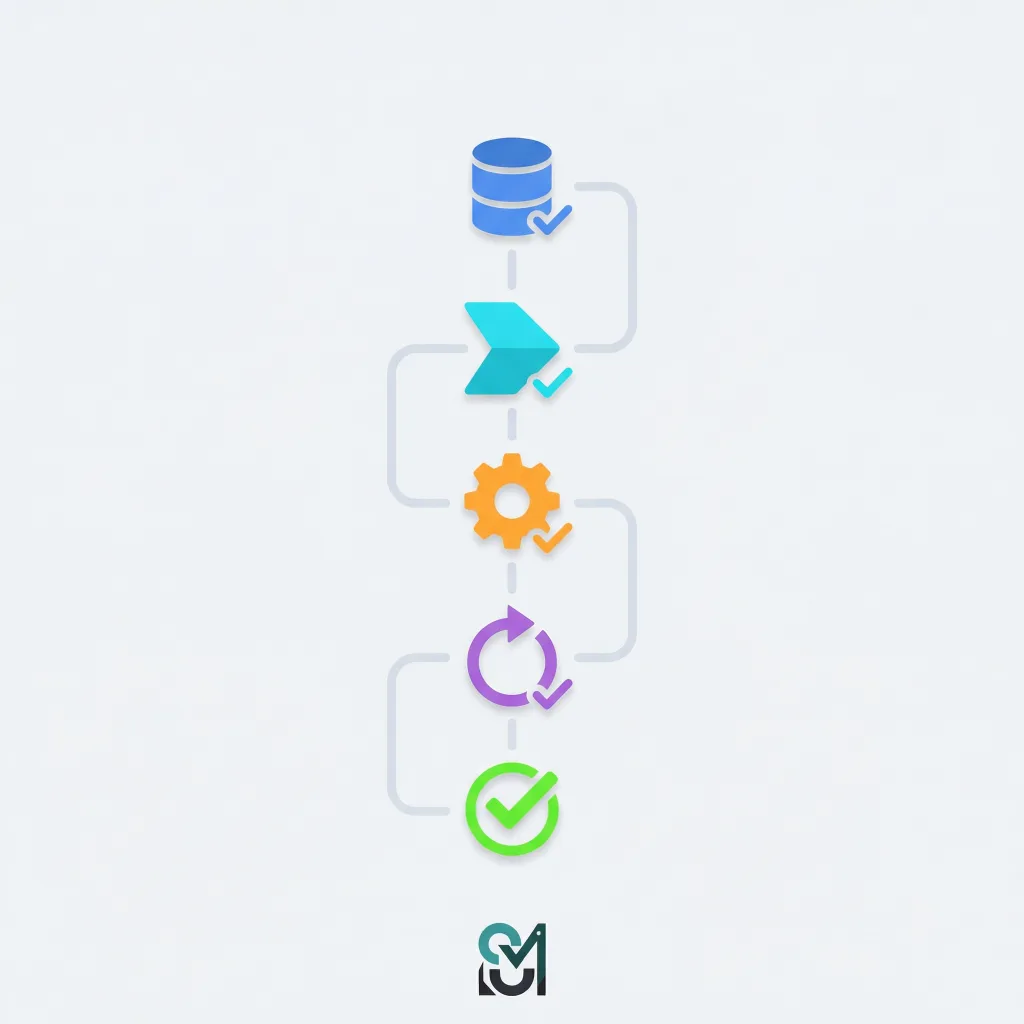
Part 1: Pre-Migration Planning and Preparation
Choosing Your Target VPS Specifications
Before you touch anything on your current server, ensure your new VPS has adequate resources. The common mistake is assuming disk space alone matters—it doesn’t.
Minimum specifications for Virtualmin with 10+ domains:
- Disk space: 100GB (not 50GB—WordPress sites with backups grow fast)
- CPU: 6+ cores (8+ cores recommended for 10+ domains)
- RAM: 8GB minimum (15GB+ for production)
- Swap: 4GB (added after OS installation if not pre-configured)
Your new server should match or exceed your old server in CPU and RAM, with more disk space. Virtualmin is CPU and I/O intensive during restore operations—a weak processor will make the restore crawl.
Pre-Migration Checklist
On your old server (48 hours before migration):
- Reduce DNS TTL to 300 seconds (5 minutes) to minimize cache issues:
virtualmin modify-dns --all-domains --ttl 300
- Create a fresh backup with Virtualmin’s recommended format:
mkdir /backup
virtualmin backup-domain \
  --dest /backup/ \
  --all-domains \
  --all-features \
  --newformat
- Verify backup integrity before transferring:
tar -tzf /backup/backup_*.tar.gz > /dev/null && echo "Backup OK" || echo "Backup corrupted"
- Note your database sizes for planning:
mysql -e "SELECT table_schema AS 'Database', ROUND(SUM(data_length+index_length)/1024/1024,2) AS 'Size_MB' FROM information_schema.TABLES GROUP BY table_schema;"
- Check for custom configurations that might not transfer:
- Custom PHP versions
- Modified NGINX configs
- Cron jobs in /etc/cron.d/
- Custom SSL certificates
Part 2: The Migration Process
Step 1: Transfer the Backup File
Use SCP with checksums to verify file integrity:
# On old server, generate checksum
sha256sum /backup/backup_*.tar.gz > /backup/backup.sha256

# Transfer backup and checksum
scp /backup/backup_*.tar.gz root@new-server.com:/Files/
scp /backup/backup.sha256 root@new-server.com:/Files/

# On new server, verify
cd /Files/
sha256sum -c backup.sha256
If checksums don’t match, stop immediately. The file corrupted during transfer. Re-transfer or use rsync with checksums:
rsync -avz --checksum /backup/backup_*.tar.gz root@new-server.com:/Files/
Step 2: Install Virtualmin on the New Server
Use Virtualmin’s official installer:
curl https://software.virtualmin.com/gpl/scripts/virtualmin-install.sh | sh
Important: Install the same OS version (or close)—this matters more than people think. I migrated from Debian 12 to Debian 13 (not recommended, but workable). Stick with the same major version if possible.
Step 3: Pre-Restore System Configuration
This is where most migrations fail. Before touching the restore, fix these three critical limits:
Fix 1: Increase Open File Descriptors
This is the #1 cause of “No space left on device” errors during restore, even when disk space is abundant.
# Check current limit
ulimit -n
# Likely shows: 1024 (too low for Virtualmin)

# Increase for current session
ulimit -n 65536

# Verify
ulimit -n
# Should show: 65536

# Make permanent
cat >> /etc/security/limits.conf << EOF
* soft nofile 65536
* hard nofile 65536
root soft nofile 65536
root hard nofile 65536
EOF
Why 65536? Each open file, socket, pipe, and database connection consumes one file descriptor. With 10+ WordPress sites, mail servers, NGINX workers, and MySQL connections, you easily exceed 1024. OVH and other providers set this conservative default for security—it’s meant to be increased per application.
Fix 2: Enlarge /tmp (tmpfs)
During restore, Virtualmin creates MySQL dumps in /tmp/. By default, /tmp is a tmpfs (RAM disk) limited to ~50% of total RAM. With 11GB RAM, /tmp maxes out at ~5.8GB. But Virtualmin can easily generate 5-6GB of temporary files during restore.
# Check current /tmp size
df -h /tmp

# Dynamically resize without unmounting
mount -o remount,size=8G /tmp

# Verify
df -h /tmp

# Make permanent
echo "tmpfs /tmp tmpfs size=8G,mode=1777 0 0" >> /etc/fstab
Fix 3: Add Swap Space
If the restore eats up all RAM, the system becomes unresponsive. 4GB swap provides a safety buffer:
# Create 4GB swap file
fallocate -l 4G /swapfile
chmod 600 /swapfile
mkswap /swapfile
swapon /swapfile

# Make permanent
echo '/swapfile none swap sw 0 0' >> /etc/fstab

# Verify
swapon --show
Part 3: The Restore Process and Common Errors
Error 1: “Checking contents of the backup ..” Hangs for 20+ Minutes
What it looks like:
Checking contents of the backup ..[stuck for 15-30 minutes with no progress]
Root cause: This isn’t hanging—it’s legitimately slow. Virtualmin’s tar -tzf verification reads the entire 4.4GB compressed archive, verifies every file header, and checks tar integrity. On older CPUs (like Haswell), this can take 20+ minutes for a 4GB backup.
Solution:
- Don’t panic. Check if tar is actually running:
ps aux | grep tar
iostat -x 1  # Check disk activity
- Use CLI restore instead of web UI (bypasses verification timeout):
screen -S restore
virtualmin restore-domain \
  --source /Files/backup_*.tar.gz \
  --all-domains \
  --all-features \
  --reuid
The --reuid flag automatically adjusts user/group IDs—critical when restoring across different systems.
Error 2: “/bin/tar: Cannot write: No space left on device”
What it looks like:
/bin/tar: ./seo.grahammiranda.com_mail_users: Cannot write: No space left on device
/bin/tar: ./esim.grahammiranda.com_virtualmin_ssl_key: Cannot write: No space left on device
[dozens more of these errors]
/bin/tar: Exiting with failure status due to previous errors
The confusing part: You have 75GB free, but it says “No space left on device.”
Root causes (in order of likelihood):
- File descriptors limit hit (most common)
- Symptom: Errors appear 5-10 minutes into restore, not at the start
- Fix:
ulimit -n 65536(covered above)
- /tmp fills up (second most common)
- Symptom: Errors mention MySQL or temp files
- Check:
df -h /tmpduring restore—watch it fill to 100% - Fix:
mount -o remount,size=8G /tmp(covered above)
- Actual disk space runs out (less common but possible)
- Check:
df -h /shows <5GB free - Solution:
- Check:
# Clean up failed restore
rm -rf /home/*
rm -rf /var/lib/virtualmin/*
rm -rf /tmp/*
rm -rf /extract_test/

# If backup is still in /Files, consider moving it
mv /Files/backup_*.tar.gz /mnt/  # Move to another partition if available
- Inode exhaustion (rare)
- Check:
df -i /shows >90% iUsed - Cause: Filesystem created with too few inodes
- Solution: Reformat filesystem with more inodes (destructive)
- Check:
Diagnostic approach during restore:
Open a second terminal and monitor in real-time:
watch -n 2 'df -h / && echo "---" && df -h /tmp && echo "---" && du -sh /tmp/* 2>/dev/null | sort -rh | head -5'
This shows exactly when and where you hit the limit.
Error 3: NGINX Won’t Start After Restore
Error message:
nginx[34392]: [emerg] 34392#34392: open() "/etc/nginx/snippets/block-manager.conf" failed (2: No such file or directory)
nginx: configuration file /etc/nginx/nginx.conf test failed
Root cause: The restore partially failed, or certain files didn’t transfer properly. NGINX configs reference files that don’t exist.
Solution:
- Create the missing file:
mkdir -p /etc/nginx/snippets
touch /etc/nginx/snippets/block-manager.conf
- Test NGINX config:
nginx -t
- Start NGINX:
systemctl start nginx
systemctl status nginx
If the file needs actual content, check your old server:
scp old-server.com:/etc/nginx/snippets/block-manager.conf /etc/nginx/snippets/

Part 4: Advanced Solutions and Optimization
Restoring One Domain at a Time (Safest Approach)
If full restore keeps failing despite fixes, restore selectively:
# Clean previous failed attempts
rm -rf /home/*
rm -rf /var/lib/virtualmin/*

# Restore just the main domain first
virtualmin restore-domain \
  --source /Files/backup_*.tar.gz \
  --domain grahammiranda.com \
  --all-features \
  --reuid
This isolates which domains have issues. If one restores successfully, the pattern works for others.
Debian 12 to Debian 13 Migration Considerations
I migrated from Debian 12 to Debian 13. While generally compatible, watch for:
- PHP version differences: Debian 12 might have PHP 8.1, Debian 13 has 8.3
- Check:
php -von both servers - Issue: Rare compatibility issues with old PHP extensions
- Fix: Force old PHP version:
virtualmin modify-web --domain example.com --php-version 8.1
- Check:
- NGINX/Apache config syntax: Usually compatible, but test after restore
- Test:
nginx -tandapache2ctl configtest
- Test:
- MySQL/MariaDB compatibility: Generally forward-compatible
- Check:
mysql --versionon both servers - Dump format differences: Rare, but newer Debian might have stricter SQL modes
- Check:
- SSL certificate compatibility: No issues between Debian versions, but verify:
certbot certificates # Check Let's Encrypt certs
Part 5: Post-Migration Verification
Critical Checks Before Going Live
After restore completes, verify everything works:
# 1. List all restored domains
virtualmin list-domains

# 2. Test web connectivity
curl -I https://yourdomain.com

# 3. Check mail functionality
mysql -u root -p'password' -e "SELECT user FROM mysql.user;"

# 4. Verify DNS
dig yourdomain.com @localhost

# 5. Check Virtualmin module
virtualmin test-domain --domain yourdomain.com

# 6. Monitor logs for errors
journalctl -f
tail -f /var/log/nginx/error.log
Update DNS Records
Once all domains restore successfully:
- Update registrar nameservers to point to new server
- Monitor TTL countdown (should be 5 minutes with reduced TTL)
- Test from multiple locations:
nslookup yourdomain.com
dig yourdomain.com +short
- Return DNS TTL to normal after 24-48 hours:
virtualmin modify-dns --all-domains --ttl 3600
Part 6: System Limits Reference
For future reference, here are all the system limits checked during this migration:
# User/process limits
ulimit -a                              # All limits
ulimit -n                              # Open files
ulimit -u                              # Max processes
ulimit -v                              # Virtual memory

# System-wide limits
cat /proc/sys/fs/file-max              # System-wide open files
cat /proc/sys/kernel/pid_max           # Max process IDs
cat /proc/sys/vm/max_map_count         # Memory map limit

# Current resource usage
df -h                                  # Disk space
df -i                                  # Inode usage
free -h                                # RAM and swap
ps aux | wc -l                         # Running processes
lsof | wc -l                           # Open file descriptors

# Filesystem specifics
mount | grep /dev/sda1                 # Mount options
quota -s                               # Disk quotas
tune2fs -l /dev/sda1                   # Filesystem properties
Key Takeaways
- OVH (and most providers) set conservative defaults. You must increase file descriptor limits before restoring Virtualmin backups.
- System limits are the real enemy, not disk space. Even with 75GB free, you’ll get “No space left on device” if
/tmpis full or file descriptors are exhausted. - Increase
/tmpsize before restore. Virtualmin creates 5-6GB of temporary files during backup restoration. The default tmpfs allocation isn’t enough. - Use CLI restore, not web UI. Web UI has timeout issues on large backups. The command-line restore is more reliable and shows actual progress.
- Debian 12 to Debian 13 migration works, but same-version is safer. Minor version differences rarely cause issues, but stay within the same major version if possible.
- Verify backup integrity before transferring. Use SHA256 checksums to ensure the backup file didn’t corrupt during transfer.
- Pre-migration planning saves hours. Reducing DNS TTL, checking database sizes, and preparing the target server prevents most problems.
Conclusion
Virtualmin migration isn’t difficult—it’s just fussy. Most failures aren’t due to Virtualmin itself, but hidden system limits set by hosting providers. By understanding these constraints and applying the fixes documented here, you can migrate 10+ WordPress sites across servers reliably.
The specific errors I encountered (file descriptor limits, /tmp exhaustion, missing NGINX snippets) are reproducible and common. If you hit any of them, return to this guide—you’ll find the exact solution.
Good luck with your migration. May your backups restore swiftly and your domains come online without drama.
Author Bio
This guide documents a real-world Virtualmin migration completed in February 2026, migrating 10+ production domains from a Debian 12 VPS (France) to a Debian 13 VPS (Netherlands). The solutions are battle-tested and field-verified.








 English
  Deutsch
  Español
  Italiano
  Français