
Table of contents
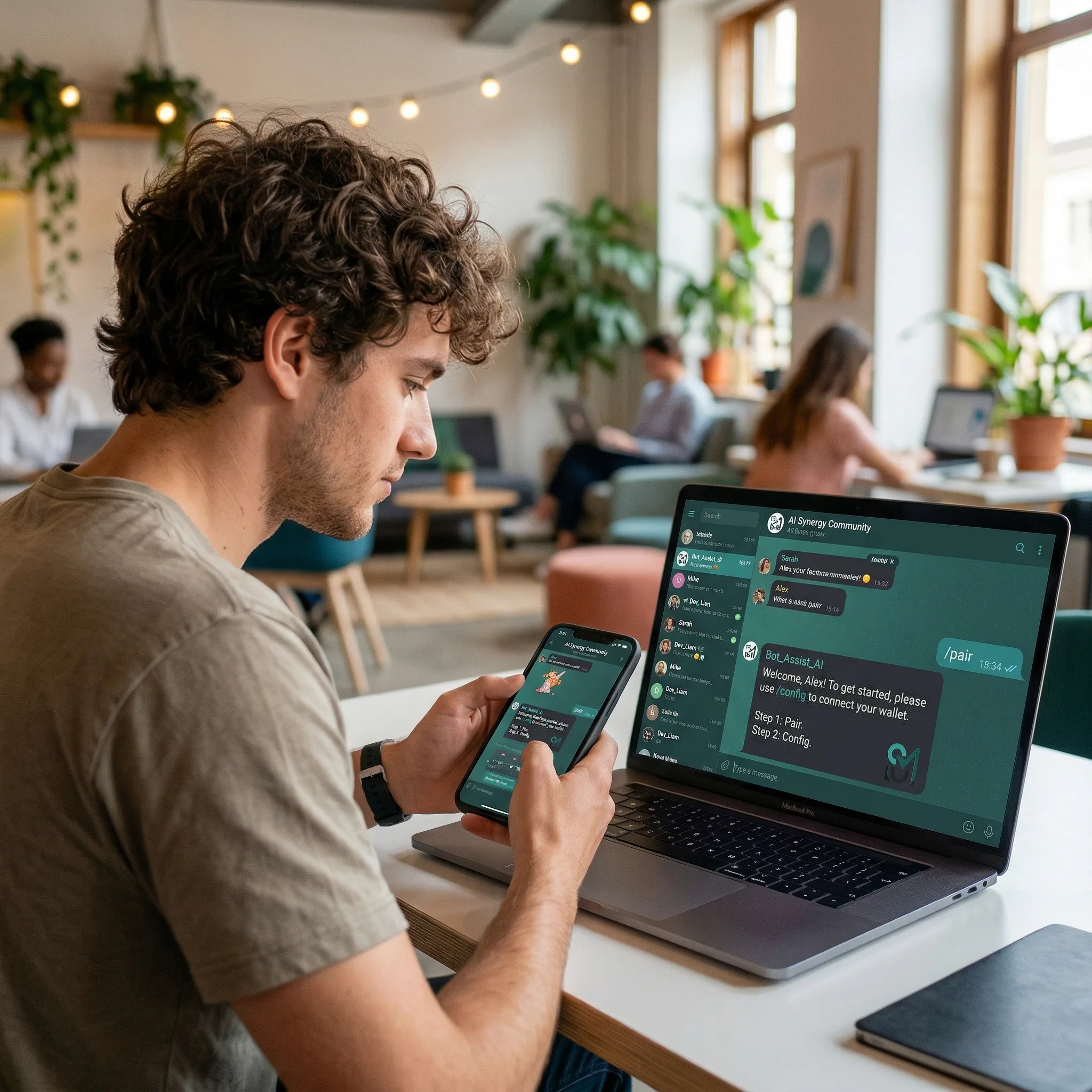
OpenClaw is an open‑source AI agent framework that can automate tasks across messaging platforms like Slack, Discord, WhatsApp and Telegram. One of the key reasons OpenClaw has taken off is that it turns large language models into agents — software programs that can run for hours or days, carry out complex sequences of actions and maintain context over multiple channels. Telegram, with its rich Bot API and support for threaded discussions, is a natural fit. However, setting up OpenClaw on Telegram and taking advantage of thread‑mode isn’t obvious to many new users. This article provides a step‑by‑step tutorial on connecting your assistant to Telegram, explains how thread mode works behind the scenes, offers real world use cases and finishes with tips and troubleshooting advice. All information in this guide comes from the official OpenClaw documentation and community experience.
Why Telegram?
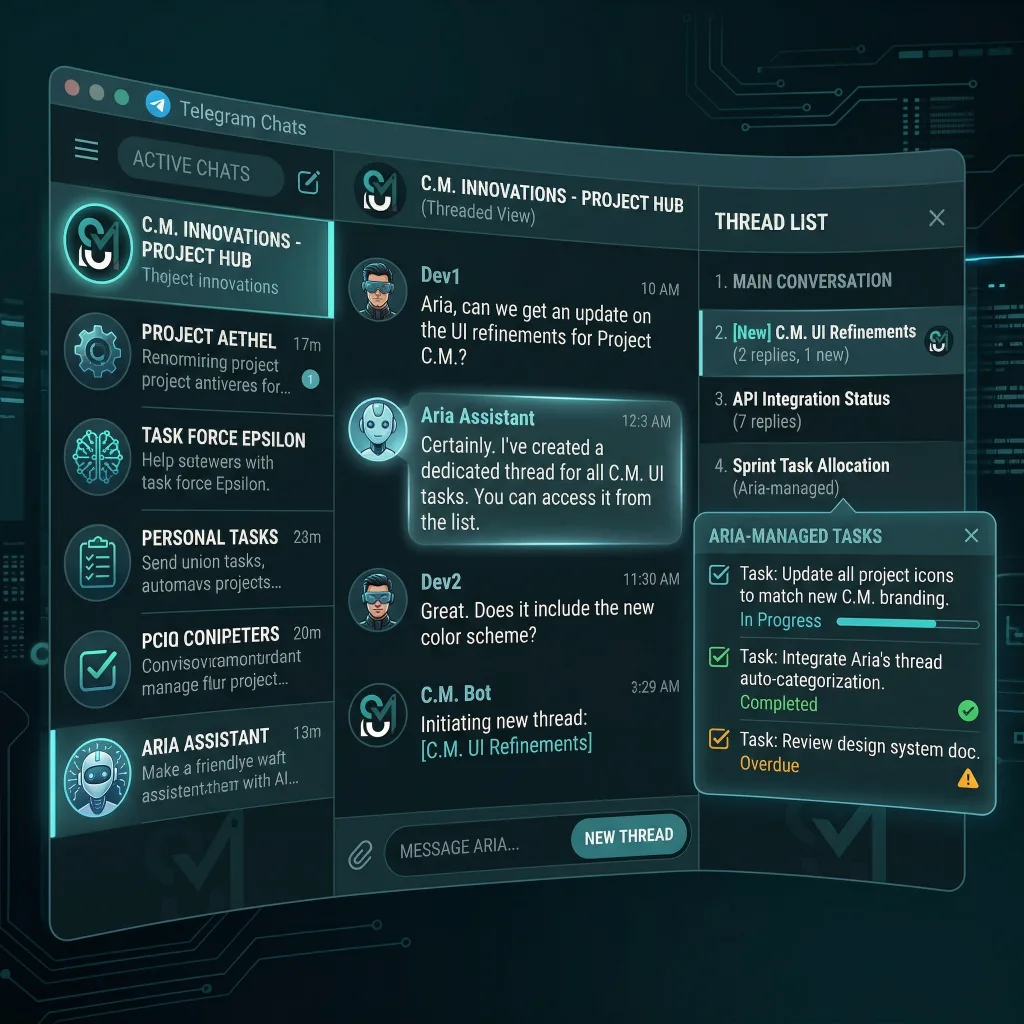
Telegram is popular because it supports bots, group chats, private channels and forum‑style threads. The platform offers a generous message length limit (4096 characters), media uploads, reaction emojis and inline keyboards. Unlike some messaging platforms, Telegram’s Bot API is free, stable and well‑documented. OpenClaw’s gateway layer has first‑class support for Telegram; the integration is production‑ready for bot DMs and groups and works through either long polling or webhooks. In other words, once configured correctly, your assistant will reliably send and receive messages without needing to write any custom code.
Setting up OpenClaw with Telegram
1. Create your bot and retrieve the API token
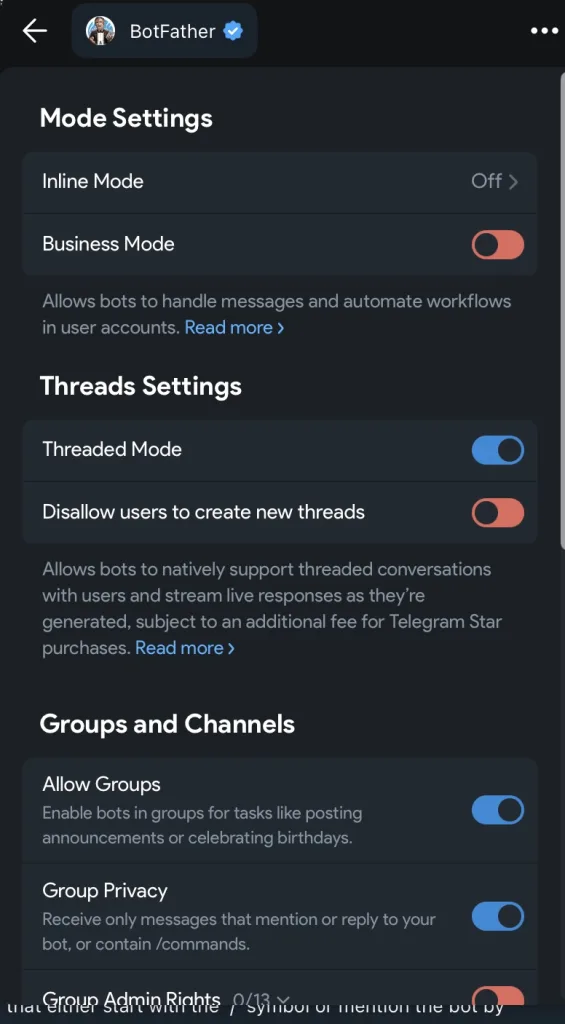
Open Telegram and start a chat with the official @BotFather bot. Run /newbot, choose a name and username, and copy the token it returns. You will paste this token into OpenClaw’s configuration. Telegram bots are managed entirely through BotFather; you can also use /setprivacy and /setjoingroups to toggle group behaviour later.
2. Configure OpenClaw
Open your openclaw.json configuration file (usually located in ~/.openclaw) and add a telegram section under the channels key:
{
  "channels": {
    "telegram": {
      "enabled": true,
      "botToken": "123:abc",
      "dmPolicy": "pairing",
      "groups": { "*": { "requireMention": true } }
    }
  }
}
The botToken field holds the token you received from BotFather. The dmPolicy controls how your assistant will respond to direct messages: pairing (default) means the bot will only answer DMs from users you approve; open allows everyone; allowlist restricts access to a specific list of user IDs; and disabled turns off DM support. The requireMention flag is important for groups: when set to true, the bot only responds when its username is mentioned, preventing it from replying to every message in a busy group chat.
3. Start the gateway and pair your account
After saving the configuration, run openclaw gateway to start the messaging gateway. You’ll then need to approve your Telegram account by generating a pairing code and approving it. In a separate terminal, run openclaw pairing list telegram to see pending requests, then approve your own user ID using openclaw pairing approve telegram <CODE>. Codes expire after one hour, so complete this step promptly. Once paired, messages from your Telegram account will be routed to your OpenClaw agent.
4. Add the bot to groups and topics
To allow your assistant to participate in group chats or forum topics, add it to the desired Telegram groups, then update the channels.telegram.groups configuration. For example:
"channels": {
  "telegram": {
    "groups": {
      "-100123456789": { "requireMention": true },
      "*": { "requireMention": false }
    },
    "groupPolicy": "allowlist"
  }
}
Here, the * entry serves as a catch‑all for any group; requireMention: true ensures that the assistant won’t spam the channel. You can also set groupPolicy to open to allow the bot to automatically join any group that invites it, or disabled to block group usage entirely. After configuring groups, restart the gateway and re‑add the bot to each group if you changed privacy settings.
Understanding Thread Mode
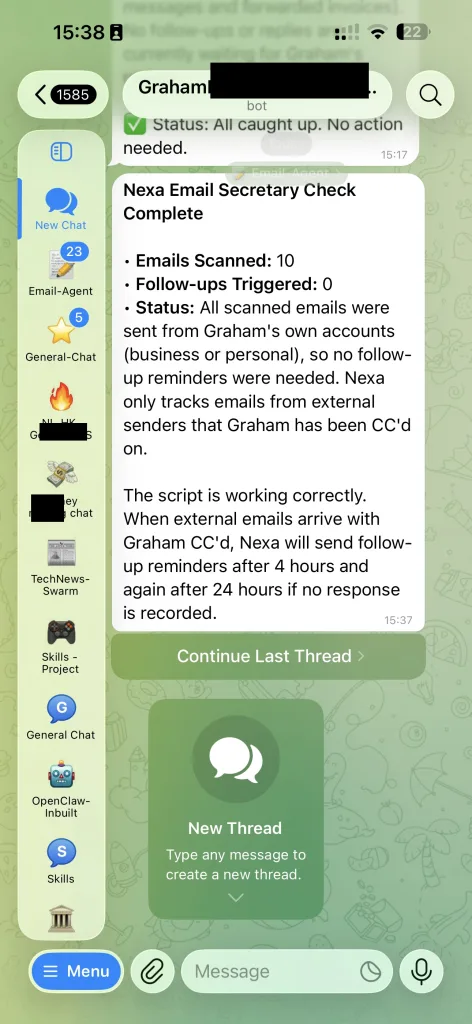
Telegram introduced forum topics in 2022, allowing large groups to split conversations into separate threads. OpenClaw takes advantage of this feature by appending :topic:<threadId> to its internal session keys. This means each topic has its own conversation context; messages sent in one thread don’t bleed into another. Two important behaviours arise from this design:
- Topic isolation: When the assistant receives a message with a
message_thread_id, it uses a session key liketelegram:<chatId>:topic:<threadId>. Responses are sent back to the same thread. This is how the agent maintains context in long multi‑branch discussions. - General vs. specific topic: Telegram treats thread ID 1 as the default “general” topic. When sending messages to thread 1, you should omit the
message_thread_idin the API call; otherwise Telegram rejects it. OpenClaw handles this automatically when sending replies.
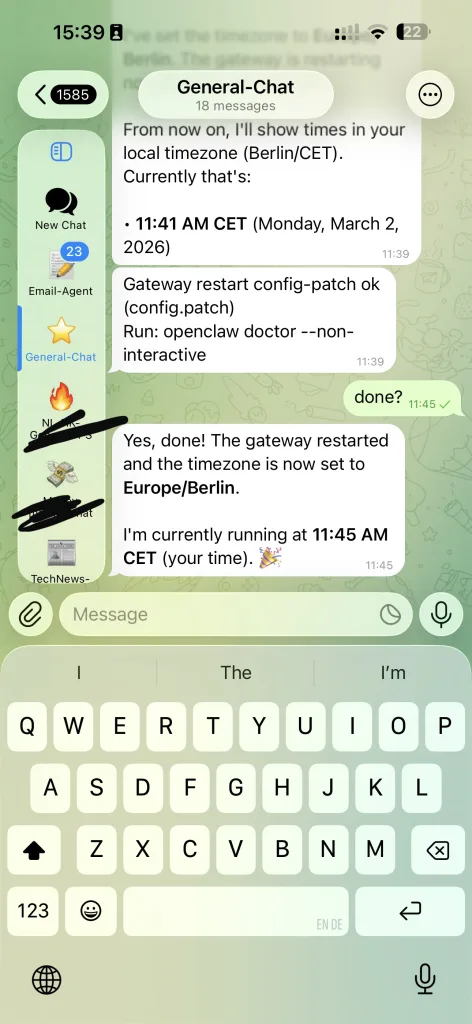
Thread mode isn’t limited to forum supergroups. In private chats (DMs), Telegram sometimes attaches a message_thread_id to replies to older messages. OpenClaw preserves this ID and uses thread‑aware session keys, so your conversation history remains organized even in DMs.
Reply mode configuration
By default OpenClaw sets channels.telegram.replyToMode to off, which disables implicit reply threading. If you prefer the assistant to reply directly to the triggering message, set replyToMode to first or all. You can also include explicit tags such as [[reply_to_current]] or [[reply_to:<messageId>]] in your agent’s response. These tags instruct the gateway to thread the reply accordingly.
Streaming and typing indicators
OpenClaw supports streaming partial replies on Telegram. With channels.telegram.streaming set to partial or progress, the gateway sends a temporary message and edits it as the model generates text. This provides a better user experience in long responses. You can even enable real‑time reasoning output via the /reasoning stream command during a conversation. Typing indicators are sent automatically, including in threads; however, for thread ID 1 (general topic) Telegram ignores message_thread_id in the typing action.
Reactions, stickers and inline commands
Telegram’s Bot API supports message reactions, stickers and inline buttons. OpenClaw exposes these features through its action system:
- Reactions: The
reactaction allows the agent to react to a message with an emoji. Reaction notifications can be configured viachannels.telegram.reactionNotificationsandreactionLevel, enabling notifications for bot messages, all messages or none. Note that Telegram does not provide thread IDs for reactions, so they always get routed to the main thread. - Stickers: Enable sticker actions by setting
channels.telegram.actions.sticker: true. Stickers are cached locally; you can search the cache with thesticker-searchaction and send a sticker withsticker. - Inline buttons: Configure
channels.telegram.capabilities.inlineButtonsto define when inline keyboards are allowed (off, dm, group, all or allowlist). You can then send a message with buttons by including abuttonsarray in the action body.
Use Cases for Thread Mode
Thread mode unlocks powerful workflows that would otherwise be confusing or impossible in a single chat. Here are some practical scenarios:
1. Multi‑project coordination
Imagine you’re managing several projects simultaneously. Create a single Telegram supergroup and enable forum topics. For each project, create a dedicated topic (e.g., Website Redesign, Marketing Campaign, Bug Fixes). When you message your assistant inside a topic, OpenClaw automatically uses a unique session key for that thread. This keeps the conversation context separate, so when you ask about “the deadline,” the assistant knows which project you’re referring to.
2. Private side‑threads in group chats
In a busy family or team chat, you may want to ask your assistant a question without interrupting the main discussion. Reply to your earlier message or mention the bot in a reply; Telegram attaches a message_thread_id, causing OpenClaw to route the conversation to a thread tied to that message. Now you can ask follow‑up questions like “What’s my to‑do list?” or “Summarize today’s messages” without spamming the main chat.
3. Long running tasks
Some tasks take time: summarizing a long document, generating a report or running a script. Starting these tasks in a thread keeps progress updates organized. Set channels.telegram.streaming to progress so the assistant sends a preview message and edits it until the final result is ready. If you have multiple long tasks, each thread remains isolated, preventing cross‑talk.
4. Brainstorming sessions
Forum topics can function as brainstorming rooms. For example, open a topic called Blog Ideas and brainstorm article ideas with your agent. The assistant will maintain context about previous suggestions within the thread, making it easier to refine and expand ideas. Meanwhile, your general chat remains uncluttered.
5. Customer support or FAQ
If you run a community chat, you can create topics for different support questions. Users ask questions in their own threads, and your OpenClaw agent responds with tailored information. Because session keys are thread specific, the agent won’t mix up answers. You can even delegate tasks: the agent could file issues in GitHub or create calendar events as follow up actions.
Troubleshooting and Tips
Privacy mode: Telegram bots default to privacy mode, meaning they only see messages that start with / commands or mention them. If you need full message visibility in a group, disable privacy via /setprivacy or make the bot an admin. Remember to remove and re‑add the bot for changes to take effect.
History limits: OpenClaw stores a limited history per chat or thread (50 messages by default for groups and configured via channels.telegram.historyLimit). Increase this limit if your agent needs more context, but be mindful of memory usage.
Webhook vs long polling: By default, OpenClaw uses long polling, which is easier to set up. If you want to use webhooks (for example, to reduce latency), set channels.telegram.webhookUrl and webhookSecret. Consult the documentation for port and host options.
Explicit reply tags: Use [[reply_to_current]] or [[reply_to:<id>]] in your agent’s responses when you need fine‑grained control over reply targets. This is especially helpful for bots that monitor multiple threads simultaneously.
Managing access: Use channels.telegram.allowFrom and groupPolicy to restrict who can talk to your bot and which groups it can join. This prevents spam and unauthorized commands.
Conclusion
Telegram is one of the most versatile platforms for running an OpenClaw agent. By understanding how thread mode works and configuring groups and DMs properly, you can build rich, multi‑context conversations that stay organized. Use threads to separate projects, run long‑running tasks, facilitate brainstorming, or provide customer support. Take advantage of features like streaming previews, inline buttons and reaction notifications to create an engaging experience. With the right configuration, your OpenClaw assistant will feel like a natural participant in your Telegram community.










 English
  Deutsch
  Español
  Italiano
  Français